
Introduction
Rotting is one of the few Pipedrive settings that people switch on because it sounds obviously useful, and then never think about again. Deals turn a different colour, everyone agrees that is bad, and life continues.
The feature is genuinely useful, but only if you know exactly what it measures — and, more importantly, what it does not. A rotting flag is not a statement that a deal is in trouble. It is a statement that a deal has been in one stage for longer than you told Pipedrive to expect. Those are different claims, and treating the first as if it were the second is how teams end up with a wall of orange nobody acts on.
What the Rotting Indicator Actually Does
The mechanism is simple. You set a number of days per stage. When an open deal has sat in that stage longer than the number, Pipedrive marks it as rotting and shows it visually in the pipeline view. You can filter on it, and reps can see it on their own board.
That is the whole feature. It is a clock on stage tenure, and its virtue is exactly that simplicity: it needs no configuration beyond one number per stage, it needs no maintenance, and it is impossible to misread once you know what it counts.
Note what the clock is measuring: time in the current stage, not total age of the deal. A deal that moved briskly through four stages and then paused in negotiation will rot, while a deal that has been open six months but changed stage last week will not. For most pipelines this is the right behaviour — stage tenure is a better signal than raw age — but it surprises people who expect it to flag their oldest opportunities.
What It Does Not Do
This is where most of the disappointment comes from, so it is worth being precise.
It does not know whether anyone is working the deal
The clock counts calendar days in a stage. It has no view of whether the rep called yesterday, whether a meeting is booked for next week, or whether the deal is progressing perfectly well through a procurement process that always takes six weeks. A deal being actively and competently worked will rot on schedule, exactly like an abandoned one.
It does not look at next steps or recent activity
Two deals, same stage, same day count. One has a meeting booked with the buying committee on Thursday; the other has had no contact for a month and no scheduled activity at all. The rotting flag treats them identically. The second deal is the one that needs attention, and the flag cannot tell you which is which.
This is the single most important limitation, because activity and next-step data are usually the strongest signals you have. Rotting is a cheap proxy that ignores the better ones.
It does not scale to deal size or type
A large enterprise opportunity moving at its normal, healthy pace will trip the same threshold as a small transactional deal that has genuinely stalled. Unless your thresholds are segmented — and Pipedrive’s setting is per stage, not per deal size — the flag will be loudest about exactly the deals where a long stage tenure is most normal.
It does not care why the deal is paused
Waiting on a security review, a budget cycle, a legal redline, a customer’s holiday shutdown: all of these look identical to the clock. Some of them are the deal progressing; some are the deal dying. The flag cannot distinguish them and does not try to.
None of this makes rotting a bad feature. It makes it a coarse one. Used as a prompt to ask a question, it earns its place. Used as a verdict, it produces false alarms in exactly the places you can least afford them.
Setting Thresholds That Mean Something
The default instinct is to pick a round number and apply it everywhere. Thirty days, say. That is the configuration most likely to make the feature useless, because stages have genuinely different natural durations.
Derive the numbers from your own history instead:
- Measure how long healthy deals actually spend in each stage. Take deals from the last two or three quarters that eventually closed won, and look at their median time per stage. Use the median rather than the average — one nine-month deal will drag an average somewhere useless.
- Set the threshold above the median, not at it. A threshold at the median flags half of your healthy deals, which trains everyone to ignore the colour. Somewhere around double the median is a reasonable starting point: it catches genuine outliers without crying wolf.
- Expect early stages to be short and late stages to be long. A qualification stage where deals normally spend four days should not carry the same threshold as a negotiation stage where three weeks is routine.
- Recheck after any change to your process. New stage definitions, a new segment, a longer security review — each of these moves the underlying durations and quietly invalidates your thresholds.
Three Ways Teams Misuse It
1. Switching it on and never reviewing what it flags
By far the most common. The setting is configured during onboarding, the pipeline acquires a permanent orange tinge, and within a month nobody sees the colour any more. A warning that is always on is not a warning.
The fix is a review slot. Ten minutes a week, one saved filter, work the list. If nobody is going to look at it, switching the feature off is more honest than leaving it on.
2. One global threshold across every stage
Covered above, but worth naming as a misuse in its own right, because it is what makes point one inevitable. A single number ensures that some stages over-flag and others never flag at all, and the over-flagging stage is what destroys trust in the signal.
3. Treating the flag as a to-do rather than a question
A rotting deal is not an instruction to chase the customer. It is a prompt to ask: is this deal progressing on a clock I did not model, or has it actually stopped? The answer determines what you do — adjust the threshold, help with the blocker, or close it lost.
Teams that treat every flag as a chase instruction generate a lot of pointless follow-up emails, which is both wasted effort and a slow way to annoy buyers who are doing nothing wrong.
Worked Example: Thresholds Across a Five-Stage Pipeline
An illustrative example. A team measures the median stage duration of its won deals over the last two quarters and finds:
- Qualification: median 3 days
- Discovery: median 8 days
- Proposal: median 12 days
- Negotiation: median 18 days
- Contracting: median 9 days
Setting thresholds at roughly double the median gives 7, 16, 25, 35 and 20 days. Compare that to a single global threshold of 30 days, which the team had before: qualification and discovery would essentially never flag, so genuinely stuck early-stage deals would sit unnoticed for a month, while negotiation would flag only after nearly twice its normal duration.
The per-stage version flags roughly a tenth of the open pipeline at any time — a list short enough to review in ten minutes. The global version flagged about a third, which is why nobody had been reviewing it.
One more detail worth noting from the example: the team found that their contracting stage had a median of 9 days but a long tail, because deals requiring a security review took closer to 30. That is a case where the right answer is not a different threshold but a different stage — splitting contracting into two stages made both the flag and the forecast more honest.
Where Rotting Fits in a Wider Set of Signals
Stage tenure is one signal, and a coarse one. The stronger signals are the ones the rotting clock ignores: whether a next step is scheduled, how long since the last real contact, whether the expected close date has already passed, whether more than one person at the account is engaged.
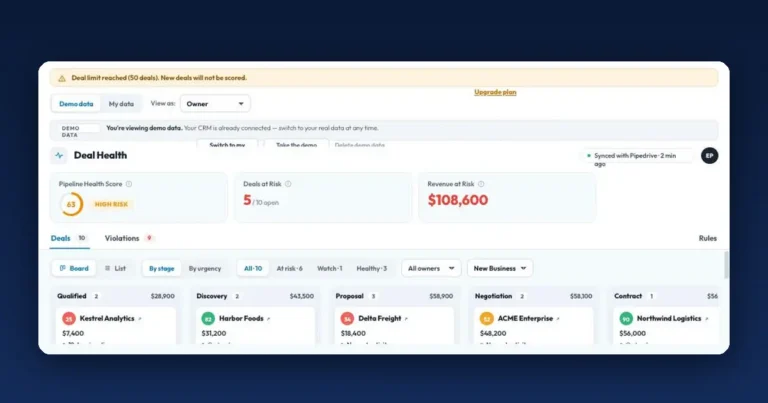
Rotting is worth keeping as a cheap, zero-maintenance first filter. It should not be the only thing watching the pipeline. This is the gap continuous monitoring fills — Deal Health gives every active deal a live health score built from several signals at once, and specifically detects stalled and silent deals, missing next steps and overdue activities, feeding an at-risk queue with alerts for reps and managers. Where the rotting flag says a deal has been somewhere a long time, a health score can say whether that matters.
FAQ
What does rotting mean in Pipedrive?
It means an open deal has stayed in its current stage longer than the number of days configured for that stage. It is a measure of stage tenure only, not of deal quality or activity.
Does rotting take activity into account?
No. A deal with a meeting booked for tomorrow and a deal with no contact for a month will both rot at the same point if they entered the stage on the same day.
What is a good rotting threshold?
Roughly double the median time healthy deals spend in that stage, measured from your own closed-won history. There is no universal number, and a single threshold across all stages is the configuration most likely to make the feature ignored.
Should rotting deals be closed automatically?
No. Automatic closure on a stage clock will close deals that are progressing normally through a slow process. Use the flag to trigger a review, and let a person decide.
Why do so many of my deals show as rotting?
Almost always because the threshold is set below the natural duration of that stage. Measure the median for the stage and compare; if the threshold is under it, the flag is telling you about your configuration rather than your pipeline.
Conclusion
The rotting indicator does one thing well: it counts how long a deal has been sitting in a stage, cheaply and without maintenance. It knows nothing about next steps, activity, deal size or the reason for the pause, and every disappointment with the feature traces back to expecting it to.
Set a threshold per stage from your own median durations, put ten minutes a week against reviewing what it flags, and treat each flag as a question rather than a verdict. This week, pull the median stage duration for one stage and compare it to the threshold you have configured — that single comparison usually explains everything about how much attention the feature is currently getting.