
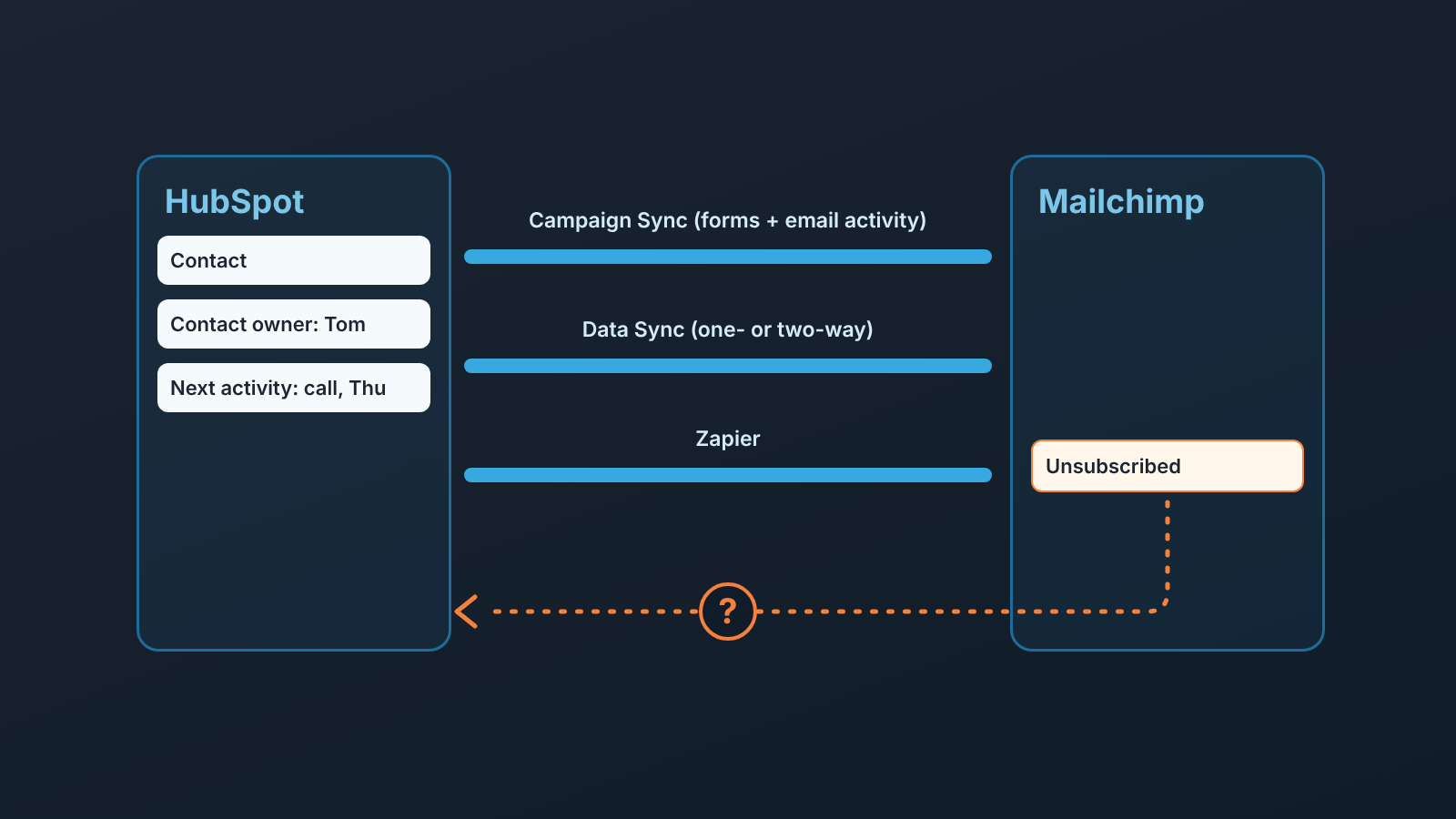
Mailchimp connects to HubSpot three ways: the Mailchimp Campaign Sync app (non-HubSpot forms to Mailchimp lists, plus email activity on contacts), the Mailchimp Data Sync app (one- or two-way contact sync), or Zapier. None of them decides which system owns the unsubscribe, so make Mailchimp the source of truth for opt-outs, carry each unsubscribe onto the HubSpot contact, and once a week pull two segments: unsubscribed contacts who still have a next activity, and campaign contacts with no owner.
Ways to connect Mailchimp and HubSpot
Both marketplace apps are built by HubSpot. Zapier is the only one of the three that names the unsubscribe as an event.
Campaign Sync is the app HubSpot’s knowledge base calls “HubSpot’s integration with Mailchimp”, and its marketplace listing links to that article as the setup guide. It adds contacts who submit a non-HubSpot form to a Mailchimp list, and it shows Mailchimp sends, opens, clicks and bounces on contact records. Contacts move from HubSpot to Mailchimp only. HubSpot sends first name, last name and email address, and it won’t add people who submitted the form before you connected the account (HubSpot: Use HubSpot’s integration with Mailchimp). The Campaign Sync listing shows that activity as Email Sent, Opened, Clicked and Bounced dates on the timeline.
Data Sync is the contact sync. Its listing offers a one- or two-way sync of contacts with field mappings between Mailchimp and HubSpot contact properties, says groups, tags and email opens/clicks don’t sync, and requires Data Hub Starter or above (HubSpot Marketplace: Mailchimp Data Sync).
Zapier has a Mailchimp “New Unsubscriber” trigger, which fires when a subscriber unsubscribes from an audience. On the HubSpot side, “Remove Email Subscription” and “Create or Update Contact” (matched by email address) are the actions that matter here (Zapier: HubSpot + Mailchimp). Teams on other CRMs face the same choice of connectors, and we wrote up the opt-out ownership for Pipedrive and Mailchimp and for Zoho CRM and Mailchimp.
How to set up the HubSpot Mailchimp integration
To connect Mailchimp to HubSpot, install the Mailchimp app from the HubSpot Marketplace, then set up whichever of the three jobs you need:
- Connect: click the Marketplace icon in the top navigation bar, select HubSpot Marketplace, find the Mailchimp integration, click Install App, log in with your Mailchimp credentials and click Allow.
- Forms: go to Marketing > Forms, hover over the non-HubSpot form, click Actions > Edit Mailchimp lists, pick the list and Save.
- Email activity: in Settings, go to Integrations > Connected Apps > Mailchimp > Integrations > Email service provider and switch on “Show Mailchimp email activities on HubSpot contact records” (HubSpot: Use HubSpot’s integration with Mailchimp).
- Data Sync: under Connected Apps, click the app, then Set up your sync. Walk through Select the data you want to sync, Configure, Limit and Review, then click Save and sync. On Configure you choose “Data syncs between apps”, “Data syncs only to HubSpot” or “Data syncs only to your third-party app”, and a default app that overwrites the other when the data disagrees (HubSpot: Connect and use HubSpot data sync).
The direction and the default app are decisions. Don’t let whoever installs the app pick them alone.
What the HubSpot Mailchimp integration syncs (and what it doesn’t)
Campaign Sync moves three fields and a list membership. It refuses a list with required merge tags, because HubSpot sends no value for them. Activity syncs every 15 minutes (checked November 2026), for existing contacts only, and only for campaigns that were sent no earlier than 30 days before you connected, have a subject line and a title, and aren’t an A/B test or part of a Customer Journey. When you flip the switch, history arrives for the previous month and no further back (HubSpot: Use HubSpot’s integration with Mailchimp).
Data Sync moves the contact properties you map. On the first sync, all existing records in both apps pass through the sync engine, and the filters on the Limit page only decide which records sync initially; after that, mapped properties keep syncing (HubSpot: Connect and use HubSpot data sync). In practice a two-way sync of a newsletter audience can give you a HubSpot contact for every subscriber, with no owner and no deal.
Neither listing mentions unsubscribes; Zapier has a ready-made template for them. Getting the unsubscribe into HubSpot is something you build.
Opt-outs: which system wins
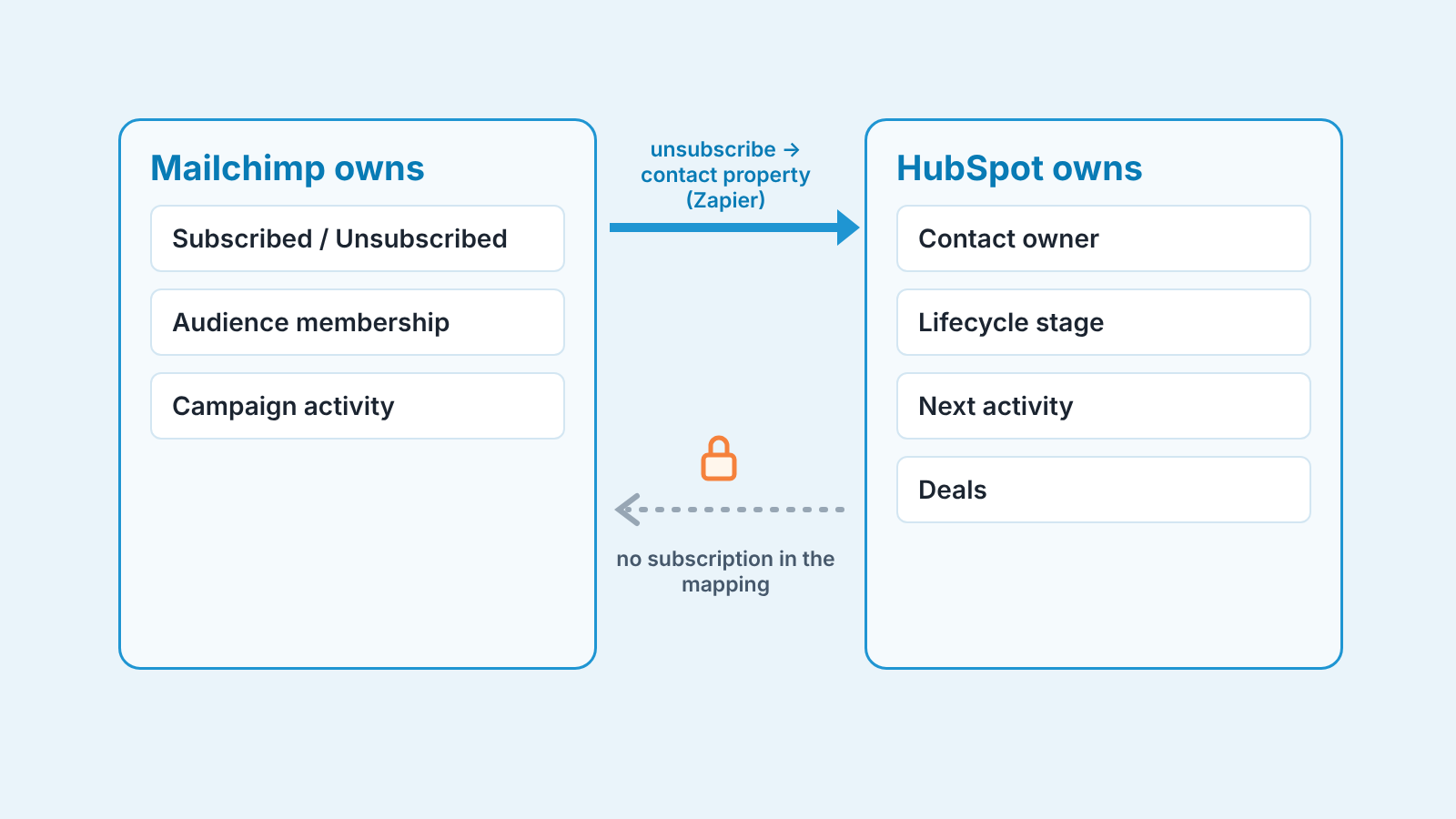
Mailchimp owns the opt-out, because that’s where the person clicked it, and our rule for it has two halves. First, the unsubscribe arrives on the HubSpot contact as a field a rep sees before the next email. Second, nothing in HubSpot writes subscription status back into Mailchimp.
The first half is one Zap. Mailchimp “New Unsubscriber” goes to HubSpot “Remove Email Subscription”, or, if you’d rather leave HubSpot’s own subscriptions alone, to “Create or Update Contact” with a custom property such as “Mailchimp opt-out date” (Zapier: HubSpot + Mailchimp). HubSpot already has “Unsubscribed from all email” and “Opted out of email: [email type name]” as default properties, both set automatically by HubSpot (HubSpot: HubSpot’s default contact properties). For a small team we prefer teh custom date. It records who declined what, and when, without banning the one-to-one email about the proposal the customer asked for.
The second half matters when Data Sync runs with “Data syncs between apps”. On a conflict the default app overwrites the other, and HubSpot’s own filter example on the Limit page is “exclude contacts who have unsubscribed” (HubSpot: Connect and use HubSpot data sync). If HubSpot is the default app, a rep’s edit to a mapped field beats whatever marketing had in Mailchimp. Keep subscription status out of the mapping entirely.
Weekly check: unsubscribed but still active, campaign contacts with no owner
Once a week, build or reopen two active segments in HubSpot under CRM > Segments > Create segment (menu path checked November 2026). Active segments update themselves as records meet or stop meeting the criteria (HubSpot: Create segments), so after the first Monday this takes about ten minutes.
- Opted out, still being worked. Filter on the opt-out field from the previous section (“Unsubscribed from all email” is true, or “Mailchimp opt-out date” is known) and “Next activity date” is known. Ask the owner one question per row: did the customer ask for this conversation, or is it a sequence that never noticed?
- Came from a campaign, nobody’s. “Contact owner” is unknown, plus one origin filter: membership in the Mailchimp list your forms feed, “Latest Traffic Source”, or a create date inside the Data Sync initial load.
A real conversation stays, with a note that the customer declined marketing email so nobody “fixes” the field. A stale sequence gets stopped. For the ownerless contacts, assign an owner or set “Lifecycle stage” to something honest. A subscriber who never spoke to anyone is not a sales lead, and left ownerless they sit in reports as pipeline that isn’t there.
Keep both counts week to week. An empty second segment three Mondays running is news too.
Who owns the integration
One person, by name, and we’d make it the sales manager, because the damage lands in sales: ownerless contacts and a rep emailing someone who opted out last week. The owner holds the Data Sync direction and default app, the Zap that carries the unsubscribe, and the two Monday segments. Before a Mailchimp campaign goes out, they hear about it, the same way we treat any app that is allowed to write into HubSpot deals.
We build SalesBond, a sales management layer on top of the CRM a team already uses; we started with Pipedrive. The two Monday segments stay a HubSpot job. SalesBond works with HubSpot and starts one step later, at the deals behind those contacts: it analyses deal and customer data, finds risks and explains what needs attention. Check your CRM with SalesBond.