
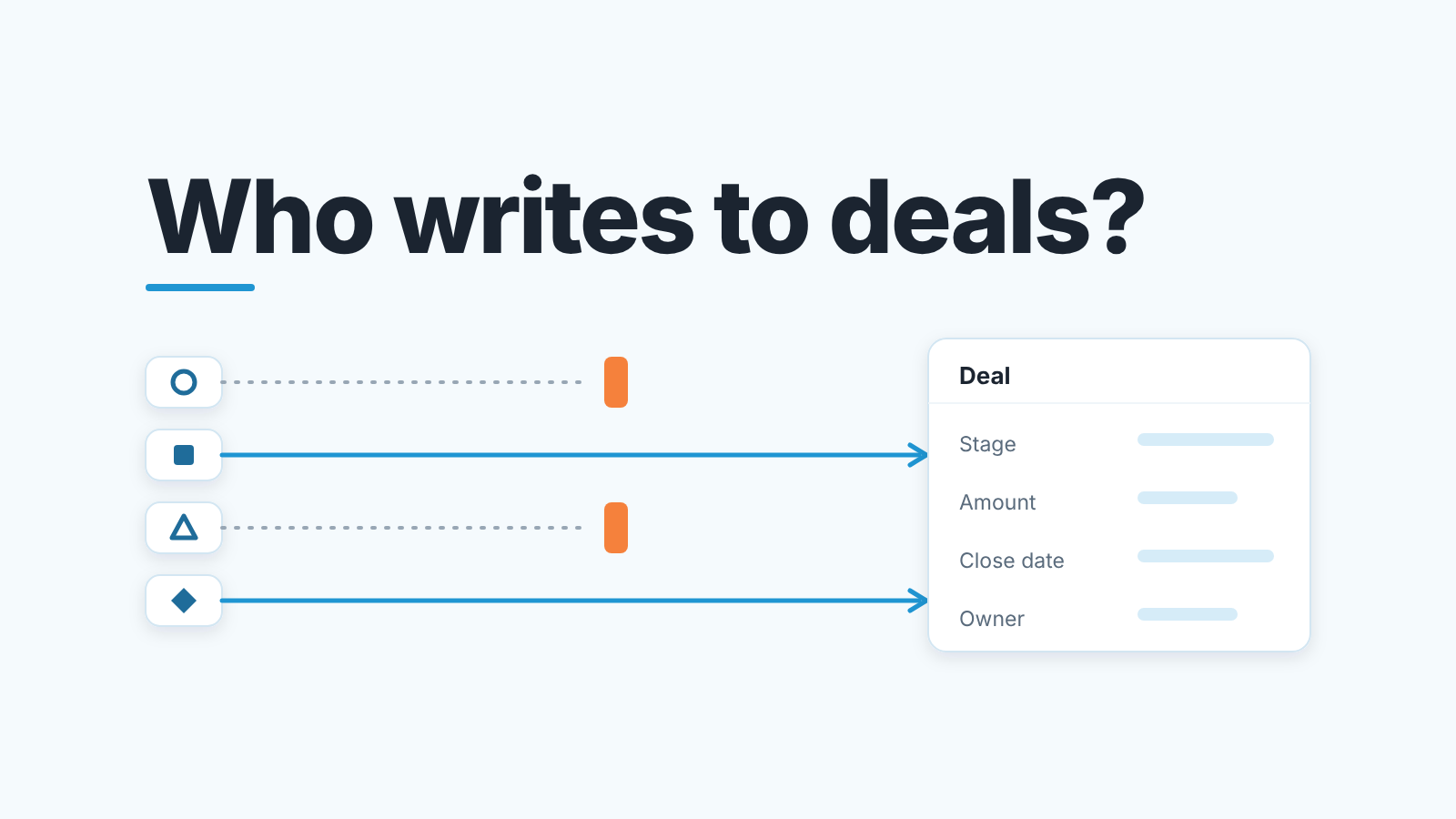
A HubSpot integration is safe for your pipeline only if you know what it reads and what it writes. For each connected app, check which deal properties it can change and in which direction it syncs, then allow new connections only through one owner. In HubSpot, an installed integration is listed as a connected app: everything already connected sits under Settings > Integrations > Connected Apps, and only a Super Admin or a user with App Marketplace access can install a new one (HubSpot: install apps in the HubSpot Marketplace). This is not a list of the best HubSpot integrations. It is the card we fill in for every connected app that touches a deal, and the one rule we give a team of five.
Why a connected app can change deals while nobody is looking
A composite, but we have watched each piece of it. A rep connects a proposal tool because the trial was free, clicks through the request for access to deals, and from then on every proposal it sends overwrites the deal Amount with the document total. A month later the forecast is up by a fifth and the Monday pipeline review turns into an argument about who typed those numbers.
Nobody did. The app did, and it did exactly what it was authorized to do.
A rep editing a deal is in the room; you can ask. A connected app edits deals at two in the morning, with no face attached. HubSpot itself treats apps as actors on your records: its Record Insights report counts the record events each app produced per day, sorted into Created, Updated, Deleted and Merged (HubSpot: manage your connected apps). If HubSpot keeps a daily ledger of what apps did to your data, its because apps do things to your data.
The newest example isn’t a sales tool at all. The HubSpot connectors for ChatGPT and for Claude are listed with read, create and update access to deals, limited to what the connected user’s own HubSpot permissions allow (HubSpot: connector for ChatGPT, HubSpot: connector for Claude). HubSpot’s own example prompt for sales teams is asking Claude to move a deal to Closed Won. That is a write app, and it gets the same card as any other.
So the question for a manager is not “which integrations are good”. It is “which of the connected apps can write to a deal, and did I decide that”.
Read-only versus read-and-write: the first question for every connected app
Do HubSpot integrations overwrite deal data? Some can: a connected app authorized to write to deals can change any deal property it has access to, at any hour.
A read-only app pulls data out of HubSpot and shows it somewhere else. A Slack alert that posts when a deal moves stage is the classic case; we wrote up how we set those alerts so they inform without spamming. The worst a read-only app can do is show your pipeline to someone who should not see it.
A read-and-write app changes what is on the deal. The Marketplace tells you which kind you are looking at before you install: each listing has a Shared data section showing how data moves between HubSpot and the app, with a single arrow for one-way sync and two arrows for two-way (HubSpot: install apps in the HubSpot Marketplace). After installing, the app’s settings page has an App access and permissions section listing the features the app is currently authorized to use (HubSpot: manage your connected apps).
Our position: a read-only app goes on the allow-list with a one-line note. A write app goes on only after someone fills in the card below, and stays off until then. The four properties we watch are the ones the forecast is built from: Deal stage, Amount, Close date and Deal owner. An app that can write to any of those is in your forecast, whether or not anyone invited it.
Four questions for each connected HubSpot app
We keep one card per app in a shared doc. The monthly review only checks that it is still true.
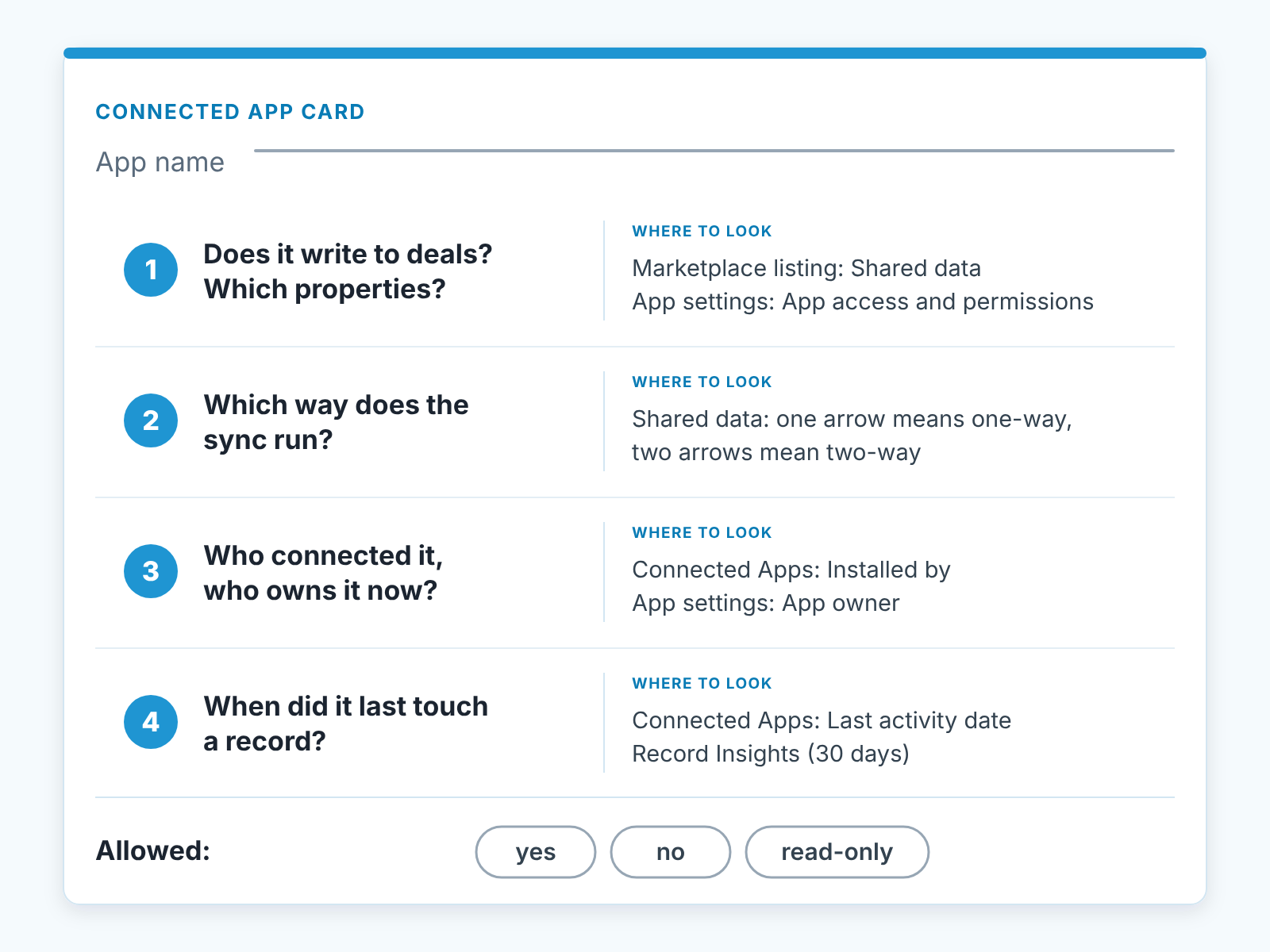
- Does it write to deals, and to which properties?
- Which way does the sync run?
- Who connected it, and who owns it now?
- When did it last touch a record?
The first answer is a list: Amount, Deal stage, Close date, Deal owner, or only custom properties the app created for itself. You find it in the Shared data section of the listing and in App access and permissions on the app’s settings page.
The second is where the trouble lives. One-way into HubSpot, one-way out, or two-way. Two-way is the the one that bites, because a change made in the other tool comes back into the deal, and now the deal has two places where it can be edited and only one of them is your CRM. If you have ever cleaned up duplicate deals a Zapier zap created in Pipedrive, you know the pattern. HubSpot’s Data Sync at least lets you narrow it: a deal sync runs only for the pipelines and stages you map (HubSpot: connect and use HubSpot data sync).
For the third, Connected Apps shows when each app was installed and by whom. Every app also has an App owner, the installer by default, which a Super Admin or a user with App Marketplace access can reassign; if you deactivate a user who owns an app, HubSpot asks you to reassign it first (HubSpot: manage your connected apps).
The fourth comes from the Last activity date column, the last time the app sent or received data, and from Record Insights. User-level apps leave that column blank, so for those Record Insights is the only signal. An app with write access and no activity for a quarter is a candidate for uninstalling, not for keeping “just in case”.
Under the four answers, one line: allowed, read-only, or not allowed. That line is the allow-list.
The card barely changes from CRM to CRM: the Salesforce version audits Chrome extensions with the same read-or-write question first.
Where to see what an app changed in HubSpot
Three places: Record Insights for the month, the App log for setting changes, and the deal’s property history for a single value.
Record Insights answers “what did this app do to my records this month” without opening deals one by one. Per app and per day, it shows how many records were created, updated, deleted or merged. It covers the past 30 days, with data starting December 1, 2025 (HubSpot: manage your connected apps). Say a proposal tool shows 40 deal updates in a week when the team sent 12 proposals. You have your answer before you open a single deal.
The App log sits under Activities in the same settings area. It records connections, disconnections, reinstallations and data sync setting changes, and you can filter it by activity type, user and app. This is how you find out that someone switched a sync to two-way on a Tuesday afternoon.
On the deal itself hover over a property such as Amount in the left sidebar and click the property history icon. The panel lists each value it was Changed to, with the Date and the Source of the change (HubSpot: view a record’s property history). That Source is the column you came for.
One honest limit. None of these views will tell you whether the new Amount is right, only who or what changed it. Whether a proposal total should become the deal Amount is a sales decision that belongs in the team’s definition of the field. If your team has not written down what Amount means, the CRM data-quality metrics we track is the place to start, because an app will fill a field with whatever it has, and a field without a definition has no wrong answer.
One person connects apps. Everyone else asks.
For five reps the rule fits in a sentence, and we say it at the Monday meeting in exactly these words: “New apps are connected by one person, and that person is not you.”
HubSpot makes this easy to enforce because installing is already gated. A user needs Super Admin or the App Marketplace access permission, and a user without it can click Request to install on the listing, pick an administrator and send them an email instead (HubSpot: install apps in the HubSpot Marketplace). A Super Admin can go further: approve apps in advance, limit which users and teams may install each one, and restrict optional data permissions (HubSpot: manage access to apps). The AI connectors follow the same gate. A Super Admin or anyone with App Marketplace access can connect them without prior approval, and everyone else waits for a Super Admin to approve the connector. Leave the permission off for reps and the request lands in the right inbox by itself.
The permissions sit in the user’s settings on the Account tab, in the Settings access section. App Marketplace access lets a user install apps from the Marketplace and third-party sites, App Marketplace Uninstall access lets them remove apps, and Edit property settings lets them create and edit object properties, pipelines and stages (HubSpot: user permissions guide). We give all three to the same person, because whoever decides which app may write to Amount should be the one who decides what Amount is. If you are still working out which permissions reps need at all, deal visibility for a sales manager in HubSpot covers teh rest of that tab.
Who should that one person be? In a five-rep team, the manager or whoever already owns the portal. Not the most technical rep. The question behind every install request is “do we want this app writing to deals”, and that is the manager’s call.
The 15-minute monthly review
We do it on the first working day of the month, before the pipeline review.
Open Connected Apps and read the list against your cards. An app with no card got in without you, and the Installed by column tells you who let it in. Anything you do not want goes through Actions > Uninstall, where HubSpot asks you to type “uninstall” to confirm (HubSpot: install apps in the HubSpot Marketplace). Then check the Updated counts in Record Insights for the write apps you allowed against what the team actually did that month. A mismatch is the earliest sign that a sync setting changed or that an app does more than its card says. Finish in the App log, and if you have not yet, set up an App Install or App Uninstall notification so the next review does not start with a surprise (HubSpot: manage your connected apps).
Then update the cards: owner, direction, last activity. That is the review.
A disclosure, since this is where tools come up. We build SalesBond, a sales management layer on top of the CRM a team already uses; we started with Pipedrive. Its Deal Health checks every deal against more than 20 rules, and the rules look at the deal, not at who edited it, so an over-eager app gets caught the same way as an over-optimistic rep. Which apps to allow is still the card’s job. If you want to see what your pipeline looks like after a month of app writes, check your CRM with SalesBond.
Which connected apps should go first? We won’t give you a list, and we’d be suspicious of anyone who does without knowing your team. For five reps the order is read-only apps first, because they cannot damage the pipeline, then one write app at a time, with its card filled in and a month of Record Insights behind it before the next. Start this week with the app you trust least, and if you want to see a card already filled in, what the HubSpot Sales extension logs to the CRM is a worked example.


