

A Salesforce Chrome extension runs with the permissions of the rep who installed it, so an extension that can mass-edit or delete records can change your pipeline in a few clicks. Salesforce Inspector Reloaded says this plainly in its own documentation: it talks to Salesforce through the official APIs on behalf of the logged-in user and can reach nothing that user cannot already reach (Salesforce Inspector Reloaded, README). The same goes for any extension that works through the Salesforce APIs as the logged-in user. So ask your team which extensions they run, separate the ones that only read from the ones that write, and check field history weekly for batches of edits made in the same minute by the same person.
That is the whole article. The rest is how to do it without turning into the admin.
The Tuesday a rep mass-edited 80 deals
A hypothetical scene, with a hypothetical number, but we have watched versions of it. A rep on a Salesforce team wants to clean up before a pipeline review. He has a list view of his open opportunities, a Chrome extension that lets him edit the list like a spreadsheet, and twenty minutes. He pastes a column of new close dates from Excel, pushes about 80 opportunities one quarter out, and sets a handful of stale ones to Closed Lost on the way. Done by 9:40. Pipeline looks tidy.
Nobody else knows. There was no import job, no admin ticket, no integration log. From the manager’s seat the forecast simply moved overnight, and the first question on Wednesday is “who touched these?” The answer is sitting in Salesforce, in the history of each record, but only if someone goes looking and knows what a batch looks like.
Nothing in that scene is a Salesforce defect. The extension did what it advertises. The rep had the rights to edit his own opportunities, so the extension had them too. The gap is on the management side: nobody had asked what tools were installed, and nobody was reading history.
Salesforce Chrome extensions that read, and ones that write
Most roundups of Salesforce Chrome extensions are written for admins and developers, and they sort tools by what they are good at. For a sales manager the useful split is different: can this thing write to my records, or can it only look?
Reading tools are the majority. Salesforce Inspector Reloaded describes itself as productivity tools for administrators and developers to inspect data and metadata directly from the Salesforce UI (Chrome Web Store: Salesforce Inspector Reloaded). Field API names on the record page, a SOQL query window, export to a spreadsheet. A rep who runs it to pull a list of his own deals changes nothing. Most of the other names in the popular lists sit on the same side. ORGanizer and Salesforce Colored Favicons color-code your orgs so nobody edits production thinking it is a sandbox, Salesforce Navigator for Lightning is a search bar for records, objects and tabs, and Salesforce Advanced Code Searcher looks through Apex and Visualforce (Nektar: Chrome extensions for Salesforce; WalkMe: Salesforce Chrome extensions). Useful, and nothing a manager needs to lose sleep over.
Writing tools are the ones to inventory. Salesforce Mass Editor lets a user update, clone or delete multiple records at once and paste data from Excel straight into a list view, custom objects and fields included (WalkMe: Salesforce Chrome extensions). That is a Data Loader with no admin in the loop. Sales Cloud Everywhere writes too, but one record at a time from the inbox (more on it below). One honest complication: Inspector Reloaded is not a pure reader either. Its README lists Data Import (with undelete support) and a keyboard shortcut to save edited record values (Salesforce Inspector Reloaded, README). In practice reps use it to look and export but a confident one can push a CSV of updates through it just as easily.
So the name on the extension settles less than you would hope. What matters is what the person in front of it does with it, and that is why the check below starts with a conversation and not with a Chrome policy.
A five-step check for managers
-
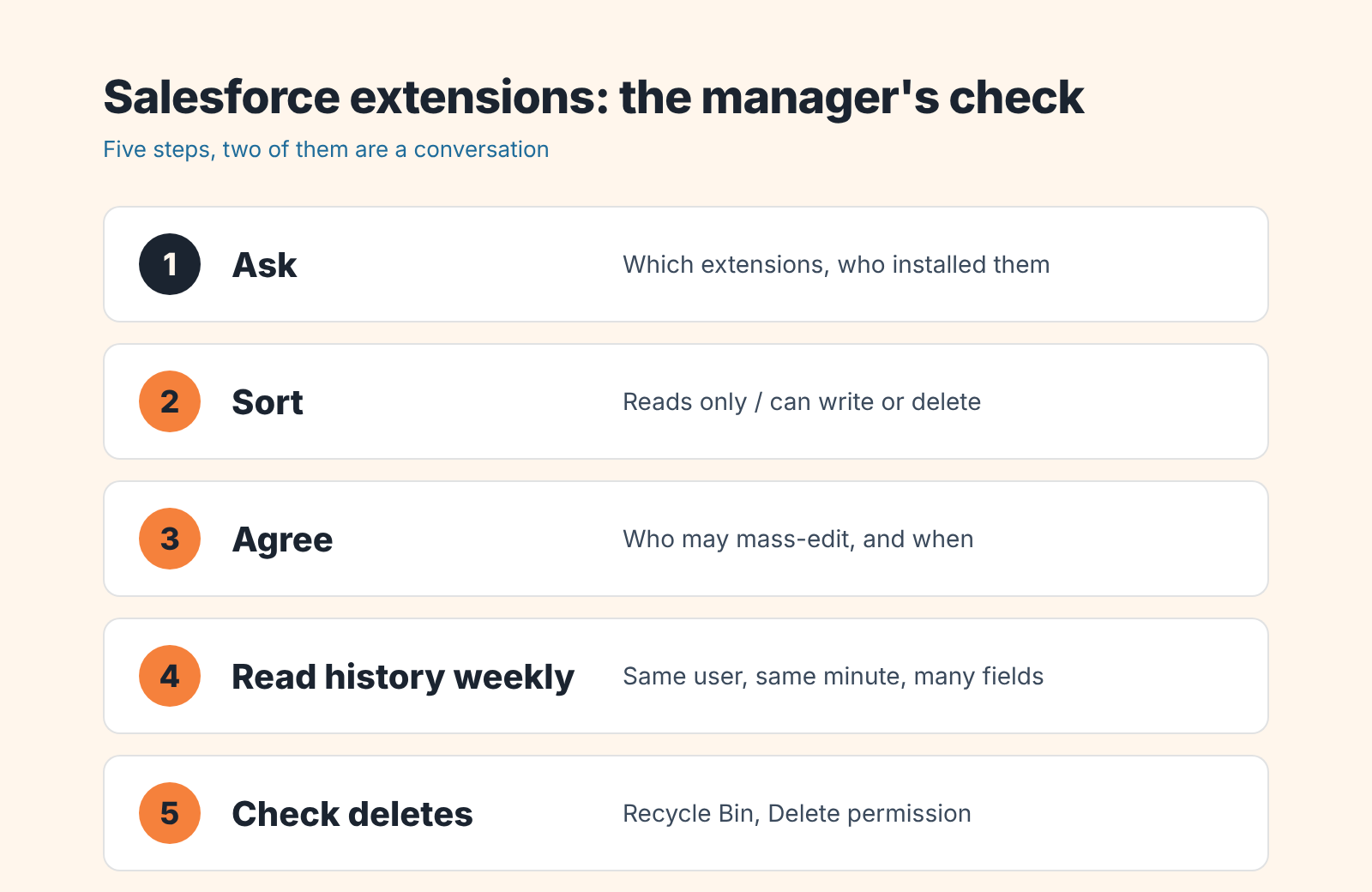
Ask. At the next team meeting: “Which Chrome extensions do you use with Salesforce?” Write the list down with names, not categories. Reps are not hiding anything; most of them picked up Inspector or a mass editor from a colleague or a Reddit thread and never thought of it as a CRM tool. Ask once a quarter, because the list changes.
-
Sort the list into readers and writers. Open each extension’s Chrome Web Store page or documentation and look for the words update, import, edit, clone, delete. Inspector Reloaded goes on both sides of the line (see above). Mass Editor is a writer. A favicon colorer is a reader. If you cannot tell from the description, treat it as a writer until someone shows you otherwise.
-
Agree on who mass-edits, and when. This is the step people skip because it feels like policing. It is not. It is the same agreement you would make about a Data Loader job: batch changes to Stage, Close Date, Amount or Owner go through one person, on a known day, with a note in the team channel first. Individual edits stay individual. Nobody is trying to slow reps down here; a batch of 50 close-date changes should simply never be a surprise to the person who owns the forecast.
-
Read field history once a week, looking for batches. Pick the opportunities that moved stage, close date or amount since last week and open the history on a few of them. What you are looking for is one user, one minute, many fields or many records. A rep working a deal changes one field at a time, across days. An extension changes twenty fields in the time it takes to click Save. The next section says where to look.
-
Check deletes separately. Deleted opportunities do not show up in a list view. They sit in the Recycle Bin, where deleted records can be identified and restored (Salesforce SOAP API: undelete()), but not for long. Look in it once a week, together with step 4, and have your admin check whether reps actually need the Delete permission on Opportunity. Most do not, and a writer extension can only delete what teh user can delete.
Five steps, two of which are a conversation. We think that ratio is right. Technical controls on extensions exist and your IT team may want them, but a sales manager who has never asked the question will not be saved by a browser policy.
Where the tracks are
Salesforce keeps the evidence for you, in three places, and none of them requires an extension to read.
The first is field history. History tracking covers up to 20 standard or custom fields on an object, and for each tracked field it logs the date and time of the change, the user who made it, and the old and new values. You see it in the History related list on a record, which your admin adds to the page layout, or through History reports (Trailhead: Enable Account Field History Tracking). If you already run a weekly opportunity audit in Salesforce, a History report belongs in the same hour. For opportunities those rows live in OpportunityFieldHistory, and the history respects field-level security, so a manager sees only fields they could see anyway. Separately, Salesforce always keeps OpportunityHistory for changes to Amount, Probability, Stage and Close Date, so the four fields a forecast depends on are logged even if nobody set up tracking (Salesforce Object Reference: OpportunityFieldHistory). Ask your admin which fields are tracked today. If Close Date and Stage are not among them, that is the single most useful change this article can trigger.
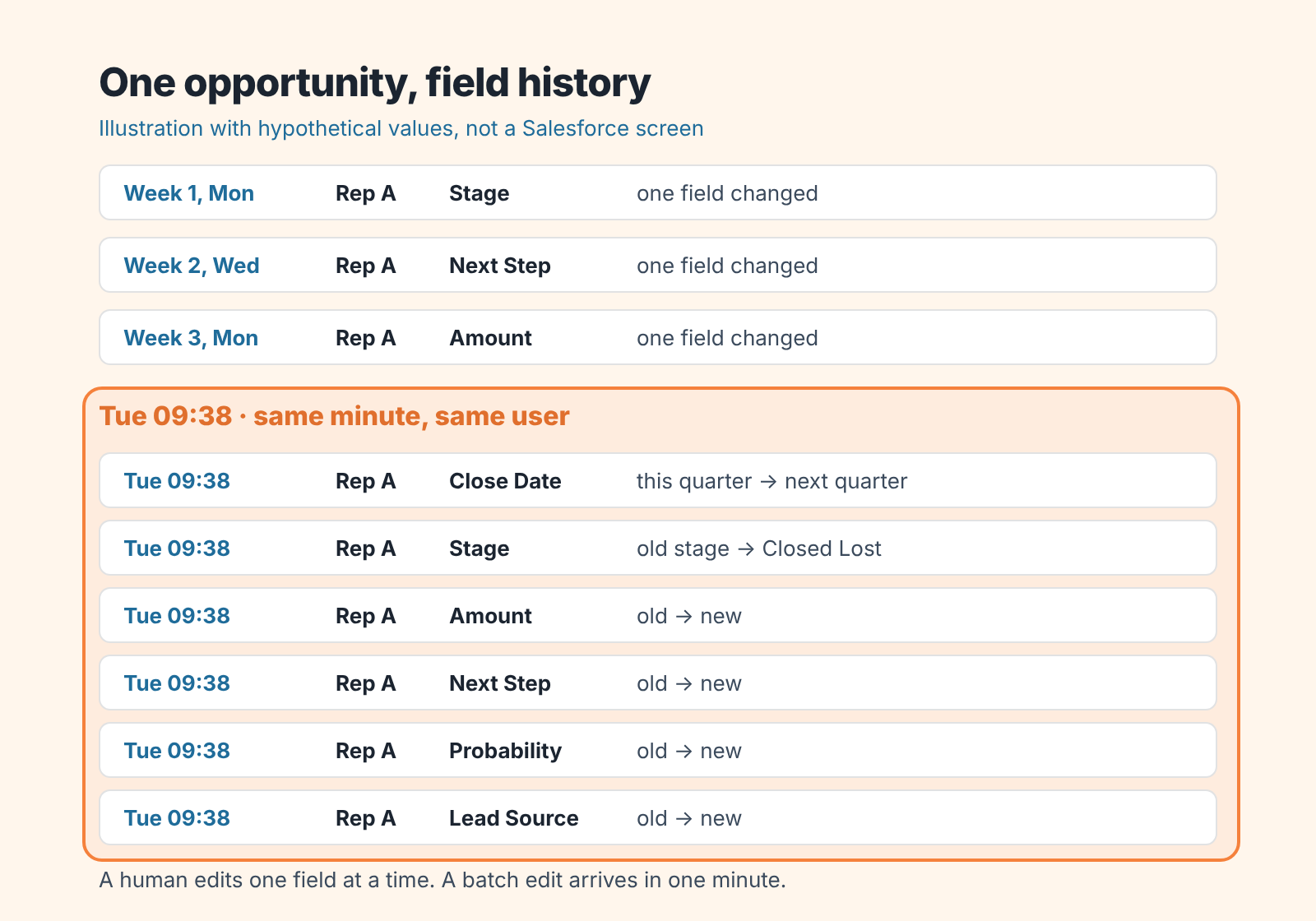
What a batch looks like in that list is not subtle. Eight rows with the same timestamp to the minute, the same user, and old values that make sense followed by new values that all point the same way (every close date now in next quarter, every stage now Closed Lost). A human does not edit like that. Once you have seen one you will recognize the next in seconds.
The second place is the record itself. It also shows who touched it last, which tells you the last touch and nothing more. Handy as a hint, useless as an answer.
The Recycle Bin is the third place, for deletes. Records removed with delete() or merge() land there and can be brought back with undelete() (Salesforce SOAP API: undelete()), so you can restore them from there. Deleted data stays in the bin for 15 days, or until the bin reaches its size limit, and is then physically deleted (Trailhead: Perform Data Deletes and Extracts). After that even queryAll() will not find it (REST API: QueryAll). That is why a weekly look matters if deletes worry you. We would rather fix the permission than live in the bin.
One thing history will not tell you: whether the change was right. A rep who pushes 80 close dates out may be correcting 80 fantasies. That is a conversation, not a rollback. The tracks tell you who and when; you still have to ask why.
The Gmail panel is a different animal
Sales Cloud Everywhere, Salesforce’s own extension, puts Salesforce inside Gmail and lets reps create and update contacts, tasks and opportunities from the inbox (Nektar: Chrome extensions for Salesforce). It writes to the CRM, so technically it belongs in step 2, but it writes one record at a time while a rep reads an email, which is the behavior you want more of, not less. The real questions there are about what gets synced and what gets missed, and we cover those in the pieces on Outlook email sync and opportunities and, for HubSpot teams, the HubSpot Sales extension and CRM logging. Same shape of problem on Pipedrive, without extensions at all: the built-in bulk edit and the automations it fires.
The dangerous tool is the confident one
We used to think the risky part of a CRM was the integrations: the marketing platform that overwrites lead source, the ERP sync that renames accounts. Those are still risky, but they are also loud. Someone set them up, someone owns them, they log what they do. A Chrome extension is quiet. It is installed in ninety seconds by a rep who wants to save an afternoon, it carries that rep’s full rights, and the only record of it’s work is the same history that records a normal edit. The pair of clicks in a mass editor, made by someone who knows exactly what they are doing, has moved more forecasts than any integration we have seen.
A disclosure, since we are in the territory the product covers: we build SalesBond, a sales management layer on top of the CRM a team already uses; we started with Pipedrive. SalesBond does not see the extension. It sees the result: opportunities whose close date jumped, deals with no next step after a stage change, records with no owner, flagged by Deal Health from more than 20 rules that run on the CRM data itself. That catches the Tuesday batch on Wednesday morning without anyone opening a history list. It does not replace the conversation in step 3, and it will not tell you which browser tool was used. Check your CRM with SalesBond if you want the Wednesday list without reading history by hand.
Until then, ask the question at the next meeting. “Which extensions do you use with Salesforce?” is a two-minute conversation, and it is the one that most teams on Salesforce have never had.


