
Dynamic Forms let you show or hide fields on a Salesforce record page depending on the deal’s stage or other values, so reps see only what matters now. They don’t make a field required; pair them with a validation rule and check weekly for deals missing the fields their stage expects. The showing part takes an afternoon in Lightning App Builder. The checking part is what keeps the hidden fields from quietly turning into empty ones.
A page with 40 fields and a rep who fills six
Picture the opportunity page in a five-person team that has been on Salesforce for three years. Two admins have come and gone. Each added fields for a reason that made sense at the time: a Competitor picklist from the year a rival kept winning, a Decision Date for a forecast project, a Discount Approval checkbox after a bad quarter of margins. None were removed. The page now scrolls three screens, and a rep opening a fresh lead at Qualification sees Discount Approval sitting there, blank, as if it were a question about this deal.
So the rep fills what they understand. Amount, Close Date, Stage, maybe Next Step. The rest stays empty, and the empties mean nothing because they are empty on every deal. The manager who wanted Competitor on every proposal cannot tell the deals where a competitor is present from the deals where nobody looked.
Salesforce’s own training module describes this as page layouts with “100+ fields”, where the Record Detail component becomes “a monolithic block of fields” you can’t customize (Trailhead: Dynamic Forms). Dynamic Forms fixes the page. This article is about the half the module doesn’t cover: what to show at which stage, and what happens to the fields nobody can see.
Showing is not requiring
Dynamic Forms break the Record Detail component into individual field and section components that you place anywhere on the page, and visibility rules let you “show your end users only the fields they need to see, when they need to see them” (Trailhead). That is the whole feature. Show this section when Stage equals Proposal. Hide that field until Discount Approval is relevant. A page layout decides fields by profile and record type; with Dynamic Forms, Trailhead suggests you can reduce the number of page layouts and record types by defining component visibility rules instead.
If your page still runs on a page layout, select the Record Detail component in Lightning App Builder and click Upgrade Now in the properties pane; that starts the migration wizard, which moves the layout’s fields and sections into components. We won’t repeat the click-by-click, the module does it well.
What a visibility rule never does is demand a value. A rep can move a deal from Proposal to Negotiation with Competitor still blank, and the form will cheerfully reveal the Negotiation section on top of the unfinished Proposal one. Requiring lives elsewhere: in a validation rule that blocks the stage change until the field has a value. We covered how to write those in opportunity stage exit criteria in Salesforce, so here is only the pairing.
It also isn’t Path. Sales Path guidance per stage puts a few key fields in the strip above the record; Dynamic Forms decides what the rest of the page shows.
Our position: use both, never one as a substitute for the other. A form that hides Competitor at Qualification is kind to the rep. A validation rule that refuses the move to Negotiation without Competitor is kind to the forecast. Teams that build only the form get a tidy page and the same empty fields. Teams that build only the rule get reps who type “n/a” into a field they were shown too early.
One build note: a section that should stay visible from Proposal through Negotiation needs a rule that covers both stages, not only the one where it first appears.
A stage-by-stage field map for a five-person team
Here is the map we would build for the team above, with the standard stages trimmed to the four that team actually uses. For each stage: what the rep sees, and what the validation rule insists on before the deal can leave.
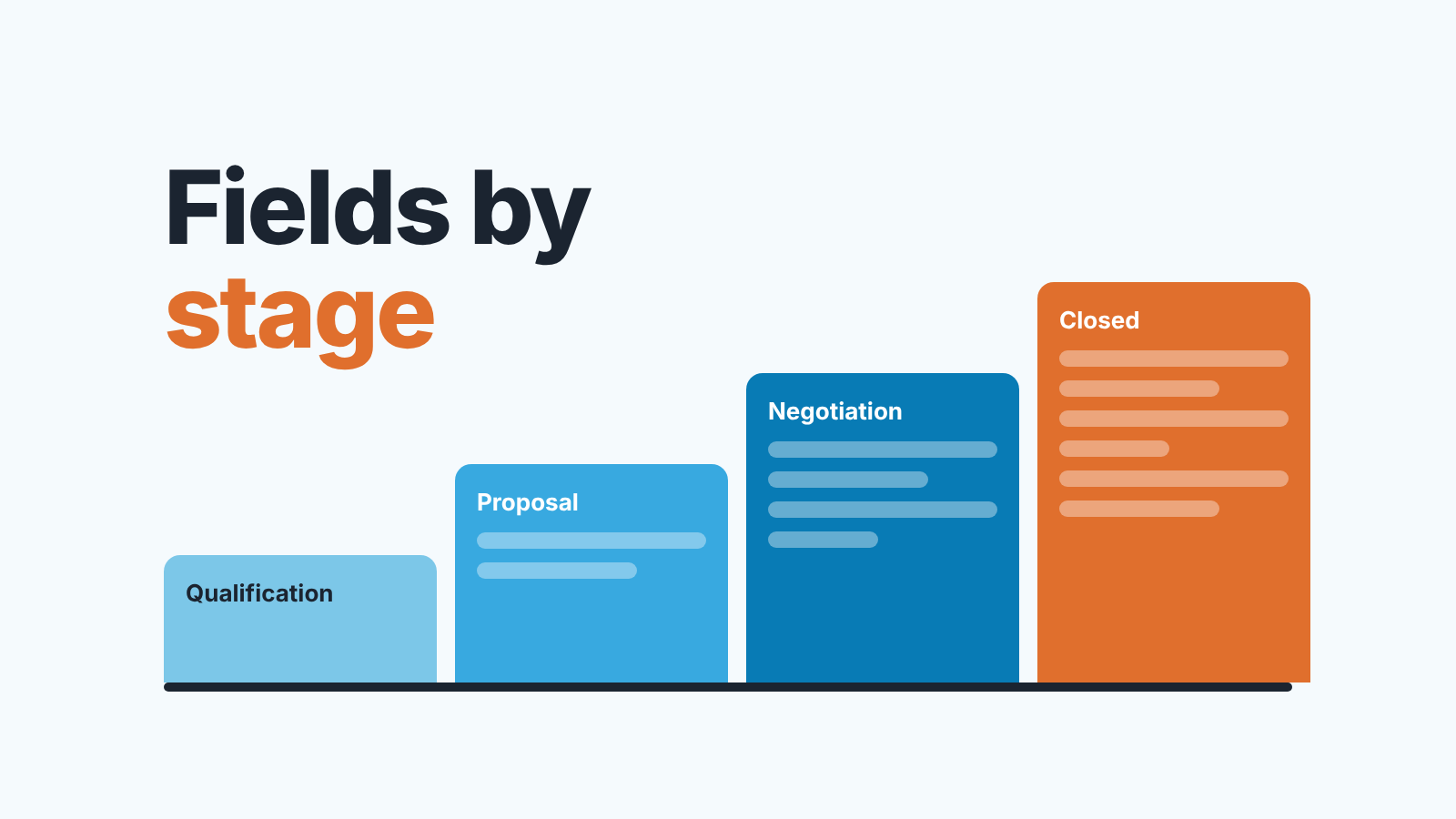
- Qualification. Visible: Opportunity Name, Account, Amount, Close Date, Next Step. Required to leave: Amount and Next Step.
- Proposal. Everything above, plus Competitor and Decision Date. Both are required to leave.
- Negotiation. Adds Discount Approval and Approved Discount %. Discount Approval is required to leave.
- Closed Won / Closed Lost. Everything, plus Loss Reason on Closed Lost, where it is required.
Five fields at Qualification is deliberate. A rep working a new lead needs to say who, how much, when, and what happens next. Asking about competitors before the first call produces guesses. Asking at Proposal, when the buyer has usually mentioned who else they are talking to, produces answers.
Notice that Decision Date is visible from Proposal but Close Date is visible from the start. They are different questions. Close Date is the rep’s commitment to the forecast; Decision Date is what the buyer said. The gap between the two is a better stall signal than either alone, and you only get it if the second field appears at the stage where the rep can honestly fill it.
Where a hidden field hurts
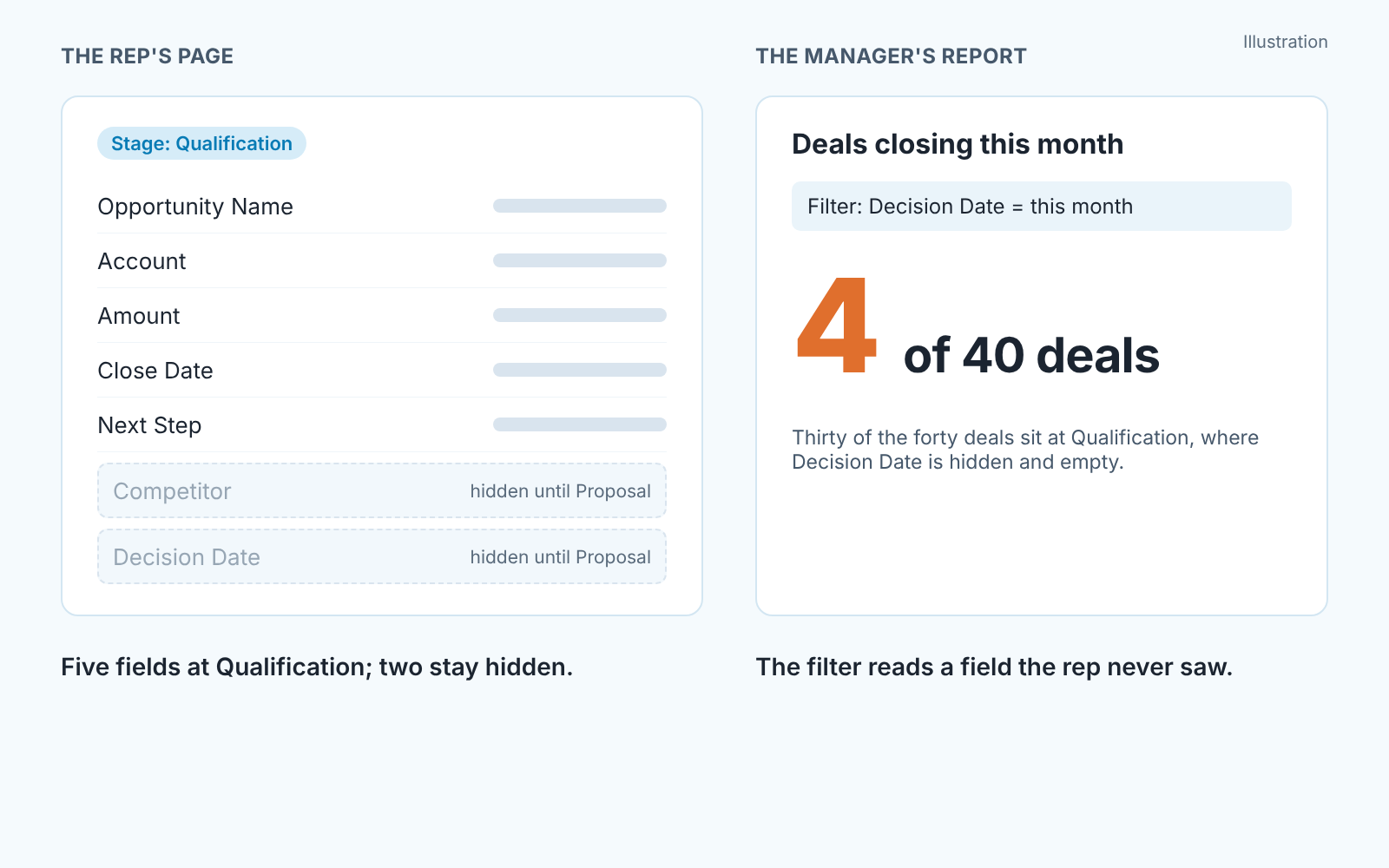
Reports and list views do not know about visibility rules. A field hidden on the page is a normal field in a report filter, a dashboard component, a list view column and a forecast. That is exactly where hiding goes wrong.
Say a manager builds the report “deals deciding this month” on Decision Date, because that is the honest date. The admin, meanwhile, has moved Decision Date into the Proposal section so Qualification pages stay short. Both changes are correct. In our example the report comes back with four deals in a pipeline of forty, the manager assumes the quarter is empty, and spends a Monday meeting asking why nobody is closing. The truth is that thirty deals sit at Qualification, where nobody could have entered a Decision Date even if they wanted to.
A blank visible field looks like a question nobody answered. A blank hidden field looks like a fact. Reports treat the two identically. This is why we think a hidden field that nobody fills does more damage to the forecast than an empty visible one: the visible blank at least makes the manager suspicious.
The second place it hurts is the migration itself. Trailhead’s walkthrough shows that when you upgrade a page layout to Dynamic Forms, universally required fields that were not on that layout are not added automatically, and if you save the page without them, users can’t save a record after creating, editing or cloning it (Trailhead). In the module the missing field is Forecast Category. In a real org it is whatever a past admin made required in Setup and then forgot. The Fields tab of the component palette lists the universally required fields, so look there before the first save, not after a rep calls.
The third place is quieter. Fields the rep does not see still feed everything that reads the record whole: forecast rollups, a Flow that fires on a blank, an integration that pulls the deal into billing. Before you hide a field, search for it in reports and Flows the way you would before deleting it.
The weekly check
One report, run once a week, closes the gap between what the page shows and what the stage expects. It’s an Opportunities report with the stage filter and the blank-field filter for that stage, grouped by owner:
- Stage equals Proposal, Competitor equals blank: every proposal where the rep has not said who else is in the deal.
- Stage equals Proposal, Decision Date equals blank.
- Stage equals Negotiation, Discount Approval equals blank: every negotiation that has not passed the approval question.
Put it on the Monday dashboard next to the pipeline chart. Watch the count, not the deals: ten blanks at Proposal in week one and four in week three means the rule and the form are doing thier job. If the count stays flat, the rule is not firing or deals are skipping the stage, and the same report tells you which.
A disclosure: we build SalesBond, a sales management layer on top of the CRM a team already uses; it works with Salesforce alongside Pipedrive, HubSpot and Zoho CRM. Deal Health checks every opportunity against more than 20 rules and explains what lowered each deal’s score, regardless of which fields the page hides or shows. It does not replace the stage report above, because it does not know your Competitor field exists; it catches the deals that are stalling for reasons no field would have shown. Check your CRM with SalesBond if that Monday list is the part you keep not getting to.
For the rest of the manager’s weekly review, the opportunity audit for sales managers covers the checks beyond blank fields.
Dynamic Forms limitations worth knowing
Two things from Salesforce’s own training material change how you build. Neither is a reason to skip the feature.
The Record Detail component and Dynamic Forms fields should not share a page. Trailhead is blunt about it: having both “not only causes redundancy, but also can cause errors with the page” (Trailhead). The migration wizard removes the old component for you; do not add it back for a section you miss.
A long page is still a long page. Breaking Record Detail into components does not by itself fix a page that still carries a lot of fields; the module warns that this can cause performance issues and suggests moving lower-priority fields into tabs or accordion sections whose content isn’t visible when the page loads (Trailhead). Stage-based visibility combines well with that: Negotiation fields live in a section that is both hidden until Negotiation and placed in a second tab.
What I’d do on Monday
Open the opportunity page in Lightning App Builder and count the fields a rep at Qualification can see. If it is more than eight, draw the map from the list above on paper before touching the page, then build the sections, then the validation rules, then the blank-field report. In that order, because the report is the only one of the three that tells you whether the other two worked. A page that shows less is a good page. A page that shows less and a report that shows what is missing is a process.


