
After every call logged in HubSpot, a manager should be able to see three things on the record: the call outcome, the next step, and the deal the call belongs to. HubSpot lets you make the call outcome required when you set up calling, and that one setting does more than any reminder. The other two are standard HubSpot features (a follow-up task and Associated Deals), so the rest is a habit question, not a setup question. The quickest check is a weekly look at the Calls index: calls with no outcome and calls with no associated deal. If both lists are empty, your call data is telling you the truth.
A logged call is not a recorded outcome
HubSpot logs calls generously. Dial from a contact record, from the call remote or from the inbox, and the call lands in the call index with a status and a duration, neither of which the rep had to type (HubSpot: review calls in the call index). That is the trap. The Calls page fills up, the activity report by rep looks busy, and nobody notices how many rows say nothing about what happened.
Look at two properties side by side. Call status reflects what happened on the line: Completed, Missed, Busy, No answer, Failed and a few in-between states. Call outcome is picked by the person who made the call: Connected, Left voicemail, Wrong number, or whatever custom outcomes your account has (HubSpot: default activity properties). A call can be Completed, run for several minutes and still have no outcome, because the rep hung up and moved on. Completed means the line connected. It does not mean the rep spoke to the buyer, got a date, or learned anything.
We think a manager should read outcomes and ignore statuses almost entirely. Status tells you the phone system worked. Outcome tells you whether the sale moved.
What HubSpot calling logs on its own
Yes, you can call directly from HubSpot: reps dial from the Contacts index, a contact record, the calling remote or the conversations inbox, using a HubSpot-provided number, a registered outbound number or a third-party provider (HubSpot: make calls in the HubSpot browser). Calling needs an assigned Sales or Service seat; in Starter accounts a Core seat is enough. Minutes depend on the subscription, and when the account runs out mid-call the rep can finish that call but cannot start a new one until the first day of the next month. The FAQ adds that the Call button in the CRM is simply disabled until then (HubSpot: calling FAQ).
Two details matter for the manager’s view. The call window has a Notes textbox the rep can fill while the call is still being set up, so notes do not have to wait until after. And when a browser call ends, HubSpot asks for exactly the things we care about: a call outcome from the Select outcome dropdown, a call type on Professional and Enterprise if types are enabled, notes, and a Create Follow Up task button, then Done (HubSpot: receive calls in the HubSpot browser). The prompt exists. Reps skip it because Done is one click and the rest take several.
Custom outcomes are a Professional or Enterprise feature. A user with Account access permissions adds them under the settings icon, then Calling, then the Call Configurations tab, next to Track call outcomes, with Edit options. You can have up to 30, each up to 50 characters, and an outcome cannot be edited after it is saved because edits would break reporting (HubSpot: create custom call and meeting outcomes). The same page notes that you can require call outcomes when setting up calling. We would turn that on before trying any of the discipline below. A required dropdown wins every argument a reminder loses.
Three things every call should leave behind: outcome, task, deal
Here is the minimum we ask of a rep after any call, inbound or outbound, dialed from HubSpot or logged by hand. Not a template, not a long form. Three things.
- An outcome. Pick from the Call outcome dropdown: Connected, Left voicemail, No answer, Busy, Wrong number, Left live message, or a custom one (HubSpot: create or log activities on a record). If the defaults do not describe your calls, add custom ones that do. Our own list for a discovery team was Connected: qualified, Connected: not now, Connected: no fit, plus the defaults for the calls that never became conversations. The point is that “Connected” alone forces the manager to open the notes to learn anything.
- A next step with a date. For a browser call, Create Follow Up task on the post-call screen. For a manually logged call, the Task follow up option in the log dialog, which creates a call, email or to-do task on the date you choose. A call that ended with “I’ll call you back next week” and no task is a promise that lives only in the rep’s head. If the outcome is Wrong number or No fit, the next step can be nothing, and that is fine, what we do not accept is Connected with no task.
- The deal. The log dialog has an Association with records control; the call preview on the Calls page has an Add button under Deals. When a rep calls from the contact record, HubSpot associates the contact. It does not know which of the contact’s open deals the call was about, so the deal association is a human decision. Without it the deal timeline stays empty while the contact timeline fills up, and every deal-level report (last activity, calls per stage) undercounts.
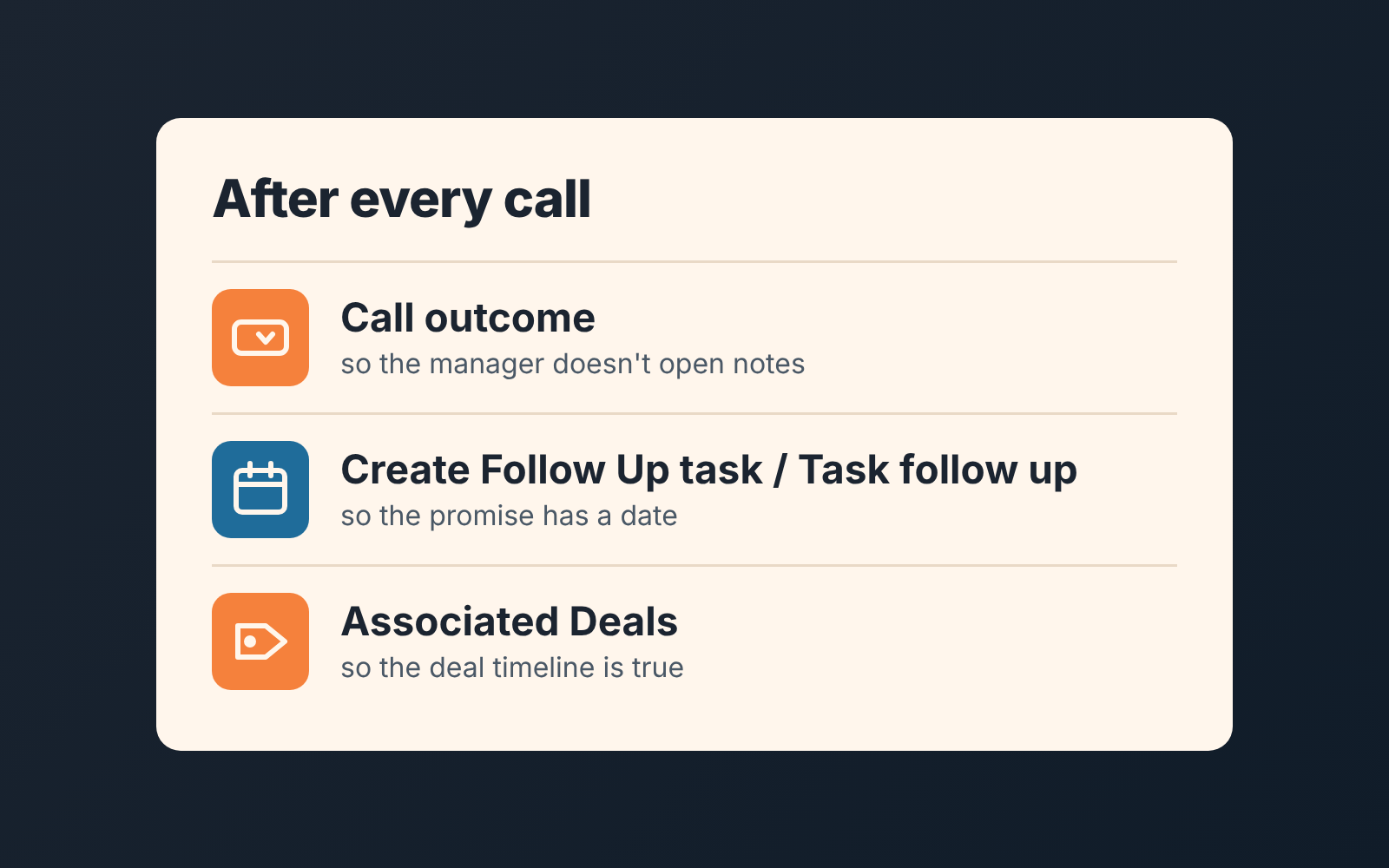
Say it on Monday in one sentence: a call is finished when it has an outcome, a task and a deal. Reps can repeat that back. They cannot repeat a long template.
The Monday check on logged calls
Once a week, open the Calls index (CRM > Calls). It can be filtered and saved as a view, and by default it shows Call outcome, Associated Deals, Activity assigned to and Call notes (HubSpot: review calls in the call index). We keep two saved views and look at a third list on the deals side.
First, calls with no outcome. Filter for calls with no Call outcome in the last 7 days, open the preview, read the notes and ask the rep to pick an outcome from the dropdown. When the same name keeps showing up, that is a coaching conversation, not a data fix.
Second, connected calls with no deal: Call outcome is Connected, Associated Deals is empty. Add the deal from the preview panel. If there is no deal to add, ask why a connected call happened on a contact with no open opportunity.
Third, deals with a call but no next task. This one lives on the deals side, not in the Calls index: use the saved view for deals with no next activity in HubSpot and cross it with last week’s connected calls.
The third list is the one that catches real money. A rep connects, the buyer says “send me the proposal,” the rep sends it and logs nothing further. The call looks great in the index. The deal has no next activity. By the time anyone notices, it is stale, and a workflow that creates a task on stale deals is the backstop; the Monday check is the first line.
One thing we learned the hard way: do not fix the data yourself. Editing the outcome from the preview panel takes seconds and feels helpful. It teaches the team that the manager fills in the blanks. Send the list back with the the names on it. The number of empty outcomes drops once reps see their names on the list, and the drop is the metric, not the list.
Call Analytics has a report called “Calls outcome totals by rep” on Starter and above (HubSpot: review calls in the call index). It is useful once outcomes are being set. Before that it mostly shows you how many calls have none, which is the same thing the saved view shows with names attached.
We build SalesBond, a sales management layer on top of the CRM a team already uses; we started with Pipedrive. Deal Health runs more than 20 rules against every deal, and its Activity rules flag the pattern from the third list: a deal with no next activity scheduled, with the reason and a recommended action next to it. It replaces the cross-referencing, not the Monday conversation. Check your CRM with SalesBond if you want the list without building the views.
When calls happen outside HubSpot
Plenty of calls never touch the HubSpot dialer: a rep on a mobile, a desk phone, a third-party provider the account connected instead of HubSpot minutes. The call index still accepts them. It lists outbound manually logged calls and calls from third-party integrators alongside HubSpot’s own, and the Log call icon on a record opens the dialog with the same Call outcome, Call direction and Association with records fields. The HubSpot Sales Chrome extension also lets reps make calls without keeping a dedicated tab open, which removes the most common excuse for calling from a personal phone; we covered the logging side of the extension in how the HubSpot Sales extension logs activity to the CRM. The rule does not change with the channel. If the call reached a buyer, it gets an outcome, a task and a deal, whether HubSpot dialed it or not.
Manually logged calls have one gap worth knowing: when a call is logged from the mobile app, duration is not editable in the Log call widget, so if duration matters to you, put it in the note or add a custom call property for it (HubSpot: create or log activities on a record). We do not track duration for manual logs. Outcome and next step tell us more than minutes ever did.
Why three fields and not a form
Every team we have worked with has tried the long call form at some point. It doesn’t last. Reps start choosing Connected and typing “spoke, following up” because the form takes longer than the call did. Three fields survive because each one answers a question the manager would otherwise ask on Monday: what happened, what is next, which deal. Make the outcome required, check the two views weekly, send the gaps back with names. The calls were always being logged. Now they mean something.


