

The HubSpot Sales Chrome extension logs emails from your Gmail inbox to the matching contact, company and deal records, and it tracks when a contact opens an email (HubSpot: track and log emails with the Sales Chrome extension). Which emails end up in the CRM is decided by two things: the Log checkbox on each message, and the default settings someone turned on for the inbox or for the whole account. For a sales manager, the useful question is what it should log by default, and who checks that the deal timeline still makes sense. Decide that as a team, set the defaults once, and read a few deal timelines a month later.
The inbox that quietly became your CRM
A composite, but every piece of it we have seen. A rep installs the extension on Monday because the onboarding checklist says so. The Log email switch goes on, because “log everything” sounds like diligence. By Friday the deal with the packaging company has twelve activities on it: the proposal (useful), the prospect’s reply with three questions (useful), two “thanks, got it” one-liners, a calendar thread, an out-of-office autoreply, and an internal note to finance about the discount that somebody forwarded from the same inbox.
The manager opens the deal on Monday to prepare a one-on-one. Twelve activities in a week. Looks like a deal on fire. Two of them say anything about where the deal stands.
Nothing broke. The extension did exactly what it was told. The problem is that it was told by a default, not by a decision and nobody has read a timeline since.
What the HubSpot Sales extension actually logs
The extension adds two checkboxes to the Gmail compose window, Track and Log, and they do different things (HubSpot: track and log emails). Track watches the email after you send it: you get a notification when the contact opens it, and the open shows up in your activity feed and on the contact timeline. Click tracking on links in the body needs an assigned Sales Hub seat. Log does something else entirely: it puts a copy of the email on the contact record and on the associated records you pick, which is where company and deal come in. A dropdown next to the Log checkbox lets you choose those records before you hit Send. If your account has default association settings, the extension picks them for you.
Two details in that help article matter more than they look. First, if the recipient is not a contact yet, the extension offers to create one, and the sender becomes the contact owner if nobody else is. That is how a vendor’s sales rep ends up as a lead in your CRM. Second, turning logging on does nothing to the past: historical emails are not logged automatically. You log an old sent or received email by opening it in Gmail and clicking Log email to HubSpot under the recipient details (HubSpot: log your sent and received emails to the CRM). That page also notes the limits: non-inline attachments are not logged retroactively, Google Group addresses cannot be logged, and the feature is not available in the Outlook Desktop add-in. For regular logging, an attachment over 50 MB is dropped while the email itself still logs.
There is also a legal side, and the help page says to take it to your legal team rather than to us. With data privacy settings turned on, opens are tracked only for contacts with an assigned legal basis for processing, and depending on where the recipient is, open and click tracking may require prior consent. We will only add this: a team that is unsure should leave Track off by default and turn it on per message. Logging a business email you sent is a different question from recording when someone read it. Meetings booked through HubSpot scheduling links are a separate stream, and they need a weekly HubSpot meetings report with no outcome yet.
If the extension is not installed yet, HubSpot keeps the install steps and the rest of the setup in one place (HubSpot: get started with the Sales Chrome extension). Do that part per rep; the decisions below are the part worth doing as a team.
Log, track, or neither
The rule we use is simple: log what changed the deal, track what you would act on, and keep everything else out of the CRM. Here is how that plays out for the emails a rep actually sends in a week.
| The email | Log | Track | Why |
|---|---|---|---|
| Proposal, pricing, scope, or a question to the buyer on an open deal | Yes, to the deal | Your call | The next person who opens the deal needs it |
| The buyer’s reply with questions or a decision | Yes, retroactively if it came in before logging was on | No | Inbound is where the deal actually moves |
| “Thanks, received” and scheduling back-and-forth | No | No | Adds activity count, says nothing about the deal |
| Internal threads with finance, legal, your own team | No | No | Your own domain belongs on the Never log list |
| Vendors, recruiters, personal mail | No | No | Never log list; also clear “Create new contacts” |
| A new address you do not want as a contact | Only if you would create the contact on purpose | No | Otherwise you get an owner and a record nobody asked for |
The Track column has a lot of “no” in it, and that is on purpose. HubSpot’s help describes tracking as a way to see when a contact opens or views your email. We do not treat an open as evidence of interest, because the help does not claim that either, and a timeline full of “opened” events is not a timeline a manager can read. Track the proposal if you want to know whether to call tomorrow. Do not track teh “thanks”. LinkedIn Sales Navigator and HubSpot have their own sync, and the same rule applies to what it logs.
Defaults you can set for the whole team
The extension’s defaults live in two places, account settings and each rep’s inbox, and the account layer wins (HubSpot: customize Sales Chrome extension settings). Most of the noise in the Monday-to-Friday example comes from those defaults, so start there.
Configuring the account layer for all users needs Account access permissions. In HubSpot: settings icon, then Data Management, then Objects, pick Activities, then the Email Log & Track tab (HubSpot: configure default log and track settings). Four checkboxes live there: Allow all users to log email attachments; Apply Default Log setting for all users, with the Log all emails by default switch behind it; Allow all users to track emails and see recipients open and click; and Apply Default Track setting for all users. If you apply the default log setting for all users, the account-wide setting overrides what each rep set in their own inbox. That is the setting that makes a team rule a team rule rather than a suggestion.
The inbox layer is in Gmail: the sprocket icon at the top of the inbox, then Log and track settings. Each rep has a Log email switch and a Track email switch, and under Default Email Associations two checkboxes we would look at carefully. Create new contacts makes a contact for any email address that is not in the CRM yet. Hide suggested associations limits the records offered at logging time to the ones configured in your account’s default association settings. Below that is the Never log field: addresses and domains you add there do not log and do not record timeline activity. With Account Access permissions you can choose Block for all users or Block only for me.
Our position, and the reason. We would turn Log on by default for the whole account, put our own domain and the known non-sales domains on the Never log list for everyone, turn Create new contacts off, and turn Hide suggested associations on. Default-off sounds safer, but its failure mode is a deal with no emails on it, and that gap cannot be found later. Noise can be deleted; silence cannot be recovered. One thing we have not verified from the help: what happens to a thread where a never-log colleague and the buyer are both in the To field. Send one test email with both before you trust the list for mixed threads.
Someone has to own these four settings and write down what they chose. If your team has not had that conversation, who owns the CRM data in a small sales team is the place to start, because the person who owns the Never log list is the person who owns the timeline.
The extension is one connected tool; our manager allow-list covers which connected apps can write to your deals in HubSpot.
A team rule in four lines
Settings decide the defaults; people decide the exceptions. This is the rule we would read out on a Monday, short enough that a rep can repeat it back:
- Every email with a buyer about an open deal gets logged, both directions, to the deal and not only to the contact.
- Nothing internal, personal, or from a vendor gets logged. Our domain is on the Never log list for everyone, and so are theirs.
- Nobody creates contacts from the inbox. A new contact is made on purpose, with a company and an owner.
- If the extension logged to the wrong deal, you fix it the same day from the timeline, under Associations.
Line four is the the one that makes the other three honest. On the timeline, a logged email has an Associations option to edit the company and deal records it sits on, and a Delete option for activity that should never have been there (HubSpot: track and log emails). A rule that cannot be corrected in thirty seconds will be ignored by Thursday. We wrote more about that in why reps stop using the CRM, and the short version is that people follow rules they can repeat and fix, not rules they can only read.
How to tell the log is noisy
Do not audit the whole CRM. Open five deals that are active this week and read each timeline from the top, the way you would if you had to take the deal over tomorrow. For every logged email, one question: would the next owner need this to pick up the deal? Keep a tally.
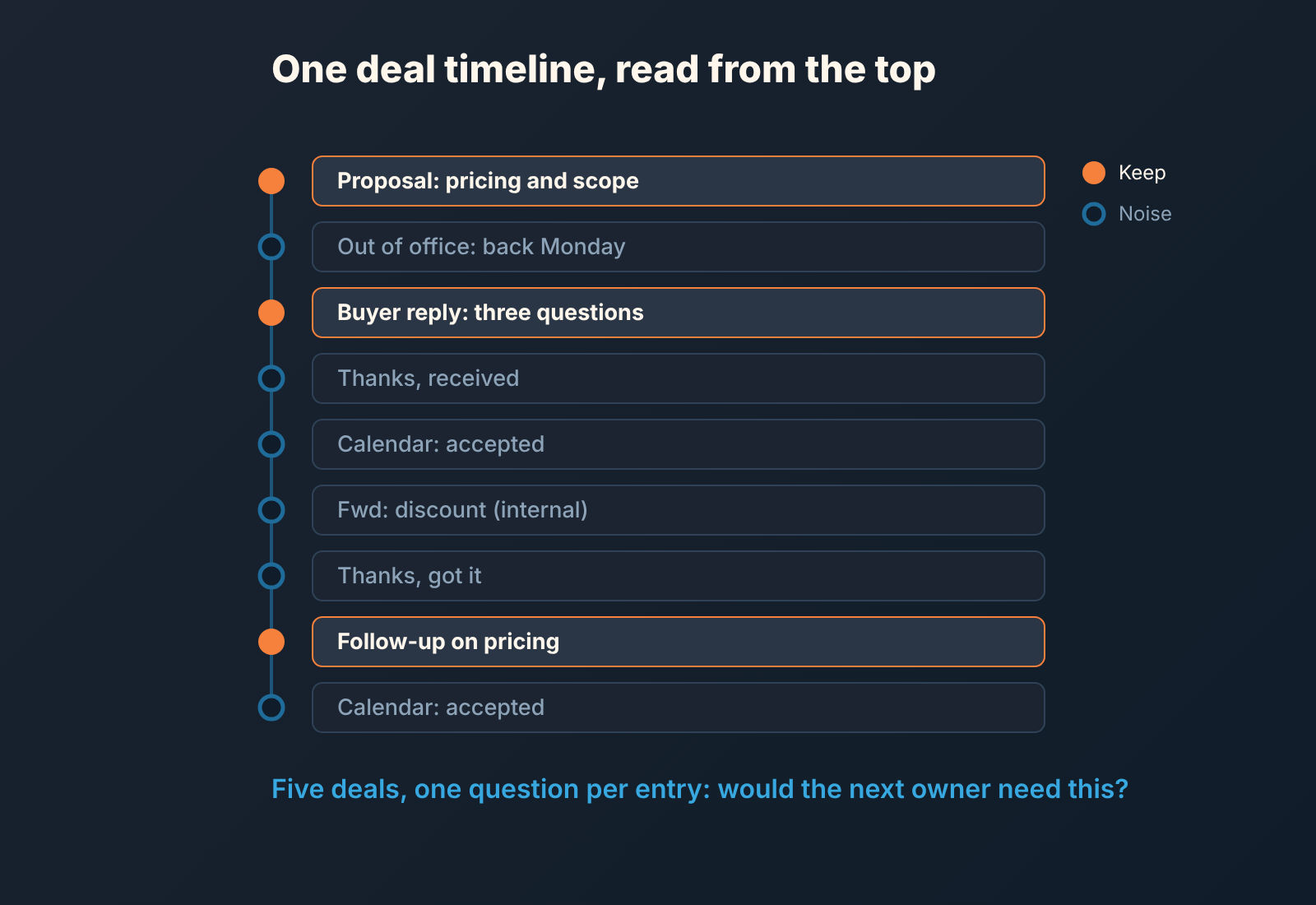
The signs are always the same. Autoreplies and calendar acceptances. One-word thanks. Internal names in the From field. Emails that sit on the contact but never made it to the deal, which you can see by expanding the email and checking it’s associations. And the reverse problem, which is worse: a deal in a late stage with no inbound email at all, because the rep logs what they send and never goes back for what they received. Salesforce teams have a related problem with Chrome extensions that write to Salesforce.
If more than half the entries fail the question, the defaults are wrong, not the reps. Fix the Never log list and the Create new contacts setting before you have a word with anyone. If the timelines are clean but the deals are not moving, that is a different article, and the CRM data quality checks we run will get you to the next question. The same logic applies if your team is on Pipedrive, where the equivalent decision is which activity types you allow rather than which emails you log.
The timeline is the product
Here is why we care about this more than the setup time justifies. The deal timeline is the one thing a manager reads before a one-on-one, the one thing a new owner reads when a rep leaves, and the one thing any tool reads when it tries to tell you which deals need attention. A disclosure, since that is where this lands: we build SalesBond, a sales management layer on top of the CRM a team already uses; we started with Pipedrive; it works with Pipedrive, HubSpot, Salesforce and Zoho CRM. Everything it says about a deal starts from what is on that deal, so a timeline padded with autoreplies looks busier than it is, and a deal with the buyer’s last email sitting unlogged in someone’s inbox looks quieter than it is. If you want to see what your deals look like from the outside, check your CRM with SalesBond.
The extension is a pipe. Set what flows through it on purpose, give the team a rule they can say out loud, and read five timelines before the month is over. That is the whole job.


