
In HubSpot, you make a property required at a deal stage with a conditional logic rule on that stage: open the pipeline in settings, click Add rule in the stage’s row, add the property and tick Required. From then on a user cannot manually create a deal in that stage, or move one into it, until the property has a value (HubSpot: set up conditional stage properties). Require only what the next decision needs. That is three or four properties on early stages and more on late ones, and a month after you turn it on, check which deals still arrived without them.
We wrote the same idea for Pipedrive teams in required fields in Pipedrive. HubSpot gives you more control per stage, which is exactly why it is easier to overdo.
The deal that moved to “Proposal” with no amount
A composite scene from a Monday pipeline review. A deal called “Acme, 60 seats” sits in Proposal. Amount is blank. Close date reads the 31st. The rep says “around forty, depends on whether procurement wants annual”. The manager writes 40 on a notepad.
Nobody lied. The number lived in the rep’s head and in an email thread. The deal was dragged from Qualified to Proposal on Friday afternoon, and nothing asked for a figure on the way.
The cost shows up one screen later. The weighted amount on the board is the total amount in a stage multiplied by that stage’s probability (HubSpot: set up and manage pipelines). A blank Amount contributes nothing to it, so the biggest deal in Proposal is invisible in the one number the board exists to show.
A required property at Proposal would have stopped that drag with a form. The rest of this article is about which properties deserve the form and what the form cannot see. Closed lost deserves the same treatment: a required HubSpot closed lost reason with a report on top.
How required stage properties work in HubSpot
HubSpot has two features that sound alike, and the help pages keep them apart. Pipeline rules decide whether a move is allowed at all: skipped stages, backwards moves, who may edit, approvals (HubSpot: set up rules for object pipelines). Conditional stage properties decide what a user has to fill in when the move happens. Required properties live in the second one.
The path is Settings, then Objects under Data Management, pick Deals, open the Pipelines tab and click the pipeline. Each stage has a Conditional logic rules column. Click Add rule, pick an operator (is equal to, is any of, is none of, is known) and the stages it applies to, then under Dependent properties add the properties and tick Required where a value is a must. The help text is plain about what the checkbox does: “If a property is required, users cannot create or update the record until they set a value for it.” Click Save logic, and from then on the form shows up whenever someone manually creates a deal in that stage or moves one into it. You need Edit property settings permissions to do any of this (HubSpot: set up conditional stage properties).
One limit from the same page: properties with read-only values, such as scores and calculation properties, cannot be used as stage properties and do not appear in the picker. HubSpot lists plan availability on each help article, so check the subscription notes against your own portal.
What to require, stage by stage
The rule we use: a stage requires what a manager needs to make the decision that belongs to the next stage, and nothing else. If the rep cannot honestly know the value yet, requiring it produces a guess, and a guess in Amount is worse than a blank because it gets multiplied into the forecast.
Here is how that plays out on HubSpot’s default Sales Pipeline stages and their default probabilities (HubSpot: set up and manage pipelines). Map them onto your own stage names.
- Appointment scheduled (20%): Deal type. You know whether it is new or existing business before the first call, but you do not know the amount.
- Qualified to buy (40%): Amount and Next step. Qualification means you discussed scope and money, so a rep who cannot write a number here does not have a qualified deal.
- Presentation scheduled (60%): an updated Next step plus a custom “Decision maker” property. A free-text name is enough.
- Decision maker bought-in (80%): Amount again, re-confirmed, and Priority, which tells the manager where to spend their own time.
- Contract sent (90%): a real Close date and Next step. This is the only stage where a close date means something; the backfire section explains why.
- Closed won / Closed lost: the matching reason. One sentence beats any lost-deal report you build later.
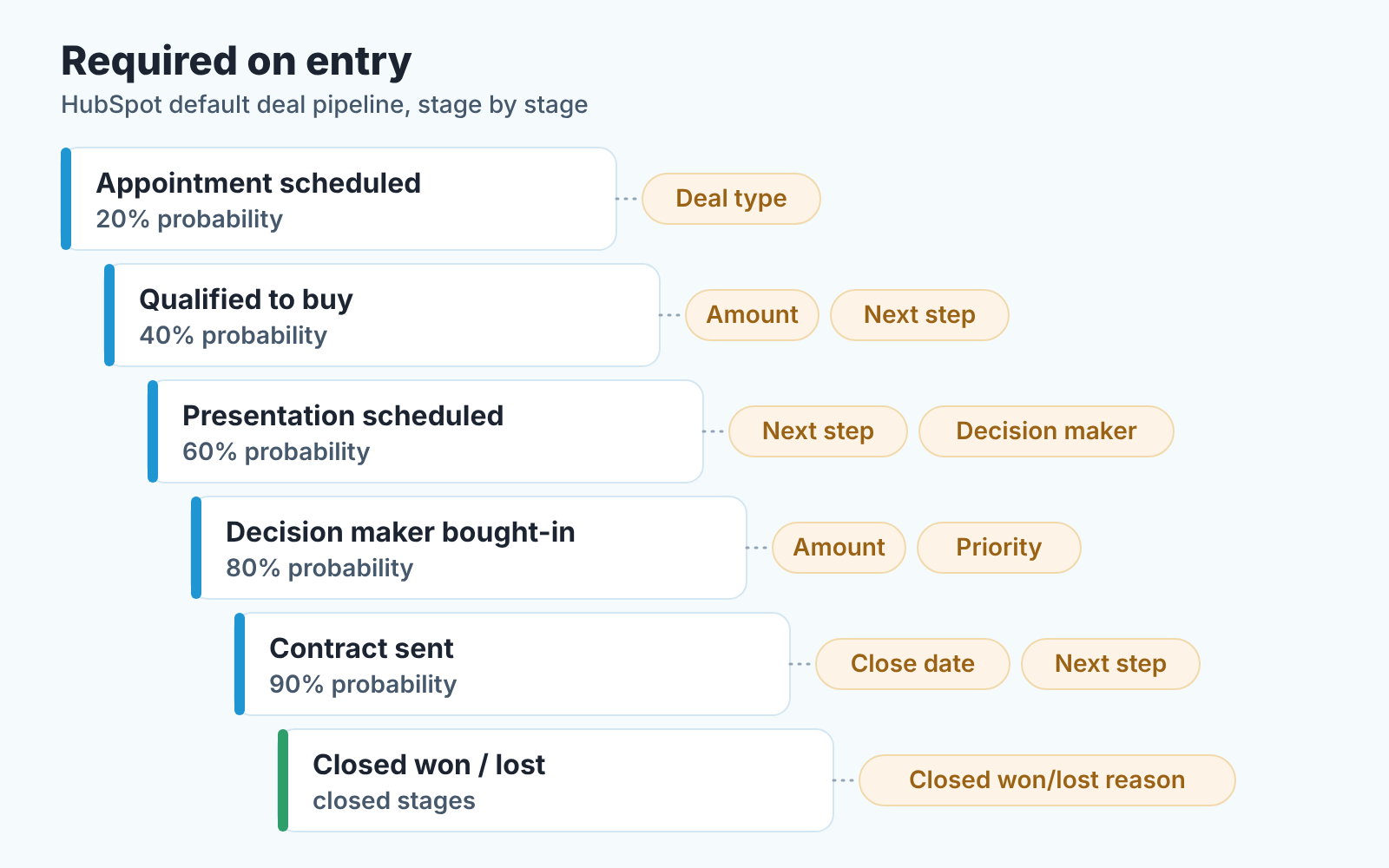
Everything on that list except “Decision maker” is a default deal property (HubSpot: default deal properties), and you can skip the custom one on the first pass.
Deal probability, Deal score and Weighted amount are missing on purpose: HubSpot sets the first from the stage, and the other two are read-only. If your list per stage grows past four or five, you are asking the stage form to do the job of a deal review. Keep the list on the deal itself; when a custom object is worth it is a separate question.
Where the rule does not reach
The help page describes conditional stage properties as appearing when users manually create a record in a stage or move one to it. HubSpot’s page on property-level conditional logic is blunter: the logic is enforced wherever users manually create or update records, and it “won’t apply when editing records with other HubSpot tools, such as workflows” (HubSpot: set up conditional logic for enumeration properties).
So a workflow that moves a deal to Contract sent when a quote is signed can move it with Amount empty. That is not a bug; it is the feature doing what it says.
For imports and the API, the stage properties page says nothing, and we won’t guess. The neighbouring feature is clearer: pipeline rules are bypassed by Super Admins, workflows and API edits (HubSpot: set up rules for object pipelines). Treat that as a hint, then test your own portal. Import one deal straight into Qualified to buy with no amount and see whether it lands.
People also ask whether a stage can demand a booked meeting, a product on the deal or an associated company. The stage form lists properties, so for line items or associations, test in your portal before you promise the team anything.
The practical answer is to know which deals used a side door. HubSpot sets a Record Source property on every deal describing how it was created (HubSpot: default deal properties). Add it as a column to your pipeline view. A deal in Proposal with no amount and a Record Source that is not a user is a process question, not a rep question.
When required properties backfire
We have switched these rules on and watched the data get worse. Three patterns, all caused by the rule rather than the reps.
The first is fiction in the field. Make Amount required at Appointment scheduled and within a week you will have deals at 0, at 1, and at a suspiciously round number copied from the last deal. Next step fills up with “follow up” and “TBD”. A blank told you the rep did not know. A 1 tells you nothing and gets multiplied by the stage probability into the the board. The fix is not a sterner reminder. Move the requirement one stage later, to the point where the rep can know the value, and the fiction mostly stops.
The second is the close date. Requiring Close date on an early stage feels obvious and does nothing, because the field is almost never empty: HubSpot fills it with the last day of the month (or your portal’s preferred default) when a deal is created in an open stage without one, and resets it to today when the deal moves to a closed stage (HubSpot: default deal properties). The form sees a value and lets the deal through, which is why the Acme deal said the 31st. Treat a close date still sitting on the last day of the month as a date nobody has touched.
The third is the wall. Six required properties on one stage turns a drag into a questionnaire, and reps respond by not moving deals. The pipeline looks healthy because nothing leaves Qualified to buy and the manager finds out at month end. If stage-to-stage movement drops after you add rules, that is the rule talking; the piece on CRM adoption covers how to walk it back.
Our position: a required property is a question the rep must be able to answer at that moment. If the honest answer is “I don’t know yet”, the property belongs to a later stage or to the rep’s notes, not to the form.
Checking a month later
Turn the rules on, wait a month, then build one saved view and look at it on a Monday. Deals, filtered to the stages where you made Amount required, with Amount empty. In a working setup that view is short, and every row has a reason: a workflow move, an import, an admin edit. Add the Record Source and Deal owner columns and the reasons sort themselves.
Then flip it: the same stages, Amount filled, sorted ascending. The 0s and 1s at the top are the fiction from the previous section, and its easier to fix them in bulk now than in the forecast review later.
Do the same for Next step, where “TBD” is the blank. For numbers to track over time, the CRM data quality metrics article lists the ones we think earn their place, starting with the empty-field share per stage. The same method applies to the Closed Won handoff fields that onboarding needs from sales. For deals with nothing scheduled at all, there is a separate check: a saved view for deals with no next activity.
A disclosure, since this is where tooling enters. We build SalesBond, a sales management layer on top of the CRM a team already uses; we started with Pipedrive, and today it works with Pipedrive, HubSpot, Salesforce and Zoho CRM. It runs checks like these so you don’t maintain the views by hand, but for a five-person team the views may be all you need. If you’d rather not, check your CRM with SalesBond.
Start with one stage
Pick the stage where the missing number hurts most, which for most teams is the one that feeds the forecast, Qualified to buy or your equivalent. Require Amount and Next step there. Nothing else, nowhere else.
A month on, decide whether the next stage earns a rule of its own based on what the data did, not on what the feature can do. The teams whose HubSpot we trust got there one stage at a time.


