
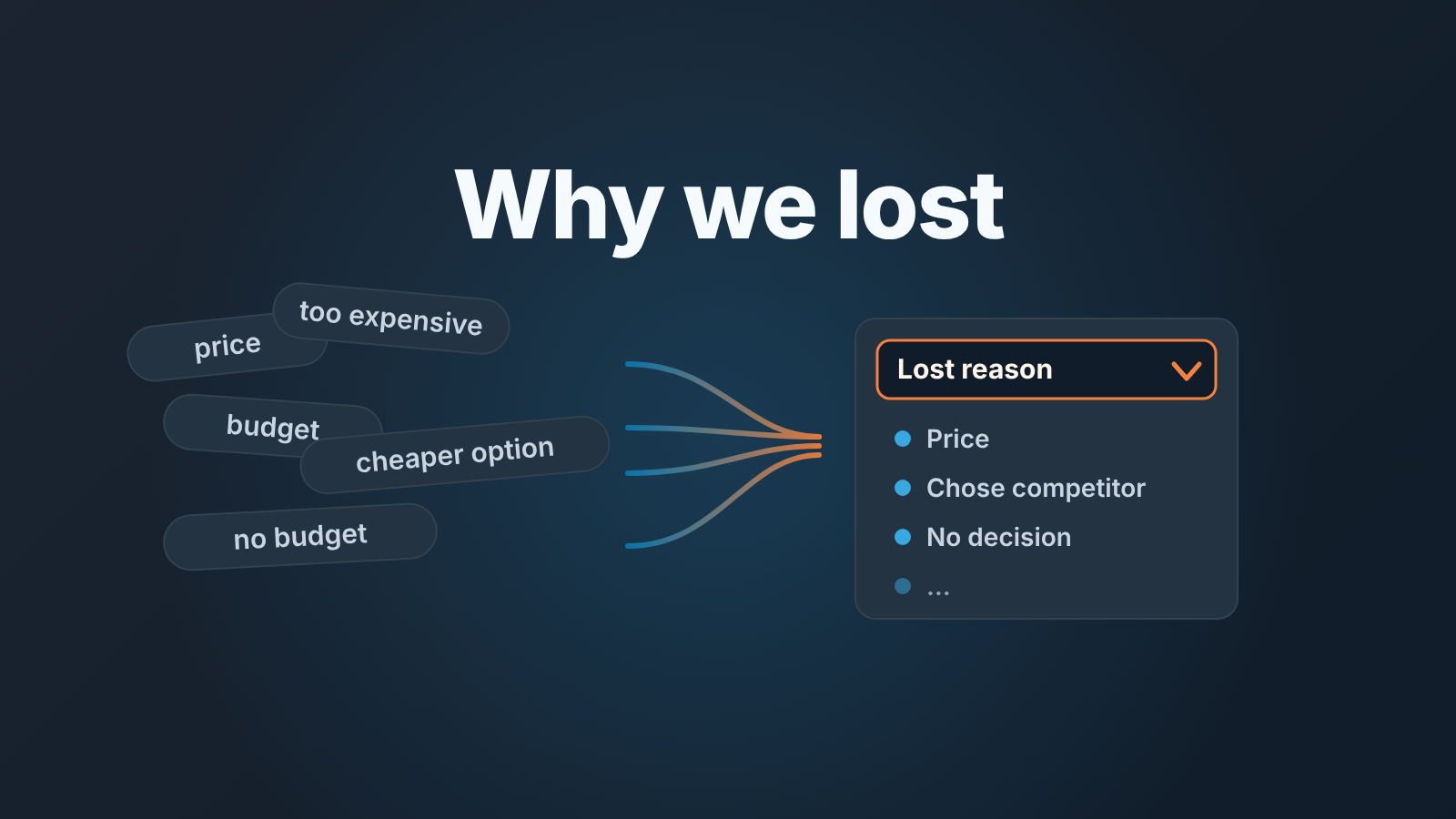
A free-text closed lost reason does not report: every rep spells the same loss a different way, and no chart can group five spellings of “too expensive”. Strocido, a HubSpot agency, describes HubSpot’s default Closed lost reason deal property as exactly that kind of free-text box (Strocido: track closed lost reasons in HubSpot). The fix is a custom dropdown with a short list of reasons that do not overlap, a conditional stage rule that makes it required when a deal moves to Closed lost, and one custom report broken down by that property. This article covers the part the four-step guides skip: how to write the list so “Other” does not win, where to put the competitor’s name, and how a manager reads the chart once a month.
We wrote the Pipedrive version of the list separately, in lost reasons in Pipedrive. This one is about how the property, the rule and the report fit together in HubSpot.
Why a free-text closed lost reason does not report
HubSpot’s own list of default deal properties describes Closed lost reason in one line, “the reason the deal was lost”, and does not say what kind of field it is (HubSpot: default deal properties). When it is a text box, as Strocido describes it, a month of losses looks like this: “price”, “too expensive”, “budget”, “went with cheaper option”, “no budget this year”. Five spellings, two or three real reasons. Strocido’s guide puts the result bluntly: with a free-text box “reps either skip it or enter something different every time”.
The second problem is that nothing asks for it. A rep drags the card to Closed lost on Friday and the close date moves with it, because HubSpot sets the close date to today when a deal enters a closed-lost stage (HubSpot: default deal properties). The deal looks properly closed. It just has no reason attached.
So the job is two settings, not one: a property whose values are fixed, and a rule that stops the move until one is picked. Both questions keep coming back in HubSpot Community, from how to create a dropdown for closed lost reason to closed lost reason breakdown reporting.
Seven closed lost reasons that do not overlap
The list is where most teams fail, not the settings. If two values can both be true for the same deal, reps will pick whichever is closer to the top, and the report will show their habits instead of your losses. Our rule: one reason, one definition, and the definition says what the buyer did, not how the rep feels about it.
Create the list as a new dropdown select deal property, named something like Lost reason, and keep the default Closed lost reason as an optional note next to it. Strocido suggests the same split. Why not turn the default property into a dropdown? Because it already holds every reason your team ever typed, and HubSpot warns that changing an existing property’s field type “can invalidate current values stored in the property” (HubSpot: create and edit properties). A new property starts clean and the old text stays readable.
For a team of three to eight reps, this is the list we would start with:
- No decision. The buyer bought nothing from anyone. The project was shelved, the budget vanished, or they kept what they already had. If they chose a competitor, this is wrong.
- Chose competitor. Someone else got the deal. The name does not go here.
- Price. They would have bought this product at a lower price and said so. “Cheaper competitor” is Chose competitor, not Price.
- Missing feature. A named capability we do not have blocked the deal. The note says which one.
- Not a fit. We should not have qualified it: wrong size, wrong segment, wrong country. This points at the qualification stage, not at the rep.
- No response. A real conversation happened, then the contact went silent. The only value an automation may set.
- Other. Allowed, on one condition: the note is filled in. “Other” with no note is a blank with extra steps.
Each definition excludes it’s neighbour. We would not add “Timing” or “Budget” as separate values; both are No decision in practice, and splitting them produces two half-slices that argue with each other in the report.
Short lists hold. Every value you add is one more decision the rep makes at the worst moment, right after losing. Six or seven they will use. Twelve they will scroll past to Other.
To edit it later, go to Settings, open Properties in the left sidebar, pick deal properties and open Lost reason; for a dropdown, the Field type tab is where the options live (HubSpot: create and edit properties). Renaming a value keeps its history on one slice. Adding a value for something that already sits in Other means moving those deals by hand, which is why the list deserves an hour of thought before the first deal is closed with it.
Make it required when a deal moves to Closed lost
The mechanism is a conditional stage rule on the Closed lost stage. We walked through it for open stages in HubSpot required properties by deal stage, so here is only the path: Settings, Objects under Data Management, Deals, the Pipelines tab, your pipeline. In the Closed lost row, under Conditional logic rules, click Add rule, add Lost reason as a dependent property and mark it required. HubSpot’s wording: “If a property is required, users cannot create or update the record until they set a value for it” (HubSpot: set up and customize pipelines).
Two choices inside that rule matter more than they look.
Require the dropdown, not the note. If both are required, reps type “see dropdown” into the note and the note stops carrying anything. Keep it optional and tell the team that Other and Missing feature need one.
And add the competitor field to the same rule, optional. The form then shows Lost reason and Lost to together, at the moment a rep still remembers the name.
Put the competitor’s name in its own field
Do not put competitor names into the reason list. “Lost to Acme”, “Lost to Beta” and “Chose competitor” are three values for one reason, and the moment a fourth competitor shows up the history splits again. Keep the reason as Chose competitor and record the name in a second dropdown property, Lost to, with the competitors you meet regularly plus “Other” and “Unknown”.
A dropdown, even though the list of competitors changes? Yes, because the question you will ask in the report is “how many deals did Acme take from us this quarter”, and that is a breakdown, which needs fixed values. When a new name turns up twice in the free-text note, add it. A dropdown you edit every quarter is still a dropdown.
Unknown earns its place too. A rep often learns that the buyer went elsewhere without learning where, and without an Unknown option they either guess or leave the field empty. The report cannot tell those two apart. Unknown is a fact; blank is not.
The monthly report: shares, “Other”, and what to change
HubSpot does have a ready-made Deal loss reasons report in the sales analytics suite (Sales Hub Starter and up), but it counts closed-lost deals by the value in the default Closed lost reason property (HubSpot: sales analytics reports). With your reasons in a custom Lost reason dropdown, that report is looking at the wrong field. So build your own once, in the custom report builder.
Go to Reporting, then Reports, click Create, choose Create report, then Custom report, and set Deals as the primary data source (HubSpot: create reports with the custom report builder). Put Lost reason in Break down by, count of deals as the value, filter by pipeline and close date, and pick a donut or a bar. Strocido’s version adds a filter “Closed Lost Reasoning is known” so empty values stay out of the chart. We would do the opposite for the first two months and keep the blanks visible, because the blanks are the deals that went around the rule.
Then read it once a month, not once a week. Here is how we read it.
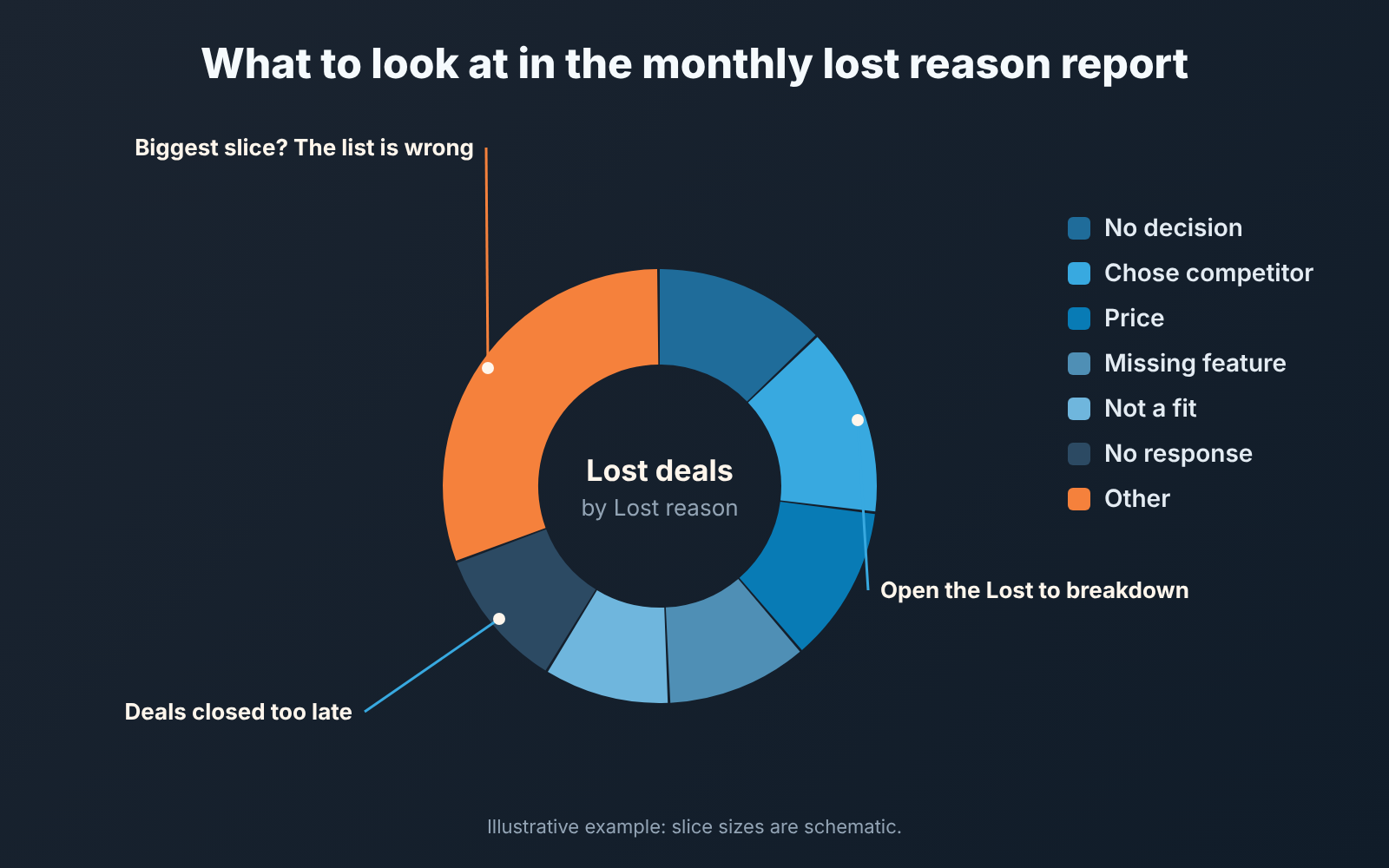
Start with Other. If it is the biggest slice, the list is wrong, not the reps. Open the notes behind those deals and look for a phrase that repeats; that phrase is your missing value, or it tells you one of the seven definitions is unclear. Fix the list then move those deals to the new value. If Other is small and every one of them has a note, the list is doing its job.
Next, No response. A large share means deals are being closed lost long after they actually died, usually in a clean-up before the review. That is a closing-discipline problem, and we wrote about the trigger for it in when to close a deal as lost.
Chose competitor is only the first half of a question. Add a second report broken down by Lost to. One name taking most of that slice is a different conversation from five names taking one deal each.
Price gets a cross-check before anyone cuts a price. Open the deals and look at Lost to. If the same competitor sits behind most Price losses, the problem is positioning against one rival, not the price list.
Not a fit should shrink over time, since every deal in it is a qualification miss. If it does not, the required properties on your early stages are too loose.
Now the caveat for small teams, and it is the reason we say monthly. Five reps may close ten or fifteen deals lost in a month. With seven values, that is one or two deals per slice, and one rep’s bad week moves the whole chart. So in a small pipeline, read counts, not shares; look at a quarter when the month is thin; and if two values stay under two deals each for a whole quarter, merge them. A list that is too fine for the volume is as useless as a free-text box.
A disclosure, since the report is where this stops being a HubSpot question and starts being a management one: we build SalesBond, a sales management layer on top of the CRM a team already uses; we started with Pipedrive. The monthly reading above needs nothing but the HubSpot report. What it cannot do is look at deals before they are lost. Deal Health checks every open deal in the connected CRM against more than 20 rules, so the problems behind next month’s slices show up while there is still time to act. Check your CRM with SalesBond.
When a workflow closes the deal
Plenty of teams let a workflow close deals that went quiet. HubSpot Community has a whole thread on a deal marked closed lost when the prospect is unresponsive for over a month. In the workflow editor, the action that does it is Edit record, which can “set, edit, copy, and clear property values” (HubSpot: choose your workflow actions).
The stage rule will not stop that workflow. HubSpot shows conditional stage properties when users manually create a record in a stage or move one into it (HubSpot: set up and customize pipelines), and Strocido spells out the consequence: workflows, imports and APIs do not trigger the prompt. A workflow-closed deal arrives in Closed lost with whatever the workflow wrote, or with nothing.
So the workflow has to write the reason itself, in the same Edit record action that changes the stage, or your report grows a blank slice no rep can explain. The value should be No response, the one value defined as “went silent”, not a special automation value like “Inactivity”. A separate value splits silent deals into two slices by who pressed the button, and the reason is the same either way.
Before you turn that workflow on, put a step in front of it: a task to the rep when the deal goes quiet, as in a HubSpot workflow that creates a task for a stale deal. A deal that got a task, got no reply, and was then closed by the timer has earned No response. A deal the timer closed because nobody looked at it for thirty days has not, and that is the one to talk about in the the next pipeline review.


