To see how long deals sit in each stage, use the Opportunity History report type in Salesforce: it gives you From Stage, To Stage and a Stage Duration column, and it needs no setup. Opportunity Field History is a different report, built on fields an admin chose to track, and it answers who changed a field, not how long a stage took. Below: the six-step stage-duration report, how to read the rows where a deal went backwards or skipped a stage, and five questions for the weekly call.
Two “history” report types and which question each answers
The names are close enough that people build the wrong report and then conclude Salesforce can’t answer the question. It can, with the other report.
Opportunity History is the stage log Salesforce keeps on its own. Nobody turns it on, and the standard Opportunity History report type adds From Stage, To Stage and Stage Duration to its rows (Salesforce Help: Create Salesforce Report on Duration of Opportunity Stage). That is why it is the right place for “how long did this deal spend in Proposal”. Stage duration is also the cycle-length input of sales velocity in Salesforce.
Opportunity Field History is the change log for fields an admin picked in Field History Tracking. It records old value, new value, who and when, for Next Step, Owner, Forecast Category or anything else on the list, but nothing from before the day tracking started. Which fields deserve a slot, and how to read that report, we covered in Field History Tracking for opportunities.
One mistake to avoid, because AI assistants repeat it: for stage duration you need neither a custom report type nor Stage switched on in Field History Tracking. The standard report type is enough.
The split we use is simple. A question about time (“how long”, “since when”, “how many stages did it pass through”) goes to Opportunity History. A question about authorship (“who moved this close date, and was it before the forecast call”) goes to Field History.
Build the stage-duration report in six steps
Salesforce’s help article describes a plain tabular report with three columns side by side and a summary on one of them. Here are the steps, with our notes (Salesforce Help):
- Open the Reports tab, click New Report and choose the Opportunity History report type. Not “Opportunities”, not “Opportunity Field History”.
- Make sure From Stage, To Stage and Stage Duration are in the report, next to each other. The help article says From Stage and To Stage appear by default; add Stage Duration yourself.
- Summarize the Stage Duration column and show both Sum and Average at the top. Average is the number you will quote. Sum is the sanity check that the rows you expected are actually there.
- Set the scope filter: your opportunities or all opportunities, depending on whether you look at your team or the whole org.
- Set the Close Date filter. For a weekly check we leave it wide (current and next quarter), because the deals that sit too long are exactly the ones whose close date has drifted out of this month.
- Group by To Stage, save the report under a name your reps will recognize, and run it.
Step six is ours, not the help article’s. Grouping by To Stage turns one long list into a block per stage, and the Average under each block is that stage’s typical duration. It’s the number you compare each open deal against on Monday.
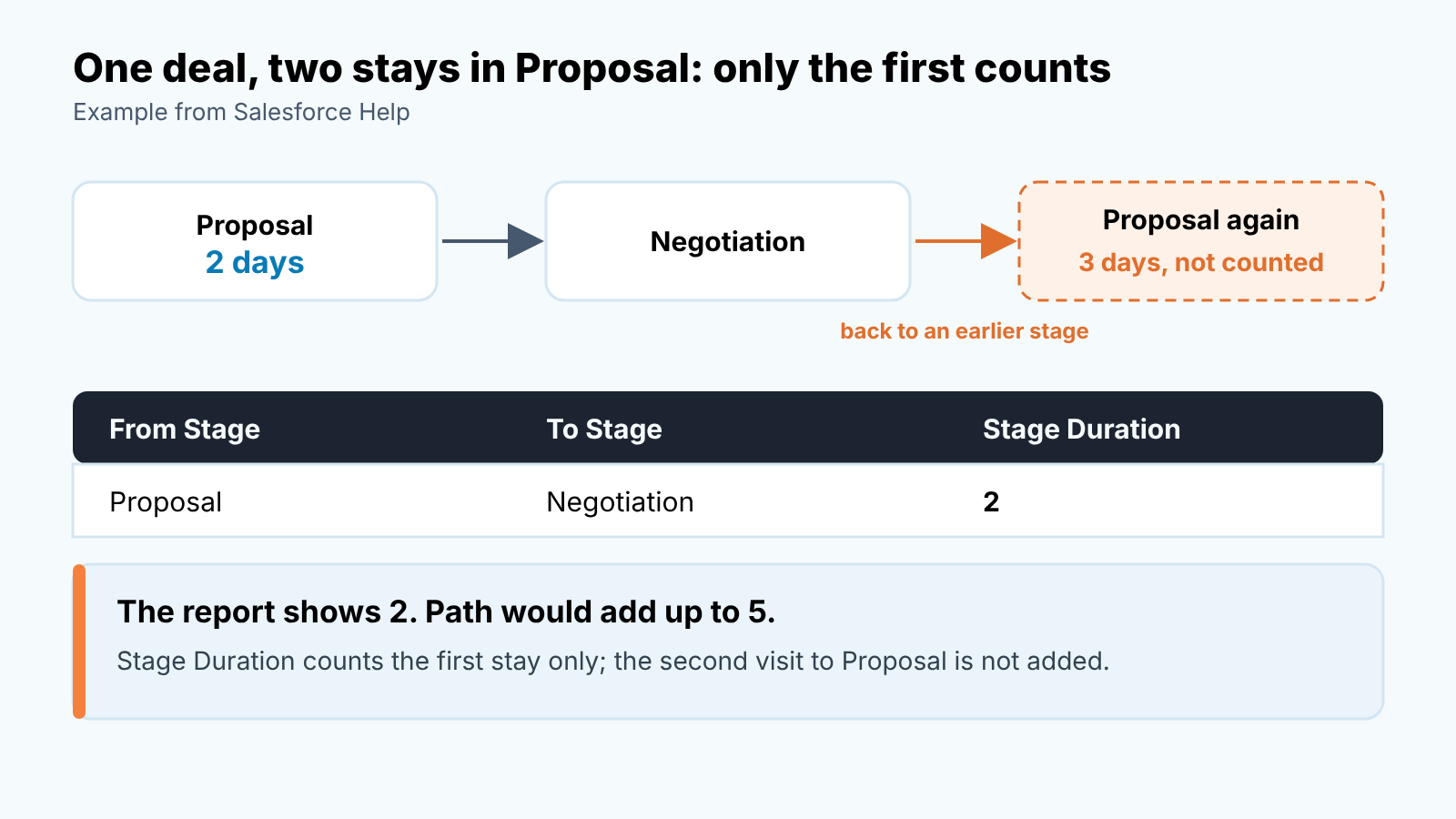
Before you trust the Average, know how it is counted. If a deal leaves a stage and later comes back, Stage Duration shows only the first stay. The help article’s example: two days in Proposal, a move to Negotiation, then three more days back in Proposal. The report shows 2, while Path would add up to 5. So on a pipeline with a lot of back-and-forth the Average reads shorter than reality, and we treat it as a floor, not a measurement.
Where is the deal now? The missing column
The first thing a manager wants to add to this report is “and where is the deal today”. You can’t. The Opportunity History report type has no column for the opportunity’s current stage. Someone asked exactly this in the Trailblazer Community, and the accepted answer was to switch report types (Trailblazer Community, February 2025).
We use the same workaround. Build a second report on the Opportunity Field History type, where the current Stage is available as a column. Filter on Field / Event equals Stage, New Value equals the stage you care about, Stage (the current one) not equal to the stage before it, and Edit Date in the period, for example LAST WEEK. What comes out is the list of deals that reached the stage in that period and haven’t slid back. The catch: Stage has to be one of your tracked fields, and only changes after tracking started will show up.
On our dashboard the two reports sit next to each other, and neither does the other’s job.
A related question we get is why Amount and Close Date in the history rows don’t match the opportunity today. A history row records the deal as it was at that change. A deal that moved to Negotiation at 40,000 in May and is now open at 25,000 still shows 40,000 on its May row. That’s correct, not a bug, and it is half the value of the report: the gap between the row and the record is the story of the deal.
What stuck deals look like in the rows
Open the stage-duration report grouped by To Stage and read it like a manager, not like an analyst. We look for three patterns.
The long row. One opportunity whose Stage Duration is well above its group’s Average. The number alone doesn’t say whether the deal is slow or dead; the activity timeline does, and our routine for that is in the activity timeline deal check for Salesforce. What the row gives you is the the deal and the stage, so you open exactly that deal and nothing else.
The return. A row where To Stage is earlier than From Stage. We don’t treat a move backwards as a failure; usually a rep learned something the stage gates should have caught, and now is the cheapest moment to learn it. The same deal coming back to the same stage twice is a different story, because by then nobody knows what that stage means for this customer. And since the second stay doesn’t count in Stage Duration, the row is your only evidence it happened.
The jump. From Stage is Qualification, To Stage is Negotiation, one row, and a day or two on Qualification. Someone moved the deal past a stage in a single edit. On it’s own it’s a data-quality note. On a deal in Commit, it means the exit criteria of the skipped stage were never met, and we wrote about what those criteria should be in stage exit criteria for Salesforce opportunities.
Then there is the silence. A deal with no new history row for weeks can be healthy in a long stage or simply forgotten, and the report can’t tell which.
Five questions for the weekly review
This part takes about fifteen minutes, with the stage-duration report open and the pipeline on a second screen. We ask these of the ordinary deals, the ones nobody flagged, because flagged deals already get attention. The wider review routine is in weekly pipeline inspection in Salesforce.
Which deals are past the Average for their stage, and by how much? Take the Average from the report group, sort the open deals in that stage by days in stage, start from the top. A deal at twice the Average gets a question. A deal at three times gets a decision.
Did any deal come back to a stage this week? Scan for rows where To Stage is earlier than From Stage. Ask the owner what the customer said, and whether the gate on the earlier stage should change so the next deal doesn’t have to come back.
Did any deal skip a stage? One row covering two or more stages. Ask which gate was met and when. If the answer is “it was obvious”, the stage is probably redundant for that kind of deal and the pipeline should say so.
Does the history row’s Amount or Close Date differ from the record? For the deals that moved this week compare the snapshot with the current values. A close date that moved out and an amount that moved down in the same week is a deal to re-forecast now, not at quarter end. Who made those edits is a question for the Field History report.
Is the slowest stage the one you expected? Teams usually assume it’s Negotiation. In our experience it is often Proposal, because that is where a deal waits for the customer and nobody owns the wait. That makes it a process problem, not a rep problem, and the fix is a rule for what “Proposal” means. We covered that in Salesforce reports for a sales manager’s week.
A disclosure, since this is where a tool fits: we build SalesBond, a sales management layer that works with Pipedrive, HubSpot, Salesforce and Zoho CRM. Its Deal Health checks every open deal against more than 20 rules and lists the deals that fail, with what to do about each, so the “which deals need a look” step arrives as a list instead of a sort. The history report still tells you how long a stage takes on your team; if you want the exceptions list without building it, check your CRM with SalesBond.
FAQ
Do I need to turn Opportunity History on?
No. Salesforce keeps it for every opportunity, and the standard Opportunity History report type works out of the box. Field History is the one an admin switches on, field by field.
Why does Stage Duration look shorter than the deal has actually been in the stage?
It counts only the first stay in a stage. A deal that left and came back shows the first visit alone, so treat the Average as a floor.
Can I see the current stage in an Opportunity History report?
Not in that report type. Build the list on Opportunity Field History instead, which has the current Stage as a column, provided Stage is a tracked field.
What is the Salesforce stage history report?
It’s the standard Opportunity History report type. With From Stage, To Stage and Stage Duration side by side, it shows how long each deal spent in each stage.