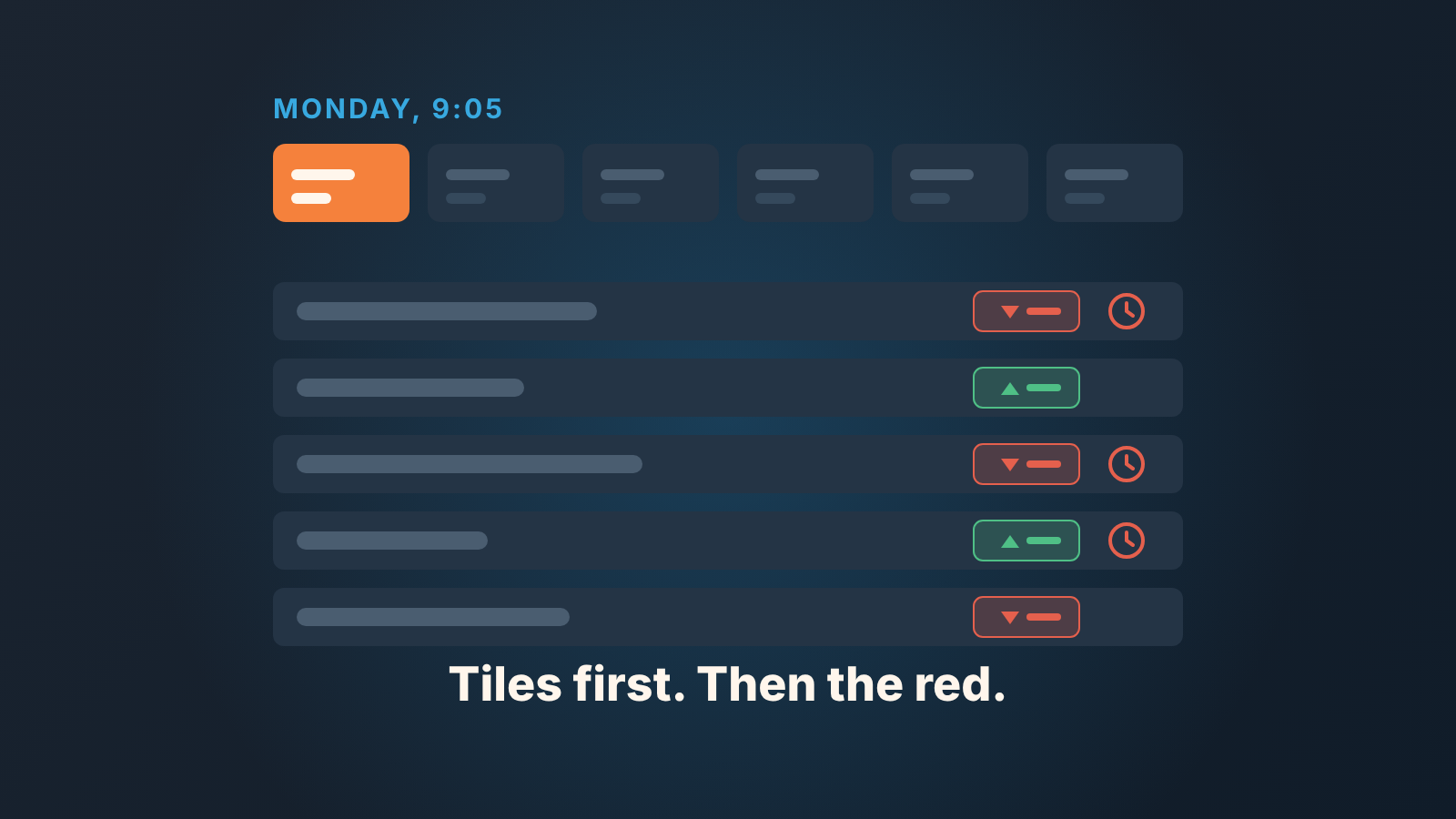
Pipeline Inspection is a Sales Cloud workspace that shows how your opportunity pipeline changed over a period: metric tiles, a filtered deal list, and red and green highlights for changes in the last 7 days. On Monday, read the tiles first, then question every red deal, then check what the screen can’t see.
The view shows movement. It does not show whether the records are right, so before you trust the numbers, check Next Step and Recent Activity on the deals you questioned. One note on the term: this is the Salesforce feature, not the record-checking habit we described for Pipedrive teams in pipeline inspection vs. pipeline review.
The Monday screen: what moved since last week
It is 9:05 on Monday. You open the Opportunities tab, click the Pipeline Inspection button, and your team’s deals come up. Some cells are red, some green, with small arrows next to them. A few rows carry a red clock.
Salesforce is showing you changes from the previous 7 days: amounts, close dates, forecast categories and stages, red for a step back, green for a step forward. The clock means nobody has touched the Next Step field on that deal for 7 days or more. Hover over a changed cell and you see what changed, when, and who did it (Salesforce Help: Manage Pipelines with Pipeline Inspection).
Most managers start with the red. It’s the wrong place. Red cells are single deals and before single deals you want to know whether the period as a whole got bigger or smaller. That answer sits in the tiles above the list.
So set the filters first: Close Date to the period you manage (this month or this quarter), Owner to your team, and Changes Since to the start of that period. Salesforce’s own documentation uses that combination as the example of what a sales manager looks at (Salesforce Help: Pipeline Inspection Metrics and Fields). Quick filters last for the session; filters set in the filter panel stay on the view until you remove them.
Not switched on in your org yet? That’s an admin job in Setup, covered in Salesforce Help: Turn On Pipeline Inspection.
Reading the Pipeline Inspection metrics in order
There are two groups of metrics and a dropdown to switch between them. The Forecast Category group (Commit, Best Case, Pipeline, Closed Won and so on) tells you where the period stands. The Pipeline Changes group tells you how it got there. Both are on by default, and an admin can turn either one off (Salesforce release notes, Spring ’23: View Pipeline Changes for Key Time Periods).
Every tile is also a filter: click it and the list shows only the deals behind that number. The whole routine runs on that, in this order.
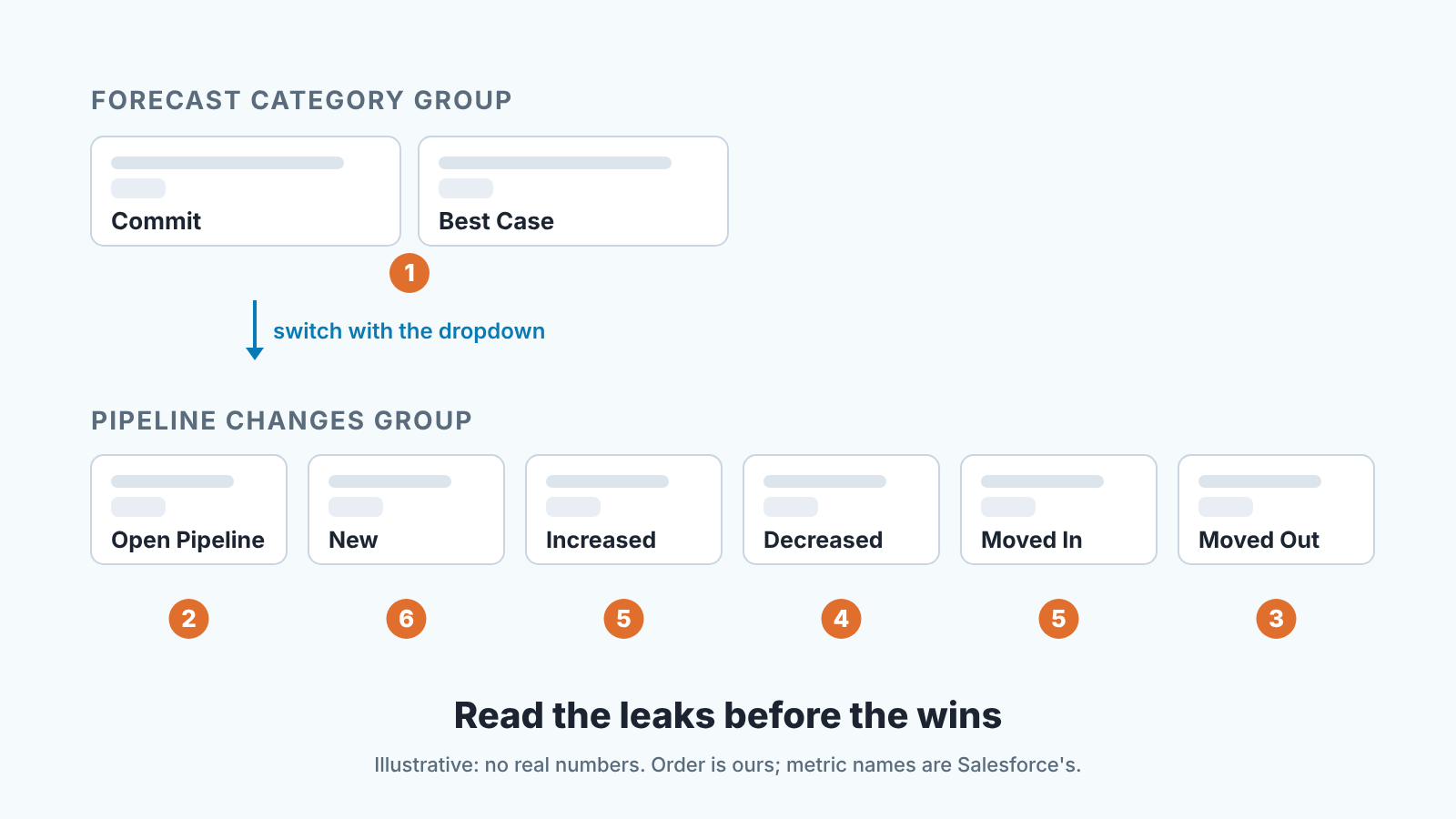
- Commit and Best Case, before you switch groups. Commit is the total of opportunities in the Closed or Commit forecast categories. Write it and Best Case down. Both follow the same categories as Collaborative Forecasts, covered in manager adjustments in Collaborative Forecasts. Don’t adjust anything here.
- Open Pipeline. Switch to the Pipeline Changes group. Open Pipeline is every open opportunity whose close date currently falls inside your Close Date filter: the size of the period right now. If you can’t remember last Monday’s number, write today’s down. Next week you will.
- Moved Out. Deals that had a close date inside the period when the Changes Since window started and now close later. This is where a period quietly shrinks. Click the tile: every deal in it is a question for a rep. One limit: Moved Out only looks at opportunities whose close dates are within 6 months after the selected period (Salesforce Help: Guidelines and Limits for Pipeline Inspection), so a deal pushed into next year drops out of the tile, and those are usually the ones you most want to see.
- Decreased. Open deals still closing in the period with a lower amount than at the start of the window. Filter by it and a Change column appears with each deal’s contribution to the net movement. Sort by it and read the three biggest drops first.
- Moved In and Increased. The good news, read after the bad on purpose. A deal pulled in from next quarter deserves “what changed with the customer?” too. Sometimes the answer is “nothing, the rep wanted a better-looking month”.
- New. Skim it. A brand-new deal already closing this month is either a real fast mover or a rep filling the period, and this screen won’t tell you which.
The changes group also carries Overdue: open deals with a close date within the last 90 days. That’s a hygiene number, not movement, so leave it for the audit.
If a filter returns 2,000 or more records, the tile shows no total at all (same guidelines page), so narrow Close Date first. If you want the totals in your inbox before you open the view, schedule a report subscription.
One question per red deal
Now the list. With the filters set and the group on Pipeline Changes, the red and green cells finally mean something, because you know whether they add up to a period that grew or shrank. Open each deal with a red change and ask its owner one question. Which question depends on what moved.
Close date moved back. Hover over the cell and you get the old date, the new one, when and who. Not why. The only question worth asking is “what did the customer say that moved it?” If the answer names a person and a conversation, fine. If it’s “I just hadn’t updated it”, the deal hasn’t slipped, the record has. Add the Push Count column from the the gear icon if you want a history: it counts how many times a close date was pushed past a calendar month, and only that. A date that drifts from the 3rd to the 28th of the same month never increments it, which is exactly how a lot of slipping looks (guidelines page above).
Amount went down. Ask “what came out of the deal?” A real answer names a line, a seat count, a module. If the rep says the customer “wants to start smaller”, ask what the second phase is called and when it shows up in the pipeline. One trap before you react: the Amount cell highlights a change only when the currency is the same before and after, so a deal switched from USD to EUR shows no red even if it’s now worth less.
Stage went back. We think this is good news more often than not. A rep who moves a deal from Proposal back to Discovery because the champion left is giving you an honest pipeline. Ask “what has to be true to get back there?”, not “why did you move it?”
Stage went forward and Next Step carries a red clock. Take that one to the one-to-one: “The deal advanced a stage and nobody has touched Next Step in a week. What is the next step?” Advancing without one is how deals get to Negotiation and sit there.
Edit in the view, or fix in the record?
Pipeline Inspection lets you edit fields inline: hover over a cell, click the pencil. Forecast Category and Probability are the exceptions, because Salesforce updates them when the Stage changes (guidelines page above). The same holds on the Opportunities tab, where the Kanban view lets anyone drag a card to the next stage.
The temptation on a Monday is to fix what you see. We would hold back. Only the rep who owns the deal knows whether the record is wrong or the deal is, and a manager who corrects records in the view teaches the team that someone else fixes thier records on Monday.
Our rule: edit inline only what is clerical and certain, like a close date in 2031 that is clearly a typo. Everything else is a question, and the rep fixes it in the record, with the validation rules and activity history in front of them. Same field wrong on the same rep’s deals three Mondays running? That’s no longer a Pipeline Inspection problem. It’s field quality, and it belongs in the Salesforce opportunity audit for managers, with thresholds and owners.
What Pipeline Inspection can’t tell you
This is the part that costs managers the most, because the screen looks complete.
Start with who you can see. Managers see deals for users below them in the role hierarchy, where that user owns the deal or is on the opportunity team. For deals where your reports are only team members, you and they must be in the same branch of the hierarchy, and the All Opportunities owner filter isn’t supported at all (guidelines page above). Users have been unhappy about this for a while: a Trailblazer Community post from December 2023 says “the filter is hard-limited to role hierarchy” (Trailblazer Community topic: Pipeline Inspection). That may have changed since. The practical point stands, though: if your hierarchy doesn’t match how the team actually sells, the view is missing deals and won’t tell you so.
Then two fields that look like quality signals and aren’t.
The red clock on Next Step means the field hasn’t been edited in 7 days or more. It says nothing about what’s in it. “Follow up”, retyped every Friday, keeps the clock away forever. Read the words, not the date. What a Next Step should actually say is in the Salesforce tasks and Next Step rule.
Recent Activity has its own rule in Pipeline Inspection. A new task doesn’t count until it’s completed, while a call or an event counts the moment it’s created, whatever its status (guidelines page above). So a rep who books an event six weeks out has a deal that looks active today, and a rep who logs a real task for tomorrow has one that looks untouched. Pipeline Inspection covers the weekly deal review; keep a dashboard for the rest of the week.
Pipeline Inspection tells you the pipeline moved. Whether the records behind it can be trusted is the check we built SalesBond for: Deal Health runs more than 20 rules against every open deal in the CRM you already use, Salesforce included, and explains which ones fail. Check your CRM with SalesBond, or read how Deal Health finds at-risk deals.
The Monday, start to finish
Once the filters are saved in the view, the Monday goes like this. Five minutes on the tiles: Commit and Best Case, switch groups, Open Pipeline, then Moved Out and Decreased with the list sorted by the Change column, then the good tiles, then New. Write Commit and Open Pipeline into the same note every week. After a month that note is more useful than most reports, and faster than the ones in our weekly Salesforce reports routine. Five minutes on red cells: one question per deal, typed into a message to the owner, not fixed inline. Five minutes on the deals you just questioned: read Next Step as text, check who was in the last activity, and mark the ones you want on the agenda as important (you can hold up to 200, more than any Monday needs). Then close the tab. The reps answer during the day, the people who own the records fix them, and next Monday the red cells tell you whether the answers were true. If you want the same cadence without the Salesforce specifics, it’s in the weekly pipeline review in 15 minutes.