
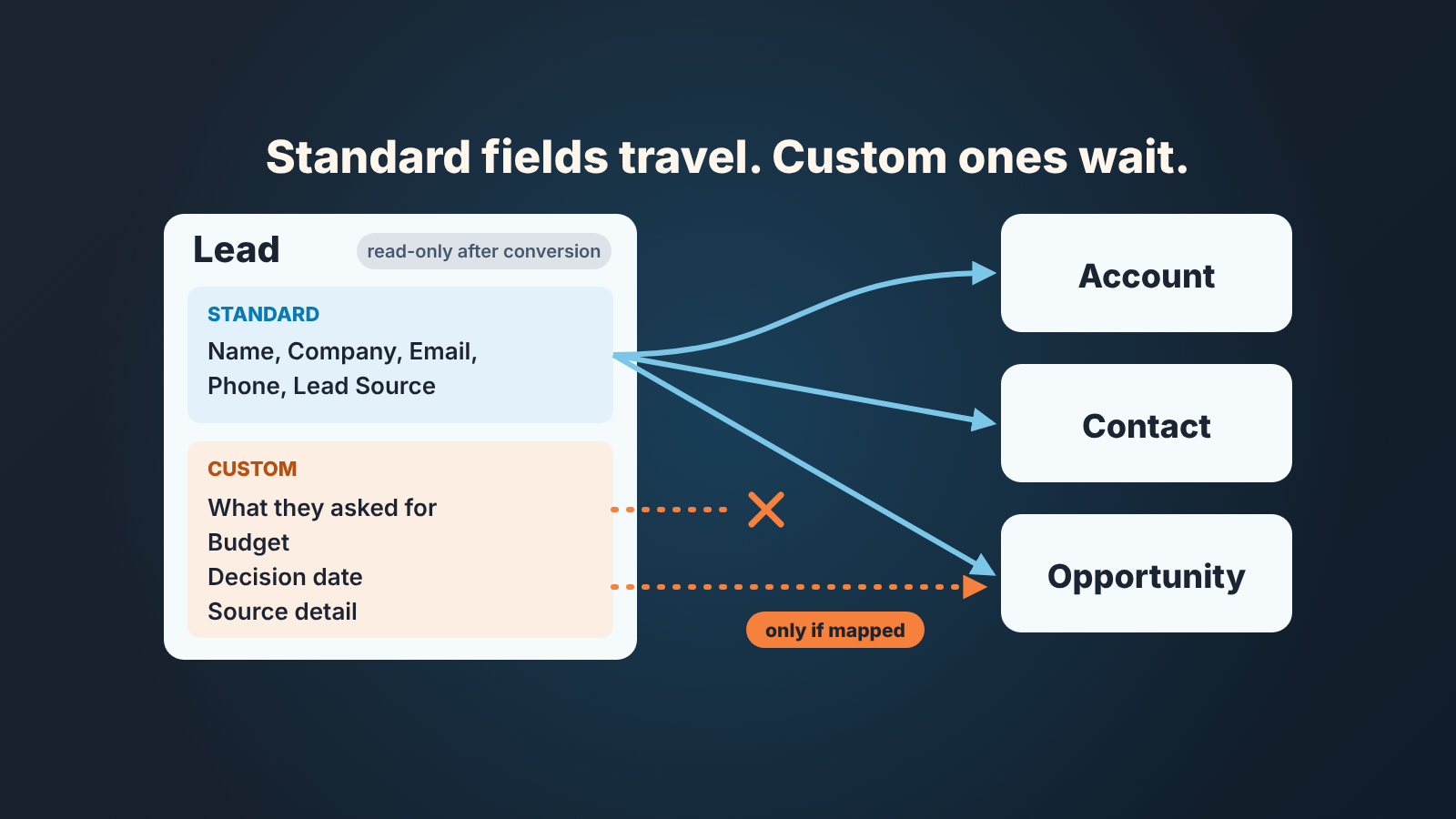
In Salesforce, only the standard lead fields travel on their own when you convert a lead: name, company, email, phone, Lead Source and the other stock fields land in the matching standard fields on the new Contact, Account and Opportunity (Salesforce Help: Map Custom Lead Fields for Lead Conversion). Everything your team added to the lead, like what the customer asked for or the budget they mentioned, arrives only if an admin has mapped that custom field to a field on the Account, Contact or Opportunity. So the manager’s job is not to learn the mapping screen. It is to pick the five to eight facts a deal cannot start without, get them mapped, and check the result on one real lead.
What actually travels when you click Convert
The conversion itself is short. A rep opens a qualified lead, starts the conversion from the lead record, and gets one window: an Account (new or existing), a Contact, an Opportunity (new, existing, or none), and an optional follow-up task (Salesforce Help: Convert Qualified Leads). One click later the lead is done. What it carries across is the interesting part.
More than most people expect, and less than they assume. Standard fields, notes, files, activities and campaign membership travel; unmapped custom fields do not.
Notes and files attached to the lead are attached to the Contact, Account and Opportunity you create or pick (Convert Qualified Leads page). Salesforce also attaches all tasks and events from the lead to the resulting Account, Contact and Opportunity, except activities started from a Sales Engagement cadence (Salesforce Help: Considerations for Converting Leads). List emails are the quiet exception: they follow the Contact but not the Opportunity. Campaign membership moves to the new Contact, and if the lead sat in several campaigns, the most recently associated one becomes the Opportunity’s Primary Campaign Source (same page).
Custom fields are the gap. The help page puts it plainly: if you set up custom lead fields, you specify how that information converts to custom fields on accounts, contacts and opportunities. Nobody specified it, nothing moves. The value stays on the old lead, and the old lead is now read-only unless your admin has granted View and Edit Converted Leads. You can’t reverse a conversion either, and even in Lightning Experience, where a converted lead still turns up in search, you can’t open it from the results to view or edit it (Convert Qualified Leads and Considerations pages). So when a rep opens the new Opportunity and the “What they asked for” box is empty, the honest answer to “where did it go” is: it is still on a record you can no longer open. The same gap shows up before conversion, because a Web-to-Lead form fills only the Lead fields you pick for it.
One more detail bites small teams. When you convert into an existing Account or Contact, mapped lead values do not overwrite what is already there; Salesforce fills empty fields only (Considerations page). New records are different, there the lead values overwrite the defaults. In practice, this means the fresh mobile number a rep typed on the lead can lose to a stale one on a three-year-old Account, and nobody gets a warning.
The short list: lead conversion mapping a deal needs
Write this list before anyone touches Map Lead Fields, and keep it to five to eight items. Twenty mapped fields means twenty fields reps stop filling on the lead. These are the seven we would start with for a small B2B team; cross out what you do not collect.
- Where the lead came from, specifically. Lead Source is a standard field and travels by itself. If your team records the detail in a custom field (webinar name, partner, referring customer), that one needs a custom target on the Opportunity, otherwise the deal knows it came from “Web” and nothing else.
- What the customer asked for. One or two sentences in the rep’s words. If this lives in a custom text field on the lead, map it to a custom long-text field on the Opportunity. If your team writes it into Notes instead, it already travels, and the Opportunity’s Description can stay for what the deal is. We have a separate piece on where deal context should live on a Salesforce opportunity.
- Budget or indicative size. Map Lead Fields links a custom lead field to a custom account, contact or opportunity field (Map Custom Lead Fields page). It does not pour a custom “Estimated budget” into the standard Amount. Decide now which one your reports use: either the rep types Amount at conversion from the mapped estimate, or the estimate field is the number you review until a quote exists.
- When they want to decide. A custom “Target decision date” on the lead, mapped to the same on the Opportunity. Close Date is the rep’s call during conversion. The customer’s stated date is evidence for that call.
- Why this is a real deal: the problem, who decides, what happens if they do nothing. Map it if it is a field, or make sure it is a Note, since notes attach automatically.
- The agreed next step. Leads have no Next Step field to map from. The conversion window lets you create a follow-up task as you convert (Convert Qualified Leads page), and that task lands on the new records. Use it, every time. Our one-task rule for Salesforce opportunities explains why we prefer a task over a text field here.
- The owner. You can assign owners for the new records at conversion, and only the open activities move to the new owner (Considerations page). If the lead passes from an SDR to an account executive, the handover happens in this window or it does not happen cleanly. That window only helps if the lead had a person as owner in the first place; here is how to find the leads that nobody owns.
On another CRM the list barely changes; the principle is in our lead handoff agreement for Pipedrive teams.
Three choices in the conversion window that matter
Of everything the window asks for, three decisions change what the deal looks like a month later.
The first is new Account versus existing one. Salesforce shows possible duplicates based on your matching rules, and your admin can require that reps resolve them before finishing (Convert Qualified Leads page). Picking the existing Account is usually right, but remember the rule above: the lead’s values only fill empty fields on an existing Account or Contact. If the lead holds a newer phone number or title, someone has to update the Contact by hand after conversion.
The second is whether to create an Opportunity at all. In Lightning Experience you can create a new one or pick an existing Opportunity, with up to 20 matches offered in the list (Convert Qualified Leads page). We convert with an Opportunity whenever there is a buying conversation, for a simple reason: notes and activities attach to the records that exist at the moment of conversion. Create the Opportunity a week later and it starts empty.
The third is the owner and the follow-up task. Set both here. An Opportunity with no open task and a new owner who did not run the discovery call is teh exact deal that stalls in week two. The window also asks for a converted status; see how Salesforce lead status values handle the converted one.
A word on the window you see. Some long-time orgs still run the older PLSQL lead convert, which shows fewer options in Lightning Experience, and custom field mapping only works in orgs on Apex Lead Convert (Convert Qualified Leads and Map Custom Lead Fields pages). If your conversion window looks thin, that is the first thing to ask about.
Test it on one lead, five minutes
Don’t sign off the mapping on the admin’s word. It takes one lead.
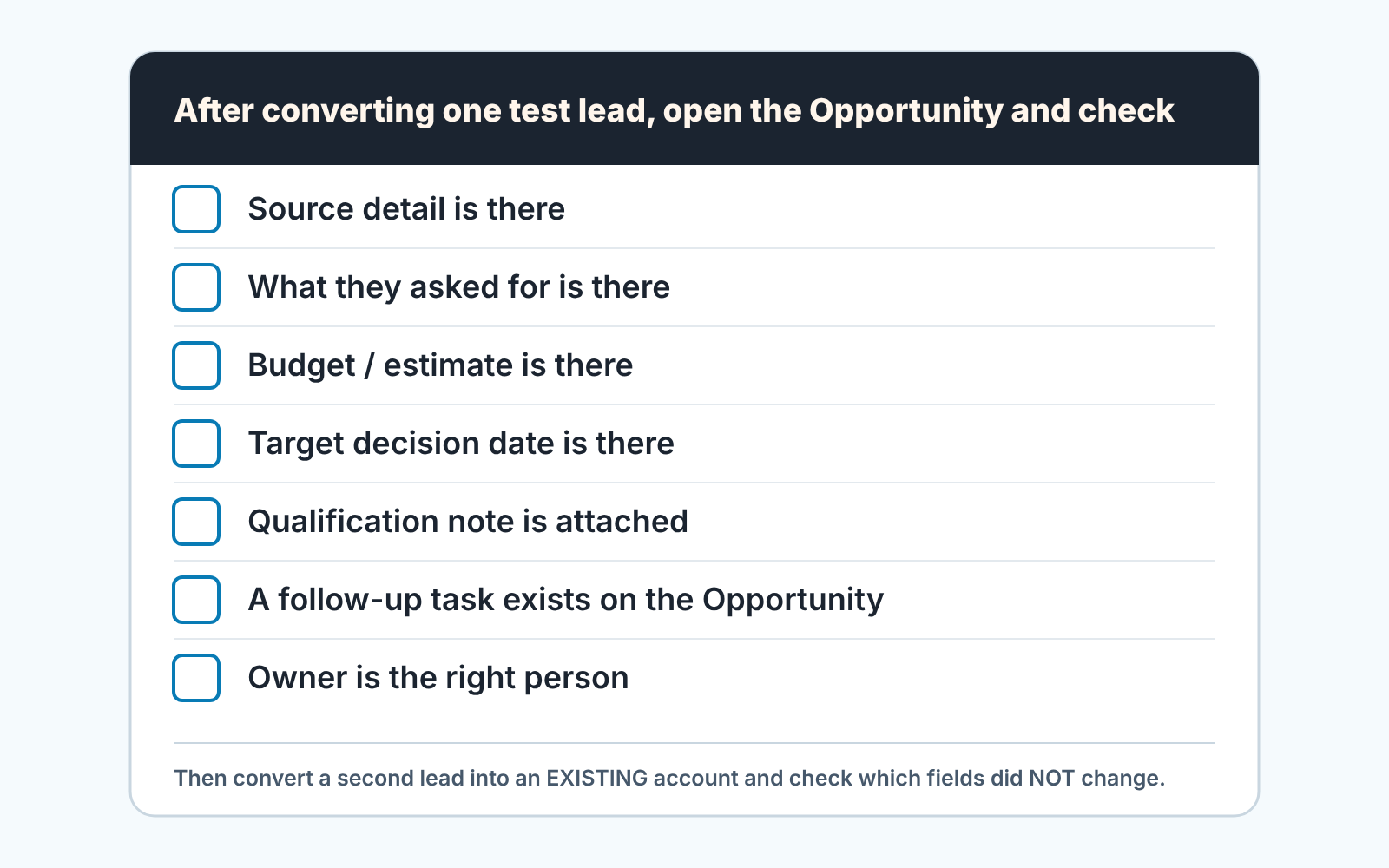
- Pick one real, fresh lead where every field on your short list is filled, and convert it with a new Account and a new Opportunity.
- Open the Opportunity, not the Contact. Every item on your list should be visible there. A field mapped to the Contact alone is fine for the phone number and useless for the budget.
- Check the related lists: the qualification note, any files, and the follow-up task with the right owner and date.
- Convert a second lead into an existing Account and compare the Account and Contact before and after. Whatever stayed stale is your “fill empty fields only” lesson, and the reps need to hear it once.
- Write down every blank. That list is your message to the admin, usually three or four lines.
This is also the moment to decide who checks converted deals week to week, because a mapping that works today breaks quietly when someone adds a field. We build SalesBond, a sales management layer on top of the CRM a team already uses, and its Deal Health checks every deal against more than 20 rules, including deals that arrive without a source or a next step after a handoff. If you would rather not read every new Opportunity by hand, check your CRM with SalesBond. SalesBond works with Pipedrive, HubSpot, Salesforce and Zoho CRM.
What to ask your admin
Keep the request short and in your own words. The admin knows the clicks.
- “Please map these custom lead fields: [field] to [Opportunity field], [field] to [Account field].” The admin does this under Map Lead Fields in the Lead object settings; in Lightning Experience one custom lead field can map to Account, Contact and Opportunity fields at the same time (Map Custom Lead Fields page). If there’s no target field yet, ask for one to be created first, and give it a field type the lead field can map to and, for text, at least the same length as the source (Salesforce Help: Guidelines for Mapping Custom Lead Fields).
- “Are we on Apex Lead Convert?” If not custom mapping isn’t available and the conversion window shows fewer options (Convert Qualified Leads page). Switching goes through Salesforce Customer Support, not a setting.
- “Can the sales manager have View and Edit Converted Leads?” Sooner or later a deal will look like it lost something on the way, and you will want to open the old lead.
That is the whole ask. Flows that copy fields, triggers, record type logic: not your problem this quarter, and not this article.
After conversion, stop looking at the lead
Once the lead is converted it is history, read-only history at that. The Opportunity is where the rep works, the Contact is where the the person’s details live, and a manager who keeps digging through old leads for context is working around a mapping that should have been fixed. Spend the five minutes, send the three-line request, and from then on review the deal. For what else to look at on a new Opportunity, our opportunity audit for sales managers picks up where this one stops.


