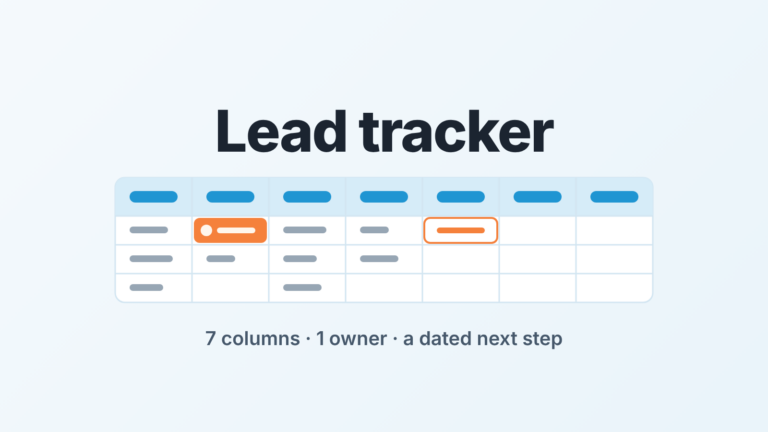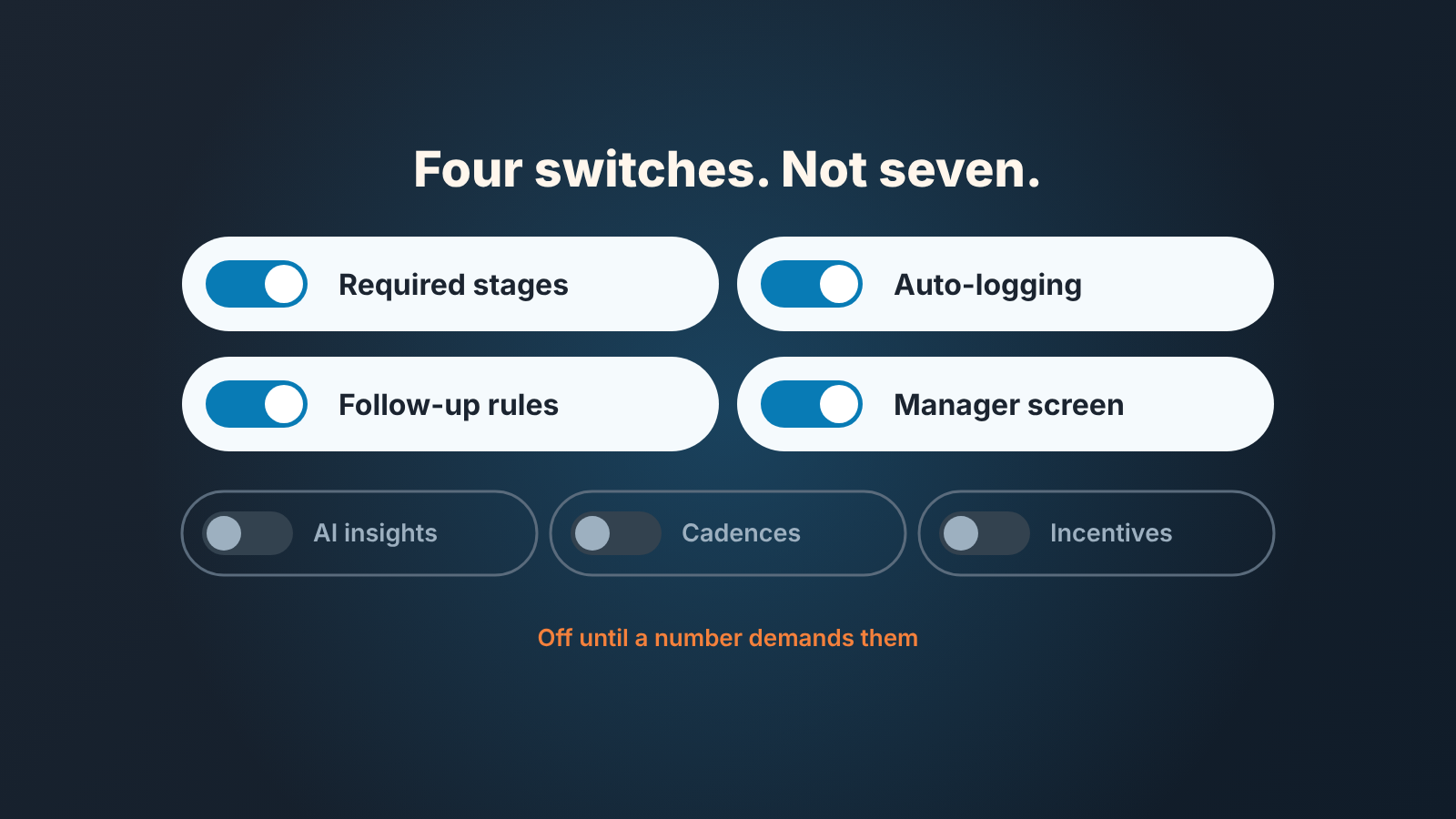
For sales force automation (SFA) in a team of five to fifteen, switch on four things first: required pipeline stages with a next activity on every deal, automatic logging of emails and calls into the deal, rule-based follow-up reminders, and one manager dashboard. Leave AI call insights, cadences at scale and incentive tools off until a number you already track demands them. That is the whole answer for a team with no ops role. The rest of this article is the test we use to decide what goes in which bucket, and which settings do the job in Pipedrive, HubSpot and Zoho CRM.
What sales force automation means, and two things it is not
Sales force automation, or SFA software, is the set of CRM features that do repetitive sales admin for you: creating the follow-up task, logging the email, assigning the lead, filling the report. Vendors publish long lists of these. Salesforce’s own SFA page names sales cadences, relationship graphs, call summaries, call insights, reports and dashboards, templates and incentive compensation management (Salesforce: what is SFA software). Validity boils the category down to four blocks: lead, contact and opportunity management plus forecasting (Validity). Both lists are true. Neither tells you where to start.
Two confusions to clear before anything else.
First: sales force automation is not Salesforce automation. As of October 2026, Google’s AI Overview reads the query the second way and answers with Salesforce Flow, Flow Orchestration and Agentforce. Those are automation tools inside one vendor’s product. SFA as a category exists in every CRM on this page, and most of what follows works the same in Salesforce, Pipedrive, HubSpot and Zoho.
Second: SFA is not a separate thing you buy next to the CRM. In a small team it is a subset of the CRM you already have, most of it switched off or half-configured. “Do we need SFA” is the wrong question. “Which of these switches are on, and who is watching the result” is the right one.
One more, because the “People also ask” box keeps raising it: field force automation is about reps who physically travel, with route planning and on-site check-ins. Different problem, different article.
The one test every feature has to pass
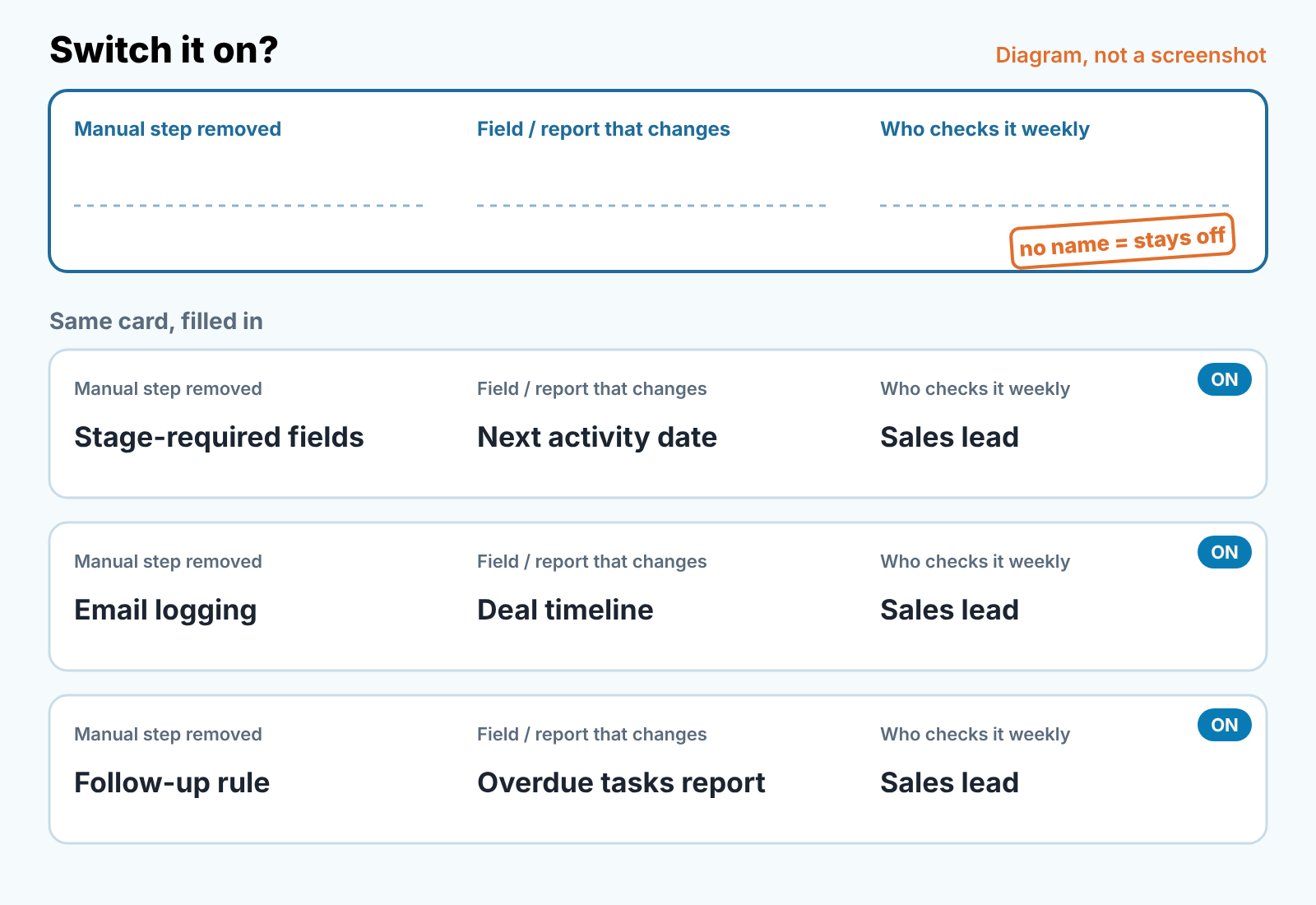
We switch a feature on only when we can write three things in one line:
- The manual step it removes. Not “saves time”. A specific action a rep does today with their hands: typing the call into the note, creating the task after a demo, forwarding the lead to whoever is free.
- The field or report that changes. Automation that changes nothing visible is noise. Name the field (Next activity date, Lead owner) or the report (activities per rep this week).
- A named person who looks at that field or report once a week. A real name on your team, not “the manager”. No name, no switch.
The third line is the one that kills most ideas and that is the point. A rule that creates tasks nobody reviews produces a backlog of overdue tasks, and reps learn within two weeks that tasks can be ignored. We have watched that happen with lead scoring, with auto-created “check in” tasks, with daily digest emails. The feature worked. Nobody owned the output, so the output became wallpaper.
This test also answers the adoption question from the other side. Reps stop entering data when entry feels like paperwork for nobody; we wrote about the causes in why sales reps don’t use the CRM. The fix here is structural: remove the typing where you can and make the remaining fields visibly used.
Switch on first: an honest pipeline and automatic logging
Start with the pipeline itself. Define which fields must be filled before a deal can sit in a given stage, and insist that every open deal carries a next activity. Everything else in SFA reads from these two things, so if they are loose, every later report is loose.
Pipedrive calls the first part Important Fields: you mark a field as important for specific pipelines and stages, and the deal shows a flag when the data is missing (Advanced plan and up, Pipedrive: Important Fields). Zoho CRM approaches it through Validation Rules, which check data as it enters the CRM (Zoho CRM: Validation Rules). We keep the list short: three or four fields per stage at most, each one something the manager will actually read at the pipeline review. The reasoning behind that number is in required fields in Pipedrive, and it holds for any CRM.
Next activity is the second half. A deal with no scheduled next step is not in the pipeline, it is in storage. In Pipedrive the cheap way is an automation with the trigger “deal moves to stage X” and the action “create activity” (Growth plan and up, Pipedrive: Automations, first steps). In HubSpot the equivalent is a workflow with a Create task action (HubSpot: workflow actions); in Zoho CRM it is a workflow rule whose action is a task (Zoho CRM: configuring workflow rules).
Then take the typing away. Automatic logging of emails, and calls where your phone system supports it, into the deal timeline is the single biggest cut in manual entry a small team can get. HubSpot does it through a connected individual inbox, which logs emails to the CRM on all plans (HubSpot: connect an individual work email). Pipedrive and Zoho CRM have thier own mail sync; check the plan you are on before you promise it to the team.
Test applied: the manual step removed is “rep types what happened”; the field that changes is the deal timeline and Next activity; the checker is the sales lead at the weekly pipeline review. All three lines filled. Switch on.
Switch on second: follow-up rules and a lead queue
Once activity is logged and every deal has a next step, you can automate the reminders, because now the CRM knows what “no activity” means.
Two rules are enough for most teams. One: when a deal enters a stage where a follow-up is expected, create the follow-up task with a due date. Two: when a deal has had no activity for N days, create a task or notify the owner. In Pipedrive both are automations (Pipedrive: Automations); we have a longer piece on which reminders are worth keeping in Pipedrive activity reminders. In Zoho CRM the same two rules are workflow rules with instant or scheduled actions (Zoho CRM: workflow rules). In HubSpot it is a workflow with a task action, available on Professional and Enterprise (HubSpot: create workflows).
Who checks these rules? Whoever reads the overdue-task count per rep. If nobody reads it, turn the rules off. On top of that, run a weekly check of what your automation changed.
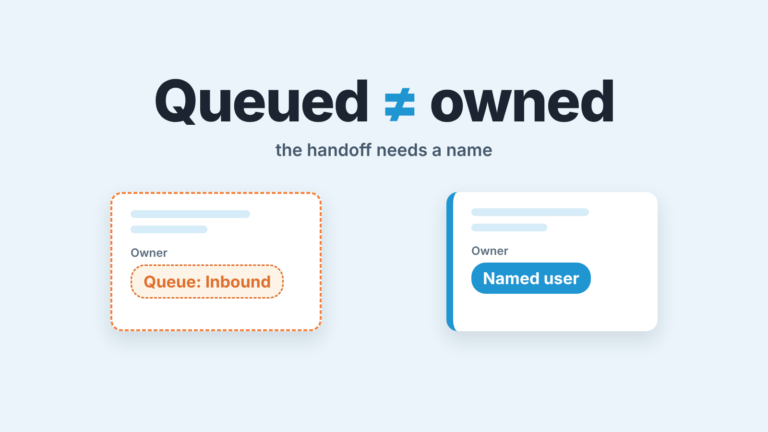
Lead routing comes next, and only if more than one person takes inbound. Pipedrive’s Automatic assignment assigns new leads or deals by rule, including round-robin across a team (Professional plan and up, Pipedrive: automatic assignment). Zoho CRM has Assignment Rules for the same job (Zoho CRM: Assignment Rules). We described the small-team trade-offs, and the case for not routing at all under about three reps, in lead routing in Pipedrive for a small team.
Pair routing with a place for unqualified inbound to wait. Pipedrive’s Leads Inbox keeps leads out of the pipeline until someone converts them to a deal (Pipedrive: Leads Inbox). HubSpot’s lead object has its own pipelines on Professional and Enterprise (HubSpot: set up pipelines). Raw inbound does not belong in the deal pipeline, or every conversion number you read later is wrong.
Plan names are as the vendors’ help pages state them in October 2026, and they change often. If you run HubSpot, our HubSpot sales workspace for a small team walks the same ground from inside that CRM.
Switch on third: one screen for the manager
Not a dashboard suite. One screen, read once a week, with three things on it: pipeline by stage, deals with no next activity or no activity in N days, and completed activities per rep. If the earlier switches are on, every one of those is a saved report, not a spreadsheet.
Pipedrive’s Insights has an activities performance report that counts completed activities by type, status and user (Pipedrive: Insights, activities performance). Salesforce lists reports and dashboards among its core SFA features (Salesforce: SFA software). HubSpot and Zoho CRM both ship report builders; the exact report names vary by plan, so we are not naming them here.
What goes on the screen is a metrics question, and we covered it separately in sales performance management for a small team. Here the only rule is the test: a report nobody is named to read is not a report.
Leave off for now, and the number that tells you to come back
The long tail of SFA is real and useful at a scale most five-to-fifteen-person teams have not reached. For each item, the signal that says “now”:
- Cadences or sequences at scale (HubSpot Sequences: timed email series with auto-created follow-up tasks, Sales Hub Professional and Enterprise, HubSpot; Salesforce Sales Cadences, Salesforce). Come back when one rep is personally writing the same first-touch email more than ten times a week. Before that, a template and a task do the same job and you can still read what was sent.
- AI call summaries and call insights. Come back when the manager has stopped listening to calls because there are too many. If the manager still listens to a few a week, the summary adds a second opinion, not time.
- Incentive compensation management. One rate and one spreadsheet is fine. The day the comp plan gets a second variable and the spreadsheet produces its first dispute, look again.
- Relationship graphs and model-based forecasts. Come back when deals routinely involve more than three named contacts, or when the pipeline-by-stage view has been wrong about the quarter twice in a row.
Leaving these off is not a budget decision. Each of them produces output, and output needs a named reader. Until the reader exists, the feature is a tax on attention.
The thirty-minute audit for a team that already has a CRM
You do not need a new tool to do this. Open your CRM, open a blank note, and go down the list.
- Pull every open deal. How many have no next activity scheduled? Write the number down. This is your baseline.
- Open the stage settings. Which fields are required, or flagged as important, per stage? If the answer is “none”, switch one is off.
- Open five recent deals and read the the timeline. Were the emails logged by a person or by the system? If by a person, switch two is off.
- List every automation or workflow rule that is currently on. For each one, write the three lines of the test. Any rule where line three is blank gets turned off today.
- Ask who looked at the overdue-task or activity report last week. If the honest answer is nobody, that report is not switched on, whatever the settings say.
- Count inbound leads sitting inside the deal pipeline. More than a handful means you need a lead queue before you need routing.
- Write the order you will switch things on, one line each, with a name next to it.
If you have a Pipedrive account and want the automation part of this audit in more depth, the owner’s audit of Pipedrive automations is the longer version of step four. For who owns this when there is no ops person, see sales operations for a small team.
A disclosure, since the audit ends at “who checks this weekly”: we build SalesBond, a sales management layer on top of the CRM a team already uses; we started with Pipedrive. After the switches above are on, it checks every deal against more than 20 rules, such as a missing next activity or a stale stage, and shows the manager the deals that need attention with the reason. It does not replace the switches. It tells you whether they are still doing their job. Check your CRM with SalesBond.