The Sales Workspace is a rep’s personal screen in HubSpot: tasks, deals, leads and the day’s schedule on one page. A manager can use it for a five-minute check of three things: overdue tasks, deals with no next step, and close dates already in the past. But it is useful exactly as far as the fields underneath are filled in. If next activities are not scheduled and stages are not moved, the workspace shows a calm, mostly empty page, and that calm is the problem.
We write this for small teams on Sales Hub Professional or Enterprise. That is where the workspace lives: it needs an assigned Sales or Service seat and Sales Access permissions (HubSpot: manage sales activities in the updated sales workspace). Since April 27, 2026 every account gets the updated version by default, and that is the version we describe, with tab names as the help page read on 2026-10-08. Where the previous version did something differently, we say so.
What a rep sees at 9 a.m.
Picture Dana, one of three reps at a company that sells onboarding software. She opens HubSpot, goes to the Sales Workspace and lands on the Summary tab.
The Summary is a stack of cards: Tasks, Suggested tasks, Outreach activities and Follow up on meetings. She can drag them into the order she likes and collapse the ones she does not need this morning. On the right sits a preview of today’s schedule, a feed of her recent activity, including quote activity on deals she owns, and an Insights block with a weekly activity report (same help page).
The Tasks card has a Start tasks button. Dana clicks it and starts working through everything assigned to her, one task after another. If she only wants her calls, or only high-priority work, she clicks the number under that category and gets just those (same page). She sends an email, logs the call, moves on.
That is the whole idea. The rep does not pick what to do next from memory; the workspace hands it to her. Which means the list is only as good as what was put into it yesterday.
Tasks, deals, leads: what each tab is for
A small team does not need every tab on day one. Here is what the useful ones do and what each quietly assumes.
- Tasks. A table of the rep’s tasks with filters, Advanced filters and editable columns. Pick filters, click Create view in the left sidebar, name it, and it stays (HubSpot: updated sales workspace). Assumes somebody created the task. A deal with no task attached is invisible here, however important it is.
- Schedule. Day, week or month, with upcoming meetings and follow-up opportunities on the left (same page).
- Deals. A filterable table of deals; click a deal’s name to open it and edit its properties without leaving the workspace (same page). Assumes stages are real and close dates were set with some thought.
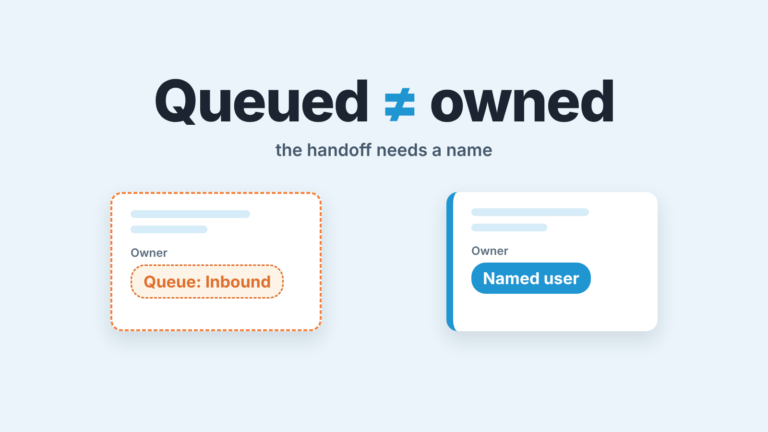
- Leads. The tab can be switched on or off for specific users or teams (HubSpot: manage settings for the companies, leads and deals tabs), and, per the same help pages, a lead shows up only if it has an assigned owner; unassigned leads stay on the leads index page (HubSpot: manage leads). For a team of three with inbound coming through forms, that one rule explains most “where did that lead go” conversations.
There is also a Companies tab and a Dashboard tab where a Super Admin can pin dashboards. Fine to have, but not where the daily work happens.
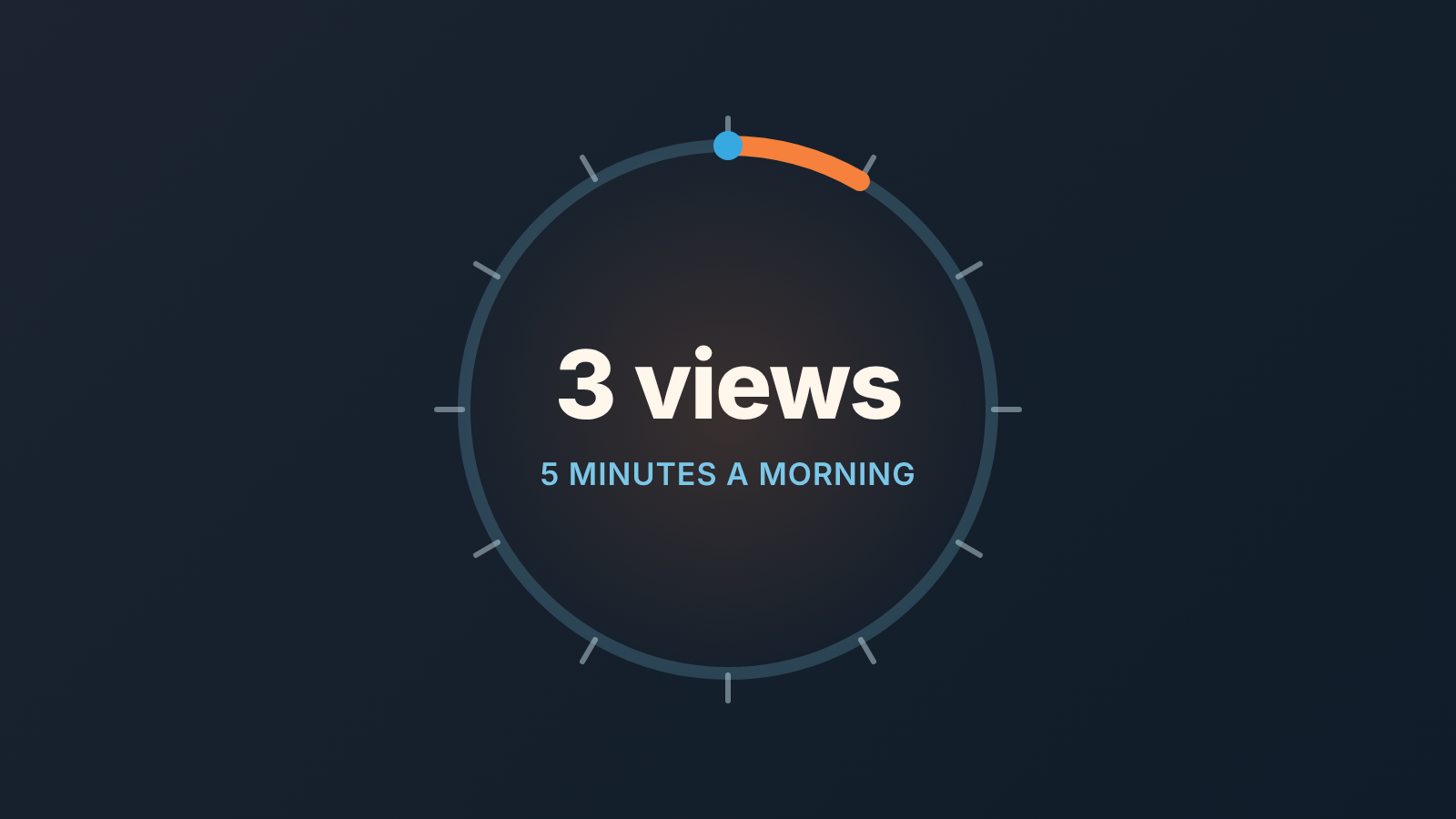
The five-minute manager check in Sales Workspace
You do not need a report for this, and we would argue you should not build one yet. What you need is three saved views per rep, built once.
The updated workspace does not support “View as [user]”. The help says that instead, managers can create saved views to review specific users’ data, and what you see in them still depends on your own permissions. A Super Admin can also log in as another user (same page). So the check is not “look at Dana’s screen”. It’s “open the views that show what Dana’s screen would show”.
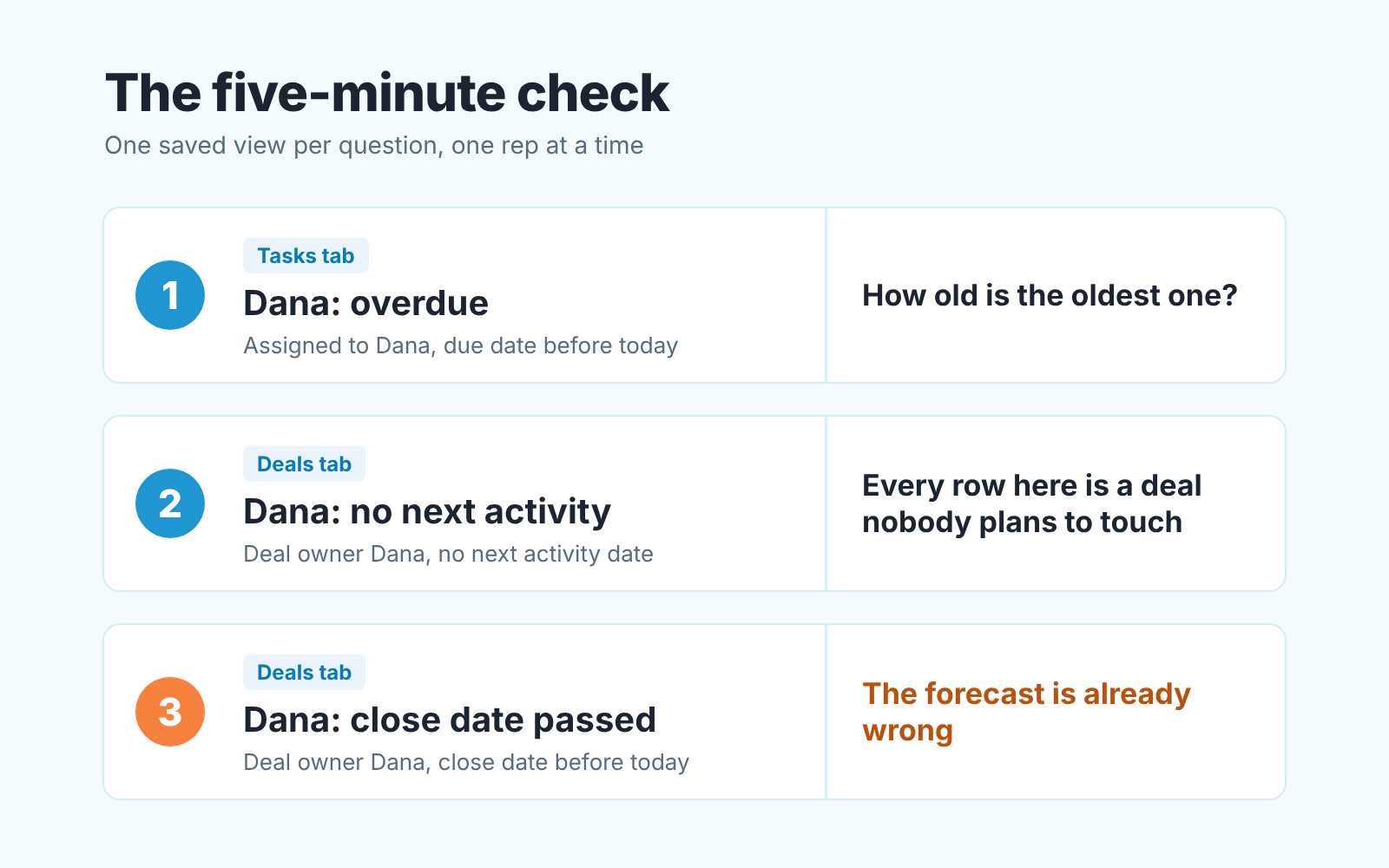
- Overdue tasks, oldest first. On the Tasks tab, filter to the rep and to due dates before today, then save it with Create view. Do not count the rows. Look at the date on the oldest one. A task three days late is a busy week; three weeks late is a task nobody intends to do, and it is hiding the real next step on that deal.
- Deals with no next activity. On the Deals tab, use Advanced filters for the rep’s open deals with no next activity scheduled. Every row is a deal that will not appear in anyone’s list tomorrow morning. The question at stand-up is short: what is the next step, and when? If the rep knows, booking it takes ten seconds. If the rep does not know, you have found the deal that needed your attention. The help page documents Create view on the Tasks tab, not on Deals, so if your Deals tab will not save the filter, keep it as a saved view on the deals index instead.
- Close dates in the past. Same tab, the rep’s open deals with a close date before today. These are the deals already distorting whatever forecast you show the founder. Each gets a new honest date or a stage move.
Three views, three questions.
If your Super Admin switched the account back to the previous version, the work is already done for you. In the previous version the Deals tab came with preset views, among them No Activity Scheduled and Stale Close Date, plus a “View sales workspace as another user” permission (HubSpot: manage deals in the sales workspace, previous version). Its Stalled Deals view flagged a deal that sat in a stage at least 20% longer than that rep’s average for the stage (same page). None of these presets are in the updated version’s help, so do not write team instructions around them unless you know which version your reps are on.
Say the three questions out loud the same way every day. “What is the oldest overdue task? Which deals have nothing scheduled? Which close dates are in the past?” After two weeks the reps start answering before you ask, which is the point.
Where the workspace goes quiet
Here is the uncomfortable part. An empty “no next activity” view can mean two opposite things: every deal has a next step, or the rep stopped using tasks and does everything from memory and email. The view cannot tell them apart, and neither can you from the manager’s chair.
The same goes for stages. If reps move a deal to “Proposal sent” when the proposal actually goes out, the stage history tells a story. If they move three deals at once on Friday because the pipeline review is Monday, it tells that story instead. We have written about making stage changes ask for the properties that matter, and that fix matters more once the workspace is in daily use, because the workspace amplifies whatever discipline is already there.
Leads have their own quiet failure. According to HubSpot’s help pages (written for the previous version, so confirm in your account), a lead without an owner does not reach the workspace, so a form submission that was created as a lead but not assigned waits on teh index page where nobody on a small team looks daily. Decide who owns unassigned leads before you turn the tab on, not after.
And Suggested tasks will not rescue a deal nobody touched. HubSpot describes them as recommended actions based on your recent activity. A deal that has been sitting in “Negotiation” for six weeks, with a next activity date pushed every Monday, has no recent activity worth suggesting from, and the date keeps it out of the no-next-activity view. It looks fine from every angle the workspace has.
A disclosure, since this is the gap we work in: we build SalesBond, a sales management layer on top of the CRM a team already uses; we started with Pipedrive, and HubSpot is one of the CRMs it works with. Its Deal Health checks every deal, across all reps, against more than 20 rules and explains each violation with its reason, so the manager starts with a short list instead of three views per rep. Check your CRM with SalesBond if you want that list without building it. What we keep seeing, though is that the list is the easy part. The hard part is the stand-up where the rep is asked, calmly, what the next step is.
Three things to confirm in your own account before you tell the team
The workspace depends on your subscription, your seats and what an admin switched on, so a short check saves a confused rollout.
First, the version. A Super Admin controls it with the “Enable the new Sales Workspace” switch under Settings > Sales Workspace > Others, and the choice applies to every user in the account (HubSpot: updated sales workspace). Open the workspace yourself before writing instructions. If your tabs do not match what we described, that switch is the first place to look, and HubSpot’s help for your version is the source of truth, not this article.
Second, seats and permissions. Each rep needs an assigned Sales or Service seat and Sales Access permissions (same page). A rep who cannot open the workspace is a seat question, not a training question. If you are still on the free tier, our breakdown of what a free HubSpot portal gives five reps shows which of these seats you actually have. Editing and deleting is a separate layer: see who can edit and delete deals in HubSpot.
Third, the tabs. Deals, Leads and Companies can each be switched on or off, with per-user and per-team exclusions (HubSpot: manage settings for the tabs). If a rep cannot see the Deals tab, check the exclusion list before you suspect the data.
Then do the boring work that makes the screen honest: the saved view for deals with no next activity so the rule is visible outside the workspace too, required properties on the stages you care about, and a workflow that creates a task when a deal goes stale so the the task list fills itself when memory fails. If your reps run outbound through sequences, keep them in HubSpot rather than a spreadsheet, so their steps land in the same place as everything else.
The workspace is a good screen. It is a mirror, though, not a motor. Point it at a pipeline with next steps and real stages and the five-minute check becomes the easiest meeting of the day. Point it at a pipeline run from memory and it will tell you, every morning, that everything is fine.