
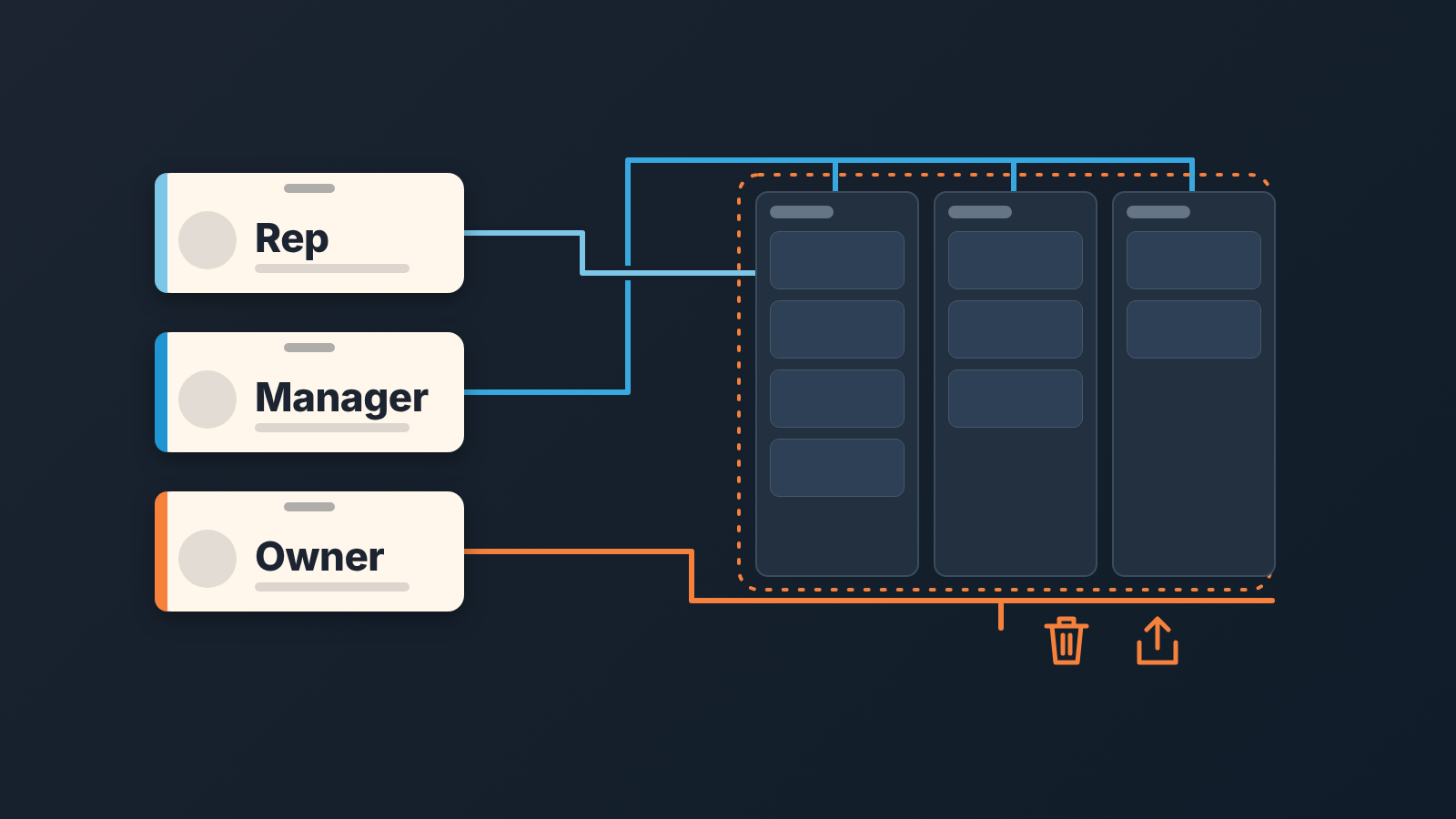
In HubSpot, user permissions let you limit a rep to their own deals or their team’s while a sales manager sees all of them, and delete, bulk delete, import and export are separate settings that most reps should not have. Set them by role, not by person, and check them once a quarter.
HubSpot’s own permissions guide, updated October 13, 2026, lists every setting (HubSpot: user permissions guide). What it does not give you is a set for a sales team of five. Below is ours: three roles, four actions on deals, and the twenty-minute check that keeps it true. Permissions apply to people, but connected apps can also change deals, so keep an allow-list of connected apps.
A seat is what you pay for; a permission is what they can touch
When a new person joins, two questions get mixed into one: what seat do they need, and what may they do. The seat is a billing decision, and this article leaves it alone. Permissions are the second question, and they are the one that decides who sees which deals. You find them in Settings, under Users & Teams: click the user, open the Access tab, then Edit permissions (HubSpot: manage user permissions).
Permissions on records are set per object: Contacts, Companies, Deals, Leads, Tasks, Calls, Meetings and the rest, including custom objects. View has three levels: All, Their team’s, Their. Edit, Delete and Merge have the same three plus None. With Their team’s or Their you can also tick Unassigned, so the user gets records nobody owns as well (HubSpot: user permissions guide).
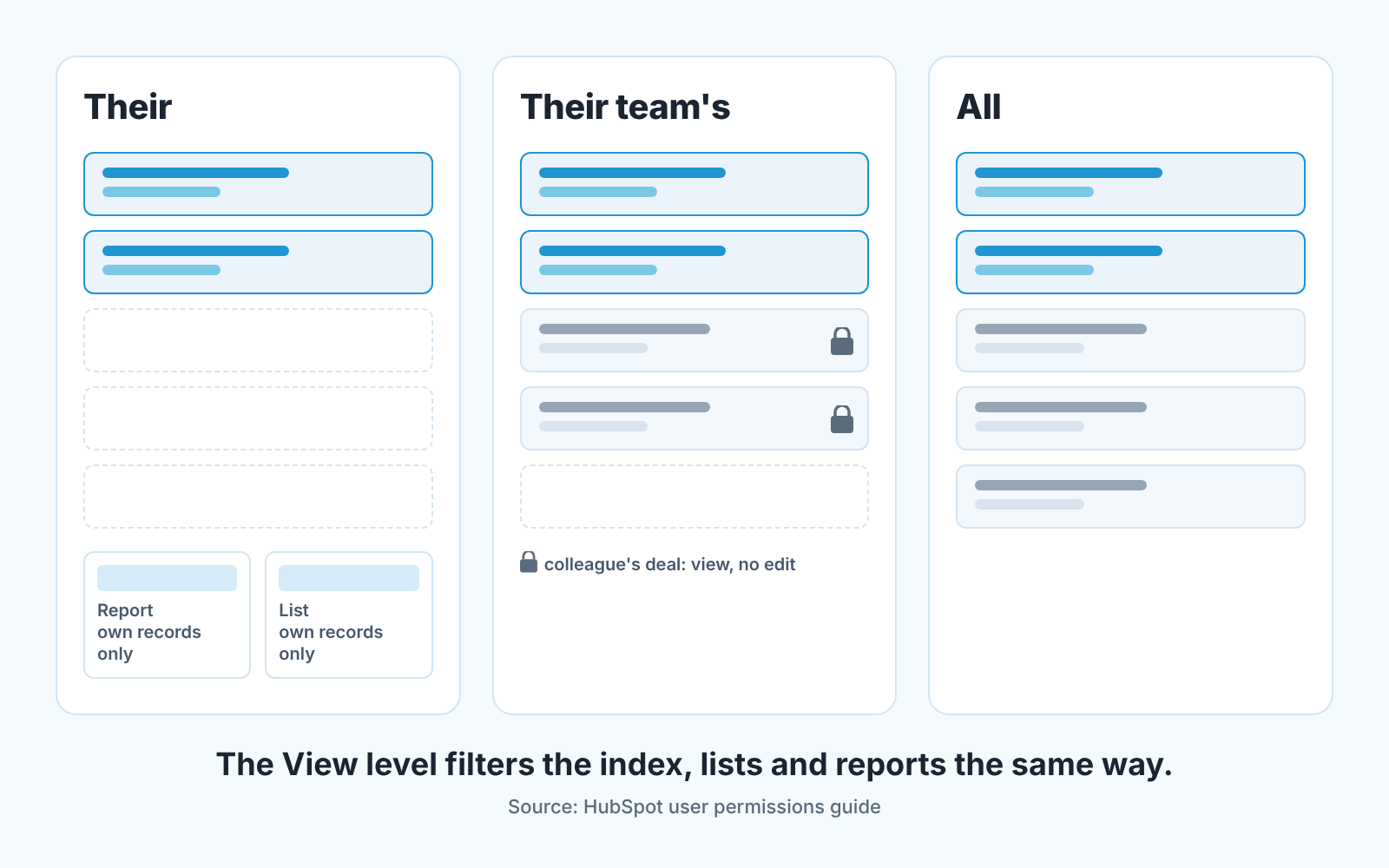
So “who sees which deals” has a short answer: whatever level View on Deals is set to. Not the seat. Not the team they belong to, on its own. The View level.
Teams on the free plan should first read the HubSpot Free CRM limits for a five-person team, since some of these permission settings are not available there.
The rep: their own deals, or the team’s?
Our default for a team under ten: View on Deals at Their team’s, Edit at Their. They are two separate dropdowns in the guide, and nothing ties one to the other.
One condition first. Their team’s covers records owned by members of the user’s assigned teams (HubSpot: user permissions guide), so until your users are actually put into teams in Users & Teams, that level has no team to show.
The reason for team-level View is duplicates. With View at Their, a rep sees only records assigned to them, and that holds in the deal index, in segments and in reports. Clean, until the rep creates a second deal with a company a colleague already works, because they could not see the first one. Team-level View lets them find it. Edit at Their keeps them from touching it.
HubSpot’s guide uses a similar split in its own example: a rep who may communicate only with the contacts they own, a manager who may communicate with all of them. We would keep that for contacts and loosen View for deals, because a contact duplicate is an annoyance and a deal duplicate is a forecast error.
There is a team where Their is right: strict territories, reps who never share an account, a manager who hates noise. Then View at Their, and the manager owns the duplicate check. We wrote about a similar trade-off, in a different place, for shared and private email visibility in Pipedrive: the more a rep sees, the fewer surprises, and the more the manager has to explain.
The manager: team view without Super Admin
A sales manager needs to see every deal the team works and to fix a stage or a close date when a rep gets it wrong. That is View at All, or at Their team’s when there are several teams, and Edit at Their team’s. It is not Super Admin.
Super Admin is HubSpot’s term for the user who can do virtually anything in the account, including setting other users’ permissions; only a Super Admin can make someone else one (HubSpot: user permissions guide). That is not a sales permission. In a small company it ends up with the manager because somebody had to set up the account. Then a pipeline stage gets renamed late on a Friday, and three reports break on Monday.
The narrower version of the same risk is a single switch. The guide says Edit property settings also lets a user create and edit pipelines and stages. Give the manager what managing needs, and keep Super Admin and that switch with one person who treats settings as settings.
One line in HubSpot’s guide surprises people here: users with Edit access can delete activities on a record. Edit at Their team’s means the manager can remove a rep’s logged call. For a manager, fine. For reps with Edit on each other’s deals, less fine, and another reason we keep rep Edit at Their.
Delete, bulk delete, import, export: four switches, mostly off
Delete on an object is one dropdown. Bulk delete, Import, Export and Export without approval are separate switches, each turned on by itself, and there is an Approve exports switch for whoever signs off on other people’s exports (HubSpot: user permissions guide). That separation is the useful part, because it lets you give the manager a normal day and the the owner a cleanup day without giving either to the rep.
Here is the matrix for a small sales team. Deals are the object; the same logic applies to contacts and companies.
| Role | View deals | Edit deals | Delete | Export |
|---|---|---|---|---|
| Rep | Their team’s | Their | None, Bulk delete off | Export off |
| Manager | All | Their team’s | Their team’s, Bulk delete off | Export on, Export without approval off |
| Owner or director | All | All | All, Bulk delete only on cleanup day | Export without approval, Approve exports |
Three notes on the table.
A rep who cannot delete a deal marks it lost instead. That is the behaviour you want: a lost deal with a reason is data, a deleted deal is a gap nobody can explain when the quarter closes. One caveat from the guide, though. Users without Bulk delete can still delete deals from individual records if they have Edit on deals. Read literally, that leaves a rep able to remove their own deals from the record page, so “mark it lost” has to be a team rule as well as a setting.
Import belongs to whoever owns the data model, usually the manager or the owner, never to the rep who got a spreadsheet from a trade show. The guide counts importing under Create too, so it is not only the Import switch. Say one import goes in with the wrong owner column: a couple of hundred contacts land on the wrong person, and with Their-level View those contacts vanish from everyone else’s screen.
Bulk delete is a cleanup tool. Turn it on for the afternoon, do the cleanup, turn it off. A permission that is on all year gets used by accident.
One permission set per role, and new hires get the role, not a person
The Friday-evening habit is to invite the new rep and copy whoever sits nearest. On Enterprise subscriptions HubSpot lets you save a group of permissions as a permission set and assign it to new and existing users, and assigning a set overrides that person’s individual permissions (HubSpot: create permission sets). There the better habit is three named sets, Rep, Manager and Owner, built once from the table above and never edited for an individual.
Without Enterprise there are no sets, and copying a person is the tool you have: HubSpot’s Copy permissions to another user, a beta a Super Admin can opt into (HubSpot: manage user permissions). Then copy from a person whose access you reset to the table on purpose, not from whoever is nearest.
Because the person you would have copied is the problem. A senior rep who covered for the manager for a month still has Edit at Their team’s. The marketing lead who did one import still has Import. Copy them and the new hire inherits a year of favours.
When somebody does need more for a while, cover for a manager on leave, a data migration, raise them and write the date down in the place you keep such notes. The quarterly check below is where the date comes back to bite, which is the point.
We went through the same Monday-morning exercise for Pipedrive, where the “can do” and “can see” layers live in two different menus: what to set in Pipedrive before a new rep logs in. HubSpot keeps them closer together, which makes it easier to set and easier to over-grant.
What “Their deals” does to the manager’s reports
Permissions do not stop at the deal list. A user with Their-level access sees only their own records on index pages, in segments and in reports (HubSpot: user permissions guide). The same filter sits in front of every number that user looks at.
For a rep this is a feature. Their dashboard shows their pipeline and nothing else, which is the right amount of information at nine in the morning.
For anyone above the rep it is a trap. A manager left on Their team’s View, who is also asked to present the company forecast, presents a forecast that is missing the other team and looks complete. A director with the wrong level builds a quarterly report and sees no error, because a filtered report has no empty rows, only smaller totals. If a number at the top of the company looks lower than the sum of what the reps say, look at the View level of the person who built the report before you question the reps. The other half of that setup, what the manager’s dashboard should show, is in a HubSpot dashboard for a sales manager.
Segments carry the same filter. A list a rep builds for a hand-off or a re-engagement sequence contains the rep’s records, not the team’s, and the gap shows up as a customer who never got teh email. A remote team feels this first, because nobody walks past a screen and notices; we covered the visibility side of that in keeping a remote sales team visible in the CRM.
A disclosure here, since reports are where this matters. We build SalesBond, a sales management layer on top of the CRM a team already uses; we started with Pipedrive. It does not change permissions, and we would distrust any tool on top of a CRM that claimed to: who may delete a deal is a CRM setting and should stay one. What a layer can do is read the pipeline the CRM shows it and tell the manager which deals need a look and why. Check your CRM with SalesBond once the View levels are right, because a health check on a filtered pipeline is a check on the wrong pipeline.
The quarterly check, twenty minutes
Permissions drift because people change jobs faster than settings do. Once a quarter go through this in order.
- Open Settings, then Users & Teams, and take the user list top to bottom. Start with everyone who no longer works here and remove them first.
- Who has View at All on Deals, and does each name still manage people?
- Who has Delete on any object? For every rep on that list, set it to None and tell them why.
- Bulk delete: should be nobody today. If it is on, somebody forgot a cleanup day.
- Import: one or two names, and both should be able to say what an owner column is.
- Export without approval: the owner, maybe the manager. Nobody who left.
- Edit at Their team’s: managers only, because Edit deletes activities too.
- Temporary raises past their date. Take them back.
- Last, sit next to a rep and open the deals index from their login. HubSpot says changes apply only after the user logs out and back in (HubSpot: manage user permissions), so have them do that first. If they see a deal they should not, the levels are wrong, whatever the settings page says.
Twenty minutes, four times a year. Cheaper than a quarterly forecast that was missing a team.


