
A HubSpot dashboard works for a sales team when three things are set before anyone opens it: who can view and edit it, which filters (date range, owners or teams, pipelines) apply to every report on it, and which limits will quietly blank a report. When a dashboard “stops working”, check those three before you touch a single report.
This is not an article about which numbers belong on the screen. We wrote that one already: the six numbers a sales manager’s dashboard needs. This one is about the plumbing underneath, in the order the problems show up for a small team: access first, then filters, then the limits, then goals, and a short word at the end about what should never be a dashboard tile at all.
Who can see it, who can break it
If you have not built one yet, it takes a minute. In HubSpot, go to Reporting > Dashboards (under More, if your menu has it) and click Create dashboard. You can start from a pre-made template, which HubSpot currently marks as beta, or pick New Dashboard for a blank one and add reports yourself (HubSpot Knowledge Base: manage your dashboards). Dashboards are available on every HubSpot plan.
Now the question most managers skip: who, apart from you, can change this dashboard at 8:55 on a Monday?
HubSpot gives a dashboard owner three sharing options. A dashboard can be private to the owner, it can be shared with Everyone, and on Enterprise it can be shared with specific users and teams. The Everyone option splits in two: view only, or view and edit (HubSpot Knowledge Base: customize your dashboards). So the sharing settings work the same on every tier, except for that one targeting option.
Two groups sit above those settings. Super Admins, and users HubSpot describes as having the Reports & dashboards permission, can see and edit every dashboard in the account regardless of how its owner shared it. In a ten-person company the founder is often a Super Admin. That means the founder can rearrange your team dashboard without asking, and will, usually with good intentions, the evening before a board meeting. Tell them where the copy for experiments lives.
Our position: the team dashboard is owned by the manager and shared with Everyone as view only. Not edit. A rep who drags a report to a different spot, or removes the pipeline filter to “see all my deals”, has changed what the whole team sees, and you find out only if you go looking in the dashboard’s activity log. View only costs you nothing. Anyone who wants their own version clones the dashboard and works on the copy.
The Enterprise restriction matters for one specific case. If you want a dashboard that only your reps see, and not the marketing team or the support desk, that is “specific users and teams”, and on Starter or Professional you do not have it. The honest workaround is to accept that Everyone sees it, and keep anything sensitive, such as individual commission numbers, off the dashboard and in a report you open yourself.
Access to a dashboard is also not access to everything on it. HubSpot says plainly that dashboard access does not override report sharing, report folder permissions or the data permissions each report needs. Two people can open the same dashboard and one of them gets a report they cannot view. Before you call it a bug, check that user’s permissions.
One more detail that saves a Slack thread: when someone opens a dashboard they cannot access, HubSpot shows them a Request access option, and the request goes to the dashboard owner by email. If that owner left the company six months ago, nobody is there to say yes. Check who owns the dashboards you inherited. And to add a report to a dashboard, a user needs the “Dashboard, reports, and analytics” permissions, so a rep without them can look but cannot help you build. Record access is a separate layer, so decide which deals each role sees in HubSpot before you share anything.
One dashboard, three filters
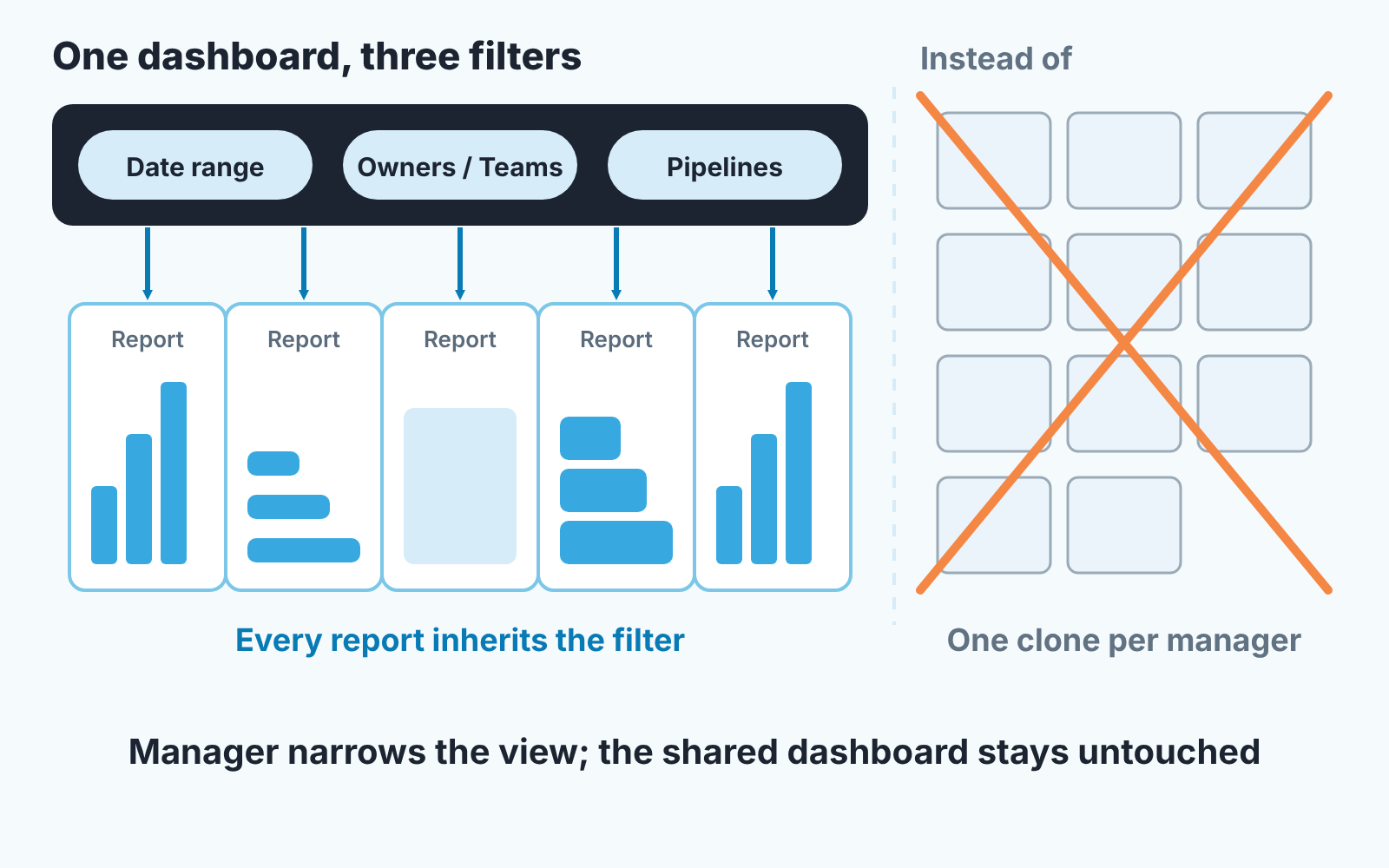
The usual way a small team ends up with eleven dashboards is that each manager clones the first one and hard-codes their own team into every report. Then someone changes a stage name and eleven dashboards need fixing.
HubSpot has dashboard-level filters for exactly this. A filter set at the top applies to every report on the dashboard at once, so one dashboard can serve the whole sales org, and each manager narrows it to their part. Three filters do most of the work:
- Date range. Set it once for the dashboard rather than inside each report. If the dashboard is the thing you look at on Monday, “this week” and “last week” are the two settings you will actually toggle between. When a report shows a number nobody recognises, check this filter before you check the report.
- Owners or teams. This is the filter that replaces the eleven clones. The dashboard stays shared and view only; the manager switches it to thier own team, or to a single rep during a one-to-one, and the rest of the company is unaffected.
- Pipelines. If you run more than one pipeline, say new business and renewals, filter the dashboard to one of them. Stage-based reports from two pipelines added together produce a conversion chart that is true for nobody. Keep a second dashboard for the second pipeline, or switch the filter when you review it.
A filter changes everything on the screen, which is the point and also the trap. A dashboard someone left filtered to last quarter looks exactly like a broken report. Before anyone rebuilds a report, read the filter bar.
On Sales Hub Professional or Enterprise there is one more place your filters can live. A Super Admin can add up to five dashboards to the sales workspace, assign them to teams and apply dynamic filters, so each rep sees the dashboard already narrowed to them (HubSpot Knowledge Base: add multiple dashboards in the sales workspace). If your reps live in the workspace anyway, that is where the team dashboard should be.
Why a HubSpot dashboard report goes blank
A HubSpot dashboard report goes blank or looks wrong for four documented reasons: a breakdown with more than 100 values, the report limit of your subscription, the Show metrics toggle, and data that has not been refreshed. None of them is about permissions or filters. HubSpot documents each one, just not in one place (HubSpot Knowledge Base: customize your dashboards).
- More than 100 values. A report whose “Break down by” property has more than 100 values will not load on the dashboard; you get “Too many data points requested” instead. Breaking down by company name or by deal name hits this almost immediately on any real pipeline. Break down by something with a short list of values instead: deal stage, owner, lead source. If you need the per-company view, that is a report you open, not a tile.
- The report limit. How many reports a dashboard holds, and how many of them you can customize, depends on your subscription. The Knowledge Base does not give the numbers; it points to HubSpot’s Products & Services Catalog, and we are not going to guess them here. One thing catches people out: text notes you add to the dashboard count against the report limit, so a dashboard with six headers has used six slots on decoration.
- Show metrics. A report with Show metrics switched on does not display those metrics in the dashboard view, only in the individual report viewer.
- Old data. A report that is not blank but simply behind needs a refresh: hover over it, open the three-dot menu, click Refresh. If a deal was closed ten minutes before the Monday meeting and the dashboard does not show it, refresh the report before anyone says the CRM is wrong.
Our habit is to pin a short note on the dashboard itself that says “Filtered: this week, Sales team, New business pipeline. Refresh before the meeting.” It costs one of those report slots. We think it is worth it on a shared dashboard, because the alternative is answering the same question every week.
Goals: a reference line, not a tile
Sales goals in HubSpot live in a different corner from dashboards, and the two do not join up the way people expect.
What you can set depends on the tier. On Starter, the only goal type is Revenue. Professional and Enterprise add Deals created, Calls made and Meetings booked (HubSpot Knowledge Base: create sales goals). Only Super Admins and users with a Sales Hub or Service Hub Professional or Enterprise seat can create and edit goals, so on most small teams that is the manager and nobody else, which is how it should be.
Goal progress updates every 8 to 12 minutes, per the same article. That is fine for a weekly review and slightly annoying for a quarter-end afternoon when a rep closes a deal and wants to see the bar move. Tell the the team the delay exists so nobody refreshes in a panic.
The useful connection to the dashboard is this: in the report builder, a goal can be shown as a reference line on a report. So a revenue-by-month report with the monthly target drawn across it is one tile that answers “are we on plan” without anyone opening the Goals page. We have not found a documented dedicated goal widget for dashboards, so we are not going to tell you there is one. Build the reference line.
What goes on it, what stays a list
A dashboard is for numbers you compare: this week against last week, this rep against the team, this stage against the one before it. The six numbers article covers which ones. Stage-to-stage comparisons only work if the names are stable, so decide first whether to rename the default HubSpot deal stages.
A list is for things you act on one by one. Deals with no next activity scheduled are the clearest example. On a dashboard that is a count, and a count of 23 tells you nothing about which 23. As a saved view of HubSpot deals without a next activity, it is a work queue you can hand to a rep. The same logic applies to deals missing stage data, which is better fixed at the source with required properties per stage than counted on a chart, and to the forecast, where the dashboard number is only as honest as the stage probabilities behind it. And a dashboard does not replace the written weekly report; what belongs in that one is a separate question.
A disclosure, since this is where it fits. We build SalesBond, a sales management layer on top of the CRM a team already uses; we started with Pipedrive, and it works with HubSpot too. Its Sales Dashboard is built around the same split: money and status widgets on one tab, per-rep execution on another. It does not replace your HubSpot dashboards, and you still need the access, filters and limits above to be right. If you want to see what it flags in your pipeline, check your CRM with SalesBond.
Before you share the dashboard with Everyone, open it as a rep would see it. Set the filters to this week and your team, refresh each report once, and read the screen from the top. If you can explain every number without clicking into it, it is ready. If you cannot, the team will not be able to either , and they will stop opening it by the third Monday. If you put the deal score on the dashboard, check it against closed deals first with a 20-deal check.


