
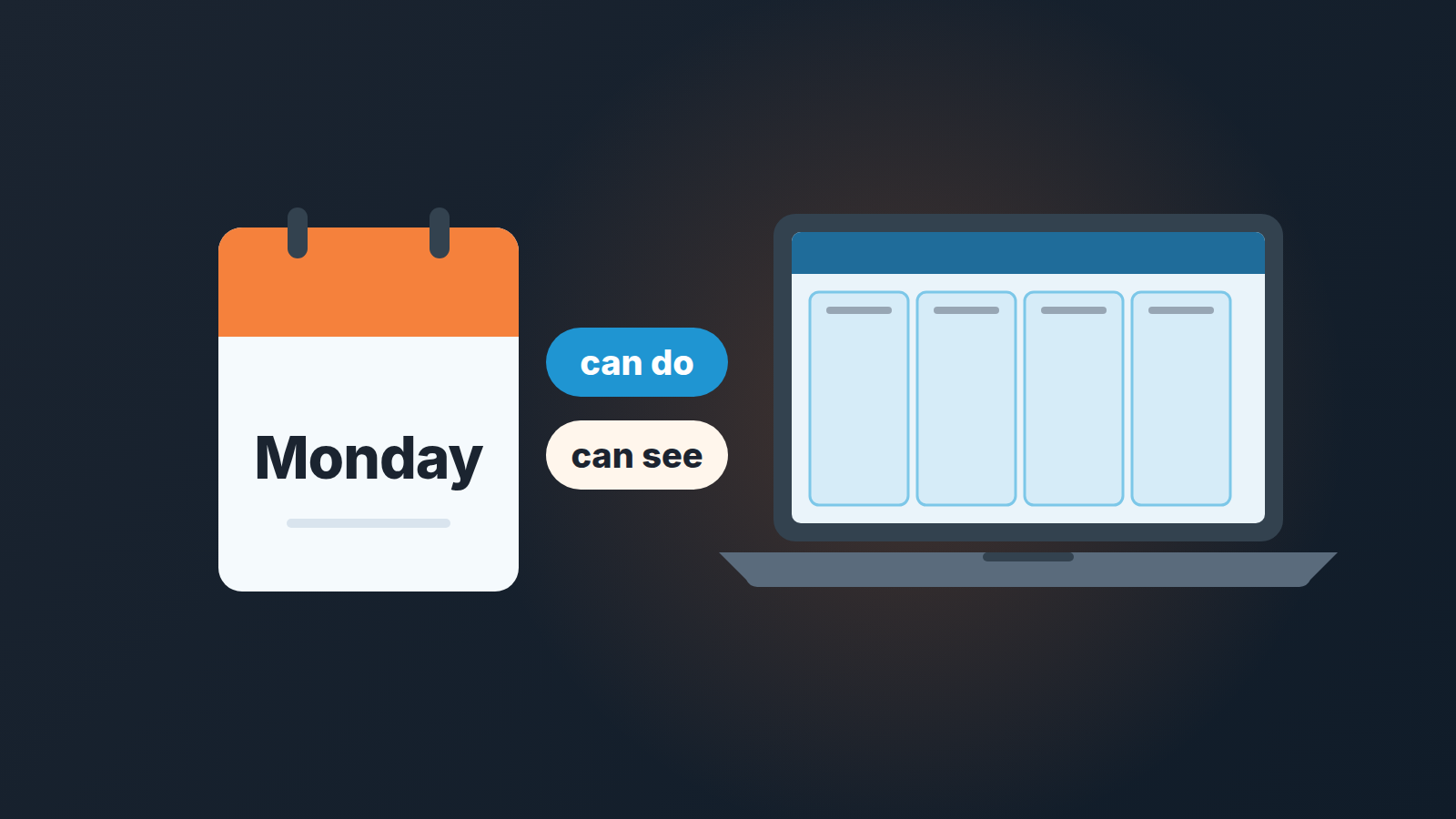
A new rep’s access in Pipedrive is two settings, not one. The permission set decides what they can do: create, edit, delete, import, export, change visibility, open reports. The visibility group decides what they can see, and on Lite and Growth it has just two options, item owner or all users (Pipedrive: visibility and permissions overview). Our order for a team of three to ten: pick a colleague with the same role as the model, copy or recreate their setup, check each layer separately, then sit next to the rep before their first call and look at Pipedrive from their chair.
Monday, 9:00, and the new rep sees an empty pipeline
A made-up team: six people on Pipedrive, a manager who is also the admin, and a new rep, Dan, whose invite went out on Friday at six. Monday, 9:00. Dan opens Deals and sees four stage columns, zero cards. He assumes the import failed and messages the manager who is in a call.
Nothing failed. Dan’s visibility group uses the item owner option, which shows an item to its owner, its followers, admins and the owner’s parent visibility group. Dan owns nothing yet and follows nothing. So he sees nothing.
The opposite mistake is quieter. Rushing on Friday, the manager gives Dan Maria’s access. Maria is the senior rep who exports the contact base every quarter and kept deal admin from a month of covering for the manager. Now Dan has both, and nobody will notice for a year.
Both scenes come from the same habit: treating access as one switch. It is two. HubSpot has the same two layers, see and do, and HubSpot permissions for a sales team shows how to set them by role.
Permission sets vs visibility groups: what a user can do and what they can see
Pipedrive’s help has a clean definition: visibility groups define what users can see, permission sets define what they can do. Thier own example is a user who can see a deal but cannot edit or delete it (Pipedrive: visibility and permissions overview).
Underneath sits a third thing, which the the user management page calls access rights: which parts of Pipedrive the user can open at all. Account settings, the Deals app, Campaigns, Projects. Campaigns and Projects need access to the Deals app, the Deals app needs a paid seat, and account settings alone does not use one (Pipedrive: global user management). For a rep: Deals app on, account settings off. Ten seconds.
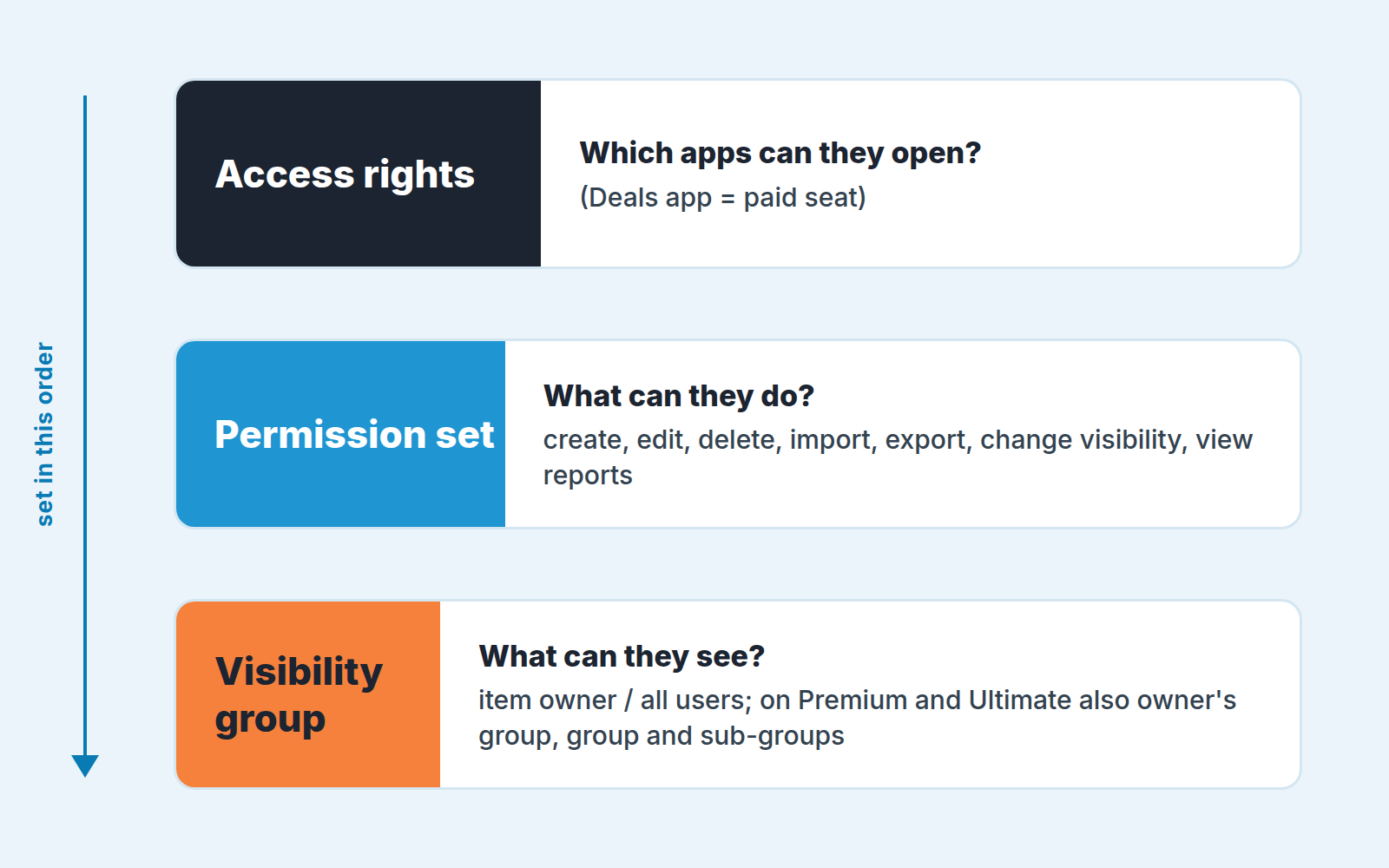
Permission sets live under Manage Users > Permission sets. There are three kinds: Admin, which has full access and cannot be edited; Regular, which can; and Custom. A set covers creating, editing and deleting items, importing and exporting data, changing visibility, and viewing reports and statistics. This is where the Friday copy of Maria does the damage.
Visibility groups live under Settings > Manage Users > Visibility groups. Each user belongs to exactly one group, and the rules apply across items, reports and dashboards, not only the deals list. One exception runs through everything: users with deal admin permissions see all deals and leads regardless of their group or an item’s “Visible to” field, and global admins see all items. Pipedrive Teams sits beside both layers and touches neither: it groups users for filters and reports, and hides or grants nothing.
Two layers, edited in two places, rarely read side by side. Write them down together: one line for “do”, one line for “see”.
Pick a peer and copy: what the June 2026 update promises and what the help center does not say
Pipedrive’s June 2026 product update has a Settings item called “Copy access settings from another team member”. It describes copying permission sets and default visibility settings from an existing user: an admin selects a peer with a similar role, reviews the configuration in a right-side panel, and applies the same access setup when inviting new users or updating existing accounts (Pipedrive: product updates).
That is the “like Maria” move, done on purpose. We like it, with one condition.
Read the peer before you copy the peer. A colleague with three years in the account collects rights the way a desk collects cables: deal admin from one month of cover, export for one newsletter. Open their permission set under Manage Users > Permission sets, click “…” then “Edit”, and look at what is on (Pipedrive: visibility and permissions overview). If the peer’s set is the role, copy it. If it is the peer’s history, fix the set first or pick a different model.
Now the part the help center does not say. Neither help article above, both updated September 3, 2026, mentions the copying feature. The update names two things that travel, the permission set and the default visibility settings, and says nothing about access rights. So the Deals app seat, Campaigns and Projects are a separate step in Company Settings > Manage Users > Users and Access: select the user, switch access on or off with the checkboxes, pick the permission set from the dropdown, click “Edit” and confirm (Pipedrive: global user management). Copying a peer gives the rep the peer’s defaults, not the peer’s deals.
Without the copy panel, do the same by hand: note the peer’s permission set and visibility group, assign both.
Five checks from the rep’s seat: pipelines, deals list, reports, exports, deleting
Settings tell you what you set, not what Dan sees. Your own screen is useless as a test: admins are not restricted by visibility rules, in lists or in Insights (Pipedrive: visibility and permissions overview).
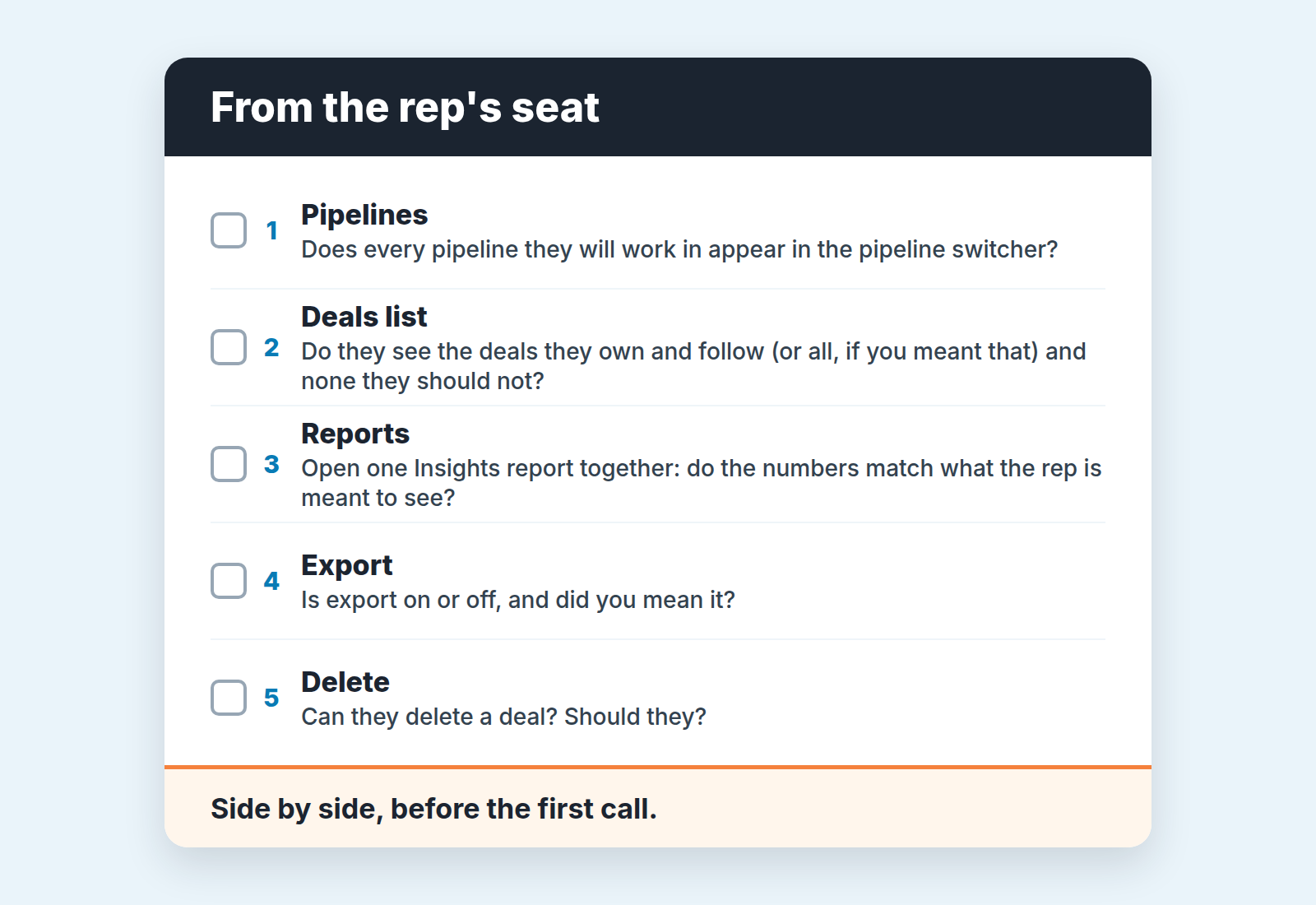
So the test runs twice: on Friday from the configuration, then side by side with Dan before his first call, from his screen.
Then share the Insights dashboard with the new rep as a viewer and open it together.
-
Pipelines. Does every pipeline Dan will work in show up for him? Pipelines are visible by default, but a hidden one and its deals are simply absent for a restricted user. If he is meant to work the partner pipeline and it is hidden from his group, he won’t know it exists.
-
Deals list. With the item owner option Dan sees the deals he owns and the deals he follows. The “parent visibility group” in that option is about who else sees Dan’s deals, not what Dan sees (on Premium, if his group has sub-groups, he also sees their members’ items). With all users, he sees the company’s whole book. Decide which one you meant. For a rep who inherits a few deals from the team, the empty Monday is fixed by making Dan the owner of those deals or adding him as a follower, not by widening the group. When a user can’t open an item, Pipedrive shows a warning suggesting they contact an admin or ask to be added as a follower. Tell Dan about it before he sees it.
-
Reports. Insights has no visibility settings of its own, it follows the same rules as the items, so charts and aggregated data stay visible while restricted records are hidden. Open one report together. If Dan’s total differs from yours, that is visibility working; more in why Insights shows different numbers to different people.
-
Export. Importing and exporting data is a permission in the set. Our default for a rep in the first months is off. Switching it on later takes a minute. The reverse takes a conversation. We go through commission-only reps and export rights separately; for them the box stays off.
-
Delete. Creating, editing and deleting items sit in the set too, so if the copied peer can delete deals, Dan can delete deals. We would rather a new rep marks a deal lost with a reason, so this is the second thing we switch off. Bulk actions: see who should be allowed to bulk edit in Pipedrive.
Dan learns where things are. You learn what you actually configured, and the Slack message at 9:04 never gets sent.
How much your plan lets you customise
On Lite and Growth there are no custom permission sets. Pipedrive’s two help pages agree on that much (visibility and permissions overview, permission sets), and the consequence is practical: non-admins sit on the Regular set. Regular is editable, so you can switch export or delete off, but the change applies to everyone on it, Maria included. For a team of five with one role that is often fine, but the “do” layer becomes a team decision, not a per-person one.
Premium adds custom permission sets and Ultimate allows more of them. Premium also opens the visibility options that make a second team or a partner channel workable: item owner’s visibility group, item owner’s visibility group and sub-groups, with each user still in exactly one group. Whatever the allowance, spend custom sets on roles, not people. “Rep” and “team lead” will last. “Dan’s set” will outlive Dan and confuse whoever opens it in two years.
One owner for access changes, one line in the onboarding doc
All of this needs one person who owns it. In a team this size that is usually the manager, sometimes the most careful senior rep; we have written about who owns changes to fields, pipelines and permissions in a small team.
The line in the onboarding doc is the part most teams skip. Ours looks like this:
Access: Deals app on, account settings off. Permission set: Rep (copied from Maria, export and delete off). Visibility group: Sales. Set by Anna, 2026-10-02. Checked from Dan’s seat 2026-10-05.
One line. It goes next to the rest of the plan, and a 30-60-90 onboarding plan has a natural slot for it in the first week. It answers “why does Dan have export?” six months later, and it is the line you reach for the day a rep leaves and the deals need a new owner.
Access is half of day one; the other half is which deals the new rep actually gets. If any automation sends as the deal owner, add a second line for the new rep: connect the mailbox and set it as default, which is why the sender of automated emails matters on day one.
Access you set once. What Dan does with it from Tuesday, whether his deals get a next step and a real close date, needs attention every week. That is what we build SalesBond for: a sales management layer on top of the CRM a team already uses, where Deal Health reads every deal and tells the manager which ones need a look and why. Check your CRM with SalesBond once the new rep has a pipeline to check.
Before that, read the peer, copy the two layers, switch off what Dan does not need, and sit down next to him to look.


