Teams in Pipedrive, set up under Manage users > Team filters, group your salespeople so you can filter the pipeline view, the list view, the forecast view and Insights reports by team instead of by one person at a time. They change nothing about who can see or edit what; that job belongs to visibility groups and permission sets. Teams are available on Professional and higher plans: three teams on Professional, fifteen on Power, unlimited on Enterprise (Pipedrive: Teams).
If you run a sales team of eight to thirty people and you have ever built the same “Northern region” filter three times in three different views, this is the feature you were missing. If you were hoping it would stop reps from seeing each other’s deals, it won’t. Better to know that now.
What Teams does, and what it does not
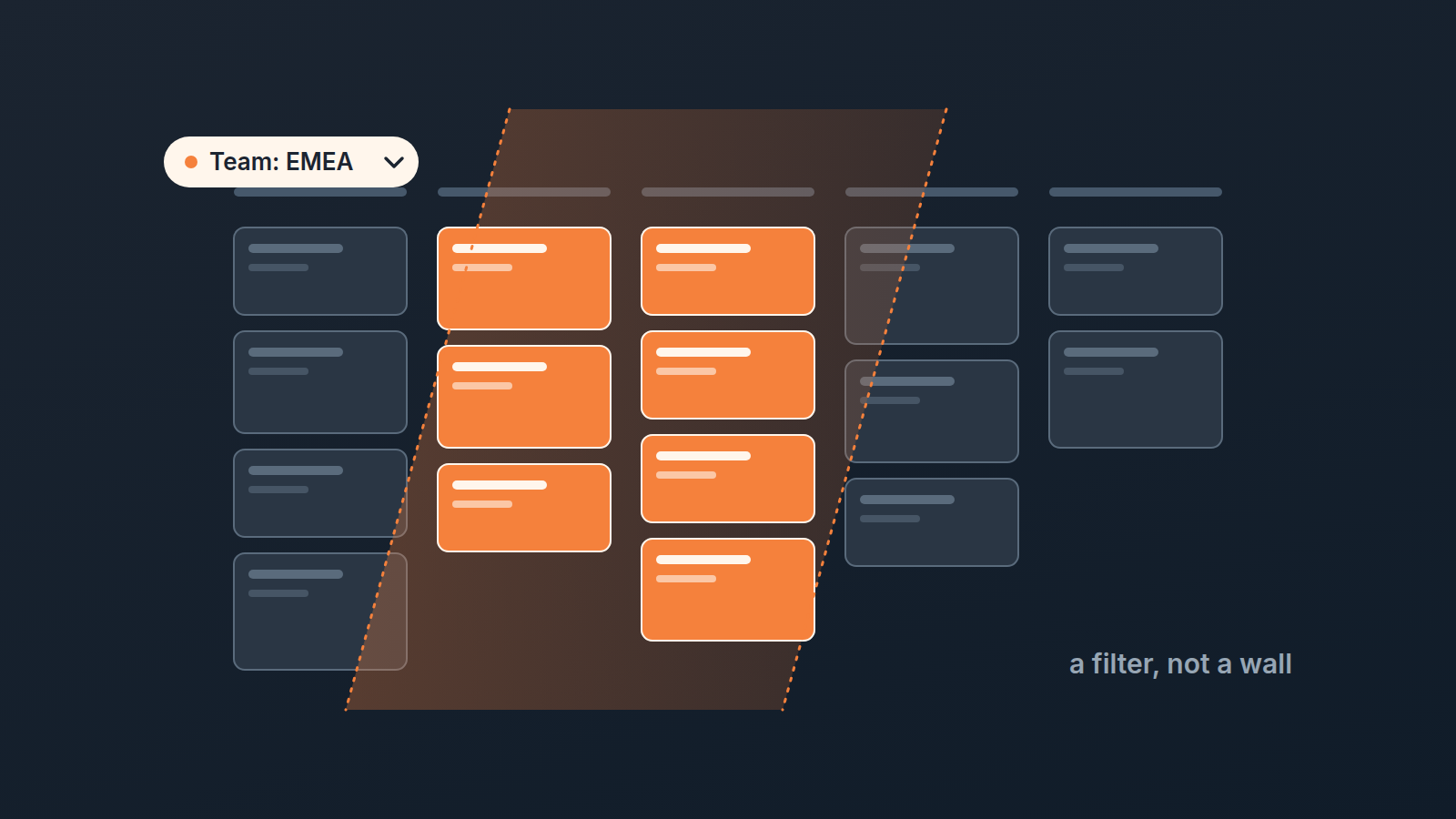
A team in Pipedrive is a named list of users with a manager and a description. Once it exists, it appears as an option in the filter dropdown, and selecting it shows the items owned by the members of that team (Pipedrive: Teams). That is the whole mechanism. Think of it as a saved “owner is one of these people” filter that the whole account can reuse, with a name a manager will recognise.
Pipedrive’s own help describes it as a way for admin users to keep an eye on a team’s progress “without having to interrupt them for updates” (Pipedrive: Teams). Read that twice. It’s a reporting feature for the person who manages. Security lives elsewhere.
What it does not do:
- It does not hide deals, contacts or activities from anyone. A rep in Team A can still open a Team B deal if their visibility group allows it.
- It does not grant rights. The “manager” you name on the team gets no new permissions from that field.
- It does not change what Insights shows a user. Insights follows the same visibility rules as items, and there are no separate visibility settings for Insights (Pipedrive: Visibility and permissions overview).
We bring this up first because the confusion is common and expensive. A guide from Solution for Guru, for example, folds teams into its visibility explanation and sends readers to Settings > Manage Users > Teams (Solution for Guru: Roles, Teams and Visibility), which is not where the help article puts them and not what they control. A manager who sets up teams expecting a wall and gets a filter will find out the hard way, when a rep mentions a deal that was supposed to be out of sight.
Creating a team takes about two minutes
You need account settings access to do this (Pipedrive: Teams). If the option is grey, that’s why, and the fix is a word with your admin.
- Go to Manage users > Team filters and click “+ Team”.
- Give the team a name. Use the name people already say out loud on calls: “Mid-market”, “DACH”, “Inbound”. Nobody will filter by “Team 2”.
- Designate a team manager. It’s a label for reporting; pick the person who will actually open the filtered forecast on Monday.
- Choose the team members.
- Write a description. One sentence on what the team owns is enough, because in a year someone new will wonder why Odile is on two lists.
- Click “Save”.
The fields and the path are from the help article (Pipedrive: Teams). The naming advice is ours.
Before you click Save decide whether a rep who covers two regions goes on both lists. Every overlap makes team totals stop adding up to the company total, so we keep teams disjoint unless there is a clear reason not to, and we write that reason in the description.
Three levers, and which one you actually need
Pipedrive splits access control into two parts: visibility groups define what users can see, permission sets define what they can do (Pipedrive: Visibility and permissions overview). Teams are a third thing that sits beside both and touches neither. Here is how we keep them straight.
| Lever | Answers the question | Where it lives | Notes from the help |
|---|---|---|---|
| Visibility groups | Who can see this deal, contact or report row? | Settings > Manage Users > Visibility groups | Each user belongs to exactly one group at a time. Insights follows the same rules; nothing to configure separately. |
| Permission sets | What can this user do? Edit, delete, export, change visibility, view reports. | Manage Users > Permission sets | Admin, Regular and Custom sets; the number of custom sets depends on plan. |
| Teams | How do I look at the pipeline, forecast or a report for this group of people? | Manage users > Team filters | A filter option. Owned-by-members logic. Three teams on Professional, fifteen on Power, unlimited on Enterprise. |
Sources: Visibility and permissions overview, Teams.
The practical test: finish the sentence “I want my reps to…” If it ends in “not see”, you need a visibility group. If it ends in “not be able to delete” or “not export”, you need a permission set, and our walkthrough on setting up a new rep’s access with permission sets covers the choices. If it ends in “show up as one line in my forecast”, that’s Teams.
One point catches people out. Insights obeys visibility, and Pipedrive’s help puts it plainly: “Charts and aggregated data remain visible, but restricted records are hidden” (Pipedrive: Visibility and permissions overview). So a team manager in a restricted visibility group can filter a report by team and still see the totals, but not every deal behind them. When it comes to records, the filter narrows and never widens. If a manager needs to open every deal on their team, that is a visibility decision first and a team filter second. We wrote about the same trap from the activity side in why activities go missing in Pipedrive.
Where the team filter shows up
Four places, per the help article (Pipedrive: Teams): the filter dropdown in pipeline view, list view and forecast view, and the filter at the top of a report in Insights > Reports.
In the pipeline view the team filter is the quickest way to run a stand-up. Select the team, walk the stages left to right, and you are looking at exactly the cards those people own. In list view it combines with your columns, so a saved view of “Team: Inbound, sorted by next activity” becomes the list you check before the one-to-one. If your team already shares list layouts, the shared filters and saved columns you built still work. The team filter is one more option in the same dropdown and doesn’t replace them.
The forecast view is where Teams earns its keep. A forecast for the whole company hides the fact that one team is at plan and another is at half. Filter by team and the gap is on screen in the time it takes to change a dropdown. Then do the same in Insights: open your deal conversion or revenue report, set the team at the top, and you get the same cut of the data as a chart instead of a column of cards. If the team numbers in Insights don’t match what you saw in the forecast, why Pipedrive Insights shows different numbers walks through the usual reasons.
Splitting three teams when you have more than three groups
On Professional you get three teams (Pipedrive: Teams). That number is low enough to force a decision, and the decision is more useful than the feature.
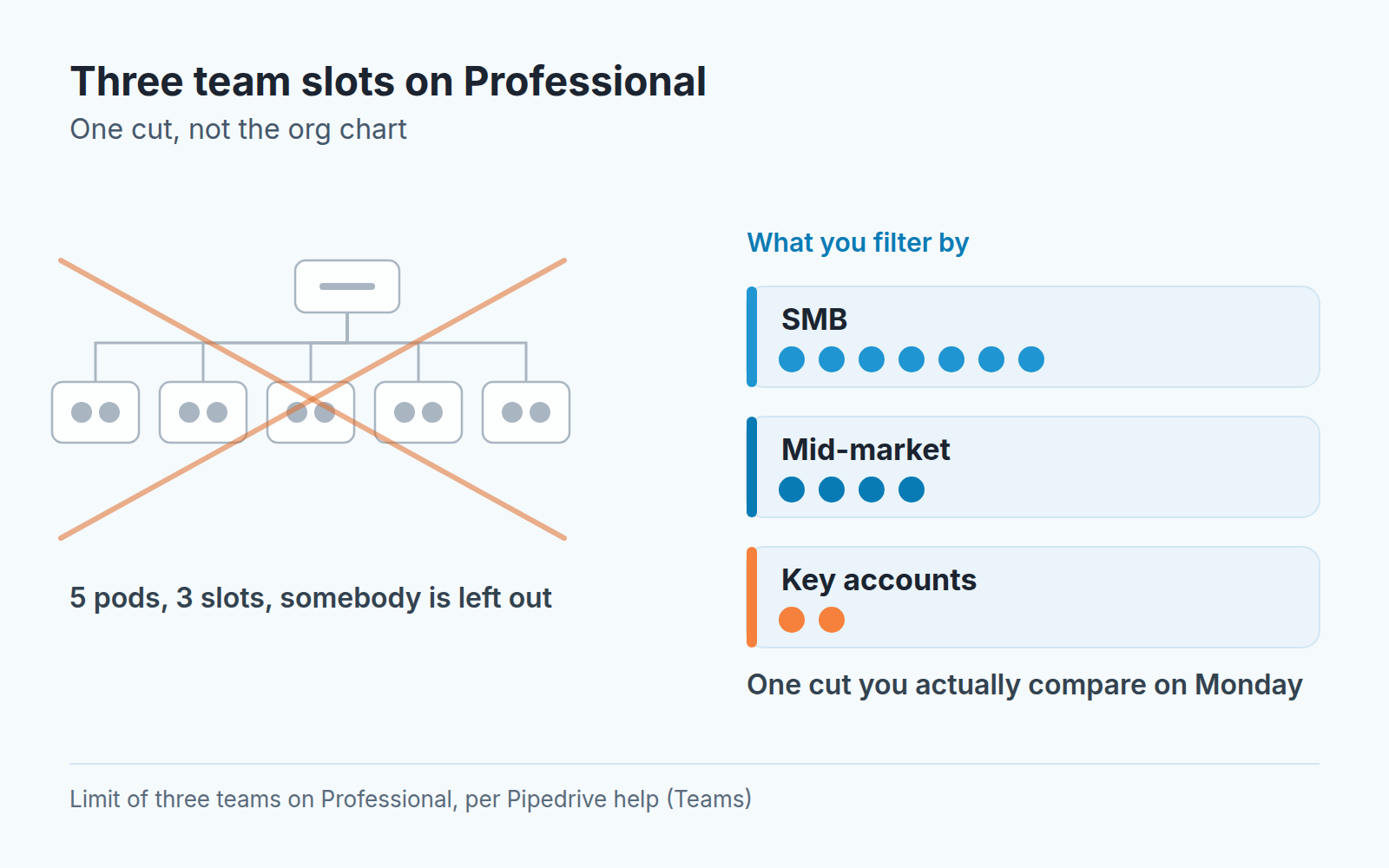
The mistake is to treat teams as a mirror of the org chart. Five pods of two people each, three slots, somebody gets left out, and the manager goes back to filtering by individual owner. A better question: what do you compare on Monday? In our experience it’s almost always one of three cuts:
- Segment: SMB, mid-market, key accounts. Different deal sizes and cycles, and comparing them on one forecast is pointless anyway.
- Territory, when pricing or seasonality differ between regions or countries.
- Motion. Inbound versus outbound, or new business versus account management, when the same rep would be judged by different numbers in each role.
Pick the one cut that drives your weekly conversation and give it the the three slots. Do not spend a slot on “Management” or “Everyone”; the unfiltered view already is everyone. If one team is much larger than the others, that’s fine. A filter for twelve people who sell the same thing to the same market is still one line you can reason about.
On Power the limit is fifteen (Pipedrive: Teams), and the temptation to recreate every pod comes back. Resist it for the same reason. Nobody makes a decision from a forecast with fifteen lines.
The Monday review by team, not by person
Here is the ritual we run and recommend. Its short enough to do every week, and it assumes teams are set up along one cut, as above.
Open the forecast view, set the team filter, and read one number first: expected revenue this period against the target for this team. That is the same discipline as the six numbers we described for a sales manager’s dashboard; the team filter just lets you read them per team. If you keep targets in Pipedrive, the monthly goals setup gives you the second half of that comparison.
Switch to the pipeline view, same filter. Look at the stage where cards pile up for this team, not for the company. SMB might stall at proposal, key accounts at legal. The company-wide view averages those into a blur.
Then, and only then, open the one-to-one list by owner. Looking at the team first means you walk into the individual conversation knowing whether Aiko’s stalled proposals are about Aiko or whether everyone selling mid-market has hit the same wall this month. That decides whether you coach a rep or fix a pricing page.
The weak spot is what comes after. A filtered forecast tells you a team is light; it doesn’t tell you which of the forty deals behind the number are in trouble, or why, and clicking into forty cards is where Monday mornings go to die.
A disclosure, since this is where it fits: we build SalesBond, a sales management layer on top of the CRM a team already uses; we started with Pipedrive. Its Deal Health product checks every deal in the connected CRM against more than 20 rules and gives each deal a health score. For every violation it shows what went wrong and a recommended action. Managers get a per-rep view with average score, deal list and problem areas, plus a manager view of pipeline quality. Check your CRM with SalesBond if the forty cards are the part you dread.
The mistakes we keep seeing
Expecting Teams to lock things down is the big one, and the reason this article opened with it. The second is quieter and does more damage to your numbers.
It’s changing team membership mid-period and then comparing periods. The filter shows items owned by the members of the team (Pipedrive: Teams), and the help article doesn’t say how past periods are handled when someone moves. Because the filter works by owner, we treat a move as taking the rep’s whole book along: move a rep from SMB to mid-market in week three and the SMB forecast loses that rep’s deals while mid-market gains them. Nothing was won or lost, yet the report says otherwise. Our rule is that roster changes happen on period boundaries, and the change goes into the team description with the date, so whoever reads the chart in March knows why February bends.
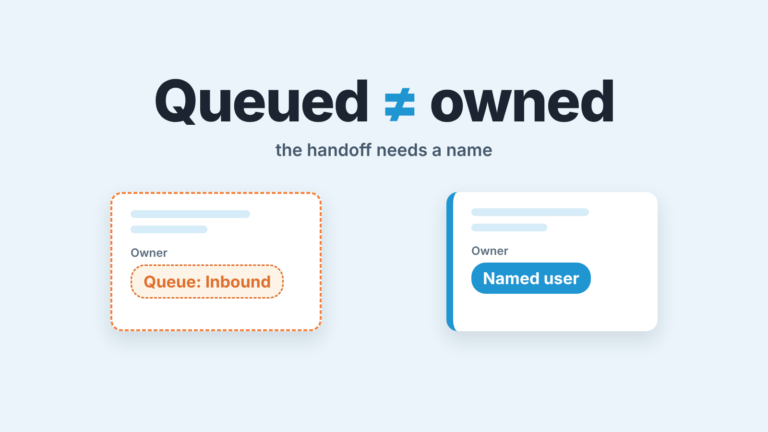
A third: naming a team manager and then being surprised that the person cannot see the team’s deals. The manager field is a label on the team. What a person can see is set by their visibility group, and one user belongs to one group at a time (Pipedrive: Visibility and permissions overview). Set that first.
And a fourth, less a mistake than a waste: one team per person. On Professional that burns your three slots on three people and leaves the other nine as “everyone else”. The owner filter already does per-person. Spend the team slots on the groups the owner filter can’t express.
If you do one thing this week, pick your cut, create the teams, and run next Monday’s forecast through them before you open a single rep’s list.