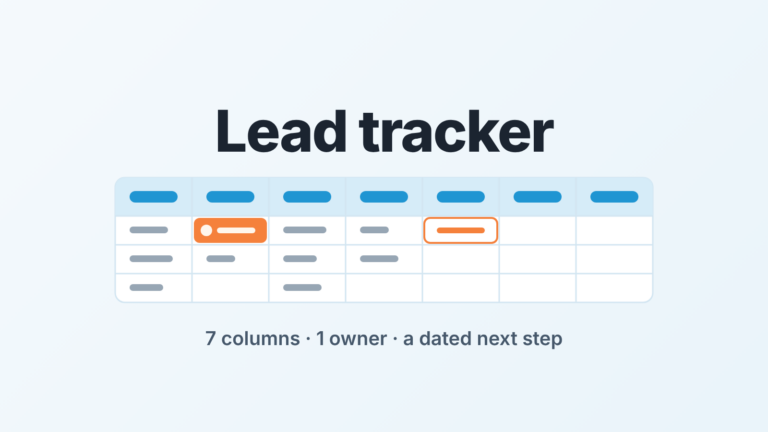
To give the whole team one view of the pipeline in Pipedrive, build the filter once and open it in the list view with the columns you want. Click the pencil next to the filter’s name, tick “Save selected columns with the filter” and save. Then click the pencil again, set Visibility to Shared and save once more. From then on anyone in the account who opens that filter in their list view gets the same deals in the same columns (Pipedrive: set default columns for all users). That is the whole mechanism. The part Pipedrive leaves to you is which filters deserve to be shared, and who is allowed to touch them. We think a small team needs three, with one named owner, and the rest of this article is why.
Three people, three filters, one pipeline total that does not match
A made-up scene, but we have sat in versions of it. Friday, September 25, 2026, ten past four. The company owner drops one line into the sales channel: “How many deals are closing in September?” Within ten minutes there are three answers. Dana, a rep, says eleven. Luis, the other rep, says nine. Marek, who runs the team, says fourteen.
All three looked at the same pipeline. None of them looked at the same list.
Dana filtered by her own deals and a close date this month. Luis had a filter he built in the spring that also drops anything without a proposal, because for him a deal without a proposal is not closing. Marek’s filter had every owner and the close date, plus a column for the amount that neither rep displays. Each of the three had, by thier own logic, the right number.
The owner does not care about the logic. The owner now has three numbers and a reason to doubt all of them.
Nobody can settle this by peeking, and that’s what makes it stubborn. A private filter in Pipedrive is visible only to the person who created it; no other user can see it, not even an admin (Pipedrive: advanced filtering). So Marek cannot open Dana’s filter to see what she excluded. He can only ask, and the reply arrives on Monday, and Monday has its own problems. We wrote about a related version of this, where the same Insights report shows different totals to different people, in why you and your rep see different numbers in Pipedrive Insights. The filter case is easier. The fix is a setting and a rule, not a permissions audit.
Private vs shared, and where favorites fit
Pipedrive gives a filter two visibility states. Shared filters are visible to every user in the company account. Private filters are visible to their creator and nobody else. You pick the state when you create the filter, and you can change it later by editing the filter and choosing from the Visibility dropdown before saving (Pipedrive: advanced filtering).
Our position: private is for experiments, shared is for anything the team will be asked to report on. The moment a filter produces a number somebody says out loud in a meeting, it should be shared, because a number nobody else can reproduce is an opinion.
That does not mean every rep’s working filter has to be public. Dana’s “my deals, this month” filter is fine as private. It stops being fine when it becomes her answer to the owner.
Favorites get mixed up with all this. Starring is a personal shortcut: the filter lands in your Favorites tab in the filter dropdown (Pipedrive: advanced filtering). We ask everyone on the team to star the three shared filters described below so they are one click away on review day.
The same filter dropdown sits on the deals list, the pipeline, the forecast and the archive views, as well as on leads, contacts, activities, projects and products (Pipedrive: advanced filtering). So the team lead can open a shared deals filter on the pipeline board during the review and a rep can open it as a list while working, and both are filtering the same way. If your team has several groups, you can filter the pipeline by team instead of building one filter per person.
Saving columns with the filter: what the others will see
A filter decides which deals appear. Columns decide what you learn about them at a glance. Pipedrive lets you attach the second to the first, and this is the step most teams skip.
The sequence takes two passes through the same edit window:
- Open the deals list view and pick the filter from the filter dropdown.
- Arrange the columns you want everyone to see while that filter is active.
- Click the pencil icon next to the filter name.
- Tick “Save selected columns with the filter” and click Save.
- Click the pencil icon again, set Visibility to Shared and click Save.
Now when you or another user opens that filter, the list view shows the columns you had when you saved it (Pipedrive: set default columns for all users).
Two things follow from that sentence. First, the columns are part of the filter, not part of the user. Luis does not have to rebuild Marek’s layout, and he cannot be looking at a list with the amount column missing while Marek reads the total. Second, the columns are the ones you had when you saved. Treat the column set as something you edit on purpose, through the pencil icon, and re-save when you change it.
The saved columns apply when the filter is opened in the list view, and that is where we run the shared filters anyway. The pipeline board is good for moving cards. The list is where you read fourteen deals in four columns and spot the one with no next step.
Three shared filters worth having
These three are ours, not Pipedrive’s. From the weekly reviews we have sat in, three shared filters cover most of what a small team argues about, and each one earns a column set of its own.
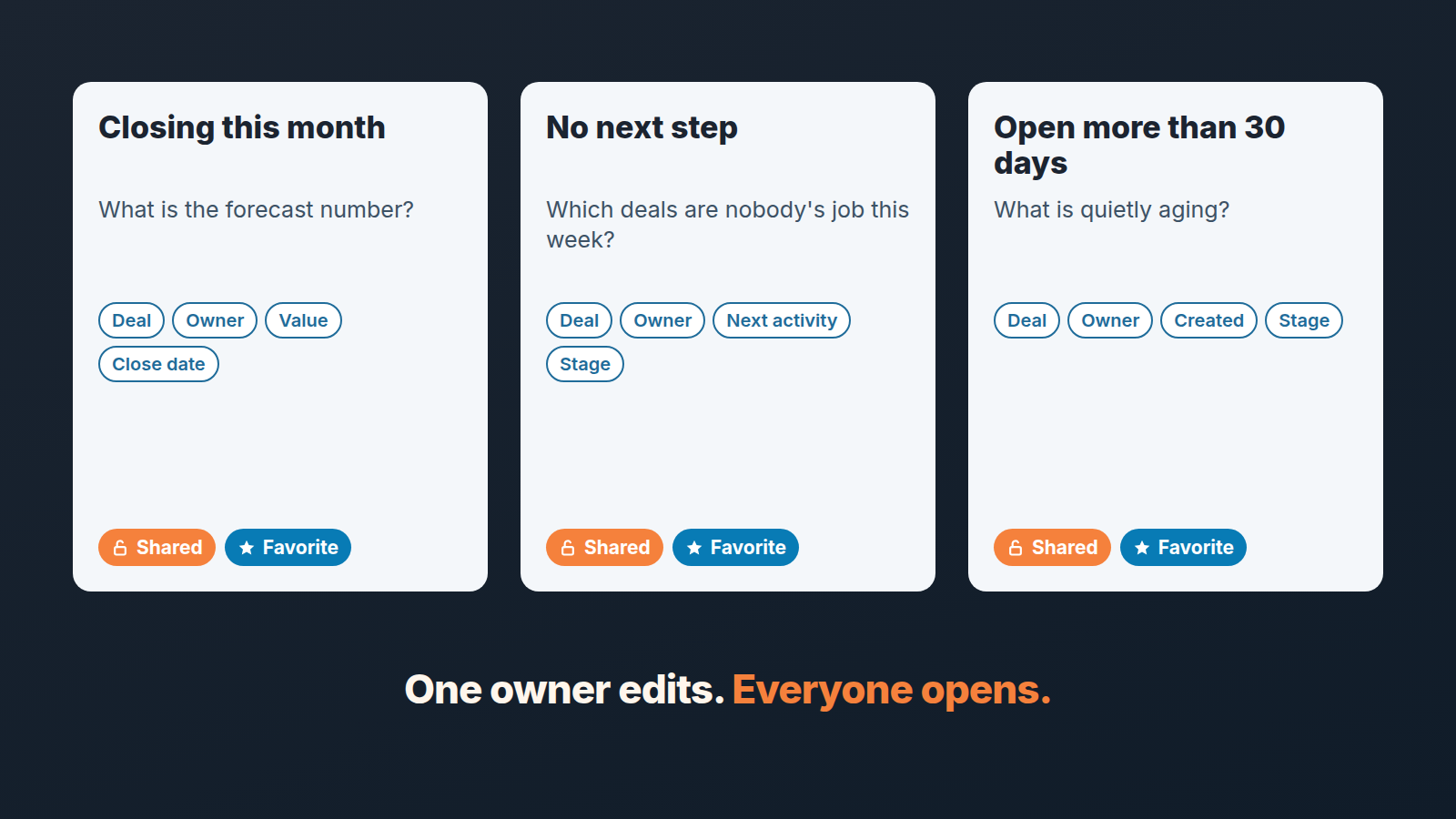
Closing this month. All owners, close date inside the current month. Columns: deal, owner, value, close date, stage. This is the filter that answers the owner’s Friday question, and because it is shared with columns, Dana, Luis and Marek now read one list with one total. If a deal is missing from it, the fix is in the deal (a wrong or empty close date), not in the filter. That discipline pays off by itself. The shared filter turns “my number is different” into “your close date is wrong,” which is a conversation about a deal.
No next step. Open deals with no upcoming activity. Columns: deal, owner, stage, last activity. This one is the review’s agenda. A deal that nobody has scheduled anything on is a deal nobody is working this week, whatever the stage says. We covered why the next activity is the field worth policing in the next activity field in Pipedrive. If you read pipeline inspection vs pipeline review, you’ll recognize the filter: there it is one of the inspection checks, here it is the same tool with saved columns, opened together in the review.
Open more than 30 days. Deals created more than a month ago and still open. Columns: deal, owner, created date, stage, value. This is the quiet one. Nothing on this list is on fire, which is exactly why it never comes up unless a filter forces it. Thirty days is our default for a short sales cycle. If your cycle is longer pick a number that is longer than your typical cycle and shorter than “we forgot about it.”
Three is a deliberate ceiling. Pipedrive allows up to 16 conditions in a filter and recommends fewer for loading speed, and it sets a company-wide limit of 5,000 filters per user (Pipedrive: advanced filtering). So the limit is not technical. The limit is attention. A dropdown with thirty shared filters is a dropdown nobody trusts, because nobody remembers what “Q3 push v2 (Marek)” meant. Three filters with plain names and the same columns every time become the team’s shared vocabulary: “it’s on the no-next-step list” means something.
The three fit the 15-minute weekly pipeline review: “No next step” and “Open more than 30 days” feed the exception pass, and “Closing this month” is the number you open with and close with. If you also show closed deals in the pipeline, keep that as a separate pass, the way we describe in the closed-deals toggle and the weekly review. The shared filters are for the open work.
Who looks after a shared filter
Pipedrive lets you share a filter. It leaves the question of who looks after it to the team.
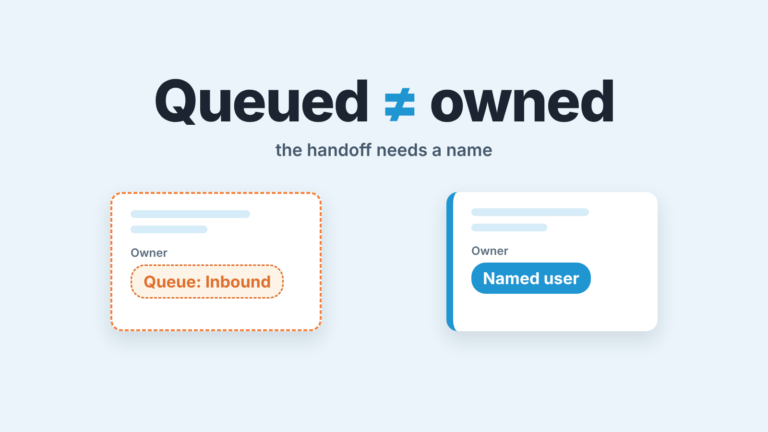
Our rule is simple. One person, usually the team lead, builds the three shared filters, saves their columns, and is the only one who edits them. Everyone else opens them, stars them, and uses them. If a rep wants a different cut, they build it as a private filter. If the different cut turns out to be useful for everyone, they tell the owner, and the owner changes the shared filter or adds a fourth. This isn’t about control for its own sake. A shared view only works as a shared view if it does not change under people’s feet. A one-off question does not need a saved filter at all; a quick filter answers it without adding to the list somebody has to look after.
Write the rule down somewhere the team reads. Ours is one line in the team’s working agreement: “Shared filters are Marek’s. Ask before changing, never delete.” The second half matters more than the the first. Deleting a filter in Pipedrive takes a few clicks through the pencil icon (Pipedrive: advanced filtering). Rebuilding the filter is ten minutes; rebuilding the team’s trust that the list is the same list as last week takes longer.
Name the filters so the official ones are obvious. “Team: Closing this month” and “Team: No next step” sort together and tell a new hire which three to star. We apply the same rule for deal names: a fixed format that sorts together. When you change a shared filter, say so in the channel the same day, in one line. Otherwise the people who open it tomorrow will assume the pipeline changed, not the filter.
There is one thing a shared filter will not do, and we would rather say it here than let you find out in the review. It shows the deals that match a condition right now. It won’t tell you that a deal has been on the “No next step” list for three weeks running, or that the same rep’s deals keep landing on “Open more than 30 days.” That pattern is what a manager is actually paid to notice. We build SalesBond, a sales management layer on top of the CRM a team already uses; we started with Pipedrive, and the repeat offenders on those two lists are the kind of signal it was built to surface. If you want to see your pipeline through that lens, check your CRM with SalesBond.
The three shared filters still come first. They’re free, they take twenty minutes, and on Friday afternoon everyone will give the owner the same number.