
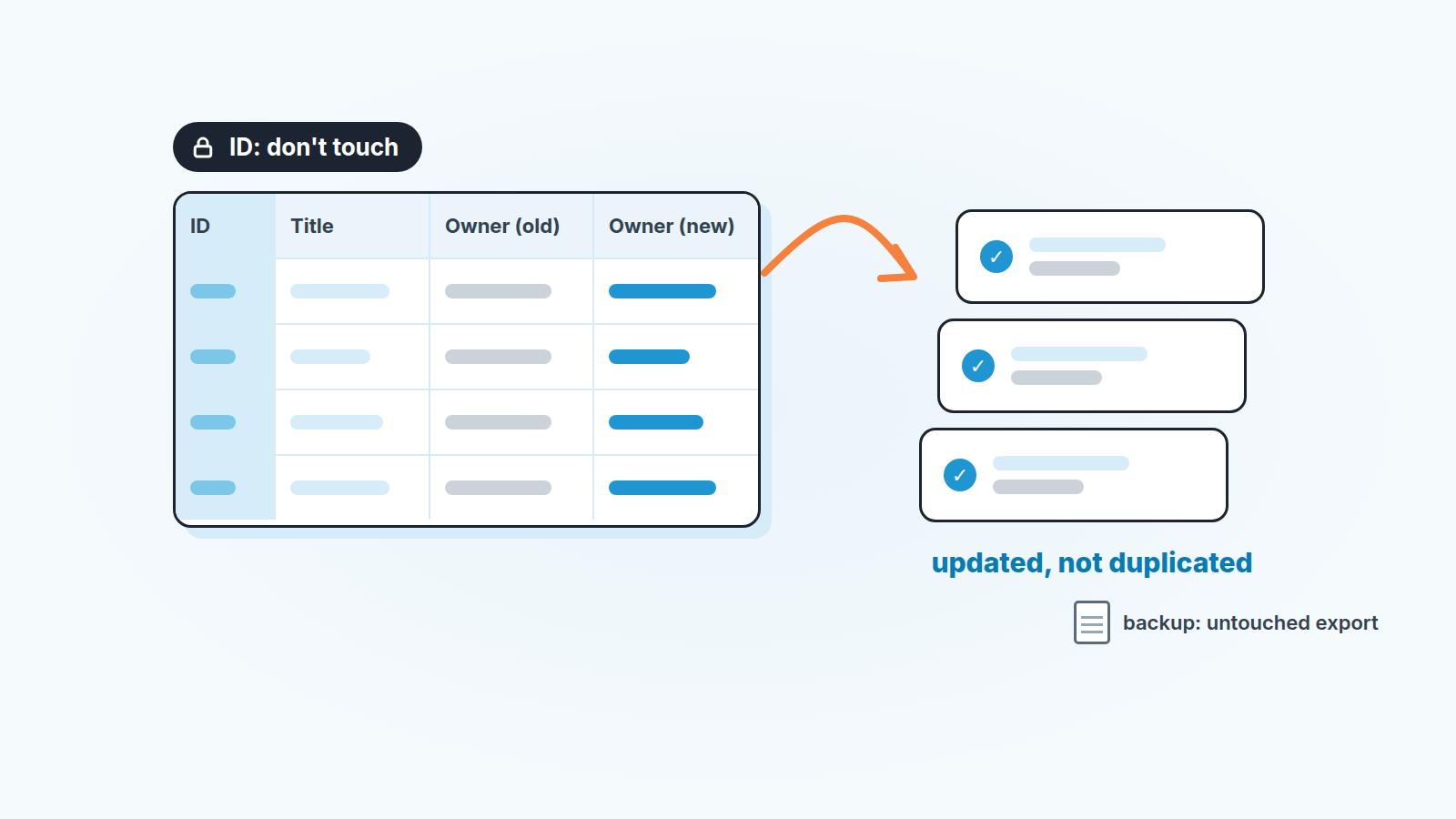
To update many existing Pipedrive deals in one pass, filter the list, add the System ID column, export it, change only the columns that need a new value, and import the file back with the ID column mapped to Pipedrive’s ID field. Pipedrive then updates the records it recognizes instead of creating new ones (Pipedrive: updating Pipedrive data with a spreadsheet). The export you start from is also your backup, so keep an untouched copy. And before the whole file goes in, run the import on two rows.
The quarter closed, and 300 deals still carry the old owner
Take a six-person sales team on Thursday, October 1, the day after the third quarter closed. It is switching from “whoever picked up the lead owns it” to segments: two reps take manufacturing, two take logistics, one takes the public sector, and the manager keeps the strategic accounts. Nobody is leaving. The map is changing. Around 300 open deals now sit with the wrong owner, and the right owner for each one depends on a column in the manager’s territory sheet, not on anything inside the deal.
Swap the territory sheet for a renamed custom field or a close-date re-forecast from the quarterly review and you get the the same job: a different value on every row, and it comes from outside the CRM.
Bulk edit or spreadsheet: which one for which job
Our rule is about the shape of the change, not the number of records.
One new value for everyone you selected: use bulk edit in the list view. Set 80 deals to a new stage, move a label, change one owner to another. It happens inside Pipedrive, it runs your automations by default, and it cannot be undone after confirmation; we wrote the whole ritual for that in before you bulk-edit 150 Pipedrive deals. This article is the other path.
A value that differs row by row, comes from a sheet outside Pipedrive, or needs a formula: export, edit, re-import with the System ID. The owner that depends on a territory column. The close date each rep re-forecast. A custom field you are backfilling from a list finance sent over. Bulk edit cannot look up a value; a spreadsheet can. The file also doubles as the review, since 300 rows with an old column and a new one take about ten minutes to read.
If that sheet is a sales tracking spreadsheet that still lives next to Pipedrive, sort out what each of its columns is for before you import from it.
Ten records or fewer? Neither. Open them and change them by hand.
Who does it is settled by Pipedrive itself: updating by spreadsheet “is only available to admin users and regular users with the correct permissions enabled” (Pipedrive: updating Pipedrive data with a spreadsheet), which in a small team is the admin’s row in the table of who owns which CRM data.
Export with the System ID column, step by step
Pipedrive’s System ID is the unique number every record gets at creation. The help page puts it this way: “every item – deal, person, organization, activity, product, note – is assigned a unique ID upon creation” (Pipedrive: updating Pipedrive data with a spreadsheet). That ID is what lets an import find a deal that already exists instead of making a new one. The job is to get it into your file. Zapier needs the same discipline: search before you create, or every run adds a second person.
-
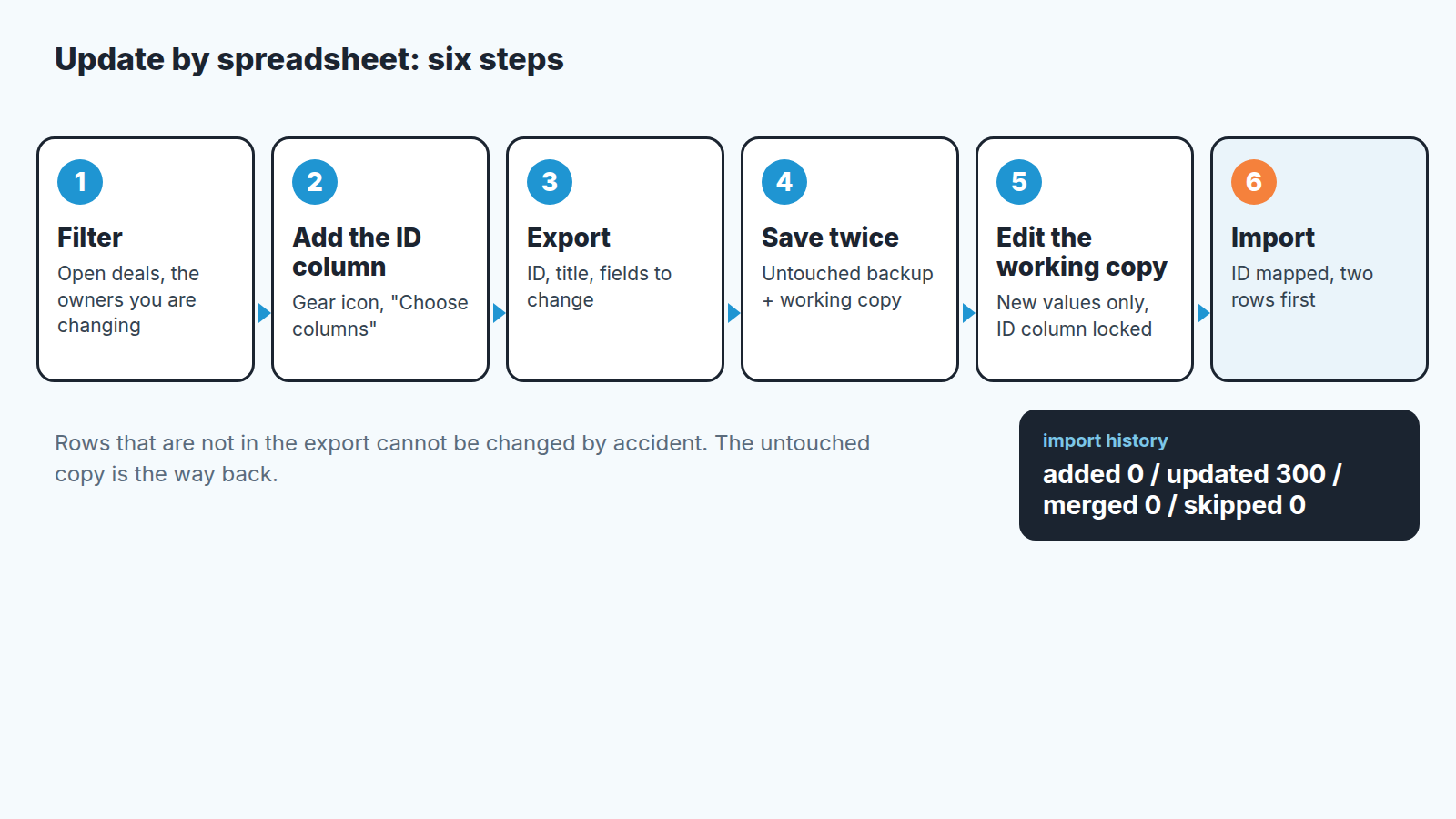
Build the filter in the deals list view. In the scene above: open deals, owner is one of the six current owners. Narrow it until the list is exactly the set you want to change. Rows that are not in the export cannot be changed by accident.
-
Show the ID column. Click the gear icon to open “Choose columns”, search for the ID field, select it, and save (same page). Keep the title in the view too; a row of IDs with nothing readable next to it is where mistakes hide.
-
Keep the columns you are going to update and drop the rest. For the reorganization that means ID, title and owner. Fewer columns, fewer things to map and break.
-
Export the list from this view with “…” > Export filter results, as an XLSX or CSV file (Pipedrive: exporting data from Pipedrive). The import on the way back accepts XLS, XLSX or CSV, with a header row and one tab per import (Pipedrive: importing data into Pipedrive with spreadsheets). The ceiling, in the help page’s words: “The maximum file size is limited to 50MB, with a maximum limit of 50,000 rows” (Pipedrive: updating Pipedrive data with a spreadsheet). A 300-row deals file is nowhere near either.
-
Save the export twice before you touch a cell. One copy, dated, goes to a shared drive and is never opened again unless something went wrong. The other is the working copy. The untouched file is the only sure way back to the values of Thursday morning, so treat it as part of the change. Nothing promises that the 48-hour import revert brings old values back after an update.
What to change, and what to leave alone
In the working copy, add an “Owner (new)” column and fill it from the territory sheet with a lookup. Then read the result once, row by row: a lookup that misses returns an error or a blank, and in 300 rows a few of those will be sitting somewhere in the middle. Replace the old owner column with the new one, under the original header. Copy each new owner’s name from a row where that person already owns a deal, so Pipedrive gets the name exactly as it exported it.
What you leave alone is just as deliberate.
The ID column is never edited, never sorted on its own, never retyped. Sorting a single column is the classic spreadsheet accident: the IDs shuffle, the titles stay, and every row now points at someone else’s deal. If you need to sort, select the whole sheet first.
Columns you brought along for reading are not where you fix things. Pipedrive’s page says you can “export other columns for reference, like the title. However, any changes that you make in those columns will be overwritten when you import” (Pipedrive: updating Pipedrive data with a spreadsheet). So the working file has two kinds of columns, the ones you are updating and the ones you are reading, and the line between them stays clean. A typo in a title is a different job on a different day.
Blank cells we do not send at all. The help pages describe what the System ID does and what the import summary shows; they don’t say what an empty cell in a mapped column does to the value already in the deal. Where the documentation is silent we don’t guess with 300 records. Either every row in a column you are updating has a value, or that column leaves the file.
Won time, status, stage: not in this file. One change per import, so that when something looks off afterwards you know which column did it.
Importing back without creating duplicates
Go to the account menu, then Tools and apps > Import data > Import from spreadsheet, and choose Get started (Pipedrive: importing data into Pipedrive with spreadsheets). Pipedrive maps your columns to fields by their column names and lets you drag any unmatched column onto the right field (same page). The step that makes this an update rather than a fresh import is the ID: the help page says to “map the corresponding ID fields to their columns” before you click Next (Pipedrive: updating Pipedrive data with a spreadsheet). Your ID column goes to the deal’s ID field. Look at that mapping twice. It’s the only thing standing between “300 deals updated” and “300 deals added”.
Why so much weight on one dropdown? Pipedrive’s duplicate page states that “there is no duplicate identifier for deals in Pipedrive” (Pipedrive: how to avoid duplicates during an import). A person with the same name is merged when the organization, phone or email also matches; organizations merge on a matching address. Deals get none of that, so 300 deal rows without the ID mapped become 300 new deals with familiar titles. Merging the two deals afterwards is possible but manual, one pair at a time. Keep person and organization columns out of the file and the import has nothing to match except the deals you named by ID. The cleanup after a morning like that is in duplicate records in Pipedrive.
Now the test. Copy the working file down to the header row and two deal rows, one for each of two different new owners. Import that. Open the two deals and look at the owner, the title and the fields you did not send. Then open the import history tab; the summary shows how many records were “added, updated, merged or skipped” (Pipedrive: importing data into Pipedrive with spreadsheets). For a two-row test you want two updated and nothing else. If it says two added, stop, delete the two new deals and go back to the ID mapping. Only when the two rows do exactly what you expected does the file with the remaining 298 go in.
The import page also says that users with global admin permissions can revert an import from the import history tab within 48 hours, and to contact support if the revert button is unavailable (same page). Treat that as the emergency brake. The way back to the old values on updated records is the untouched export from step five.
Check ten records before you trust the other 290
The import summary is the first check and costs nothing. Updated should equal the number of rows you sent. Added and merged should be zero, because the file had no people or organizations in it. Skipped rows land in a skip file with the reason for each failure (same page), download it, fix those rows, and re-import only them, with their IDs.
Then open ten deals chosen to fail differently: two per new owner, the biggest deal in the file, and a couple from the bottom of the sheet where the lookup was most likely to drift. Put each deal page next to its row in the untouched export. Owner changed as planned. Title unchanged. Value, stage, expected close date and every custom field you did not send still match the backup.
If one of the ten is wrong, treat the error as systematic until you prove otherwise and find every row with the same shape before fixing anything by hand.
After a reorganization the harder part starts on Friday, when each rep opens a list of deals they have never worked. We build SalesBond, a sales management layer on top of the CRM a team already uses; we started with Pipedrive. Deal Health checks every open deal against more than 20 rules and explains what lowered its score, which gives a new owner an order to read thier inherited deals in. Check your CRM with SalesBond once the owners are right. And with the deals list still filtered, it is a good moment to archive the deals that should have gone long ago, so nobody inherits those at all.


