
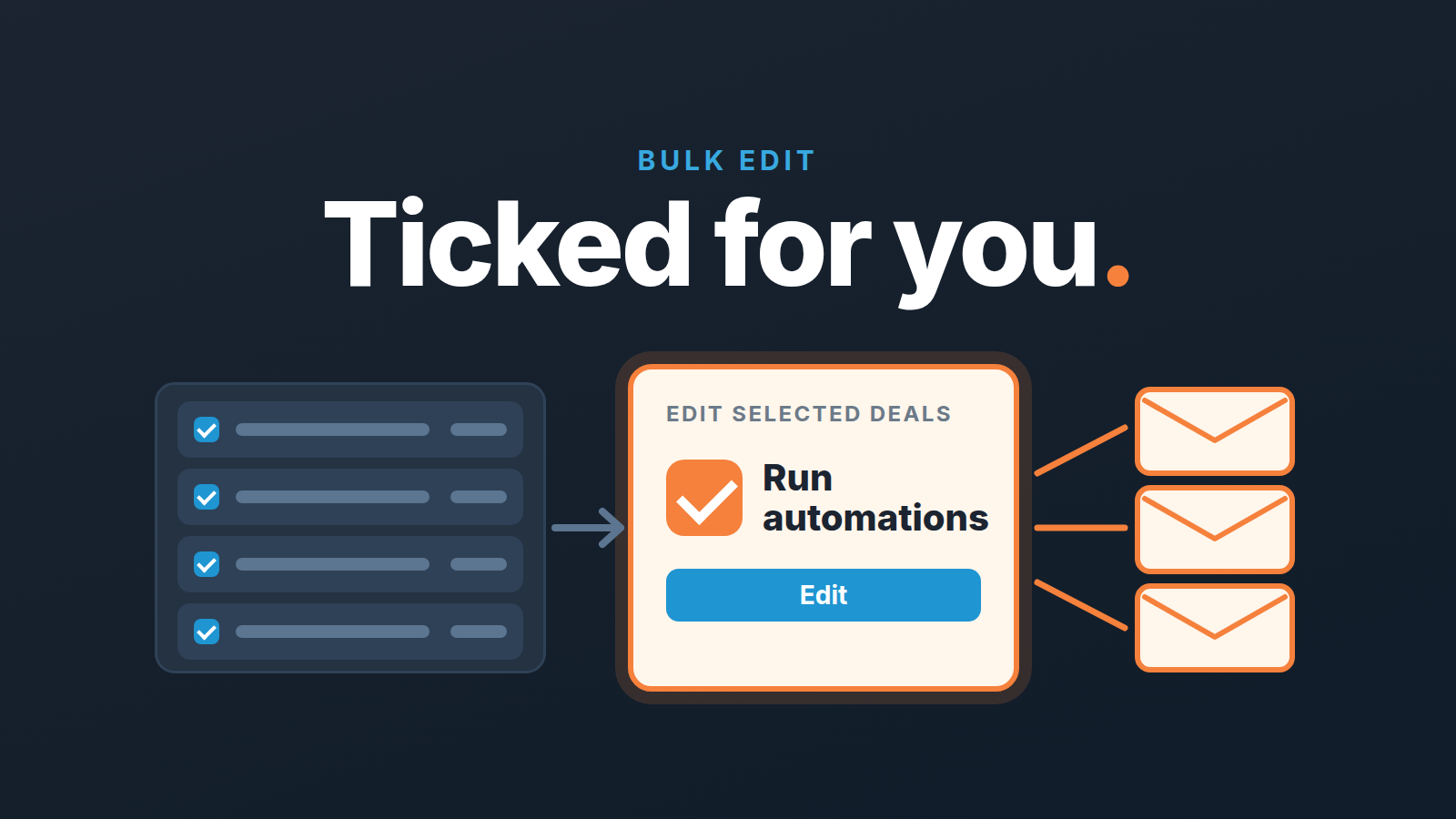
Before you bulk-edit deals in a Pipedrive list view, decide whether the edit should run your automations. Pipedrive asks, but the “Run automations” option is selected for you, and the same help page says the changes can’t be undone after confirmation (Pipedrive: list view, filter and bulk edit items). So export the filtered list first, run the edit on five deals, read what happened, and only then run it on the rest. A bulk edit is a small operation that takes minutes. It is also the fastest way we know to email a hundred customers by accident.
A Tuesday cleanup that sent a breakup email to live deals
An invented scene, but we have seen its shape more than once. A sales manager has a pipeline review at two. The pipeline has about 150 deals that nobody has moved in months, and the forecast looks silly with them in it. So at ten in the morning she builds a filter in the deals list view for open deals whose stage had not changed in four months, selects everything, sets Status to Lost and Lost reason to “No response”, and clicks Edit. Ninety seconds. Pipeline clean.
A year earlier, someone had built an automation: when a deal’s status is updated to lost, send the contact person a short email. “Sorry we couldn’t make this work, two quick questions for us.” Nothing exotic about it. A deal update trigger that watches one field, a condition on that field, an email action: those are the standard parts (Pipedrive: update triggers, sending emails with automations). Polite, useful, long forgotten. It fired 150 times.
The problem was not the dead deals. Most of them were dead and their contacts shrugged. The problem was the twenty or so that were not. Several reps had been emailing buyers for weeks without touching the stage, which is exactly the gap between a stalled deal and a dead one. Those buyers got a breakup note at 10:02 and replied by 10:30. “I thought we were meeting Thursday?” One rep found out his deal was lost from the customer.
Nothing in that story is a Pipedrive defect. Every piece worked as documented. The manager did what the list view invites you to do, and the one checkbox that would have stopped it was ticked by default.
What a Pipedrive bulk edit can touch, and the box that is ticked for you
The list view is where Pipedrive lets you change many records at once. For deals you can bulk-edit title, owner, pipeline/stage, status, created time, won time, lost time, lost reason, visible to, source channel, source channel ID, archive status, label, value, organization, contact person, expected close date and custom fields (Pipedrive: list view, filter and bulk edit items). You can also delete the selection with the trash icon. Deal titles can be fixed here too, once you have agreed a deal naming convention to fix them to. The mechanics are three clicks: select items, pick a field in the bulk edit panel, “Edit current value”, choose the new value, “Edit”.
Moving many deals to another stage is one half of the story; changing a stage on a live pipeline (rename, insert, delete) is the other, and it moves deals too.
Read that field list once as a list of triggers rather than fields. Stage, status, owner, label, expected close date and every custom field are things an automation can be listening for. The help page says it plainly: edits in list views may trigger automations, and to prevent unexpected changes you can choose to run or skip them before confirming. Three details from the same page matter for a manager:
- “Run automations” is selected by default. Doing nothing means running them.
- The automation warnings are only visible to users with global admin permissions.
- If the edit triggers a large number of automations, an additional warning appears about the performance impact.
A big enough edit can also hit the frequency limits, and then some runs are stopped and the follow-ups they would have created never appear.
And the sentence that should be printed above the Edit button: changes can’t be undone after confirmation.
We think the default is wrong for most small teams. But it is the default, so the job is to make the decision deliberate every time. If you have never listed which automations fire on a status or stage change, you cannot make that decision; the twenty-minute automations audit is how you get the list. Changing the owner in bulk has its own rules about people, organizations and activities, which we covered in reassigning deals when a rep leaves. This article is about everything else you might change on a hundred deals at once.
Five steps before you press Edit
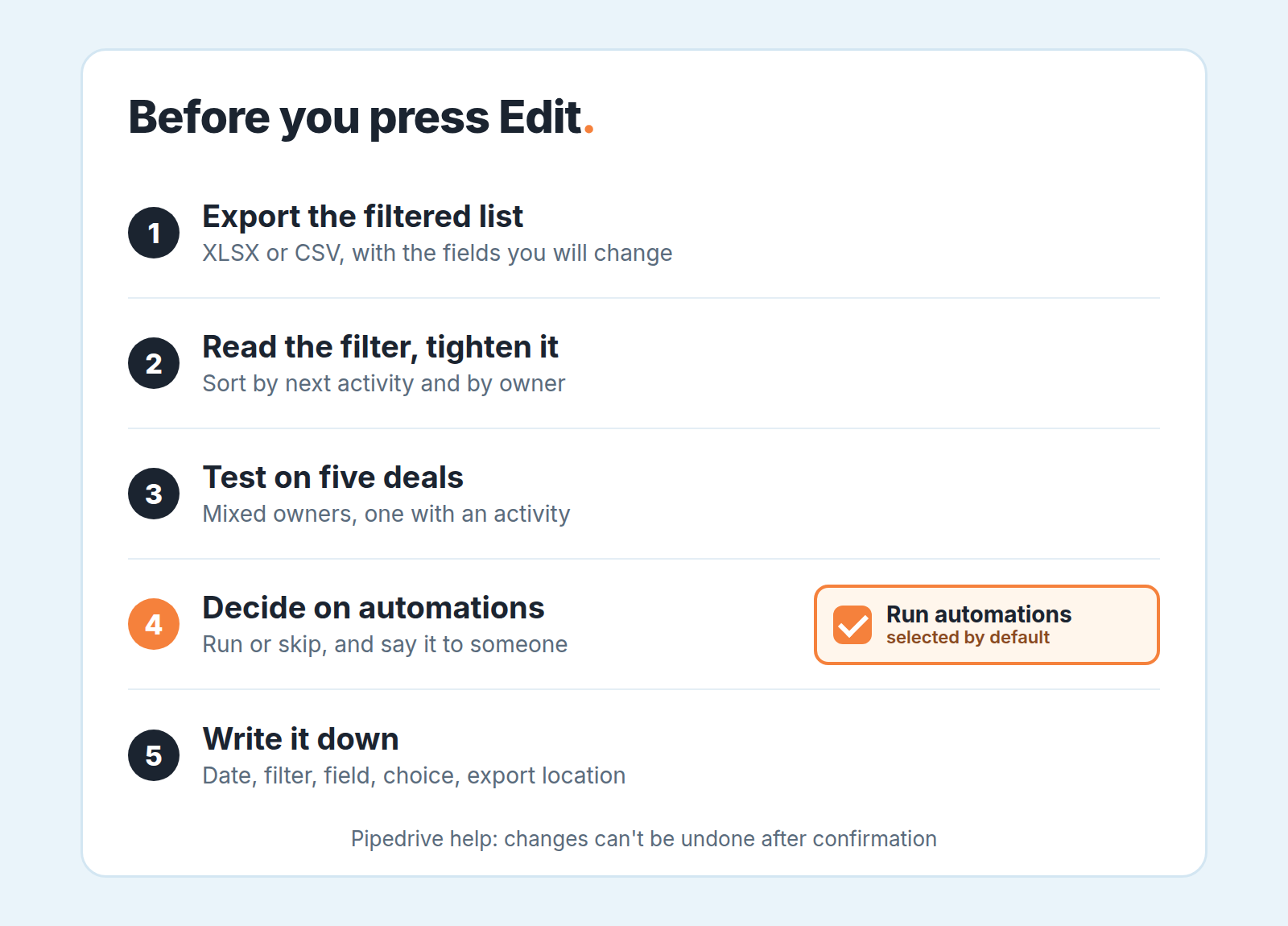
This is the ritual. It takes about fifteen minutes on top of the edit itself, and the edit itself takes two.
-
Export the filtered list. Apply the filter in the deals list view, click the gear icon to choose the columns, then “…” > Export filter results, as XLSX or CSV (Pipedrive: exporting data). Include every field you are about to change, plus deal ID, owner and next activity date. This file is your undo. A spreadsheet with the old values lets you put a hundred deals back by hand in an afternoon. Download it to your own drive, too: Pipedrive keeps generated exports for 28 days (same page). Export rights belong to global admins and to users whose permission set allows it, so if you cannot export, stop here and ask someone who can. Where possible, start from a shared filter rather than a private one, so the list matches what the team reviews.
-
Read the filter, then tighten it. Open the exported file and sort by next activity date and by owner. In the scene above, this is where the twenty live deals would have shown up: a deal with a call scheduled next week does not belong in a “dead” cleanup, however long it has sat in one stage. Add a condition to the filter that leaves those deals out, and save it. Filters are view-specific in Pipedrive, so a filter you build for deals cannot be reused in the people list. Build it where you will use it.
-
Test on five. Select five deals from the list, not the first five, a mixed five: different owners, one with a scheduled activity, one with a high value. Run the exact edit you plan to run on all of them, with the automation choice you plan to make. Then open one of the five and look at what fired: new activities, emails in the deal timeline, a changed owner on the linked organization. If anything surprised you, the cost was five deals and five apologies, not 150.
-
Decide on automations, out loud. The question is not “should automations run”. It is “which automations will this edit trigger, and do I want each of them to run for this batch”. For a cleanup of dead deals, almost always skip: the automations were built for a deal that lost today, with a rep who knows the customer, not for a batch closed by an ops task. For a stage move after a pipeline redesign, you may want them. A “schedule a follow-up” automation on entering a stage is exactly what the moved deals need. Say teh decision to one other person before you confirm. A second pair of eyes on a 150-deal edit is cheap.
-
Write it down somewhere outside Pipedrive. Date, filter used, field and value, automation choice, who did it, and where the export file lives. Two lines in the team’s CRM log. Software can record what changed and who changed it. Your note records why.
If the new value differs row by row, bulk edit is the wrong tool; update from a spreadsheet using the System ID instead.
If the five steps feel like overkill for ten deals, they are. For ten deals you edit one at a time and skip the ritual. The ritual exists for the moment when the number has two or three digits and somebody is waiting for the result. If the batch job is scheduling follow-ups rather than changing fields, that is a different tool, and we covered scheduling follow-ups in bulk separately.
What Restore data takes back, and what it does not
Pipedrive’s Restore data page, under Tools and apps > Restore data or from any list view via “More” > Restore data, lists deleted items and lets you restore them one at a time or in bulk (Pipedrive: how can I restore data). It covers deleted leads, deals, people, organizations, activities and products. You can narrow the list by who deleted the items, by time period, and by deletion type: bulk deletion sessions, import sessions, pipelines or stages. A restored deal comes back with its won or lost time and its original pipeline; if that pipeline or stage no longer exists, the deal is restored without one. After 30 days the items are permanently gone.
So a bulk delete has a documented safety net. A deleted deal takes its linked activities with it and brings them back when restored (same page). Who can use the net depends on plan. On Lite and Growth, users restore any item they have permission to see. On Premium and higher users restore their own deleted items, and only users with permission to edit other users’ items can restore those users’ deletions.
A bulk edit is a different story. Pipedrive’s product updates for March 2026 announce “Revert bulk changes with confidence”, a page in the Restore data feature for undoing bulk actions within 30 days (Pipedrive product updates). The help pages, both updated in September 2026, don’t back that up for edits. The Restore data page describes deletions only, and the bulk edit page still says changes can’t be undone after confirmation. Imports work differently again, and we wrote up what the 48-hour import revert undoes and what it leaves in place.
We go by the help pages. Plan as if an edited value cannot be restored, because the documentation says so, and keep the export from step one as your way back. And no restore page anywhere can unsend an email: the 150 breakup notes in the opening scene were gone the moment the automation ran, whatever happened to the deals afterwards. That is why the automation decision comes before the edit and the restore question comes after.
That export covers one edit; a monthly export routine gives you a dated copy of the rest of the account to read from when a value is gone.
Who should be allowed to press it
Pipedrive settles part of this with a permission. “Bulk edit items” is a global permission under Data management in a permission set, listed right next to “Export data from list views” (Pipedrive: permission sets). If a user’s set doesn’t include it, that user is not bulk-editing anything.
The other part is the warning. The help page says the automation warnings are only visible to users with global admin permissions (Pipedrive: list view, filter and bulk edit items). It says nothing more about what anyone else sees, and neither will we. The warning tells you an automation is about to fire, and the person who gets it is a global admin. That is the person who should be making the call.
So our rule for a small team is simple: take Bulk edit items out of the permission set your reps use, and leave it with one named person, usually the manager or whoever owns CRM hygiene, who is a global admin. Reps change thier own deals one at a time. If your team has already settled who owns which fields in the CRM, bulk edits are simply the admin’s row in that table. If it has not, this is the first row to fill in, because it is the one where a mistake touches customers. The same caution applies to a mass edit made from a browser extension, which runs with the rights of whoever installed it.
One line for the team
Here is the sentence we would put in the team’s CRM rules: nobody bulk-edits deals without an export, a five-deal test and a stated decision on automations. Fifteen words, and it covers the opening scene completely. The manager would have exported, seen twenty deals with meetings next week in the file, pulled them out of the filter, tested on five, watched one test email go out, and unticked the box.
There is a quieter lesson underneath. The 150 stuck deals did not appear on Tuesday morning. They rotted slowly, a few a week, for a year, and the first time anyone looked at them as a group was under a deadline. That is the worst time to make a decision about a hundred and fifty customer relationships at once. A pipeline that is reviewed deal by deal rarely needs a bulk edit and when it does, the batch is small enough to read.
That is the one place our product belongs in this article. We build SalesBond, a sales management layer on top of the CRM a team already uses; we started with Pipedrive. Deal Health checks every open deal against more than 20 rules and explains what lowered its score, so a deal that has gone quiet shows up the week it goes quiet, with the reason, rather than in a 150-row filter a year later. It does not touch your automations and it does not do the bulk edit for you; it makes the big cleanup unnecessary. Check your CRM with SalesBond if you would rather close stale deals five at a time, on a Monday, than 150 at a time, under a deadline.
And if the cleanup is already overdue, do it this week, with the five steps, and put the rule in writing before the next quarter end. The export takes a minute. The email you did not send takes nothing at all.


