To edit pipeline stages in Pipedrive, you need deal admin permissions; click the pencil icon next to the pipeline name and the stage editor opens. Renaming a stage and inserting one are the low-risk edits. Deleting a stage is not: Pipedrive’s help says that deleting a stage also deletes the deals in it, so move those deals first. Below is the order we use when the pipeline already has deals in it and a team working out of it (Pipedrive: how to design your sales process).
The Friday edit that changed Monday’s numbers
The scene is invented. The names, the dates and the stage names are made up; what Pipedrive does is taken from the help page linked above.
Friday, September 25. Imani Brooks runs operations for a nine-person team and has deal admin rights because somebody has to. The sales lead, Felix Hartmann, asked her weeks ago to tidy the pipeline: the “Negotiation” stage had become a parking lot, and the team agreed to fold it into “Proposal sent”. At four o’clock she opens the pipeline editor, finds the stage, clicks “Delete Stage”, confirms. The six deals sitting in it are gone with the stage. She assumed they would slide into the neighbouring column. They did not.
Monday, September 28. Felix opens the pipeline and the board is six deals lighter. Two reps say the deals were theirs; one says hers was due to close this week. Nobody can remember exactly which six. Imani finds Restore data, and because Pipedrive keeps deleted deals recoverable for 30 days, the deals come back by lunchtime (Pipedrive: how can I restore data?). The morning does not.
That is the whole cost of a pipeline edit done in the wrong order: not a disaster, but a lost half-day and a team that trusts the board a little less.
Who is allowed to edit a pipeline
Only users with deal admin permissions can set up and edit a pipeline. That is the first line of Pipedrive’s help page, and it decides who this checklist is for.
In small teams that permission tends to land on whoever set up the account, which is often not the person who runs sales. So the practical rule is this: the person with the the permission makes the change, and the person who owns the number signs off on it first. In the scene above that would have meant Felix looking at the six deals before Imani clicked anything. One message, two minutes.
If several people hold deal admin rights, agree on one of them as the pipeline editor. The help page does not describe a change log for pipeline edits, so you are the audit trail.
Before you touch anything: three things to write down
Three notes, taken before the pencil icon is clicked. They take about ten minutes and they are the difference between an edit and a guess.
- The deals in every stage you plan to delete or merge. Filter the deal list to that stage and export it, or at least note the count, the total value and the owners. Pipedrive’s warning is explicit: deleting a stage deletes its deals. The list is both your safety net and your to-do list for moving them.
- The current numbers for the report you will be asked about on Monday. For most teams that is the stage conversion report and the open pipeline value per stage. Screenshot them with the date. Not because Pipedrive will change them in some known way; the help page does not say how a stage edit shows up in Insights. You take them because without a before you cannot answer “was it like this before?”
- The change itself, in one sentence, with the reason. “Delete Negotiation, move its deals to Proposal sent, because the team stopped using it in August.” This sentence goes to the team afterwards, and it stops the edit from growing into a redesign while the editor is open.
If the pipeline has a few deals and no history anyone looks at, skip to the last section. For a pipeline a team reports from, do all three. If you are merging, first check which steps share a trace in the pipeline.
Rename, insert, delete: what each one does
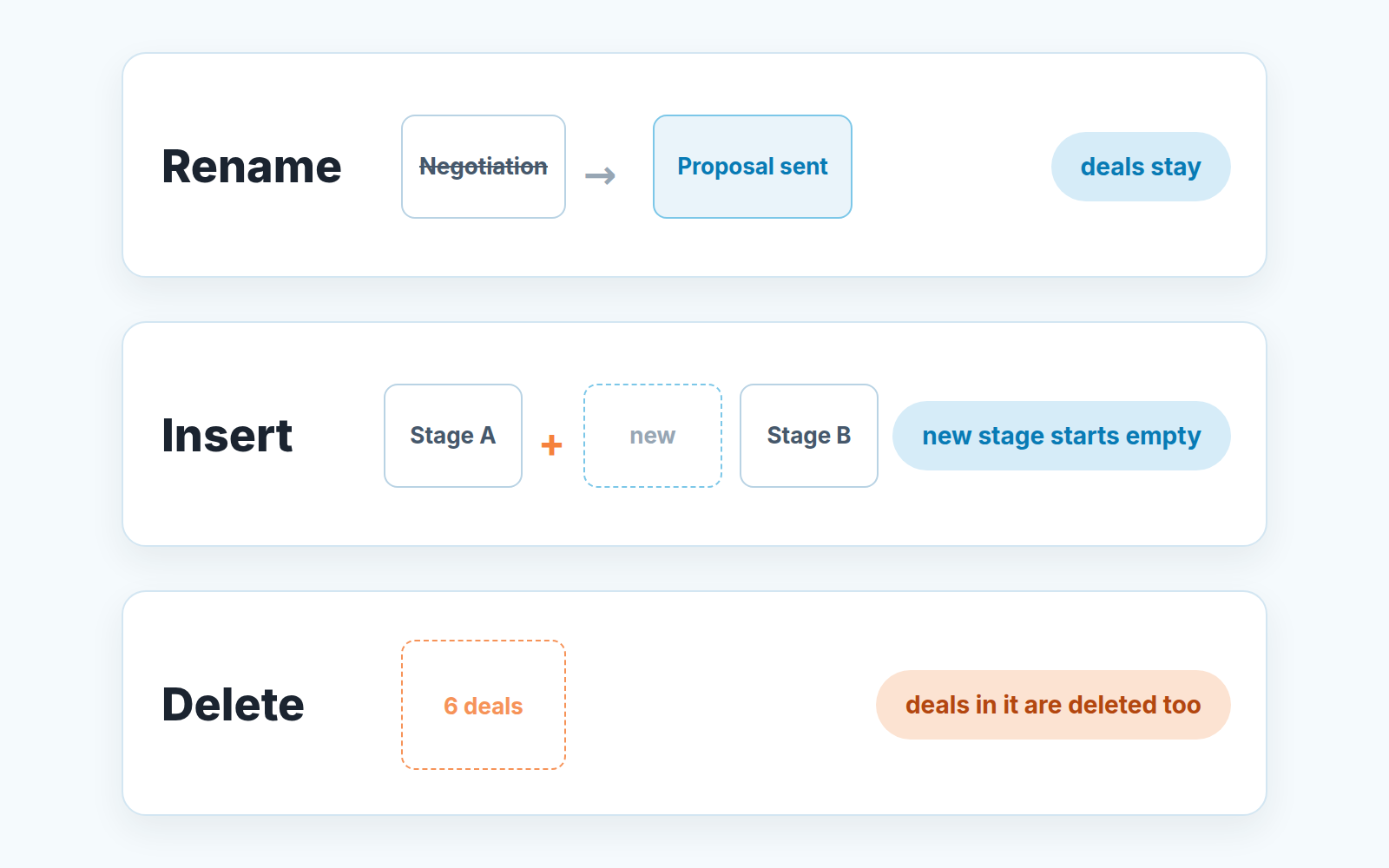
The pipeline editor offers three edits to a stage: rename it, insert a new one between existing stages with the “+” that appears on hover, and delete it with “Delete Stage” plus a confirmation. The help page covers them in three short lines. Here is what each one does to your deals and what Pipedrive leaves unsaid.
| Edit | What Pipedrive’s help confirms | What it does not say | Our order |
|---|---|---|---|
| Rename a stage | Stages can be renamed to match your process; nothing else is mentioned | Whether stage history and days in stage keep their old label in reports | Rename freely, but tell the team, because “Qualified” on Friday and “Discovery” on Monday is the same column |
| Insert a stage | Hover over a stage and click “+” to add one between existing stages | How a new, empty stage appears in conversion reports for past periods | Insert first, then move deals into it by hand; a new stage starts with nothing in it |
| Delete a stage | Deleting the stage deletes the deals in it; move deals to another stage before deleting | How the deleted stage is shown in Insights afterwards; whether the edit can be undone | Move every deal out (note 1 from the previous section), confirm the stage is empty, then delete |
One honesty note on deletion. Third-party tutorials ranking for this topic disagree with each other: some say the deals move to the nearest stage, others describe a prompt asking whether to move or delete. We go with what Pipedrive’s own page says, dated September 3, 2026: the deals are deleted with the stage. If a newer release has a friendlier path, you lose nothing by emptying the stage first. If it does not, emptying the stage first is the only thing that saves the deals.
Merging two stages is not a separate feature. It is a rename of teh stage you keep, a move of the deals from the stage you drop, and then a deletion. Do it in that order.
Probability and rotting: the two switches that change what people see
Two settings live in the same editor and change nothing about where deals sit, but a lot about what the pipeline view shows.
Stage probability is the number you set per stage if you have historical data on how often deals in that stage close. Deal probability is the alternative where each deal carries its own number. The help is clear on the collision: when both are enabled, the deal probability overrides the stage probability. So flipping on deal probability on a live pipeline means every deal where a rep types a number stops using your stage percentages. We have written about what that does to the weighted forecast and won’t repeat the mechanics here. For the edit checklist the rule is simpler: change one of the two switches at a time, and take the before-screenshot of the weighted total first.
Rotting is the other switch. You turn on “Rotting in (days)” and set the number of days for each stage where you want it. The clock is not time spent in the stage. Pipedrive counts from the deal’s last updated time: marking an activity as done, adding a note or a file, sending or receiving an email linked to the deal all reset it, and the next activity date is ignored, so a deal with a call booked for next month can still go rotten (Pipedrive: the Rotting feature). A rotten deal shows up as a red tile in the pipeline view.
What does that mean on an existing pipeline? Deals that nobody has updated for longer than the threshold will most likely turn red at once. Those are deals nobody has written anything on in a while, which is not the same list as the deals that have sat longest in the stage. The help page does not say how the flag behaves at the moment you switch it on, so treat the first morning as a look at your backlog, and warn the team the day before. Otherwise that morning produces a lot of questions about deals nobody has thought about for a month.
Both switches are saved with “Save changes”, together with any stage edits. We save the stage edits first, check the board, and come back for the switches in a second pass.
Moving deals between pipelines
Pipedrive’s help asks you to avoid moving a deal through multiple pipelines, because it can affect reporting in Insights, and to move a pipeline’s deals elsewhere before you delete it. Our rule for a live pipeline follows from that: a deal crosses a pipeline boundary once, when it was created in the wrong place or when its pipeline is being retired. It does not commute. What repeated moves do to your reports, and whether you need a second pipeline at all, we covered in when multiple pipelines in Pipedrive make sense. If you need to move more than a handful of deals at a time, read our piece on bulk edit safety in Pipedrive first, because a bulk move across pipelines is the fastest way to make the mistake at scale.
After the edit: a ten-minute check and a message to the team
The edit is done when the team knows about it, not when you click “Save changes”. Three checks and one message.
- Count the deals on the board against the count you wrote down before. The total should be identical. If it is lower, the difference is the number of deals you need to look for in Restore data, today, while the 30-day window is open.
- Open the report you screenshotted and put the two side by side. If the stage conversion numbers moved, say so in the message rather than letting someone discover it on Monday. The help page does not tell you what to expect here, which is exactly why you took the screenshot. For reading those numbers, see how we read stage conversion rates in Pipedrive.
- Open two or three deals that were in the stage you touched and look at the progress bar. If you renamed the stage, see which label the bar shows. What the bar measures in the first place is in the progress bar and days in stage.
Then the message and it is the one-sentence note from before the edit, plus what to do: “Negotiation is gone, its six deals are now in Proposal sent. If a deal of yours moved and you think it is further along, move it forward yourself today.” Send it in whatever channel the team reads before the pipeline, and send it the same day as the edit. A pipeline change nobody announced reads as a bug.
When you can just do it
Most of this article is for a pipeline a team reports from. Plenty of pipelines are not that. If yours has a dozen deals, the stages were set up last month and nobody has opened Insights yet, then the help page is enough: open the pencil icon, rename, insert, delete, save. Five minutes, no screenshots, no message.
The line between the two cases is not the size of the company. It is whether anyone will compare this month’s numbers with last month’s and expect them to mean the same thing. Once that is true, the pipeline stops being a settings screen and starts being a record, and a record is edited in the order above: write down what is there, make one change, check that nothing is missing, tell the people who use it. We would rather spend ten minutes on that than one Monday morning explaining where six deals went.