To see when and how a deal’s value or close date changed in Pipedrive, open the deal, go to History and click the Changelog tab. It lists the deal’s changes by date: stage, value, label, contact, expected close date, and both default and custom fields (Pipedrive: deal detail view). Before a forecast call, read it for three things: how many times the expected close date moved, whether the value changed close to the end of the period, and whether the deal ever went back to an earlier stage.
That takes about two minutes per deal. It is the fastest way we know to find out whether a deal’s forecast is a plan or a habit.
A close date that moved three times
A made-up scene, with made-up names.
Thursday, October 1. Naomi Frost runs a six-person team and has a forecast call on Monday the 5th. The October column looks healthy. One of the larger lines is a $14,000 deal owned by Callum Ibarra, in Proposal, expected close October 30. Nothing on the card asks for attention.
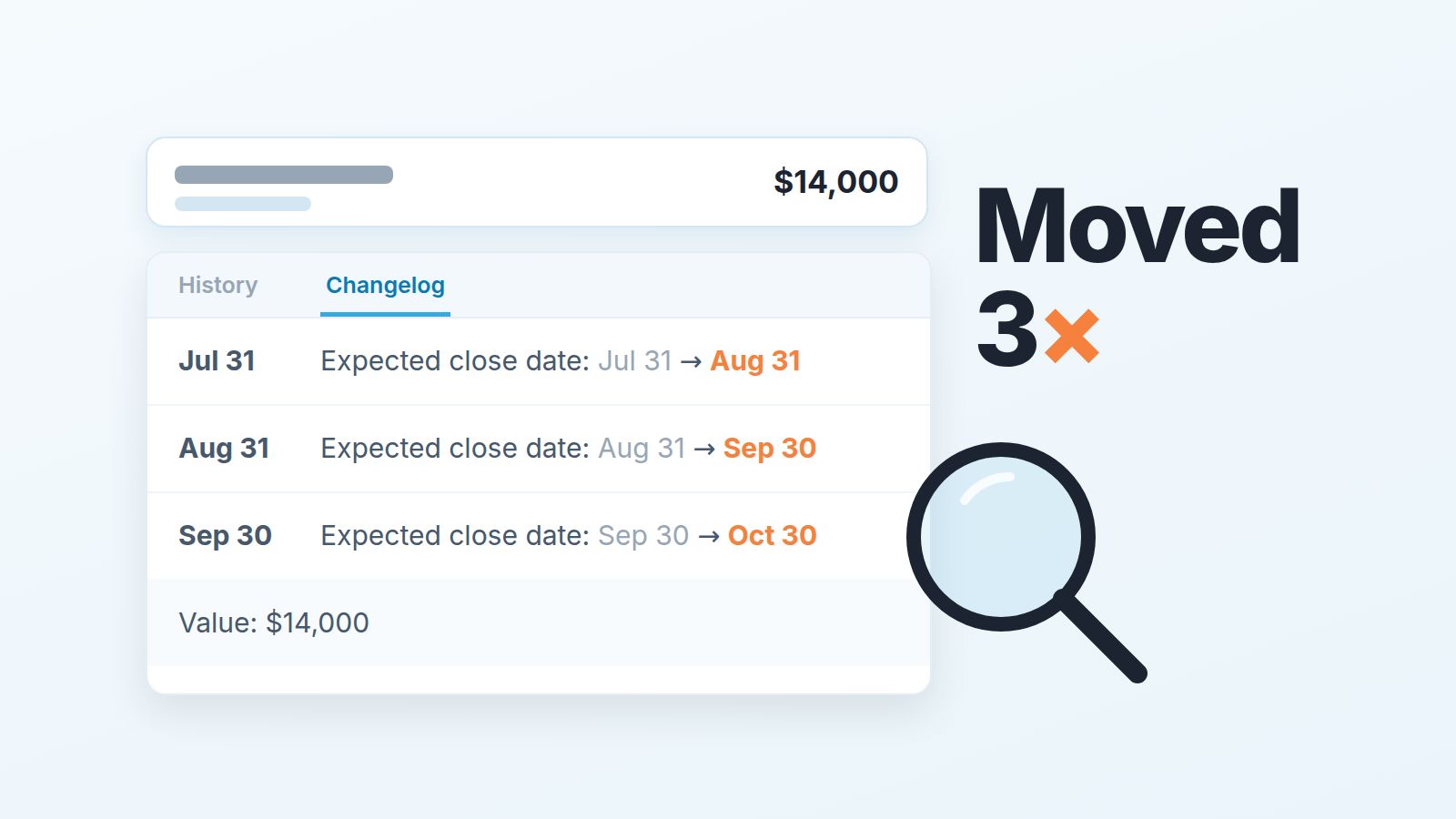
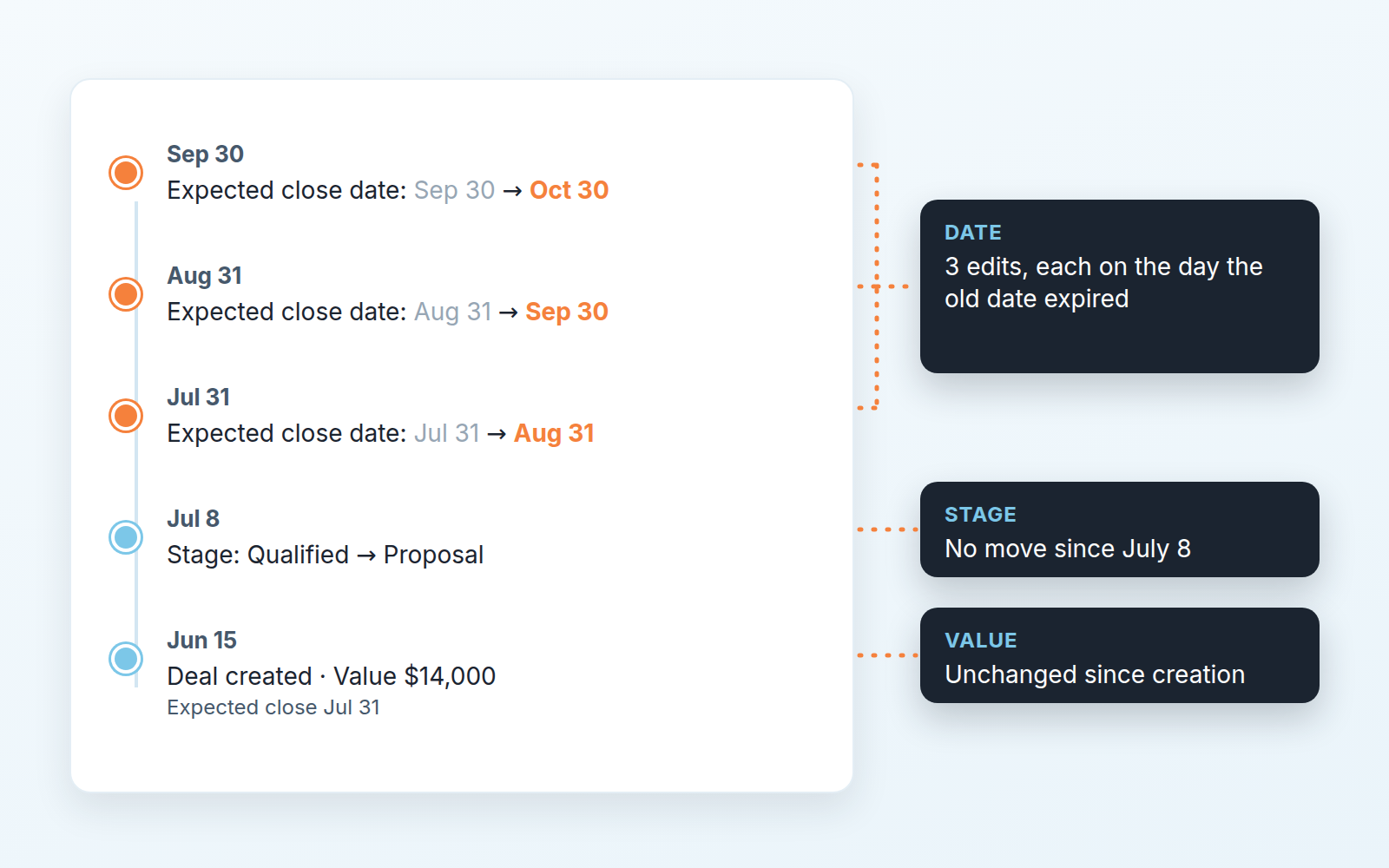
She opens it anyway, because it is the biggest line she cannot explain from memory. History, Changelog. Three edits to the expected close date, plus the line from when the deal was created. It was created in June with a close date of July 31. On July 31 the date became August 31. On August 31 it became September 30. On September 30, yesterday, it became October 30.
Each edit happened on the day the old date ran out, and each landed on the last business day of the next month. The value line never moved. The stage line shows Proposal since July. On the Activities and Emails tabs there is nothing from the buyer in September.
Naomi still does not know what happened with that customer. But she knows this is not a deal with an October date. It is a deal with a date that gets renewed every month, and on Monday she will ask about it first instead of last.
That is the whole use of the Changelog: not to catch someone, but to decide which deals deserve the hard questions.
Where the Changelog lives: the deal history in Pipedrive
The deal detail view has a History section. It holds everything added to the deal, with tabs to filter by notes, activities, emails, files, documents and invoices, plus a Changelog tab that lists the changes made to the deal itself, sorted by date (Pipedrive: deal detail view).
The help article names what the Changelog records: stage, value, label and contact, the expected close date, and default and custom fields. So a stage move, an edit to the amount, a new label, a swapped contact person and a change to any field you added yourself all leave a line.
Two limits to know before you rely on it.
Leads do not have a Changelog. The tab exists on deals; a lead’s card does not carry one (Pipedrive: leads vs deals). If a deal spent weeks as a lead before conversion, its recorded history starts at the deal.
The help article also does not say who is recorded as the author of each change. It lists the fields and the sort order and stops there. We read the Changelog for the pattern of changes, and we ask the deal owner directly when we need to know who made one and why. If your team uses automations or imports that question matters even more, because a line in the log is not proof that the rep typed it.
For teams with a developer, Pipedrive publishes changelog endpoints for deals in its API (Pipedrive Developers: changelog endpoints). Everything below assumes you have no developer and ten minutes before the call.
Three things to read before a forecast call
Open the Changelog on each deal that carries real weight in this period’s number and scan it in this order.
Start with the expected close date, and count the lines. One change is a correction. Two is a pattern worth a question. Three or more, with the edits falling on or just after the previous date, means the deal has been kept alive by its date rather than by the buyer. Note the day of each edit too: a date that keeps landing on a month-end tells you how it was chosen.
If many deals behave this way, the pattern is probably in the plan, not in one rep: measure your own month-end skew.
Then the value. Look for a change in the last two or three weeks of the period. A value that went up right before the cutoff needs a reason you can check, like a signed change order, a second product line or an email in the Emails tab from the same week. A value that went down quietly is news as well. It means the forecast you reviewed last month was built on a number the rep no longer believed.
Last, the stage. Read the stage lines from the bottom up and look for a move backwards, say from Negotiation back to Proposal. The Progress bar on the deal shows the current stage and how many days each stage took (Pipedrive: deal detail view; more on reading days in stage), but the step back itself is what the Changelog adds. A return to an earlier stage is honest work by the rep. It is also a reset of your forecast odds, and the stage probability in your pipeline does not know that.
Together, the three reads answer one question for each big deal: is the number in your forecast the result of something that happened with the buyer, or of something that happened in the CRM?
What the date lines look like next to the rest of History
The conversation about a pushed date, who asked for it and why, belongs to our article on pushed close dates. Here we stay with what the record shows before anyone explains anything.
Read each date change next to the other History tabs for the same day. A change that sits beside an email from the buyer, a logged call or a meeting that week has company. Something happened and the rep updated the deal. A change that sits alone on the last day of the month, with no activity in either direction for weeks, is the deal being kept out of the overdue list.
Look at where the new date lands. A buyer who says “our board meets on the 19th” produces an expected close around the 19th. A safe guess produces the 30th or the 31st. Neither is proof, but across a pipeline the month-end dates cluster on the same deals.
And check when the edit was made. If three deals belonging to one owner all gained a new close date within the same hour on the evening before your review, the dates were set for the meeting, not for the customers. The forecast view makes this easy to do by accident, since dragging a card between months changes the date, and the Changelog is where that drag shows up afterwards.
What the Changelog won’t tell you
It records what changed, when, and from which value to which. It does not record why. A date that moved from September 30 to October 30 looks the same in the log whether the buyer asked for it or the rep guessed. The “why” lives in a note, an email or the rep’s head, and only the first two are in the deal.
It does not show you the pipeline as it stood on a past date. You can reconstruct one deal’s path by reading its lines backward, but you cannot open September 1 and see which deals were forecast for September. If you want that view, keep your own record: a weekly export of the deals list, or a copy of the forecast total into a sheet every Friday.
And it does not interpret. Three date edits on one deal and three on another can mean different things. The log earns its place by pointing you to the right deal to ask about, not by answering for it. For the week as a whole, a Monday-to-Friday pipeline bridge shows what moved and why the total changed.
If your team runs on a Notion CRM instead, our checklist starts this question earlier: is a history of stage and close-date changes kept at all?
A word on where we stand. We build SalesBond, a sales management layer on top of the CRM a team already uses; we started with Pipedrive. Its Deal Health product checks every deal against more than 20 rules, grouped into categories that include Forecast, and shows the specific violation with a plain explanation of what to do. It saves the step of deciding which deals to open. Reading one deal’s Changelog is still a human job, and we think it should stay one, because the question at the end is always for the rep.
Turning the finding into a rule: a note when the close date moves
The log records the change. The reason has to come from the team, and we already described the rule for date pushes in the pushed close dates article: the “Close date pushes” and “Last push reason” fields. A dated note on the deal adds what a field can’t keep, the sequence. Something like “New date Oct 30: buyer’s finance review scheduled for the week of Oct 19, per email from Dana on Sep 30” sits in the Notes tab right beside the Changelog line, the same one-line note quoting the buyer we ask for when a date moves in the forecast view.
The manager’s half is to look for it. Before each forecast call, open the deals whose date moved since the last one; a change without a reason goes on the agenda, by name. That habit also catches sandbagging and happy ears at once, since both show up as date edits with no customer behind them. A changed won date deserves the same treatment, because it moves revenue between months.
When the history is short and you can skip this
Most deals do not need this. A deal created three weeks ago, in it’s second stage, with a close date set once, has a Changelog of five or six lines that say nothing you did not already know. Reading it is a minute you will not get back.
Skip the Changelog when the deal is young, when its value is small relative to the period’s number, and when the most recent change is one you made yourself in the last review. Read it when a deal is older than your average sales cycle, when it carries a large share of the forecast, when its date has already moved once that you know of, or when the rep’s update was “still on track” for the second meeting running.
For the deals in the first group, trust the card. For the deals in the second, two minutes with the history will tell you more than ten minutes of asking.