A quick filter in Pipedrive is a temporary slice of the deal list view: you add up to ten conditions above the table, the list narrows, and nothing is saved to your filter list. To show the result to a colleague, copy the address from the browser and send it; they open the same slice, limited to the deals their own permissions and visibility rules let them see (Pipedrive: quick filters).
That’s the feature, and the help article lists the deal list view as its home. What Pipedrive doesn’t say is when a quick filter is the right tool and when it isn’t. We think that’s the part that matters. The wrong choice is how a team ends up with a filter list nobody owns and nobody can read.
A question that does not deserve a saved filter
A made-up scene, but we have been in the room. Thursday, a 1:1 between Tomas, who runs a team of four reps, and Lena, one of the four. Twelve minutes in, Tomas asks the question every 1:1 gets to eventually: “Which of your open deals have nothing scheduled?”
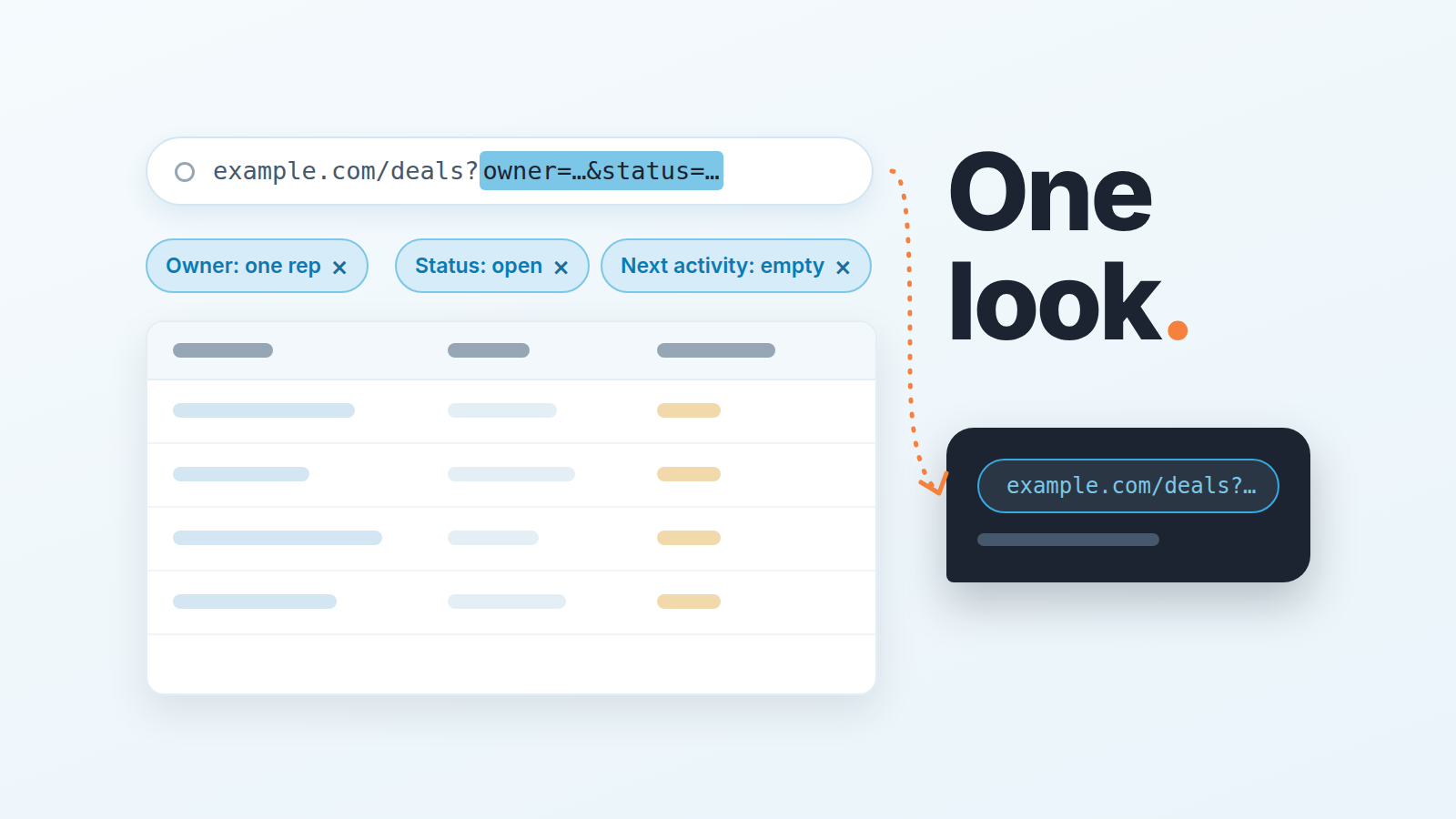
Two years ago the answer was a filter. Tomas would open the filter editor, build “Owner is Lena, status open, next activity date is empty,” name it something like “Lena no next step,” save it, and move on. By the end of the quarter there were four of those, one per rep, plus “Lena no next step v2” after she changed teams, plus the one Tomas built in a hurry for a board call and never deleted. Every rep who opened the filter dropdown scrolled past all of them.
The question was never a filter question. It comes up once per 1:1, for one person, and it’s answered in the time it takes to look at the list.
It needs a slice, not a saved object. Pipedrive’s November 2025 release added quick filters so you can “spot and share opportunities faster without changing your saved views” (Pipedrive product updates).
Where the quick filter lives, and where it does not
Open Deals, switch to the list view. If no conditions are set, there is an “Add condition” button between the view toolbar and the table. Click it, pick a field, pick a value. Once one condition is in, the button shrinks to the filter icon, the upside-down triangle, and you add the next one from there. The help article walks through it, and the mechanics fit in one list (Pipedrive: quick filters):
- “Add condition,” then the field. You can type to search for it; most deal fields are available.
- Pick or type the value. The operator defaults to “is” or “is any of” and depends on the field type: “contains” for text, “is more than” for a number, “is before” for a date.
- Add more conditions the same way, up to ten at once.
- To change a condition, click it and edit the value. To drop one, click the “X” to its right.
- Hover over any column header and click its triangle to add a condition for that column, which is often faster than going through the field list.
No name to type, no visibility to choose, no save button. The conditions sit above the table for as long as you keep them there.
One note on scope. The help article, updated in September 2026, describes quick filters on the deal list view, while Pipedrive’s release notes also mention pipeline and contacts views, including a February 2026 update, “Choose how filters appear in pipeline view,” that lets admins set an account default (Pipedrive product updates).
Send the URL, not a screenshot
Back to Tomas. He adds three conditions, the list narrows to Lena’s open deals with no next activity, and now he wants Lena to have the same list after the call. The old reflex is a screenshot. The better move is to copy the address bar and paste it into the 1:1 thread.
The quick filter travels with the page URL, so a colleague who opens the link sees the same data, “provided they have the same permissions and visibility rules” (Pipedrive: quick filters). That clause is doing two jobs.
Permissions decide what the link can show. If Tomas sends the link to Lena, she sees her own deals, which is what he wanted. If he sends the same link to Priya, another rep whose permission set hides other people’s deals, Priya opens a list with Lena’s deals missing. The link didn’t break. It ran against what Priya is allowed to see: the URL carries the conditions, not the data.
The second job is less obvious. A screenshot is the list at 14:12 on Thursday; a link is the list whenever it’s opened. If Lena schedules three activities on Friday morning the same link on Friday afternoon shows three fewer deals. For a question like “what has nothing scheduled,” that’s what you want. The link in the thread becomes a tiny to-do list that clears itself.
Bookmarks work the same way. The help article says you can bookmark the URL for later, which is the quiet second half of the feature: a quick filter is temporary in Pipedrive’s filter list, but it doesn’t have to be temporary for you.
Quick or saved: the rule we use
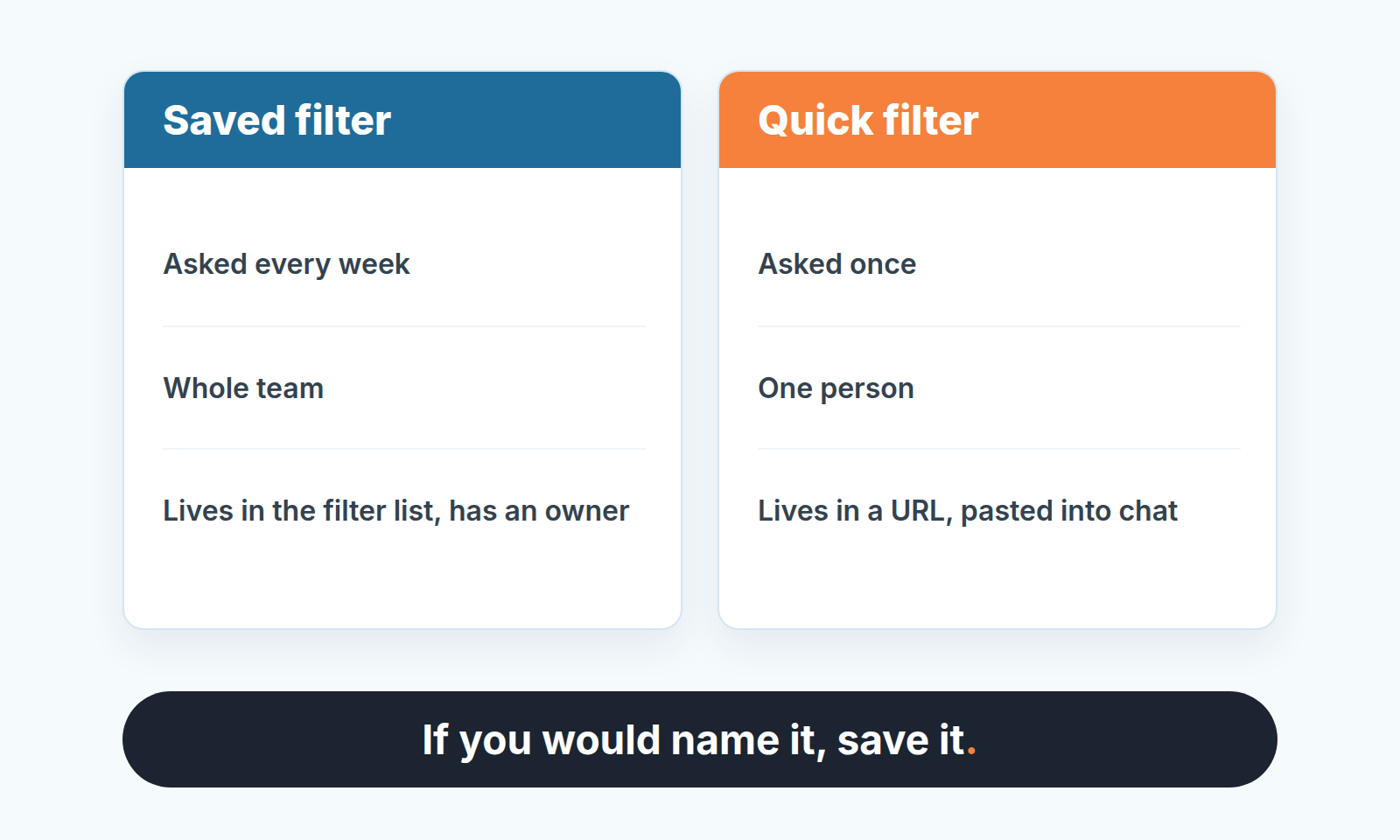
A saved filter is for a question that repeats. The weekly review asks “what is closing this month” every Monday, with the same columns, for the whole team, so it earns a name, an owner and a place in everyone’s favorites. A quick filter is for a question asked once, by one person, usually about one person. “Which deals closing this month are still in Qualified” is something Tomas asks himself at month end and then forgets. It doesn’t deserve a permanent object that four other people have to scroll past.
Our test: if you’d want to give the filter a real name, save it. If the name would just be the conditions read aloud, keep it quick.
There’s a second test. A saved filter is something you want people to adopt. A quick filter is something you want one person to see, right now, and the right delivery is a link in a chat, not a new entry in thier dropdown. Tomas doesn’t want Lena to adopt “Lena no next step.” He wants her to clear it.
Where the rule bites is the manager who rebuilds Tomas’s list every Thursday for every rep. That list is just the per-rep cut of the team’s “No next step” filter from our shared filters with saved columns article. Once you’re running it for everyone, every week, it’s a weekly question in disguise, and it belongs there.
Three slices worth a bookmark
We keep these as bookmarks or pinned links in the channels where the question gets asked, not as saved filters. Field names are Pipedrive’s standard deal fields.
“Stuck in stage” is for the deal a rep keeps describing as “almost there.” Stage is the one they mention, Status is open, Last activity date is before two weeks ago. If the list is long, the stage is where deals go to wait, and that’s a better 1:1 topic than any single deal.
“Closing this month but still early” is a forecast honesty check, and a one-off one. Expected close date is this month, Status is open, Stage is any of your first two stages. You run it when someone quotes the month’s number and you want to know how much of it is sitting in Qualified. Send the link to the person who quoted the number, it’s a more useful reply than “are you sure?”
“Slipped” is the shortest. Expected close date is before today, Status is open, Owner is one rep. Every deal on it has a close date in the past and is still open, so either the date is wrong or the deal is. The team-wide version of this check belongs in the 15-minute weekly pipeline review, and the quick version is for the conversation with one rep.
Each is scoped to one person or one moment. When the question turns into “all reps, every Monday,” it has stopped being a quick filter.
What it will not do
It won’t remember what you saw. A quick filter leaves no trace in Pipedrive: close the tab without keeping the link, and next Thursday there’s nothing to reopen. Even with the link, you get today’s matches, not last week’s. So if Lena’s “Slipped” list had a deal whose close date moved from June to July to August, with nothing scheduled in between, the slice only ever shows the latest date. Each look is clean, and the drift is invisible.
That drift is what we built SalesBond to catch. It’s a sales management layer on top of the CRM a team already uses (we started with Pipedrive), and its Deal Health checks every deal in the monitored scope against more than 20 rules, including Activity and Forecast categories, and shows the specific violations without anyone building a slice. If you’d rather start the 1:1 from what moved than from a fresh filter, check your CRM with SalesBond.
It isn’t the place for board settings, either. Showing closed deals on the pipeline board is a separate switch, covered in the closed-deals toggle and the weekly review. Outside the deal list, the help article points you to a regular filter.
And it tops out at ten conditions. If you’re at nine and reaching for a tenth, the question has grown past “show me” and into “define a segment.” Save it, and give it a name somebody else will understand in March.
Next 1:1, before you open the filter editor, try the naming test. If the only name you can think of is the conditions themselves, add them above the list and paste the link into the thread.