
Pipedrive runs its own nightly backups, but they are the vendor’s disaster recovery, not a copy you hold. If you want a copy you control, export your data from Tools and apps > Export data, one item type at a time, and do it on a schedule (Pipedrive: how is data backed up). The export comes out as XLSX or CSV, it contains only what the exporting user is allowed to see, and the generated file stays available for 28 days (Pipedrive: exporting data). For a small team that is one global admin, about fifteen minutes, once a month.
Someone asks “do we have a backup?” and the room goes quiet
An invented scene, with a shape we have seen a few times. Petra from finance is closing the quarter and asks the sales manager for last year’s won deals with values and close dates. Half as a joke, she asks whether sales has a backup of the CRM. The manager says Pipedrive handles that. The admin, Hugo, exported something in the spring for a mailing list. Nobody knows where the file is, or whether it had deal values in it. The accountant has a copy of the invoices, which is not the the same thing.
Nothing has gone wrong. But the honest answer to Petra’s question is no, because a backup is a file you can open today, not a feature on the vendor’s side. You will want one when an admin leaves, when an auditor or a buyer asks for a dated snapshot, or when an import or a bulk edit goes sideways. For that last case Pipedrive has some undo built in, and we covered its limits in reverting an import within 48 hours and the checkbox to look at before a bulk edit. Both say “export first”. This one makes it a habit.
What Pipedrive’s own backups cover, and what they don’t
Pipedrive keeps its databases replicated in real time, so a failed machine can be swapped out quickly. On top of that it runs nightly complete backups for recovering from data corruption, and stores encrypted nightly copies of customer databases off-site (Pipedrive: how is data backed up).
Read that for what it covers: Pipedrive’s hardware failing, Pipedrive’s data getting corrupted. It is the vendor protecting the service. The page describes no way for you to open last Tuesday’s backup and pull one deal out, and we would not plan around one. A rep deleting a month of activities, an admin merging the wrong two organizations, an import overwriting a custom field: from the vendor’s side none of that is corruption. It is your data looking the way your users made it look.
And your own export is not a restore button either. The spreadsheet tells you what a record held on the day you made it. Getting that back into Pipedrive is still an import or a manual edit, with everything that comes with those.
For your own copy, the same page points to Tools and apps > Export data, for users with export permissions. That is where the line is. Everything on Pipedrive’s side of it is their job. The spreadsheet is yours.
One more number, for when a company changes CRM. After a paid account is closed, the account and its data are scheduled for permanent deletion within 180 days; a free trial account, within 60 days (same page). So the last export before you cancel is not optional, and “we’ll come back for it later” has an expiry date. The same habit works in reverse when you move into Pipedrive: an export from the old CRM is the control sample for checking a migration.
What a useful export actually contains
Pipedrive gives you two export routes, and they produce different things (Pipedrive: exporting data). The list view exports the filter and columns on screen, and can combine deal, person and organization fields in one file. That is for a specific question, such as every lost deal this year with it’s lost reason. The Export data tab downloads all data for one item type at a time, with default, custom and system fields, ownership information and linked records. That is the backup.
The item types on that tab, per the help page: leads, deals, organizations, people, products, activities, projects (on Premium and higher plans, or with the Projects add-on), notes and files. Two notes on the same page change what “everything” means:
- Activities, notes and files linked to deals and contacts are exported separately. A deals file does not carry its notes.
- Files stored in Google Drive are not exported during a global export, and the file download links in that export can only be used by admin users.
So a single deals file is a backup of deal fields, nothing more. For a typical small team we would want four files a month: deals (the entire list, with archive status set to all), people, organizations and activities. Add notes as plain text once a quarter, and leads, products or files only if your team actually works them.
Two small exports most teams forget matter most on the day the admin leaves. First, the data-field setup from Personal preferences > Data fields: item type, field name, field type, whether the field is custom, and its API key. Without it, a column called “Tier” in a year-old spreadsheet is a mystery. Second, the user list from Manage users > Users and access: user name, email, last login time, permission sets and visibility groups. That answers an auditor’s “who could see what?” Both download straight to your device rather than landing in Generated exports (Pipedrive: exporting data).
Who is allowed to press the button
Only global admins and regular users with the correct permission enabled can export data at all, and exporting by data type from the Export data tab is global-admin only (Pipedrive: exporting data). The user list export needs account settings access. So the monthly copy is a global admin’s job. The open question is which one, and who covers the holidays.
The part that catches people is visibility. The help page is direct: even with export permissions, you can only export the data that is visible to you based on your visibility group or item visibility. An admin whose visibility group hides another team’s deals gets a file without them, and nothing in the file says so. The row count looks plausible. The sum of deal values looks plausible. It is only wrong against a number nobody computed.
We think the rule should be simple: the person who makes the backup is a global admin with no visibility restrictions, and a second global admin knows the routine, so the backup does not leave with the first one. If you narrow what new reps can see, as we suggested in permission sets for a new rep, keep the export permission with the admins. A rep does not need the ability to walk out with the customer list.
A fifteen-minute monthly routine
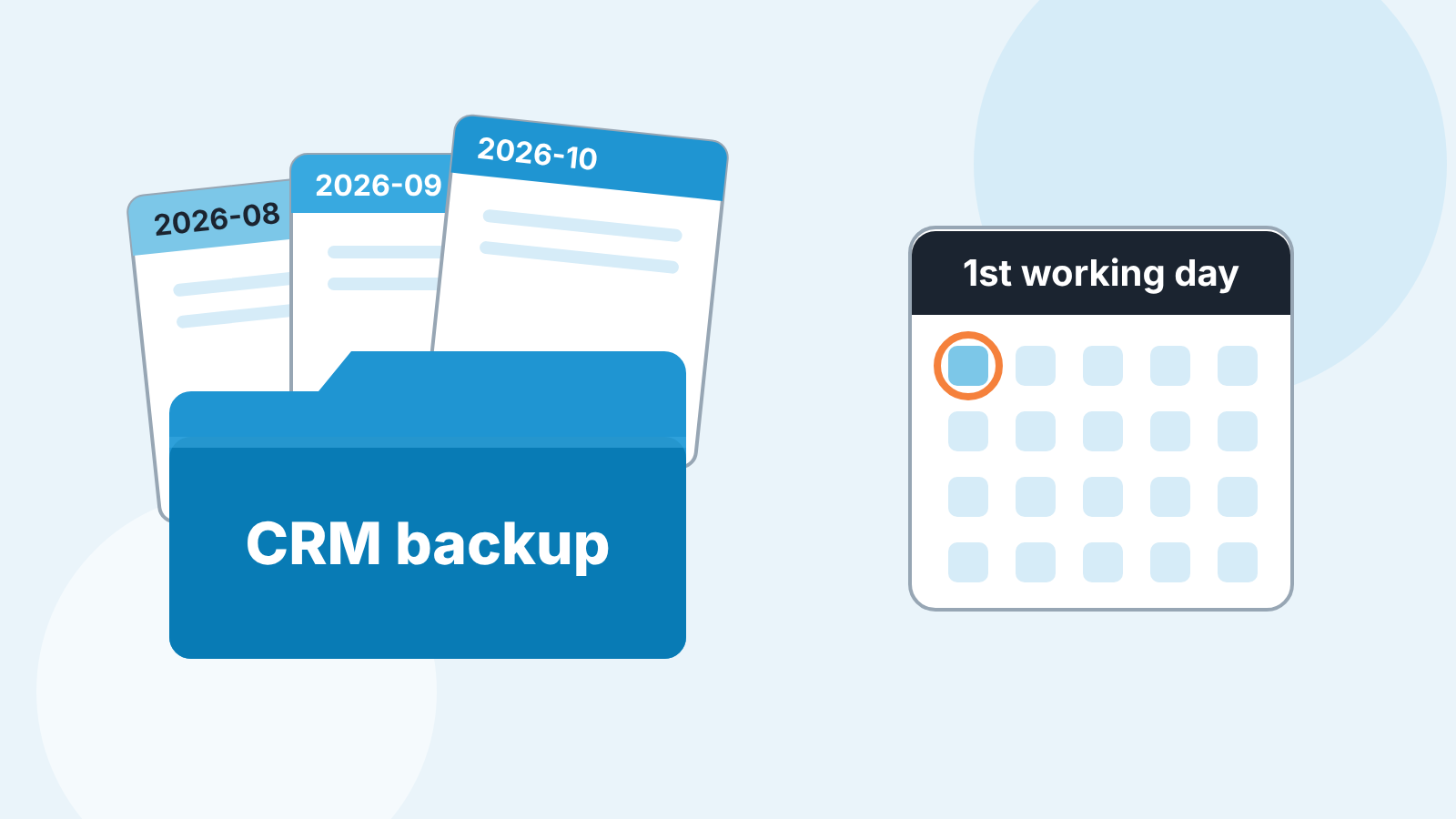
Pick a date that is already in the calendar. The first working day of the month, right after the pipeline review, works well because last month’s deals are in their final state. The routine should be boring enough that the second admin can do it from the list without asking anyone.
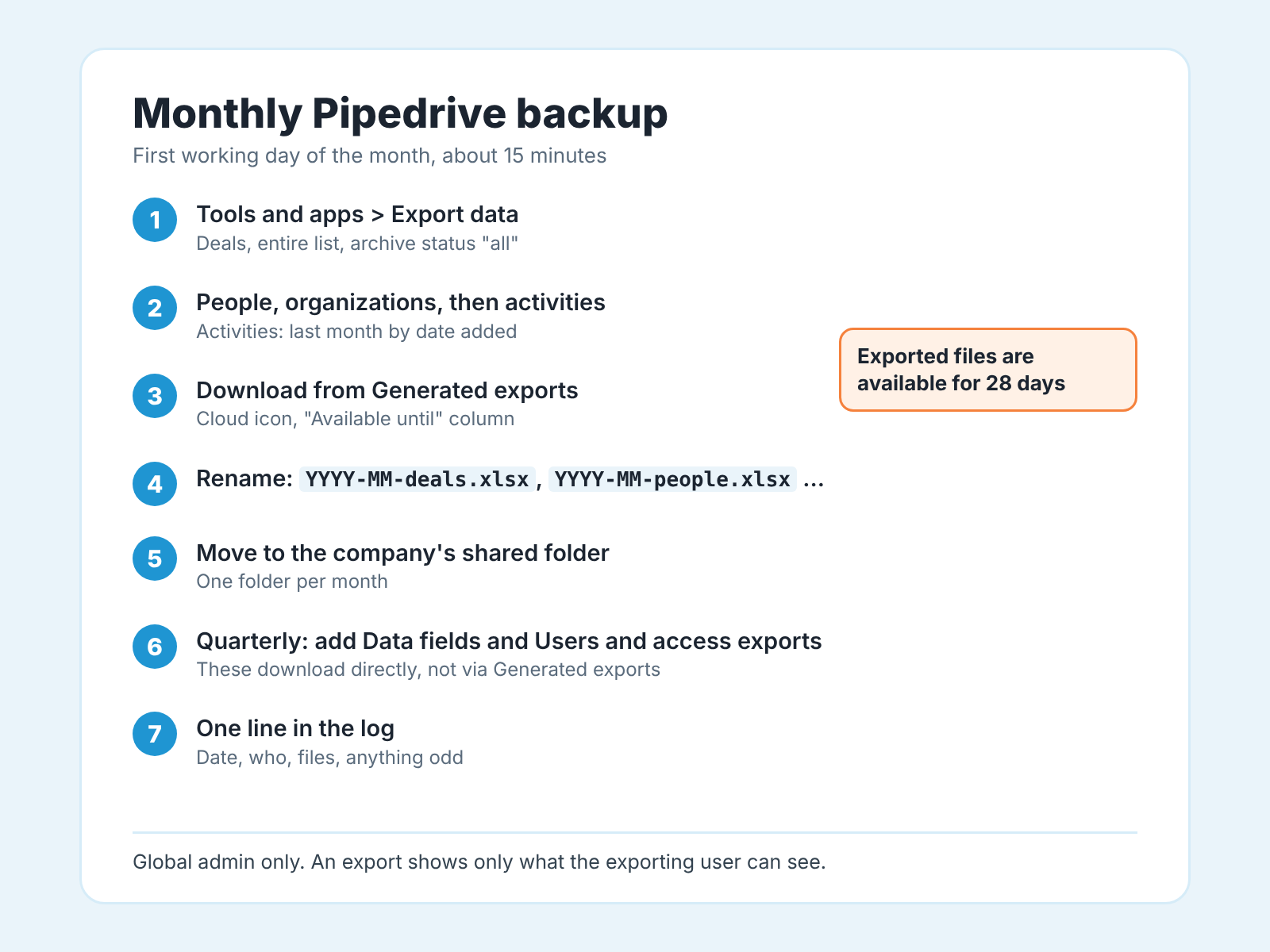
- Open Tools and apps > Export data. Export deals, the entire list, archive status set to all, so the deals you archived last quarter come along. Format: Excel or CSV.
- Export people, then organizations, full lists. Then activities, filtered by date added to last month. Once a quarter, export the full activity history instead.
- Download the files from Generated exports, via the cloud icon in the “Available until” column. Do not leave them there. Exported files are available for 28 days (Pipedrive: exporting data).
- Rename on download:
2026-10-deals.xlsx,2026-10-people.xlsx, and so on. Date first, so the folder sorts itself. - Put the files in a folder the company owns, not on a laptop. A shared drive under finance or operations, readable by both admins and the owner. One folder per month.
- Every third month, add the Data fields export and the Users and access export to the same folder. Those two download directly, so they skip step 3.
- Write one line in a shared log: date, who ran it, which files, anything odd. “Activities export was small, checked, nothing added in September” is a perfectly good entry.
The first run takes longer; after that it is clicks and renaming. If clicking every month is the problem, the Pipedrive API supports scheduled exports (Pipedrive: exporting data, API-based export), and the Pipedrive Marketplace lists backup apps that run on a schedule. Either one removes the clicks, not the check in the next section. We would still do it by hand for the first few months, so you know what a correct file looks like.
Open the file once
A backup nobody has opened is a hope. The check takes five minutes, and we would do it on the first run and once a quarter after that.
Open the deals file. Compare the row count with the deal count in the list view. If they don’t match, visibility is the first suspect. Find a deal you closed last week and read across the row: value, stage, close date, owner, your custom fields. Then do teh dumb thing. Pretend the CRM is gone and try to answer Petra’s question from the files alone: last year’s won deals, with values and close dates. If that takes more than a few minutes, fix the export settings or the folders now, not in front of an auditor.
Then tell people the copy exists. Two admins know the routine, the finance lead knows the folder and the one-line log says when it last ran. That is the whole system. Not elegant, but a real answer to “do we have a backup?”, which “Pipedrive handles that” isn’t.
One caveat: an export is only as good as the fields in it. If deal values are blank on a third of your deals, or close dates have been sitting in the past for months, the backup faithfully preserves the mess. We build SalesBond, a sales management layer on top of the CRM a team already uses; we started with Pipedrive. It checks the quality of the data in the CRM, so the blank value and the stale close date get found while the deal is still open, not in a spreadsheet six months later (Check your CRM with SalesBond). The export routine is worth doing on its own, though. Put the first one in the calendar for this month.


