
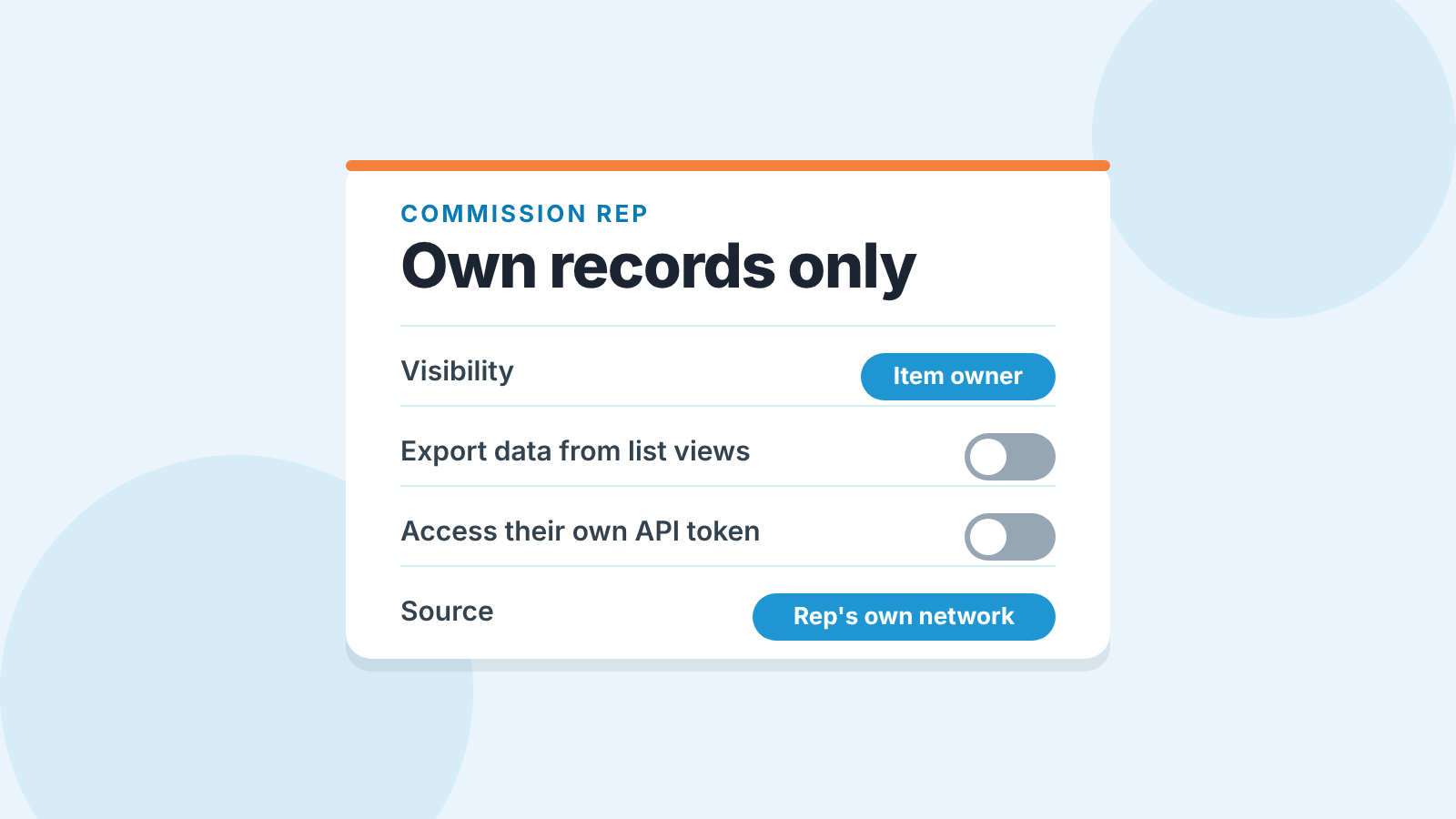
Give a commission-only rep a Pipedrive user that can see only the records they own, cannot export, and stamps a source on everything they create. That is three settings: the visibility option on their group, the export and API-token boxes in their permission set, and one custom field shown in the add view. Who owns the leads is a contract question; the settings only make the contract easier to follow on the day it matters.
Friday, 5 pm: “can you just add him as a user?”
A commission-only rep is paid only a percentage of what they sell, with no base salary, and is usually an independent contractor rather than an employee. Picture a team of six on Pipedrive. The owner, call her Rosa, has agreed terms with one such rep, call him Pete, who sells her product to his own network. No laptop, no notice period. On Friday at five Pete writes: “Can you just add me as a user so I can start Monday?”
The quick answer is to add him the way she added her last hire. Then Pete gets whatever her employees get, and if the default visibility is “All users”, that is the whole database, along with the same right to export it. He may never use that right. Nothing in the setup says he can’t, though, and nothing shows later whether he did.
We think Rosa should add him on Monday morning instead, after ten minutes in Settings. Here is the order we use.
What a commission-only rep should not see by default
Visibility groups decide what a user can see, permission sets decide what they can do (Pipedrive: visibility and permissions overview). We walked through both for a salaried hire in the permission sets a new rep needs in Pipedrive. The commission-only version is that article with most boxes unticked, and the first box depends on your plan.
On Lite and Growth there is one default visibility group, and for each item type you choose “Item owner” or “All users” (Pipedrive: visibility groups). No third option, no second group. So the honest choice is to set deals, leads, people and organizations to “Item owner” for the whole company. Your in-house reps lose the “see everyone’s deals” view too. For a team of three to ten we think that trade is right: the manager is an admin and sees all of it anyway, and a rep who needs a colleague’s deal gets added as a follower on that one deal.
On Premium and higher you can create more groups and sub-groups (Pipedrive: visibility groups). Make one called Commission reps, put Pete in it alone, and keep your staff in the main group. Set the main group’s items to “Item owner’s visibility group”: the help page says those are visible to users in the owner’s group plus admins, and Pete is not in that group. Don’t pick “visibility group and sub-groups” for the staff items, because that option opens them to groups below. On these plans you can also hide whole pipelines from a group, and a hidden pipeline leaves no trace for that user (Pipedrive: visibility groups). If Pete sells one product line he gets one pipeline.
Two things don’t bend to any of this: deal admins see all deals and leads whatever the group, and global admins see all people, organizations and products (Pipedrive: visibility groups). So a commission-only rep is never an admin of any kind. Obvious when written down, and still the mistake we see most often. The same access question comes up with outsourced appointment setters: what they see, and what leaves with them.
Export is a permission, not a button
The export menu is the part of this that owners worry about and then skip, because it looks like a feature everyone has. It isn’t. Only global admins and regular users with the right permission enabled can export, and even then a user only exports what their visibility group or item visibility lets them see (Pipedrive: exporting data). The full “Export data” tab under Tools and apps, the one that dumps every deal or every person into a file, is for global admins only. What a regular user can get is a list-view export, filtered and column by column, and that is governed by a single box in their permission set called “Export data from list views”, under Global permissions, Data management (Pipedrive: permission sets).
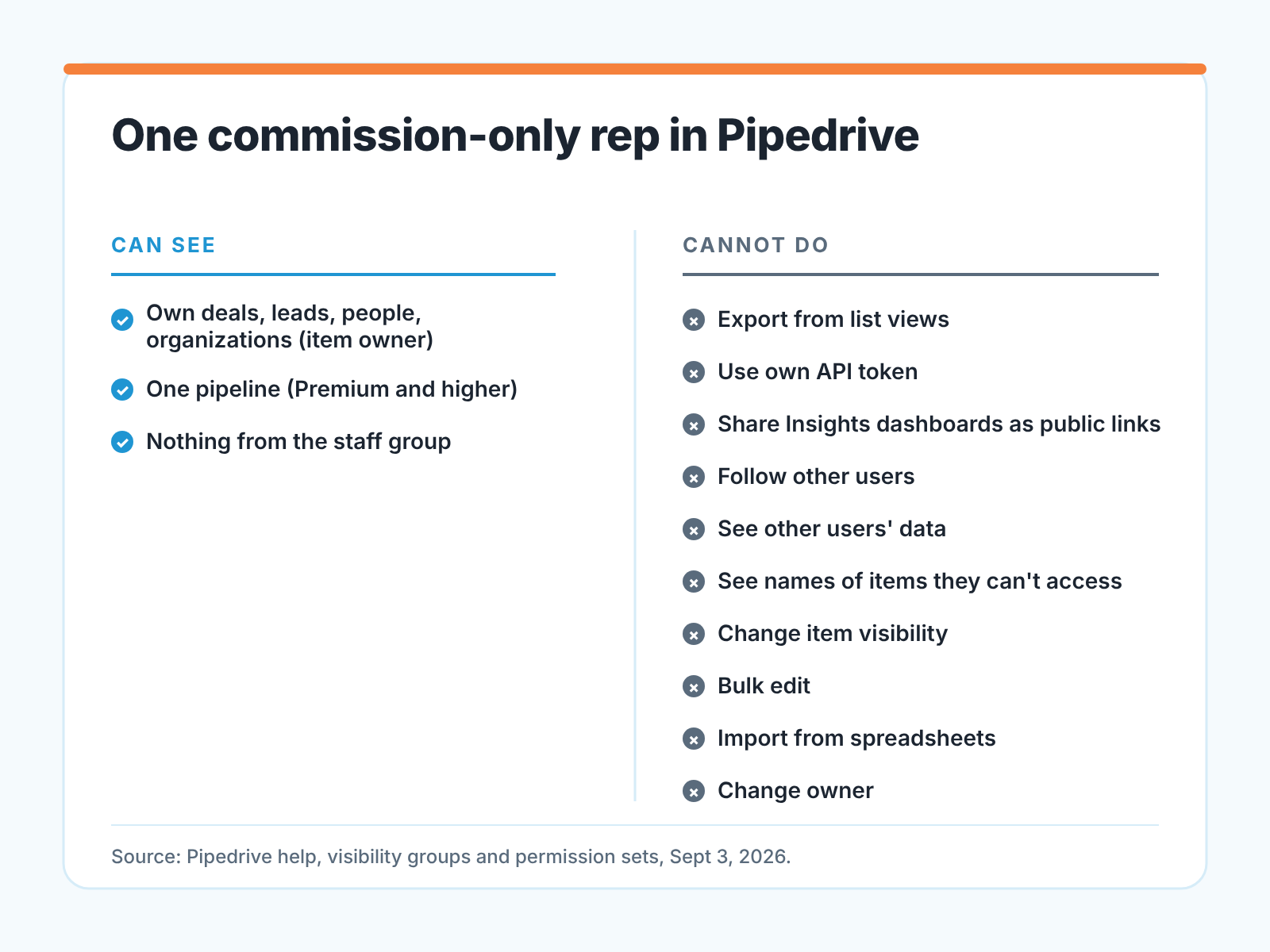
Untick it. Then scroll further down, to Tools and setup, and untick the box most people miss: “Access their own API token”. The API is an export with extra steps. Pipedrive’s own export page lists it as the way to pull data in real time and on a schedule (Pipedrive: exporting data), and a rep with a token can run that from a spreadsheet add-on without ever opening a list view. The same set has more boxes that let someone see or move more than the agreement covers; the card above lists the ones we switch off for Pete. If a real task needs one, it goes back on by itself, not as a bundle.
The catch is the plan. Custom permission sets come with Premium and higher, and on Lite and Growth you can only edit the regular set, so your employees lose list-view export along with Pete (Pipedrive: permission sets). We think that is fine in a team this size, where the owner or manager is an admin and does the exports anyway. On Premium, make a custom set called Commission rep with those boxes unticked and leave the staff set alone.
One more line from the export page: a generated file waits under Tools and apps > Export data > Generated exports for 28 days (Pipedrive: exporting data). Four weeks is a long time for a file to sit there. Switch export off on day one and there is nothing in that list to wonder about when Pete leaves. Also note which apps he installs, because those go when he does.
Whose lead is it: marking the source at creation
Pete will bring his own contacts. Some of them will become your customers, some will stay his, and in eighteen months nobody will remember which were which unless the record says so from the moment it was created. Ownership in Pipedrive doesn’t help much. Imported items belong to the user who imported them unless another owner is set, and the owner can be changed later (Pipedrive: visibility groups). So “owned by Pete” tells you who worked the deal last, not where it came from.
What works is a field set once and never edited. Create a custom single-option field, we call it Source, on the deal (leads share the same fields as deals) and a second one on the person, with options like Company inbound, Company outbound, Rep’s own network (Pipedrive: custom fields). In the field settings, tick “Places where shown” so it appears in the add view; that option is on every plan from Lite up (Pipedrive: custom fields). The point of the add view is that Pete fills it while he is creating the record, before he has a reason to think about it.
Then decide how hard to enforce it. On Growth you can mark the field important, which highlights it when empty but still lets the record save; on Premium you can mark it required, which blocks saving a deal until it is filled (Pipedrive: custom fields). Required is the one we want here. Its edge is imports: a required field doesn’t stop records that arrive that way (Pipedrive: required fields). Pete has no import right, which is one more reason that box stays off.
A note on what the field is for. It is not a claim. “Rep’s own network” on a deal does not make the deal his any more than “Company inbound” makes it yours; the contract decides that. The field is the evidence the contract will need, written down at the only moment anyone was sure of the answer.
Records from an outside seller are also the ones most likely to come in half-filled: a person with no organization, a deal with no next activity, a Source left on the default option. We build SalesBond, a sales management layer that works on the CRM a team already uses, and we started with Pipedrive. If you want a weekly list of those records before they turn into a dispute, check your CRM with SalesBond.
The day the arrangement ends: a short list
Commission-only arrangements end faster than employment does. Often there is no notice at all, just a Tuesday when Pete stops answering. The owner’s job that day is short if teh setup above was done on day one, and long if it wasn’t.
- Deactivate the user first, before any conversation about what belongs to whom, and on the first day rather than the last, unlike an employee’s notice period.
- Filter deals, leads and people by Source = Rep’s own network and by owner = Pete, and compare the two lists. The difference is the records Pete worked that came from you. Those stay with you without discussion.
- Reassign the open deals he owned to whoever picks them up. The procedure, with the filters and the follower trick, is in what to do with a rep’s deals when they leave.
- For the records marked as his own network, do what the contract says. If the contract says nothing, that is the lawyer’s problem in the next section, not a settings problem.
What this setup will not solve
Settings do not decide ownership. A Source field, a restricted group and a locked export make it clear what Pete did and did not take, but they say nothing about what he was entitled to. Whether contacts from his network belong to him, to you, or to both for some period, and what he may do with the names he remembers without any file, is a contract clause, and it needs a lawyer in your jurisdiction, not a help article. Owners who treat “he couldn’t export” as the whole answer have half of one.
Settings also do not replace a conversation. Pete should hear on Monday, in plain words, what he can see, that he cannot export, and that the Source field is for his protection as much as yours. A rep who finds the export greyed out on his own concludes he is not trusted. A rep who was told why on day one usually concludes the the opposite.
Who may edit fields and delete records is a question for your employees too, and we wrote it up in who owns the CRM data in a small sales team. How you pay Pete, rates and percentages, we kept out of this post on purpose; that lives in commission structures for a small team.
Monday morning, then: group, permission set, Source field, one conversation. Ten minutes, and the Friday message gets the answer it deserved.


