
Yes, deactivating a user in Pipedrive takes their apps with them. Pipedrive’s help says it in one line: “Apps the deactivated user installed are automatically uninstalled” (Pipedrive: what happens with the data when a user is deactivated or deleted). So before you press Deactivate, open the list of installed apps, write down what this person connected, and plan to install those apps again under a permanent owner. Reassigning the deals is the part everyone remembers. The tools are the part that bites two days later.
The demo bookings that stopped arriving
An illustrative case. Sunniva ran most of the demos on a nine-person team, and two years ago she installed the scheduling app that turns a prospect’s booking into a Pipedrive activity. Her last day was a Tuesday. The admin deactivated her account that afternoon to free the seat.
On Thursday a rep noticed his week looked oddly empty. Prospects were still booking demos, but nothing had reached Pipedrive since Tuesday: the app had been uninstalled along with her account. Reinstalling it took twenty minutes. Working out why took two days.
What Pipedrive’s help says happens when you deactivate a user
Pipedrive’s deactivation guide does not mention apps; the data page does.
The page an admin actually follows, How can I deactivate, reactivate or delete a user?, walks through Settings > Manage users > Users and access, the “…” next to the user, Deactivate, and suggests reassigning deals with a bulk edit. It talks about seats and billing. It says nothing about apps, integrations, API access or email sync. An admin who reads only that page does everything right and still loses the apps.
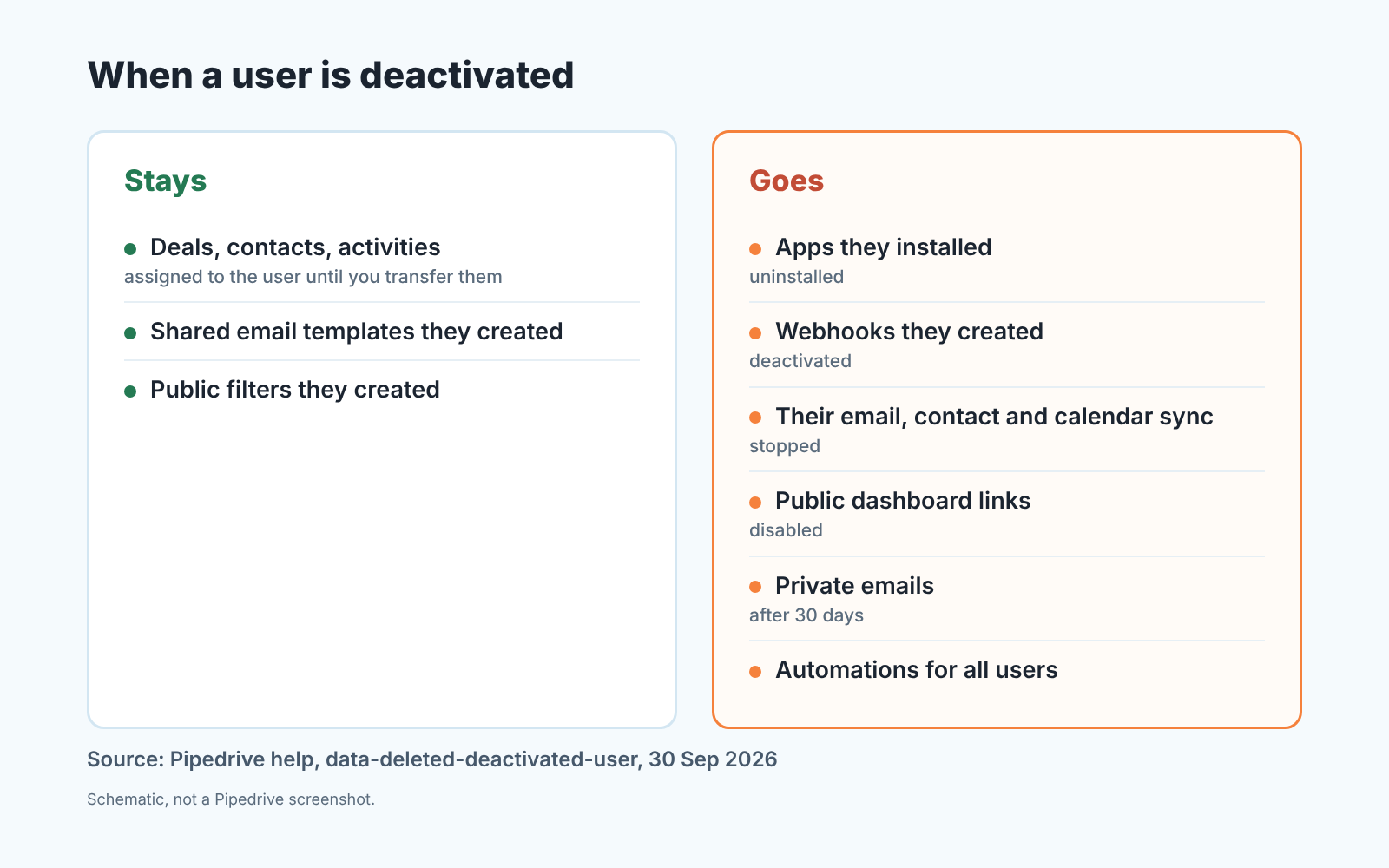
The consequences are on the other page, What happens with the data when a user is deactivated or deleted? Records stay with the deactivated user until you transfer them, while private emails, public dashboard links and automations set for all users go; the diagram below has the split. For this article two lines matter: apps the user installed are automatically uninstalled, and webhooks they created are automatically deactivated. A third explains the quieter breakages. The user’s email sync, contact sync and calendar sync stop too, so anything that leaned on their mailbox or calendar goes silent at the same moment (same page). Automations have their own audit, and we wrote it up separately: who owns your Pipedrive automations. Here we stay on apps, integrations and the API.
Make the list: what did this person install?
Do this before the deactivation. After, the apps are gone and you are reconstructing from memory.
- Sign in as a global admin and open Tools and apps > Marketplace apps, or use the “My apps” icon (Pipedrive: Marketplace apps and integrations). Each app’s page shows its permissions, settings, user management and uninstall.
- Write down every app you see: name plus what it does for you. “Calendar booking for demos”, “form leads from the website”, “newsletter sync”.
- For each app, find out who installed it. Pipedrive’s help describes the app page and its Manage users control; it does not describe an “installed by” field, and we are not going to claim one exists. If your account does not show the installer, ask the person. They are still around this week, and “which of these did you set up?” is a two-minute conversation.
- Mark the ones that run under the leaver’s account and that other people rely on. Those are the ones you will reinstall.
- Add the API-based integrations that are not in the Marketplace list at all: anything built on the person’s API token or on webhooks they created. More on this below.
That is the whole audit. We would put it in the the same meeting where you decide who gets which deals, since the same person usually knows both answers.
Pipedrive API token and OAuth apps after deactivation
By default every user in an account can access their own API token (Pipedrive: can all users access the Pipedrive API?). An admin can switch it off under Permission sets > Global regular user > “Access their own API token”. A user without token access cannot export data or install Marketplace apps, except for apps that use OAuth instead of a token (same page). The new-rep permission set walkthrough covers the rest of that screen.
What this means for a leaver. Anything set up with their personal API token, a spreadsheet script, a homegrown sync, an older integration that asked for the token during setup, runs as that person. We have not found a help page that states what happens to a deactivated user’s token, so we will not claim it is revoked. Treat it as unknown and act as if it will stop: rebuild those on a token that belongs to a permanent account.
Webhooks are clearer: the data page says webhooks a deactivated user created are automatically deactivated, so any tool listening through one of them goes silent at that moment.
OAuth apps installed by the leaver are covered by the “automatically uninstalled” line. They are not safer, only easier to reinstall: a few clicks in the Marketplace rather than a settings page in a third-party tool.
Reinstall under a permanent owner, then share
Who should own the apps now? Not the next rep. Someone who is not going to leave in a year, which in a small team means the account owner or a dedicated admin login nobody sells from. Apps installed by that account survive every future offboarding.
The sharing mechanics are documented (Pipedrive: adding apps to other users). Only a global admin can add an app for other users, and the scope is chosen during install: all users, specific users or only yourself. The help notes that “when you add an app for other users, it’s installed for you as well”, which is exactly what you want when the installer is the permanent account. The selected users then authorize the app themselves, from Installed apps or from the email notification, so tell the team to expect that email. Later changes go through Tools and apps > Installed apps, the app, Manage users.
Open the third-party side too. Field mapping, which pipeline, which stage: those settings usually live in the other tool, and Pipedrive’s help does not say what an app does with it’s own data on uninstall, so neither will we. Check it, and watch the first records that come through for duplicates; if Zapier is in the mix, this is where duplicates usually come from.
Add one line to your offboarding checklist
Most teams already have the deal line: reassign open deals and contacts before the rep leaves (how we handle that). Add a second line under it: “list the apps, webhooks and token integrations this person set up; reinstall under the owner account; confirm the first sync.” Same meeting, same admin.
We also see reassigned deals that nobody touches for weeks, because the new owner has their own pipeline to run. We build SalesBond, a sales management layer on top of the CRM a team already uses; we started with Pipedrive. Deal Health checks deals against the rules you switch on and lists the ones that break them, which is a quick way to see inherited deals with no next step. It knows nothing about your apps or integrations, so the checklist above is still yours to run. Check your CRM with SalesBond once the deals have moved, and you will see which of them actually moved.


