
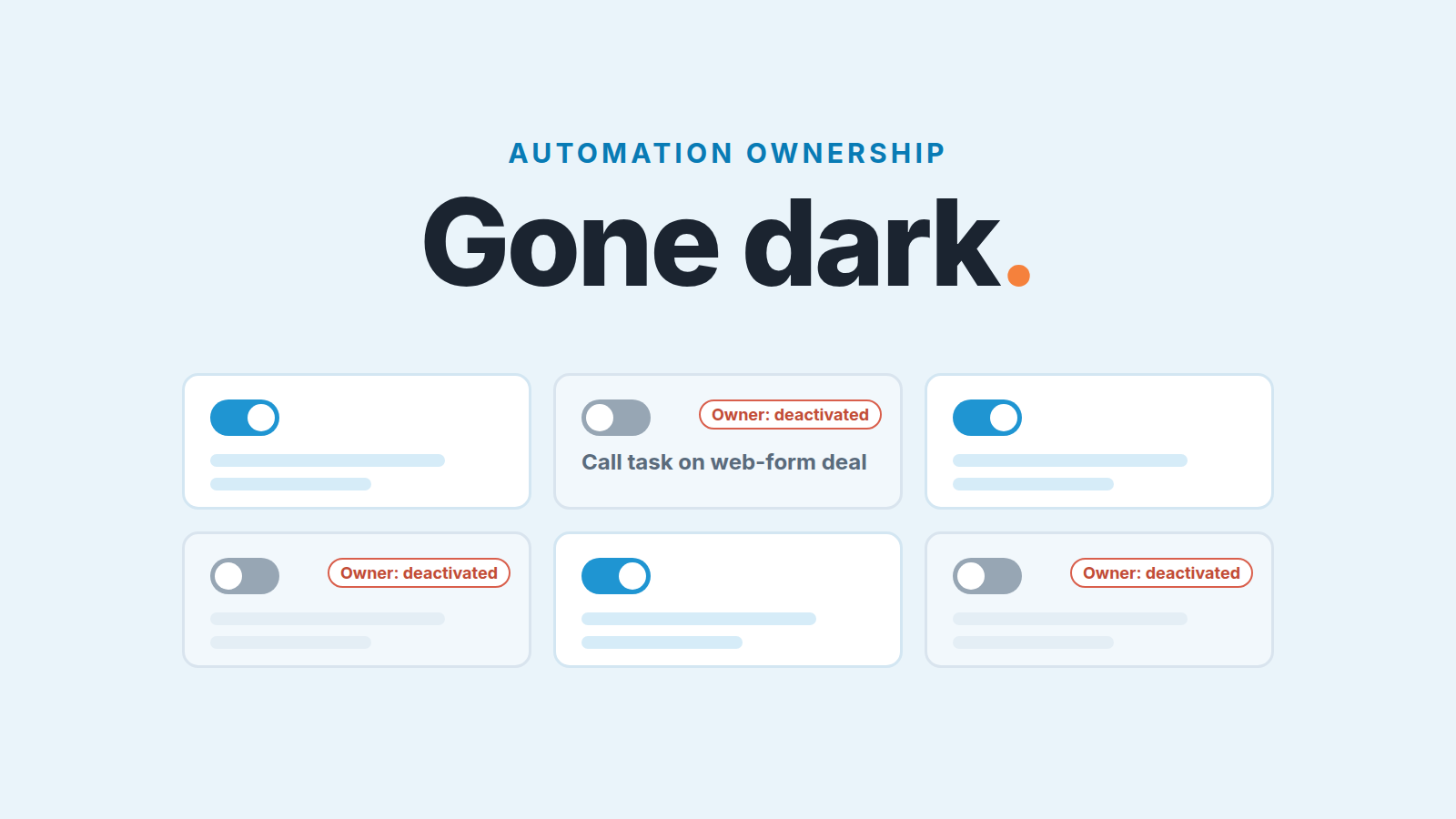
Every Pipedrive automation belongs to one user. When the automation owner is deactivated, the automation is turned off: for everyone if it was set to trigger for all users, or only for the departed user if it was set to trigger for selected users (Pipedrive: what happens with the data when a user is deactivated). Nothing else in the pipeline changes, so the failure is silent. The fix is a short routine: once a quarter, open the automations list, run the “Owned by deactivated users” filter, check the automation overview dashboard and the last 15 days of history, and ask of every automation whether anyone still needs it. And when someone is leaving, transfer their automations before you deactivate the account, not after.
The inbound leads nobody called for five weeks
An invented example, but a familiar one: an eleven-person team, four of them working inbound leads from the website demo form. The rep who had quietly set up most of the team’s automations moves to another company. The manager hands over his deals the way we described in reassigning deals when a rep leaves and deactivates his account the same afternoon.
Five weeks later a prospect replies to the newsletter with one line: she asked for a demo a month ago and nobody called. Her deal is in Pipedrive, created on time, with an owner. It has no activity. Neither do a few dozen others.
For two years, every deal created from the web form had triggered an automation that added a “Call within the hour” activity for the deal owner. It was set to run for all users. Nobody thought of it as his automation. They thought of it as how Pipedrive worked.
The scene is made up. The mechanism is not, and it has a specific shape: the automation stops the moment its owner is deactivated, the only email about it goes to the company account owner, and the gap shows up weeks later as a customer who noticed before you did. Since September 2026 the deactivation screen at least tells you how many automations the person owns. A deactivation done before that came with no prompt at all.
We think the right frame for an automation is an invisible employee. It does a job, it reports to someone, and when that someone leaves, its work needs a new manager. Most teams keep a list of who owns which deals. Almost none keep a list of who owns which automations.
What actually happens to an automation when its owner is deactivated
Pipedrive’s own documentation is specific here, so there is no need to guess. On the deactivation screen, Pipedrive shows how many automations the user owns and offers to transfer them to another active global admin right there. Up to 100 can be transferred at once; anything above that is moved later from the automations list (Pipedrive: deactivated user data).
Two paths follow.
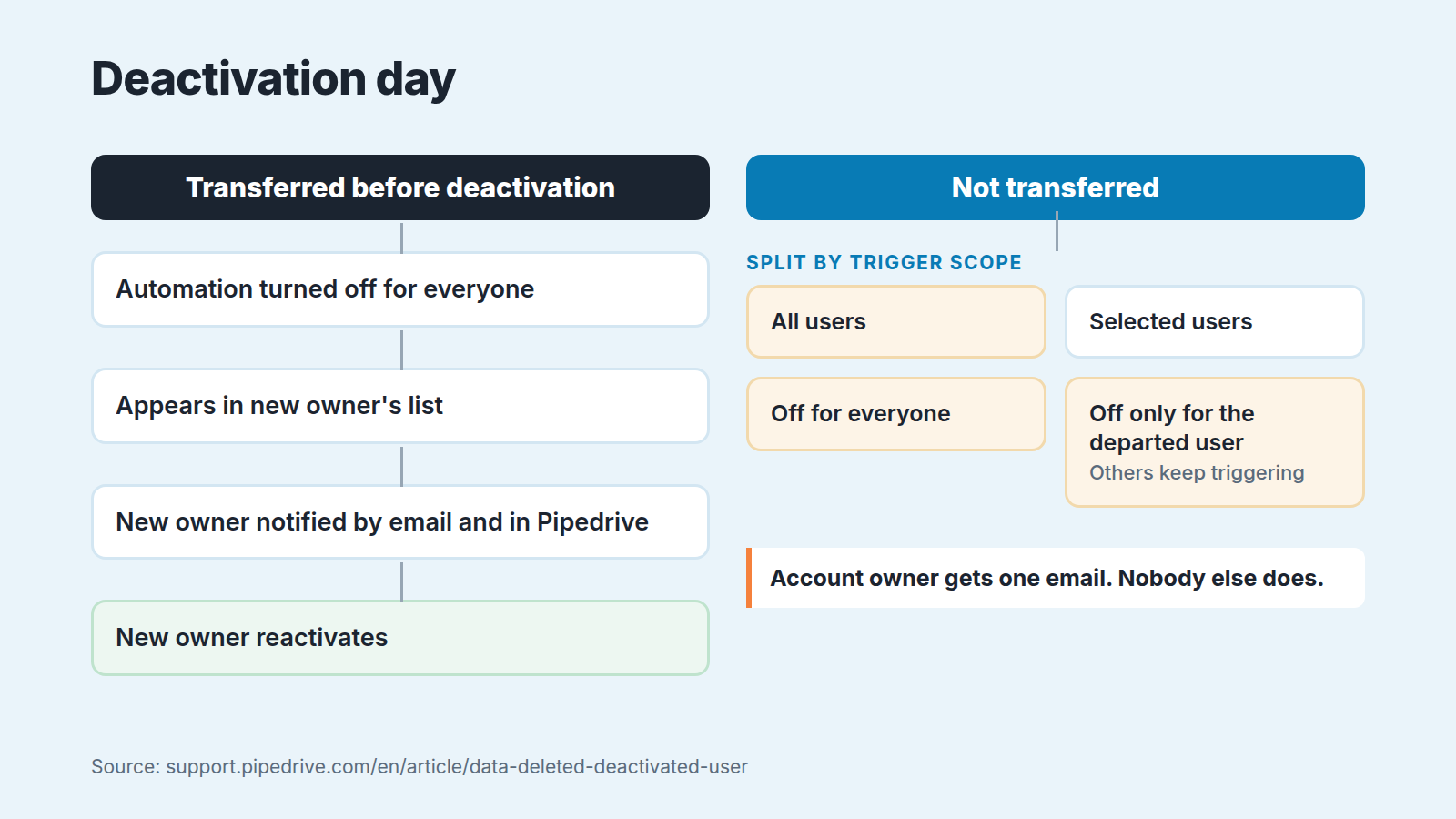
If you transfer ownership, the automation is deactivated for everyone, the list of users who can trigger it stays the same, it appears in the new owner’s automations list, and the new owner is notified in Pipedrive and by email with a direct link. The new owner is expected to review it and switch it back on. Transfer does not mean “keeps running”. It means “has someone responsible who can turn it back on”.
If you do not transfer, the result depends on one setting. An automation set to trigger for all users is deactivated for everyone. An automation set to trigger for selected users is deactivated only for the departed user; the other users on its list keep triggering it. The company account owner gets an email with a link to review the automations the deactivated user owned. The orphaned automations can be found later through the “Owned by deactivated users” filter in the automations list, and through the overview dashboard or data cleanup (same source).
Deactivation also switches off things that automation steps quietly lean on. The same help article lists them: the user’s email sync and contact and calendar sync stop, apps the user installed are uninstalled, and webhooks the user created are deactivated (Pipedrive: deactivated user data). A step that relies on the departed rep’s mailbox or on an app he installed has nothing left to run on. So the “selected users” case is not safe either. It is just slower to break. Before you press Deactivate, list what the user installed, because those apps go with them.
The 20-minute audit: owner, status, last run, still needed?
Open the account menu, go to Tools and apps, then Automations. The whole audit happens in this list and in the automation overview dashboard. In our experience twenty minutes is realistic for a team with a few dozen automations; if you have hundreds, go owner by owner and spread it over a week. If you already run a broader Pipedrive audit, treat this as its automations page.
- Run the “Owned by deactivated users” filter. Anything that appears is already dark or at risk. Transfer each one to a global admin who is still around, then decide in step four whether to reactivate it at all.
- Read the owner column for the rest. Write down who owns what. Automations owned by one person but triggering for all users are the ones that will take the team down when that person leaves. Flag them.
- Check status in the automation overview dashboard. The dashboard and failure alerts shipped in May 2026 (Pipedrive product updates). An automation can be active and still fail on a step. Open the history of anything with errors and read the message. A run can also stop on a plan limit, so it helps to know what hitting an automation limit looks like.
- Ask “who needs this, this quarter?” Say the answer out loud for each automation. If nobody can name a person or a stage that depends on it, turn it off and leave it off for a month before deleting. An automation nobody can explain is not a time saver. It is a future incident.
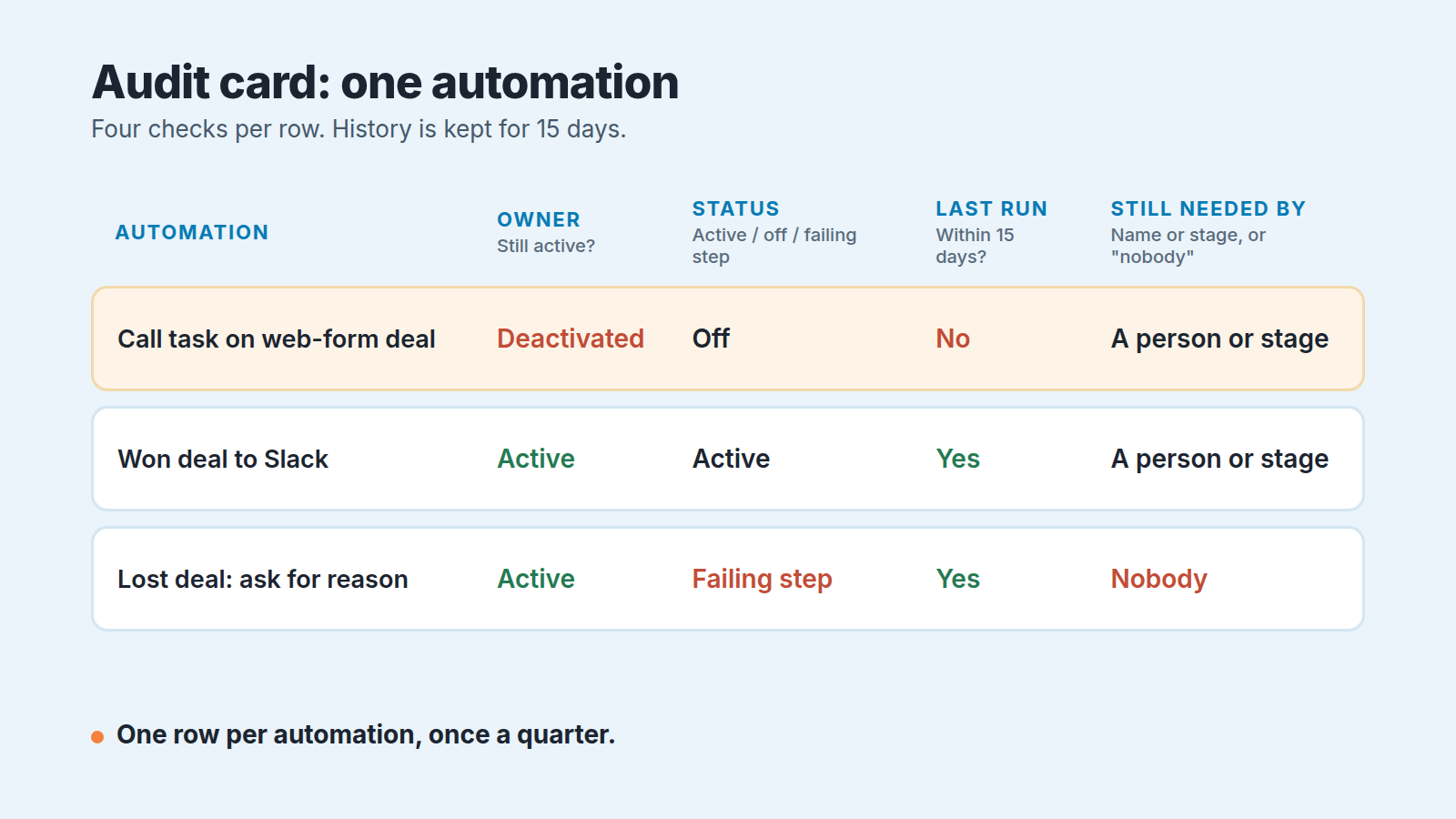
Write the result down somewhere outside Pipedrive. A spreadsheet with four columns is enough. The point is that the the next person doing this audit can see what was decided last time and why. Outside Pipedrive, there is a CRM-wide version of this audit for managers.
Check the Slack-posting automations too: a deal-alert channel should carry two events only, and one nobody owns is posting to people who have already muted it.
Reading the automation overview dashboard and the 15-day history window
The one number to remember from Pipedrive’s troubleshooting guide: automation history is kept for 15 days (Pipedrive: troubleshooting automations). After that, you cannot see whether an automation ran, skipped, or failed.
That changes the cadence. A quarterly audit catches ownership problems; it cannot catch execution problems, because a failure from February is invisible in April. In what not to automate in a sales process we suggest looking over your automations once a month, and that monthly look is where the overview dashboard belongs. The audit in this article is narrower: ownership, once a quarter and on the day anyone leaves. For the few automations that touch customers directly (anything that sends email, creates tasks for inbound leads, or posts where the team watches for new business), check the history inside the 15-day window after any change to the team: someone leaving, someone changing role, an integration being swapped.
There is a second way an automation goes dark. Since April 2026, Pipedrive switches an automation off by itself when it keeps failing (Pipedrive product updates). The failure alerts that arrived in May go to the automation’s owner. Now combine the two with the “selected users” case from above: the owner has left, the automation keeps running for everyone else, a step starts failing, and every alert goes to an account nobody reads until Pipedrive turns the thing off.
The troubleshooting guide is worth one slow read. Several of its reasons trace back to a person and thier setup: triggers that do not fire because the deal came in through the API or an import, permission and visibility issues, and email actions that stop when the default email account setting is disabled (same source). The email account was someone’s email account. The permissions were someone’s permissions. That is why the owner question comes first in the audit and the error question second.
One September 2026 change helps here: a global admin can now edit other users’ automations and activate them for the team (Pipedrive product updates). Before, fixing a colleague’s broken automation meant asking them to do it. Now the person doing the audit can fix what they find.
Bulk edits are the other way into your automations. The box is ticked by default, so a Tuesday cleanup can fire the very rules you just audited.
Transfer before you deactivate: the offboarding line item
Here is the single rule that would have saved the team in the opening scene: nobody gets deactivated until their automations have been transferred and the new owner has switched them back on.
Pipedrive makes the first half easy. The deactivation view shows the count and offers the transfer, and the help article recommends transferring automations that anyone can trigger; for “selected users” automations, deactivating one of the triggering users does not affect the others. But the transfer leaves every automation off, and the new owner has to reactivate each one deliberately (Pipedrive: deactivated user data). Its the right design, because it forces someone to look at the automation before it runs under a new name. It also means an offboarding that stops at “transferred” is only half done.
Our offboarding checklist for the CRM side, which we keep separate from the deal handover:
- Run the automations list filtered by the departing user before anything else, while they are still active and can explain what each one does.
- Transfer to a global admin who will actually own the automations, not to whoever is deactivating the account.
- Reactivate each transferred automation on the same day, or write down why it stays off.
- Check whose name the emails go out under. Since July 2026 an email step can send as the automation owner, the deal owner or the user who triggered it (Pipedrive product updates), so a transfer can change the sender customers see. The sender article covers which sender fits which email and where the reply lands for each.
- Note any step that relies on the departing person’s mailbox or an app they installed. Email sync stops and their apps are uninstalled on deactivation, so those steps break even when ownership is transferred (deactivated user data article, above).
- Check assignment rules, webhooks and Marketplace apps the person created. Assignment rules that include a deactivated user keep running but fail at the status check; webhooks they created are deactivated; apps they installed are uninstalled (Pipedrive: deactivated user data).
If your team already has an offboarding document, this is one line item in it, placed before “deactivate the Pipedrive user”. The deal side of the same day is covered in who owns the CRM data in a small sales team and in the reassignment guide linked above; we will not repeat it here.
Some automations should not be transferred
The audit also turns up automations that patch over a process nobody agreed on, like a task created because reps forget to schedule the next step, or a close date filled in because the field was mandatory. Don’t transfer those. Delete them and fix the process; the longer argument is in what not to automate in a sales process, and the data-entry side in automating CRM data entry in Pipedrive.
There is also something automations are poor at, and it is what the opening scene was really about: noticing that something in the pipeline has gone quiet. An automation acts when a trigger fires. It cannot tell you that a trigger stopped firing. The callback tasks stopped, and the pipeline looked exactly the same the next morning. New deals simply sat there with no next activity.
When you suspect one has stopped, these are the five places to look when an automation never fires.
That is where we think a layer above the CRM earns its place, and it is the one paragraph about our product in this article. We build SalesBond, a sales management layer on top of the CRM a team already uses; we started with Pipedrive. Deal Health checks every deal against more than 20 rules, gives it a health score and explains the factors that lowered it, so a batch of deals with no next activity shows up as flagged deals with the reason spelled out, whether or not anyone remembers which automation used to handle them. It does not replace the audit above. It catches the consequence of a dead automation, not the cause. Check your CRM with SalesBond.
Then put the quarterly audit in the calendar, and add the transfer line to your offboarding document today, before the next person leaves. The automations will keep working for you exactly as long as someone is responsible for them, which is the same deal you have with every other employee.


