
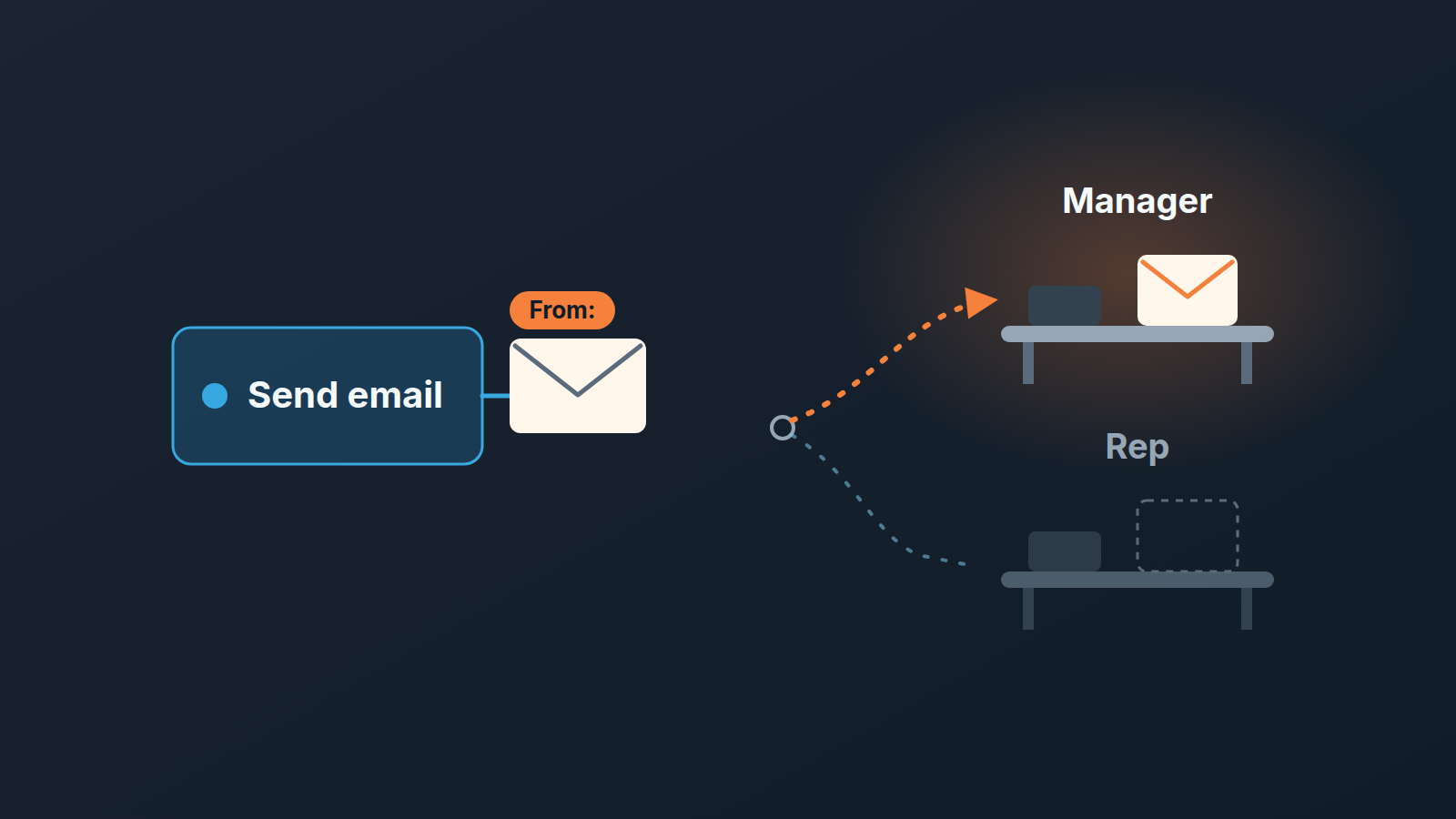
In a Pipedrive automation, the “Sender account” field decides two things for every automated email in Pipedrive: whose name the buyer sees, and, unless you add a separate reply-to address, whose inbox the reply lands in. Our rule for a team of three to ten reps: an email about one specific deal, such as a demo recap or a proposal reminder, goes out as the Item owner; a general answer like “we received your request” goes from the Team Inbox if your plan includes it; the Automation owner is for internal emails. And because a dynamic sender only works when that person has a default email account connected, “does the new rep have one?” belongs in onboarding, not in troubleshooting. Pipedrive added the sender choice to automations in July 2026 (Pipedrive product updates), and the options are documented in email senders in automations.
The reply that landed in the manager’s inbox
An invented scene. The mechanism is from Pipedrive’s documentation.
A seven-person team sells kitchen equipment to restaurant groups. The sales manager built most of the team’s automations herself, including the one that fires when a deal moves to “Demo done”: a short recap email with a line asking when a follow-up call would suit. She picked herself as the sender. It was her automation, and the email read well under her name.
On a Tuesday one of her reps runs a demo for a group with two sites and moves the deal. The recap goes out that evening, from the manager. On Wednesday the buyer replies: Thursday at ten works, and could they bring pricing for both sites.
The reply goes to the manager. She is at a trade fair until Friday and reads it on the train home.
The rep sees nothing, so on Thursday he notes “no reply to recap yet” and schedules a check-in for next week. The buyer, who agreed to a call and heard nothing, spends Thursday at ten with a competitor’s quote open. Nobody made a mistake you could put in a process document. The buyer answered the name on the email, the rep worked the deal he could see, and one field, set by whoever happened to build the automation, picked the inbox.
This isn’t an automation that went dark. The history shows a clean send and there is no error to retry. Mail that never went is a different story, covered in the owner audit and the Outbox piece; this one went perfectly well, to the right buyer, under the wrong name.
Five senders, and where each one sends the reply
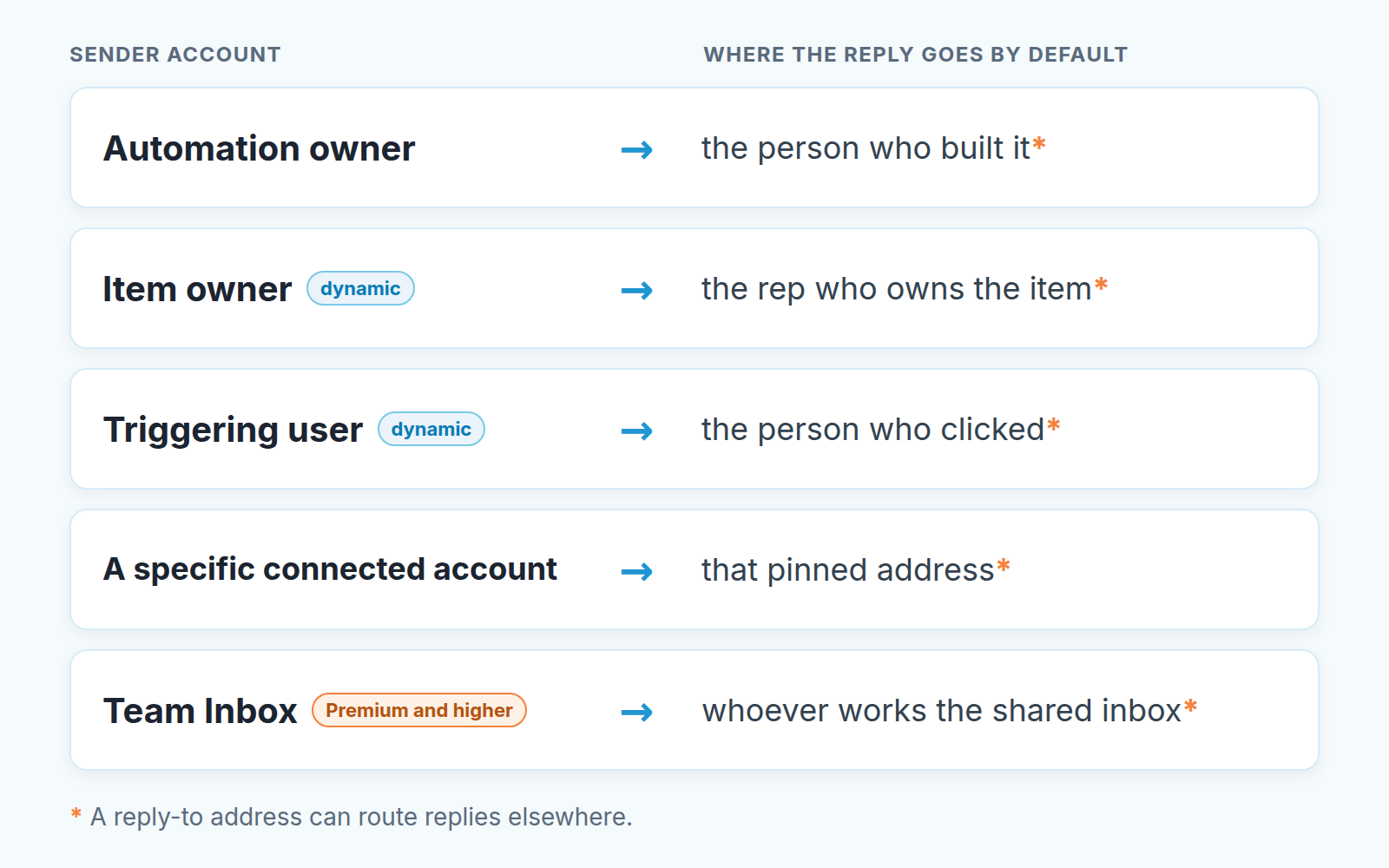
The automations help lists four values for “Sender account”: Automation owner, Item owner, Triggering user and Team Inbox (automations and emails). The sender article adds a fifth, a specific connected account (email senders in automations). Item owner and Triggering user are dynamic: the person is worked out each time the automation runs. The rest are fixed addresses.
Plans matter here too. Pipedrive’s help page, updated September 2026, says automations and email sync are available on Growth and higher, and that Team Inbox itself is available only on Premium and higher.
So what does each option do to the reply?
Automation owner is whoever built the automation. The email goes out from their account and the reply comes back to them. Fine if the builder is also the only seller. In every other team it’s the scene above.
Item owner is the item’s current owner (for a deal automation, the deal owner). The reply reaches the rep who is working it. This is what most buyer-facing emails want, and it needs a default email account (below).
Triggering user is the person whose action fired the trigger. Often that’s the item owner. Not always: a manager who moves a deal during a pipeline review, or an SDR who marks a lead qualified before handing it over, becomes the sender of whatever email that change sends.
A specific connected account works like Automation owner, except that one particular address is pinned.
Team Inbox sends from the shared address, so the reply is visible to whoever works that inbox. No single rep owns the thread, which is right for emails where no single rep owns the lead yet.
A three-row rule: which email goes from whom
We reduced the choice to three cases, and we think they cover almost every automated email a small team sends.
An email about one deal, like a demo recap, a meeting confirmation or a reminder a few days after the proposal, goes as Item owner. The reply has to reach the person who will take the next call. If the buyer asks for pricing, the rep sees it the same day. For a follow-up run that mixes email drafts and reminders, there is also Pipedrive Sequences for deal follow-up. (Some of these arguably shouldn’t be automated at all; that case is made in what not to automate in a sales process.)
A general email sent before anyone owns the lead, such as “we received your request” or a first answer to the web form, goes from the Team Inbox. No rep owns the lead yet, so no rep should own the thread. Whoever is on inbound duty picks up the reply.
An internal email, say a note to finance when a deal is marked Won, goes as Automation owner. It’s about the process, and the person who runs the process built the automation. If anyone replies, that is who should read it.
No Team Inbox on your plan? Then the second case has no clean answer inside the automation. Our fallback is to send the acknowledgement only once the lead is assigned, as the Item owner, which also pushes the team to assign fast (the argument is in speed to lead in Pipedrive). We would rather send the first email twenty minutes later from a real person than instantly from a mailbox nobody is reading that afternoon.
Triggering user earns it’s place in one situation: the person who clicks is reliably the person who follows up. A rep marking “Proposal sent” and getting a cover note sent in their name is a good use. If managers move stages during reviews, Triggering user turns into a lottery. We don’t use it for buyer-facing mail.
Two things that break it: the default email account and reply-to quirks
Item owner and Triggering user resolve to a person, and if that person has no personal email account connected and set as default, the automation fails at the send step (automations and emails); what that failure looks like afterwards is in the failed-emails article.
The practical side is ours. The moment you switch a buyer-facing email to Item owner, every rep who can own a deal becomes a possible sender, and a new rep who hasn’t connected thier mail is a send step waiting to fail on their first deal. So we put it on the onboarding list on day one, next to the login: connect your mailbox, set it as default. The same list already covers access and permission sets for a new rep. This is one more line on it.
The reply-to field is subtler. An email step can carry a separate “Reply-to email address”, added through “Add fields”. The obvious use is a hybrid: send as the Item owner so the buyer sees the rep’s name, but route replies to a shared address the the whole team watches. Pipedrive’s help attaches two caveats. If the sender and the recipient are the same address, the email provider may ignore the reply-to. And the original sender stays behind the scenes so that reply tracking and the “Email has been replied to” condition keep working. We haven’t tested this across providers.
One more limit from the same article: the total delay per automation is 90 days, and a wait-for-event step lasts up to 7 days. A lot can happen in 90 days, deals change hands included. Item owner sends from “the item’s current owner”, so it follows the deal; a fixed Automation owner doesn’t, and a transfer of the automation itself can change the sender customers see, as the owner audit explains.
Who may set senders, and a ten-minute check
By default only global admins create automations and configure automated email senders. The permission “Add automations and configure automated email senders” can be granted to a Global regular user through permission sets, and a user who holds it can send from colleagues’ connected accounts (email senders in automations). Read that second clause twice. Whoever can set a sender can put an email under a teammate’s name without that teammate pressing anything.
Our position: in a team of three to ten, that permission stays with one or two people, usually the manager and whoever owns the CRM setup, and it’s reviewed whenever the permission sets are. Everyone else gets a mirror, a “Review automations” button that lists the automations that could send from your own account. Whether they actually do depends on how each one is set up. Still a rep who finds an automation there they didn’t know about has a fair question for the manager.
The check fits in ten minutes for a team with a few dozen automations.
- Open every automation that has an email step and read the “Sender account” value. Write it next to the automation’s name; the list is shorter than you expect.
- Any buyer-facing email going out as Automation owner, change to Item owner, unless the owner really is the one seller. On Triggering user, ask who else moves stages in your pipeline. If the answer is anyone but the owner, change it too.
- Confirm that every person who can own a deal has a default email account connected, and add the line to the onboarding document.
- Ask each rep to press “Review automations” and tell you what they see.
- Open the permission sets and note who holds “Add automations and configure automated email senders”. If the list surprises you, shorten it.
Back to the scene. After the fix, the recap goes out under the rep’s name, the reply about two-site pricing lands with him on Wednesday, and Thursday at ten happens. The deal never shows up as “no reply yet” in Thursday’s pipeline list. That list is where we spend our own time: we build SalesBond, a sales management layer on top of the CRM a team already uses; we started with Pipedrive. Deal Health checks every deal against more than 20 rules and shows why a deal needs attention, but it can’t see whose inbox a reply landed in. Fix the senders first, then check your CRM with SalesBond and call the deals that still look quiet.


