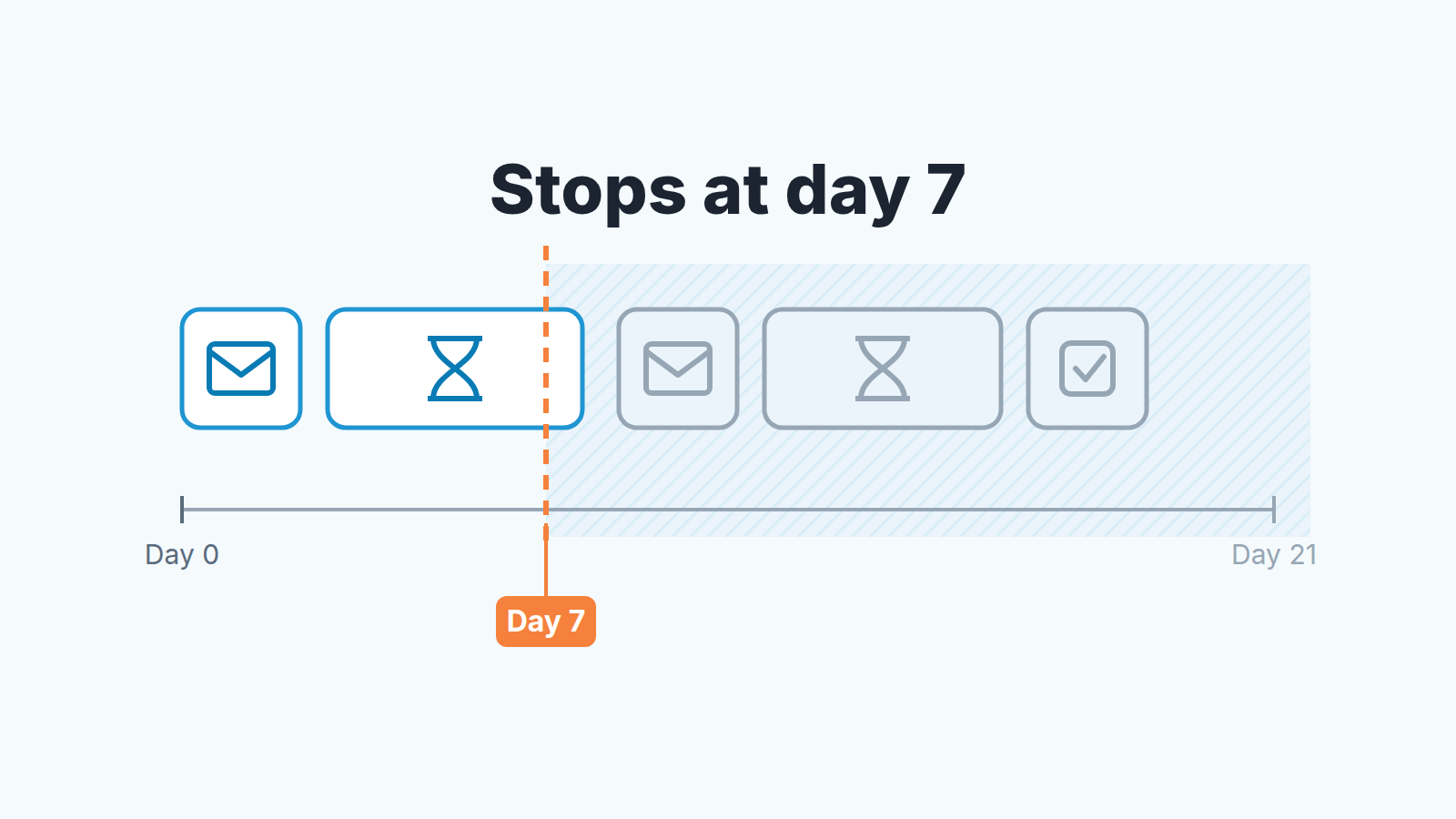
Pipedrive automation limits decide how long a follow-up can run, and it is shorter than most deals need. One “wait for condition” step holds for at most seven days, and if the condition is still not met the automation stops. All delay steps in one automation add up to no more than 90 days, weekends included. On the Growth plan an automation gets three delay steps, three wait steps and three if/else steps, and ten actions in total (Pipedrive help: Automation limits, updated September 3, 2026). A follow-up chain built longer than any of those ceilings does not send you an error. It stops, and the deal goes quiet with it.
This piece is about those structural ceilings and how to design a chain that fits inside them. If an automation never fired in the first place, that’s a different problem with its own causes in conditions and ownership, and we covered it in why a Pipedrive automation is not triggering.
Wednesday, three weeks in, and the reminder never came
Kofi sells for a landscaping company: patios, irrigation, the occasional retaining wall. His quotes go out in spring in batches, and the homeowners take thier time. Two weeks is normal. Three is not unusual. So he built the chain every small team eventually builds: when a deal moves to Quote sent, email the estimate, wait for the deal to leave the stage, and if it has not, send a nudge, wait again, then create a call task for himself.
The automation ran, the first email went out, and then nothing. No nudge. No task. He found out when a homeowner called in May to say she had gone with the other quote because nobody followed up.
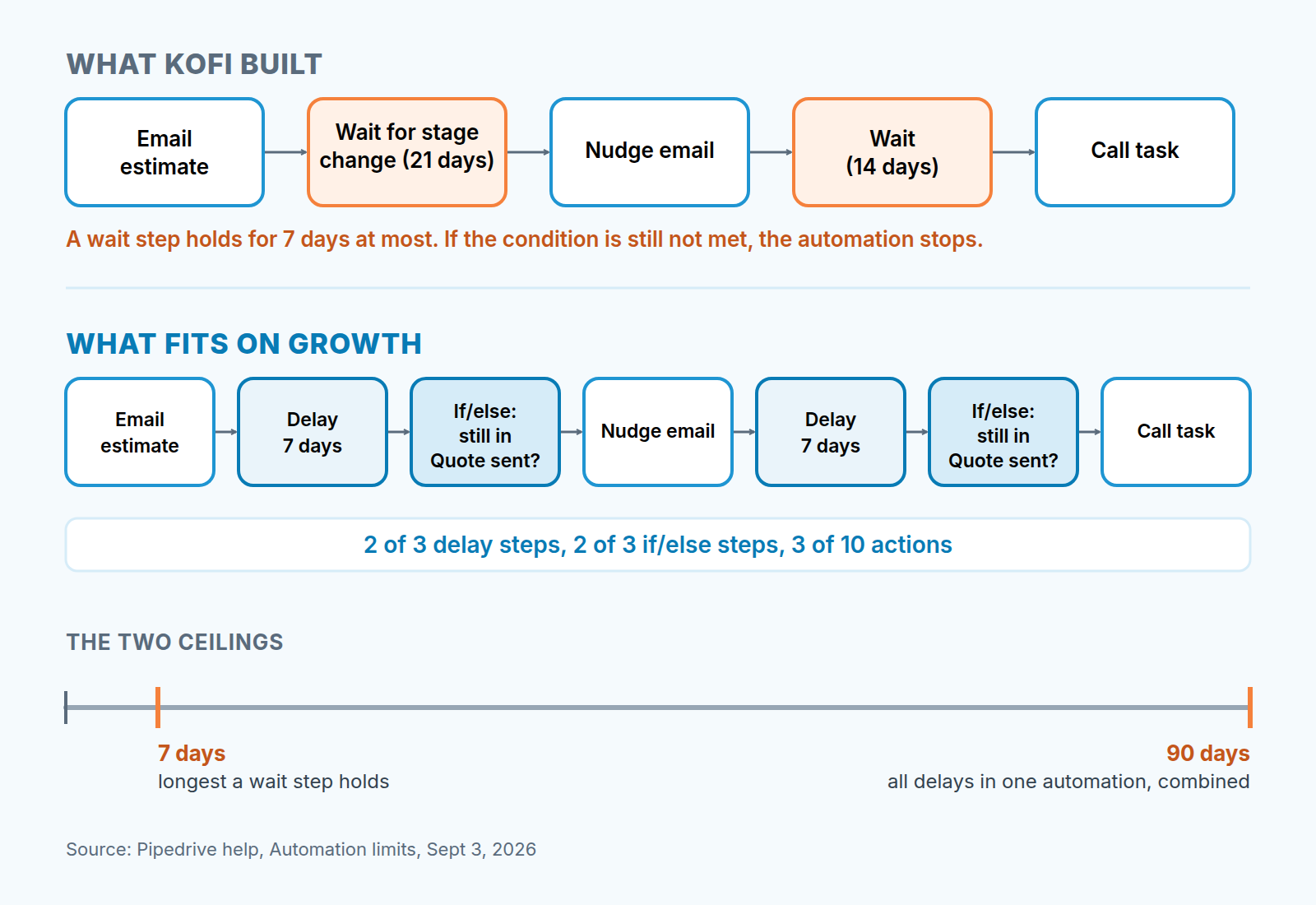
It wasn’t a bug. His second step was “wait for condition: deal stage is not Quote sent”, and Pipedrive gives that step seven days. With the deal still sitting in Quote sent after a week, the automation stopped, exactly as the help page describes. The chain was correct. It was simply longer than the step that carried it.
That is the pattern we keep seeing. The automation is designed around how long the buyer takes, and the limits are designed around how long Pipedrive lets a single execution wait. The two numbers rarely match by accident.
Pipedrive automation limits by plan: the numbers that matter on Growth
Every figure below is from Pipedrive’s automation limits page as of September 3, 2026. Automations are available on Growth and higher plans, so Growth is where most small teams hit these walls first. If you have seen a search snippet that reads the delay limits differently, that comes from Pipedrive’s separate usage limits page; we go by the automation limits page, which has the full table.
| Step type | Growth | Premium | Ultimate | What the limit does |
|---|---|---|---|---|
| Wait for condition | 3 | 10 | 10 | Each step runs up to seven days; if the condition is not met, the automation stops |
| Delay | 3 | 10 | 10 | Total delay per automation is 90 days, weekends included |
| If/else condition | 3 | 10 | 20 | Branches on whether conditions are met |
Two more limits sit outside the table. Every automation can have up to ten actions, on any plan. And there is a per-plan cap on how many automations can be active at once: 50 on Growth, 150 on Premium, 250 on Ultimate. Deactivated automations don’t count toward it. If you reach it, existing automations keep running, but you can’t switch on a new one.
Hold the table up against Kofi’s chain and three things fall out.
First, the wait step is the wrong tool for “wait until the buyer does something” when the buyer might take three weeks. Seven days is the most it will hold. For a slow sales cycle, swap it for a delay step followed by an if/else that checks the stage. A delay doesn’t care whether anything happened. It just waits, and the if/else does the checking afterwards. The chain becomes: email, delay seven days, if still in Quote sent then nudge, delay seven days, if still in Quote sent then create the task. That uses two of the three delays, two of the three if/else steps and three of the ten actions. It fits.
Second, the 90-day total is the one landscaping teams actually run into. “Email them again when the season opens” sounds like a single delay of five months, and that does not fit: the limit is 90 days for all delays in the automation combined, and weekends count toward it even if the automation is set to skip them. Anything seasonal belongs in an activity with a due date, not in a delay step. One way to create that activity on schedule is a date-triggered automation off a date field.
Third, three delay steps on Growth means a five-touch cadence with four pauses between touches won’t fit in one automation. You can split it across two, with the first one changing a field or a label that the second one triggers on. We prefer not to. Two automations are twice as many things to audit, and once automations start triggering each other, the help page is clear that loops and “one triggers many” executions are ignored and never shown in history.
What hitting a limit looks like (and the email that warns you)
The history view lives under the account menu, Tools and apps > Automations > History, with Failed and Stopped filters. We went through Stopped runs and the executions that never appear there in the not-triggering article; the short version is that Kofi’s stops would have been visible, if he had looked within two weeks. Pipedrive keeps execution history for 15 days, longer only for automations with delay steps (Pipedrive help: Automations history). By May the rows were gone.
What that article doesn’t cover is Failed caused by limits. An email action that hits the rate limit or the mailbox provider’s cap fails. So does a note that would be the hundred-and-first on a deal, person or organization, and a webhook or API call the other service rejects. Each row opens to show what went wrong and why.
The frequency limits themselves are large for a small team: 10,000 executions per company and 5,000 per single automation, both within ten minutes. Kofi isn’t going to reach that with spring quotes. What a small team can reach is the warning threshold, which Pipedrive calculates from company size and sets lower than the hard limits. When the account crosses it, the account owner gets an email saying automations are running at high frequency, and if activity stays above the threshold the limits are enforced. A team of four with one person’s inbox as “account owner” has usually filtered that email into a folder nobody reads. Find out whose address it is before you need it.
Forty emails a minute, and the mailbox behind them
Automated emails don’t leave the moment the step fires. Pipedrive queues them and sends in 30-second intervals, and the rate limit is 40 email actions per minute across the whole company account. That is one shared bucket for every automation you have, not 40 per automation. If two automations send at the same moment some emails go and the rest fail, and the failed ones show as Failed in history.
The second ceiling isn’t Pipedrive’s. Gmail and Outlook apply their own daily and hourly caps, and an email action that hits one of those also lands in history as Failed. The help page doesn’t quote provider numbers, so we won’t either. Your automation can be well inside Pipedrive’s limit and still fail because the connected mailbox has had enough for the day. Which mailbox that is depends on how the email action is set up, and we wrote about the automated email sender separately.
For Kofi this matters on quote day. Say the office imports a season’s worth of leads and moves forty of them to Quote sent in one sitting. Forty estimate emails try to leave in the same minute, and the nudge automation and the “new lead welcome” automation are drawing from the same bucket. Pipedrive’s own advice is to space out email actions. In practice that means not letting a stage move and a label change both send mail from the same deal within the same minute, and moving leads in smaller batches on days when you know an email automation sits behind the stage.
One more thing we hold to: the automation sends the first email, and a person sends the rest. The nudge that gets a reply from a homeowner who has been quiet for two weeks mentions the dry summer or the neighbor’s fence. An automation can’t write that sentence. Let it create the task, and let Kofi write the email. If you want software to carry a longer touch sequence anyway, Pipedrive’s sequences feature is built for that, with its own limit of 100 deals or contacts per sequence; we covered how to set one up in sequences for deal follow-up.
Three habits for a small team
Design to the limits before you build. Write the chain on paper with the days marked: how long is each pause, how many pauses, how many actions. Then check it against seven, 90, three and ten. Any pause longer than a week is a delay plus an if/else, not a wait. Any total longer than 90 days is an activity with a due date. Anything with more than three pauses on Growth is two automations or, more honestly, a shorter chain.
Count your active automations once a month. Tools and apps > Automations shows every automation and its status. The ceiling on Growth is 50, and only active ones count. Reps clone automations to test them and forget to switch the copies off; three people doing that for a year is how a team arrives at the cap without anyone having built fifty real workflows. Deactivate anything nobody can explain, and if the person who built it has left, start with the owner audit. Pipedrive’s own best practices begin the same way: remove automations you no longer need, combine the duplicates.
Keep bulk edits away from automations. Pipedrive lets a global admin skip automations when making a bulk update, and the help page lists that as a best practice for exactly this reason. Without it, a big bulk edit can push an automation past its frequency limit. Those executions are stopped, show up as Stopped, and the automations you actually wanted on those deals never ran. More on that in bulk edit safety in Pipedrive.
This is also where we should say what we do. We build SalesBond, a sales management layer on top of the CRM a team already uses; we started with Pipedrive. Deal Health checks every deal in the connected CRM against the enabled rules (more than 20, across categories like Activity and Progression), gives it a health score, shows the specific violations and explains what to do. A deal that has stalled is flagged by whichever enabled rules it breaks, whether or not an automation was meant to handle it. That’s the point: the automation is one of your controls, not the only one. Check your CRM with SalesBond if you want a second one.
Kofi’s chain is live again, rebuilt as email, delay, if/else, nudge, delay, if/else, task. It is shorter than the one he wanted. It also finishes, which the first one never did, and the call task lands on his list on day fourteen whether or not the the homeowner has made up her mind. That is what a follow-up automation is for: not to close the deal, but to make sure a person looks at it before the other quote wins.