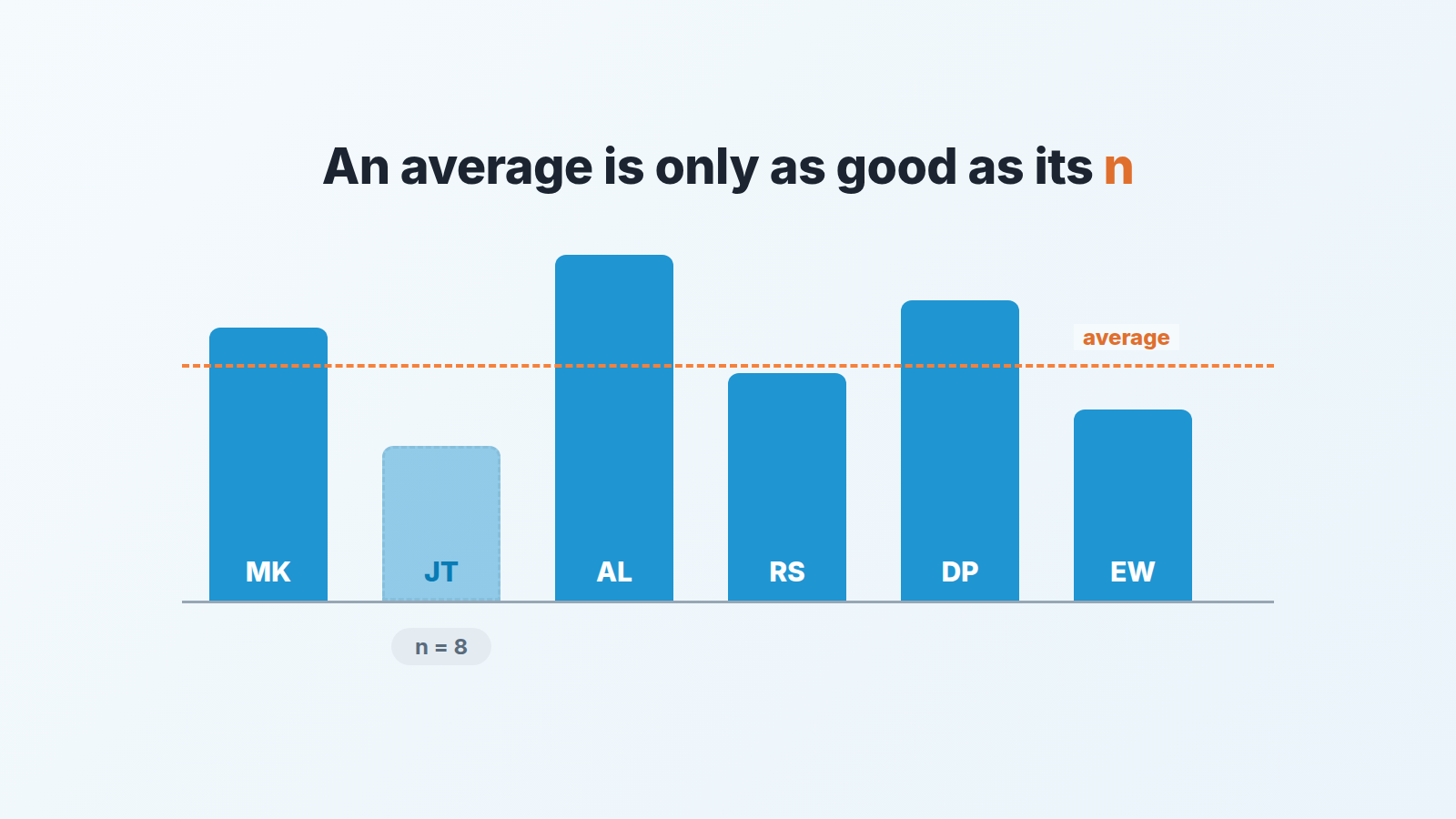
Since September 2026, Insights reports in Pipedrive can show the average of a numeric or monetary custom field. The release note puts it in one line: “viewing the average value of custom numeric and monetary fields in Insights reports and charts” (Pipedrive product updates). The practical use: create a numerical field called Discount %, measure your won deals by it, view by user, and put the number of deals right next to the average. An average of eight deals proves nothing, and the first thing this feature will do in most teams is tempt a manager to act on one.
If the average goes to someone outside the company, keep it to the team-wide figure and send it through the public link rather than a seat.
An average of eight deals and a decision made on it
A made-up scene, with made-up numbers, because it is the scene I expect to see a lot this autumn.
A manager builds the new report on a Monday. Discount % by owner, won deals, last quarter. One rep, call her Mara, shows 10%. The rest of the team sits around 8%. The 1-on-1 is on Wednesday, and the manager opens it with “your discounting is above the team’s”.
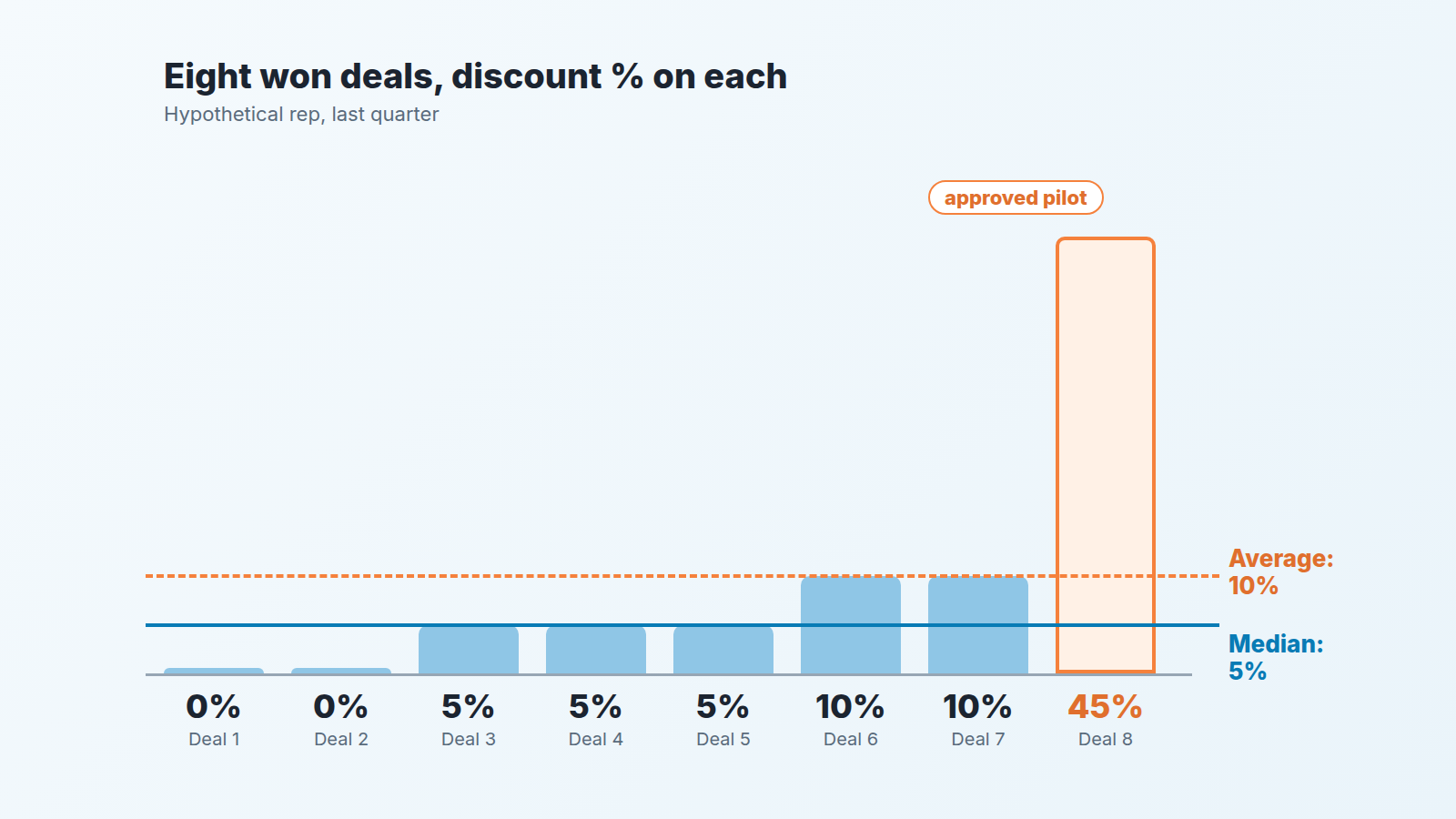
Mara’s eight won deals carried these discounts: 0, 0, 5, 5, 5, 10, 10 and 45 percent. The sum is 80, divided by eight deals is 10%. Take out the one deal at 45% and the other seven average 5%, below the team. The median of all eight is 5%. The 45% deal was a pilot priced to win a logo, and the person who approved that price was the manager, two months earlier, in a Slack thread he no longer remembers.
So the report was correct, the arithmetic was correct, and the conclusion was wrong. Nothing in the chart said “one deal is doing all of this”. The average is now available. It needs a count and a second look before it becomes a sentence you say to a person.
What changed in Pipedrive Insights in September 2026
The September 2026 product updates brought two changes that matter here (Pipedrive product updates):
- Average for custom numeric and monetary fields. Insights reports and charts can show the average value of such a field.
- Multiple filters on the same field. Several filter conditions on a single field, in one Insights report.
A third entry, role-based dashboard templates for reps and managers, is not about averages. There is also a February 2026 entry worth keeping in mind: a “does not contain” option in reports, for fields that already allow “contains” (same page). Exclusion is how you keep a renewal or a pilot out of a number that is supposed to describe new business.
One thing I won’t describe is how you switch a measure between sum and average in the builder. The help article for the Deal progress report lists the “Measure by” options and says nothing about aggregation (Pipedrive: Insights reports, deal progress), so neither will I.
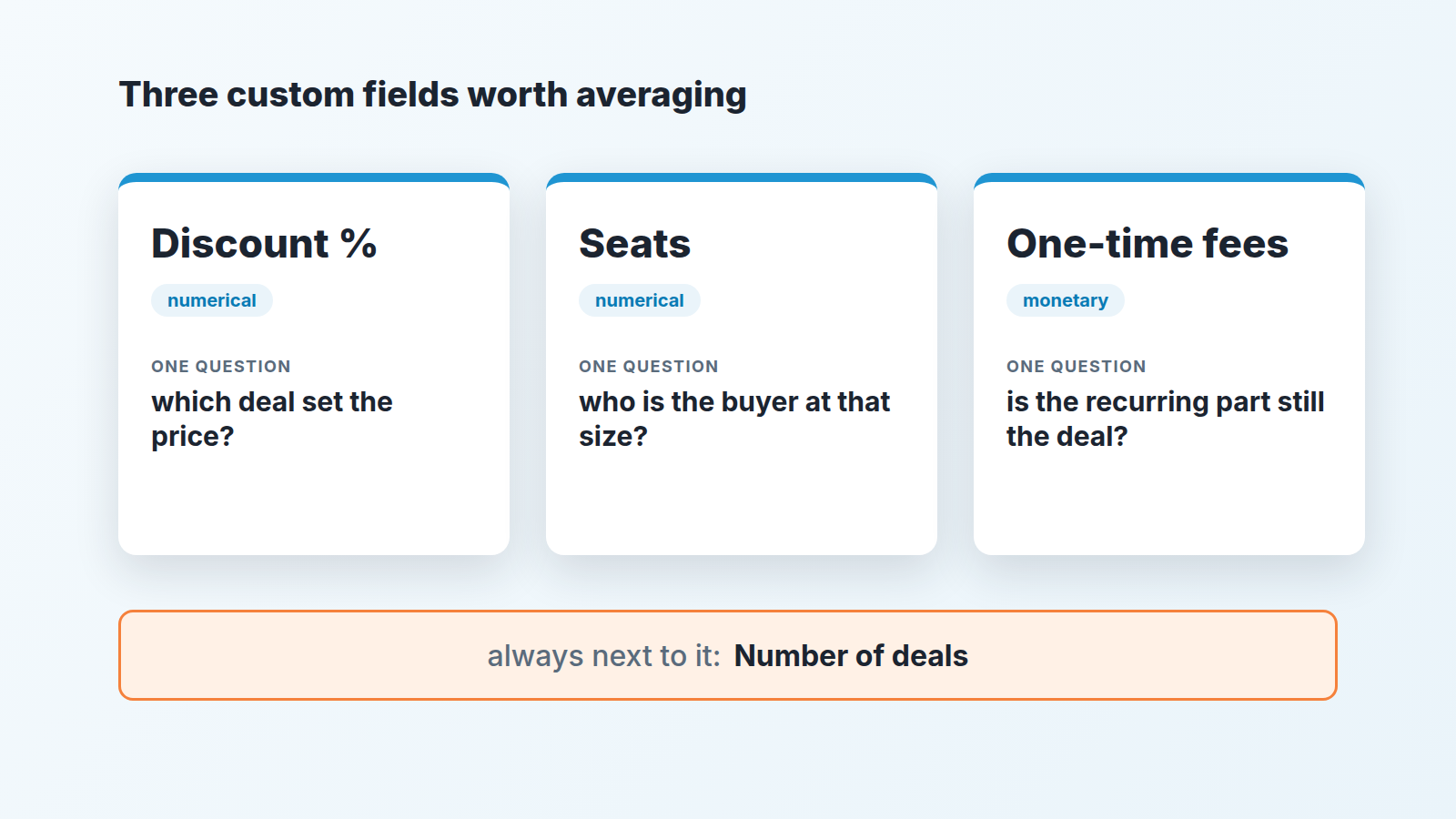
Three fields worth averaging
An average is a management number only when every deal can honestly carry a value in the field, when the value is one number, and when a difference between two reps would change what you say to them. Most custom fields fail at least one test. These three pass.
Discount %. A numerical field, not a monetary “discount amount”: a 2,000 discount on a 4,000 deal and on a 40,000 deal are different conversations, and the percentage is the one that compares across reps. How to set it up and who approves what is in our one-page discount approval rule, which this article does not repeat.
Seats, or users. Also numerical. If you sell per seat, the average seats per won deal is the cleanest “who sells into bigger accounts” number you have, cleaner than deal value, because it strips out discounting and term length. If you don’t sell per seat pick the one quantity your pricing actually scales with: locations, devices, shipments a month. The point is a count the buyer told you, not a value you negotiated.
One-time fees. A monetary field for onboarding, implementation, hardware or a training day, the same field we recommend in ACV vs deal value in Pipedrive. Averaged by rep, it shows who sells subscription and who sells services wrapped around it.
Three fields, one number each, and each number maps to one question in a 1-on-1. A fourth field is fine if you can write its question in one sentence. If you can’t, it’s a report nobody will open twice.
Build it, without inventing buttons
Pipedrive’s help article for the Deal progress report is the one page I can point to for the exact labels, so this walkthrough uses that report. Know what it counts before you read the average: it shows deals that entered each stage in the period you pick. Won is not a stage in Pipedrive, it is a status. So the period comes from the date of entering a stage, and the won deals come from a status filter on top.
- In Insights, go to + Create > Report > Deal > Progress (Pipedrive: Insights reports, deal progress).
- Measure by: pick your custom field. The options on the page are “Deal value”, “Deal weighted value”, “Number of deals”, and “Any numerical or monetary custom fields”. Your Discount % field belongs to that last group.
- View by: “User”. The page also lists “Date”, “Single option”, “Multiple option”, “Organization” and “Person”. Date is the version you build second, for the quarterly trend.
- Filters: the report comes with “Date of entering stage > is > this year” and “Pipeline > is > [your default pipeline]”. The date filter can’t be removed, so set it to the period you review. Then add a condition on deal status to keep won deals only. Read the result as “won deals that entered a stage in this period”, not “deals won this quarter”.
- Build the same report again with Measure by set to “Number of deals” and everything else identical. Put it on the dashboard right next to the average. This is the step people skip. Don’t. (If that dashboard is getting crowded, six numbers is plenty.)
The September filter helps with mixed pipelines. For example, if two of your pipelines are new business and a third is renewals, several conditions on the pipeline field could keep the two and drop the third in one report (Pipedrive product updates). And if pilots are marked in a text field that offers “contains”, “does not contain” keeps them out of a discount average. A dedicated field beats a naming convention, but the convention is what most teams actually have.
If two people see different averages on the same report, that is a visibility question, not arithmetic: why Pipedrive Insights shows different numbers to different people.
When the average lies
It lies in three ways, and the chart will not tell you which one is happening.
Small samples. Eight deals is the Mara story above. Our rule, and it is a rule of thumb rather than statistics: under fifteen won deals per rep in the period, don’t discuss the average at all; open the list and read the deals. Fifteen is small enough that a quarter will usually get a rep there and large enough that one pilot no longer doubles the number.
Outliers. The pilot at 45%. The enterprise deal with 400 seats on a team that sells to 10-seat companies. Three deals at 5, 12 and 40 seats average 19 seats, and not one of the three is anywhere near 19. Insights gives you the average; the median is yours to work out, and for anything under about thirty deals I’d rather see the deals sorted by the field than either statistic. The count sitting next to the average is what reminds you to do that.
Mixed pipelines and mixed deal types. A renewal with a 0% discount and a new logo with a 20% discount average to 10%, which describes neither. One-time fees averaged across deals that have no onboarding get pulled down by every zero. Filter to one kind of deal, or report the field only where it applies.
Then there is the field itself. Pipedrive’s pages don’t say how Insights treats an empty value in an average. If blanks are left out, a rep who skips Discount % on half thier deals gets an average built on the half they filled in, which is usually the half that looks better. Either way the fix is the same, and it is in the discount rule: type 0, not a blank, when there was no discount.
A disclosure, since this is where the manual work starts: we build SalesBond, a sales management layer on top of the CRM a team already uses; we started with Pipedrive. Deal Health checks every deal in the connected CRM against more than 20 rules and explains what to fix. The average tells you where to look, and the deal-level check tells you what you actually found. Check your CRM with SalesBond if reading forty deals before every 1-on-1 is the step you keep skipping.
One question per 1-on-1
The report earns its place when it changes one sentence in the meeting. Not “your average discount is 10%”, which is an accusation with a decimal point. Ask questions that assume the number might be right for a good reason.
For Discount %: “Which deal set that average, and who agreed the price on it?” Half the time it’s a deal the manager approved.
For Seats: “At that account size, who is the buyer, and are we talking to them?” A falling seat average can mean smaller companies or first teams at large ones that never expand, and those need opposite coaching.
For One-time fees: “If we took the onboarding out, would the customer still have bought?” If not the recurring product has a problem the deal value was hiding.
Bring the count with the the number. Say “ten percent across eight deals” and the sentence corrects itself as you speak it.