
In Pipedrive, click the lightbulb icon (Sales Assistant) in the top-right corner, then the gear icon, then “Manage notifications”, and switch on activity reminders with an on-screen alert that fires before the activity, not at it, plus the daily summary email. On the phone, keep notifications on for timed activities and switch them off for all-day ones. Reminders only cover activities that exist, so once a week also look for deals that have no activity scheduled at all.
The phone is also where the activity gets created in the first place: log, note and next activity before you drive off.
That is the whole setup. The part that takes effort is the policy around it: deciding what interrupts a rep, what waits for the morning email, and what the manager checks when a reminder was ignored anyway. Most teams never decide. They leave everything on, reps soon mute the lot, and from then on a forgotten call looks exactly like a call that never needed to happen.
Where Pipedrive’s activity reminder settings live
Pipedrive keeps reminder settings inside the notifications panel rather than in account settings, which is why people ask where they went. The path, per Pipedrive’s Knowledge Base on notifications and activity reminder emails:
- Click the lightbulb icon (Sales Assistant) in the top-right corner of Pipedrive. The notifications panel opens.
- Click the gear icon in that panel, then “Manage notifications”.
- Find activity reminders in the list and use the switch to turn them on. The down arrow expands the section.
- Pick how you want to be reminded: show an alert (and when), include the reminder in your summary email, send a separate email one hour before the activity starts, or all three.
- Scroll down to “Receive notification emails” and set the time for the daily summary email.
Reminder emails go to the email address on the rep’s Pipedrive user account, so make sure that is an inbox they actually read. The simplest rollout is to send the path above in the team chat and ask each rep for a screenshot back.
One more switch worth knowing about: “Pause alerts for today” sits under the same “Manage notifications” section. It is what a rep should use on a demo day instead of turning reminders off for good and forgetting to turn them back on.
Reminders protect your side of the calendar; for the prospect’s side, see reducing demo no-shows.
The policy: what to leave on and what to switch off
Reminders fail in two directions. Too many, and a rep stops reading them; the alert becomes background noise next to Slack, email tracking pings and calendar pop-ups, and soon it gets dismissed on reflex. Too late, and the reminder is technically delivered but useless: an alert that fires at the moment a call starts tells you to dial, not to prepare, and a rep who has not opened the deal since last Tuesday is now on the phone winging it.
Team channels fail the same way: a Slack feed that posts every stage move gets muted, and we wrote up what to post from Pipedrive and what to leave out.
Our default for a small team sits between those. The on-screen alert stays on, set to fire ahead of the activity rather than at the time of it, so there is room to pull up the deal and read the last note. The daily summary email stays on and goes out at a time before the first calls of the day. The separate email one hour before the activity is the one we switch off for most reps: by the time it lands, the alert has already done the job, and a second message for the same call is the first thing people learn to ignore. Leave it on only for reps who work mostly out of thier inbox and rarely have Pipedrive open in a tab.
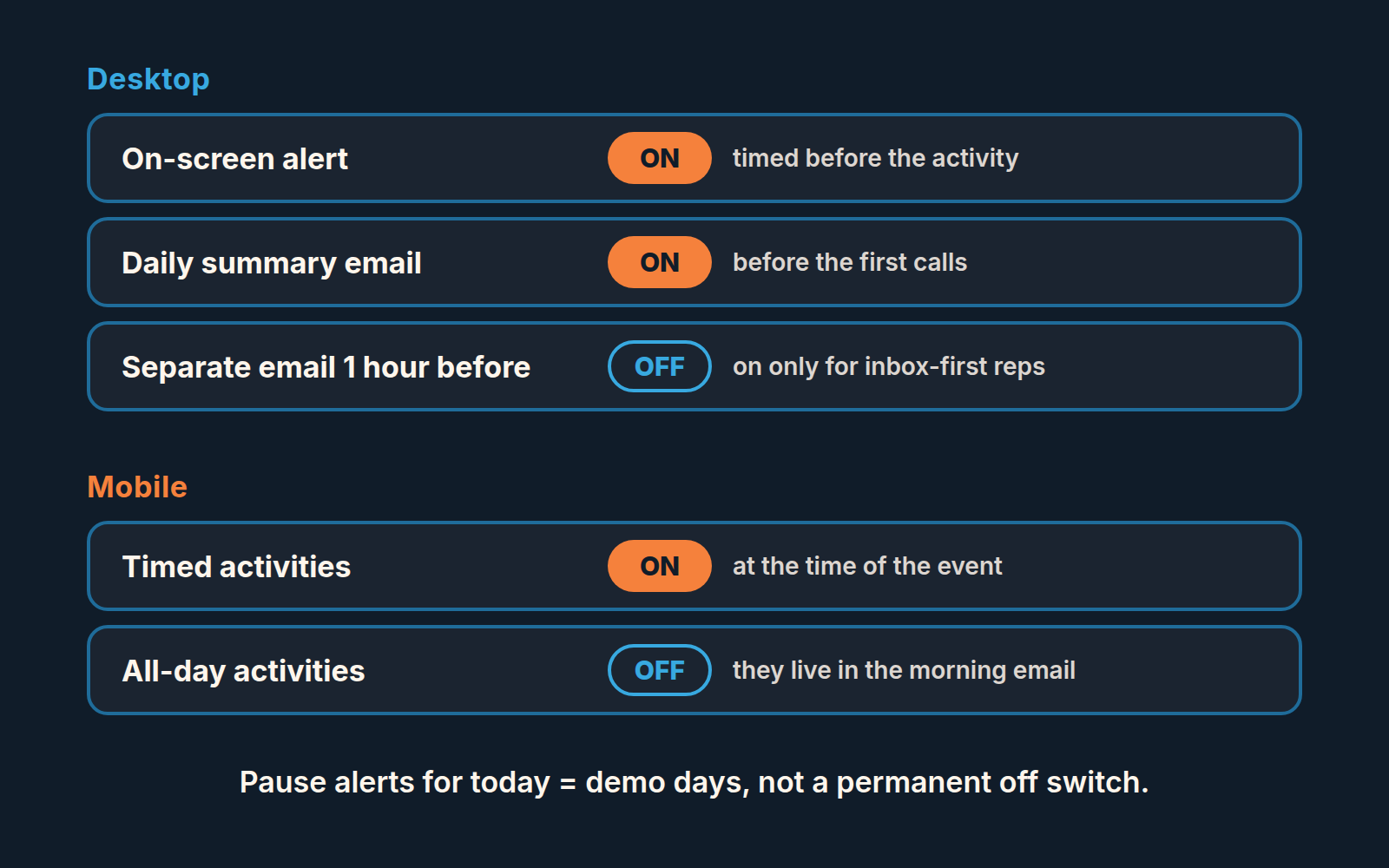
Say it at the next team meeting in one sentence: the alert is for the next call, the morning email is for the day, nothing else needs to buzz. That removes the question of whether a reminder was “important enough” to read. There is one of each, and both are.
A short note on what this does not cover. Pipedrive’s notification settings also carry email tracking alerts, mentions, comments and the rest of the panel. Those are separate switches and they do not go through the activity reminder policy. If the panel is already noisy before you touch activity reminders, that noise is the first thing to cut, because reps do not mute one category at a time. They mute the lightbulb.
Mobile versus desktop: which one should interrupt
A desktop alert is easy to ignore in a good way. It appears in the corner of the browser, the rep glances at it, and either acts or carries on. A phone notification is a different thing. It buzzes during lunch, it lights up in a client’s office, and it competes with every other app on the device. So the phone should carry only what truly needs a rep’s attention when they are away from the desk.
Pipedrive’s mobile app splits activity notifications into two switches, per the mobile app reminders article: one for scheduled (timed) activities, with timing from “at the time of the event” up to “2 days before”, and one for all-day activities, which fire at 09:00 on the day, one day before or two days before. On iOS the setting lives under More, then Preferences, then Notifications; on Android it is under the “…” menu, then Preferences. The device’s own notification permissions for Pipedrive have to be on first (on an iPhone: Settings > Notifications > Pipedrive), which is the the step people miss and then report as “mobile reminders don’t work”.
The split maps neatly onto a policy. Timed activities are calls and meetings: a specific person expects you at a specific minute, and a missed one costs trust. Those get a mobile notification, at the time of the event or shortly before. All-day activities are the “send the proposal”, “chase the invoice” kind of task. They belong in the morning summary email and in the activities list, not on the lock screen at 09:00 next to the weather. Switch mobile off for them.
Field reps and founders who sell between other work flip this: they rarely have the desktop open, so the phone becomes the main channel and the desktop alert matters less. Even so the rule stays the same. One channel interrupts. The other one informs.
The manager’s sweep for overdue activities
Every reminder in Pipedrive goes to the rep. Nothing in the reminder settings tells a manager that a rep has been dismissing them for a week. That is why the second half of this setup is a sweep the manager runs on a fixed day, and Monday morning is the one we use, before the week’s calls start and after Friday’s optimism has worn off. A manager who drops a batch of follow-ups on the team without spreading the due dates will see this sweep light up the following Monday.
Pipedrive’s pipeline view already color-codes every deal by its next activity, per the Knowledge Base article on prioritizing deals in the pipeline view: a red arrow means an overdue activity, green means one is due today, a yellow warning sign means no activities are scheduled, and grey means the next activity is in the future. Deals are sorted by next activity date, so the red ones sit at the top of each stage. The sweep does not need a report. It needs a routine:
- Open the pipeline and scan each stage for red arrows and yellow warning signs. A single overdue activity on a deal is a rep who had a busy week. Several overdue activities on one deal is a deal nobody believes in anymore, and that is a stalled-or-dead question, not a reminder question.
- Open the activities list, use “Select period” to show dates that are already past, then pick one rep at a time under “Owners” in the filter drop-down. The count per rep is the number you say out loud in the one-on-one. Not as an accusation; as the first agenda item.
- For each overdue activity older than a week, the rep either does it today, reschedules it with a real date, or marks it done and schedules the next one. “I’ll get to it” is not one of the options.
- Note which reps have overdue activities piling up and reminders switched off. That combination is not a settings problem, and switching the reminders back on will not fix it. Read our piece on CRM adoption before the next one-on-one.
For a small team the sweep fits in the gap before the first call. If it regularly takes longer, the problem is upstream: too many activities are being created to pad the activity report, or deals are staying open long past their real end. The Pipedrive audit covers both.
When reminders are not the problem
Here is the case that reminder settings cannot touch. A deal moved to the proposal stage a few weeks ago. The rep sent the proposal, marked the activity done, and did not schedule the next one. Nothing is overdue. Nothing fires. In the pipeline view the deal carries a yellow warning sign for “no activities”, which is a quieter marker than a red overdue arrow and gets skipped on a quick scan. The Overlooked deals tab in the Pulse feed is a second place that deal can surface, with blind spots of its own. The reminder system has worked exactly as designed, and the deal is dying anyway.
This is the most common way a deal goes stale in small teams, and it is why the weekly sweep has to include deals with no activity, not only deals with overdue ones. The fix is upstream of notifications: a rule that every open deal carries a scheduled next activity, enforced when an activity is marked done rather than by the manager on Monday. We have argued that case in full in the post on next activity discipline in Pipedrive, and the companion piece on rotting deals covers how to set a stage-level rotting limit so a deal with no movement changes colour by itself.
The reason to keep those two things separate in your head is that they fail differently. A missed reminder is a rep problem: they saw it, or should have, and did not act. A deal with no next activity is a process problem: nothing was ever going to remind anyone, because the thing that triggers reminders was never created. Reminder settings fix the first. Only a next-step rule fixes the second. Neither catches a contact with no activity at all, which is what a red-flag list of people you have not touched is for.
Automating the reminder is fine; automating the judgement behind it is where it goes wrong, as we cover in what not to automate in your sales process.
One alert, one email, one Monday
Today: post the settings path in the team chat and collect the screenshots. Next Monday: open the pipeline before the first call, start with the red arrows, and don’t skip the yellow warning signs, because those are the deals no reminder will ever catch. The settings are quick. The habit of not muting them is the thing you are actually building.


