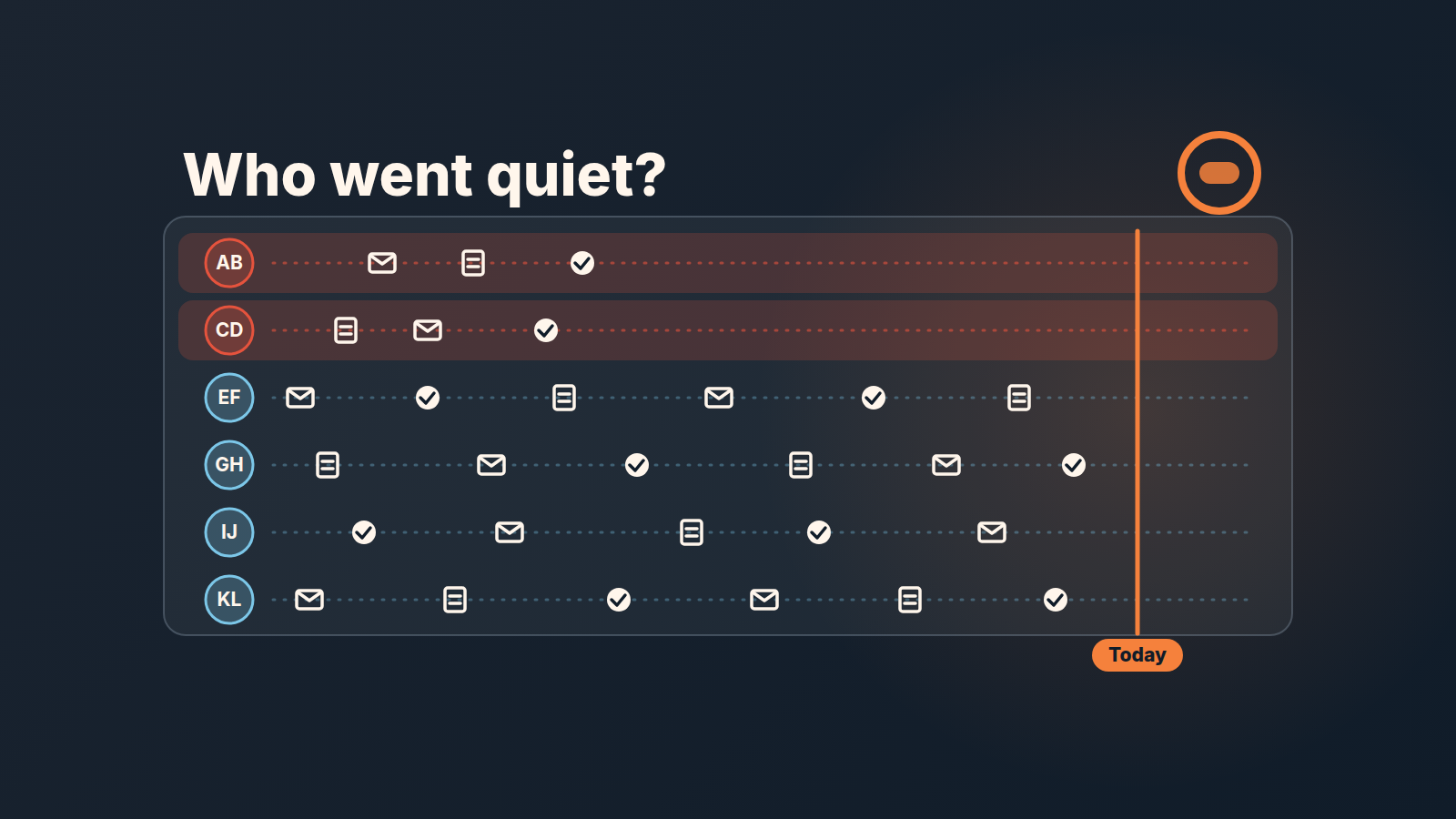
Pipedrive’s contacts timeline turns red any contact who has not been followed up with inside a frequency you set, and counts the overdue ones at the top of the screen (Pipedrive: Contacts timeline). That makes it a ready-made list for a weekly check, and the only screen in Pipedrive where “last touch” is shown per person rather than per deal. Give each group of contacts its own saved filter and its own frequency, and treat each red row as a question to answer, not as a mailing list.
Tuesday: who have we not called?
A made-up scene, so the numbers can be exact. Hanne Vestergaard runs a six-person sales team at a company that services fire-safety equipment for independent shops and small workshops: extinguishers, alarms, the yearly inspection. Marco Ferraro handles renewals for the smaller accounts. Most of their revenue is repeat business, and most of it is lost quietly, when a shop owner lets the inspection lapse and nobody notices until a competitor’s sticker is on the door.
On Tuesday, October 6, 2026, Hanne opens Contacts > Contacts timeline, picks the person icon, and applies the saved filter “Customers: inspection due Q4”. She clicks the pencil icon by the follow-up frequency, switches it on and drags the slider to Quarterly. The counter at the top says 23.
Twenty-three people on the renewal list with no touch logged in a quarter. They sit at the top of the list, in red. The first one is a hardware store owner, one of Marco’s. Last item on his row: a note from July, “will call back after holidays”. Nobody did.
Hanne does not send 23 emails. She writes down three questions and takes them to the Wednesday standup: which of these 23 are due for inspection before December, which are Marco’s, and which ones have a phone number but no email. The answers decide who gets a call, who gets a group email, and who gets removed from the filter because they are not a renewal at all.
What the timeline shows and what stays hidden
The timeline shows every person or organization you can see, with their open deals, email conversations, notes and completed activities on one page (Pipedrive: Contacts timeline). Four filters narrow it: a date range, a custom filter, the timeline items you want drawn (deals, sent emails, notes, activity types) and the follow-up frequency. Once the frequency is on, the circular icon above the list shows how many contacts need a follow-up (Pipedrive: Timeline view: follow-up frequency). It is available on Growth and higher plans.
Two things stay hidden, and both matter for a manager reading the counter.
The first is visibility. Pipedrive says plainly that the contacts visible to you depend on your visibility group and permission set settings. So the counter is not “the team’s overdue contacts”. It is the overdue contacts among the people this user is allowed to see. A rep with a narrow visibility group will see a smaller red number than Hanne, and both numbers are correct. If you want one number for the team, the person reading the screen has to be someone who sees all the contacts.
The second is what counts as a touch. The help article only says that a contact “who hasn’t been followed up with within that timeframe” appears in red. Pipedrive’s own blog adds a little more: contacts you haven’t reached within the period, “or those without a completed activity”, are highlighted in red and moved to the top of the list, and marking a pending activity as done gives that contact a lower priority (Pipedrive blog: Contacts timeline). So the completed activity is what the screen trusts. A call made from a rep’s mobile that never became an activity or a note is not on the row, and the contact stays red. That is not a flaw in the screen. It’s the oldest rule of CRM work: if it is not logged, it did not happen, and this screen is where that rule becomes visible per person.
One more boundary. The timeline is about people. A customer who still answers the phone but has stopped ordering looks fine here, because the calls are touches. Finding that customer is an account-level job, and we wrote it up separately in the inactive-customers filter, including why recent calls can hide a lapsed buyer. The two checks complement each other rather than overlap.
Follow-up frequency: one setting per filter
The slider does not take an arbitrary number of days. Pipedrive’s help describes it as setting “how often the contacts displayed in that list should be contacted – from weekly to annually” (Pipedrive: Timeline view: follow-up frequency), and the blog’s examples use steps like Weekly and Quarterly. The more useful detail is in the blog: the option “is specific to each filter”, so different groups of contacts can carry different frequencies, and it also works per user (Pipedrive blog: Contacts timeline).
That settles how to use it. One frequency for everyone is wrong for almost any team, because a prospect who went silent after a proposal and a customer between yearly inspections do not deserve the same red. So build a saved filter per group, pick a step once for each, and from then on you only switch filters.
Which step? Customers with an open deal should go red sooner than your pipeline review rhythm would let them slip; if you review weekly, a contact nobody has touched for a month is already a stalled-deal question rather than a timeline question. Customers between purchases get a step that fits the gap they usually keep between orders, and the renewal pipeline is where the contract date itself lives, because the timeline only knows about people. Prospects after a proposal get whatever follow-up your team promised in the proposal email. Everyone else, the contacts you keep warm rather than sell to this month, can sit on Quarterly or longer.
We would resist the urge to set Weekly for everyone to “catch more”. A screen where half the rows are red is a screen nobody opens twice. The counter should be small enough that each red row gets a look.
In Hanne’s case the renewal filter got Quarterly because an inspection sticker is good for a year and her team’s own rule is that nobody on the renewal list goes a full quarter without a conversation before it expires. The slider step is a team decision written into a screen. That is what makes it useful: when the counter says 23, every one of those 23 broke a rule the team agreed on, and the conversation at standup is about the rule, not about whether red is fair.
A ten-minute weekly pass
Pick one morning and one group. The pass below is for a manager who sees all contacts; a rep can run the same pass on their own book.
- Open Contacts > Contacts timeline and choose the person icon. Organizations have their own view on the same screen, but follow-ups are made to people.
- Apply the saved filter for the group you are reviewing. If the filter does not exist yet, build it once and share it, so the rep and the manager look at the same list; the shared filters with saved columns piece covers why the sharing part matters.
- The first time only: click the pencil icon by follow-up frequency, switch it on and pick the group’s step. After that the filter keeps it.
- Read the counter. Write it down. Next week’s number is the only benchmark that matters here.
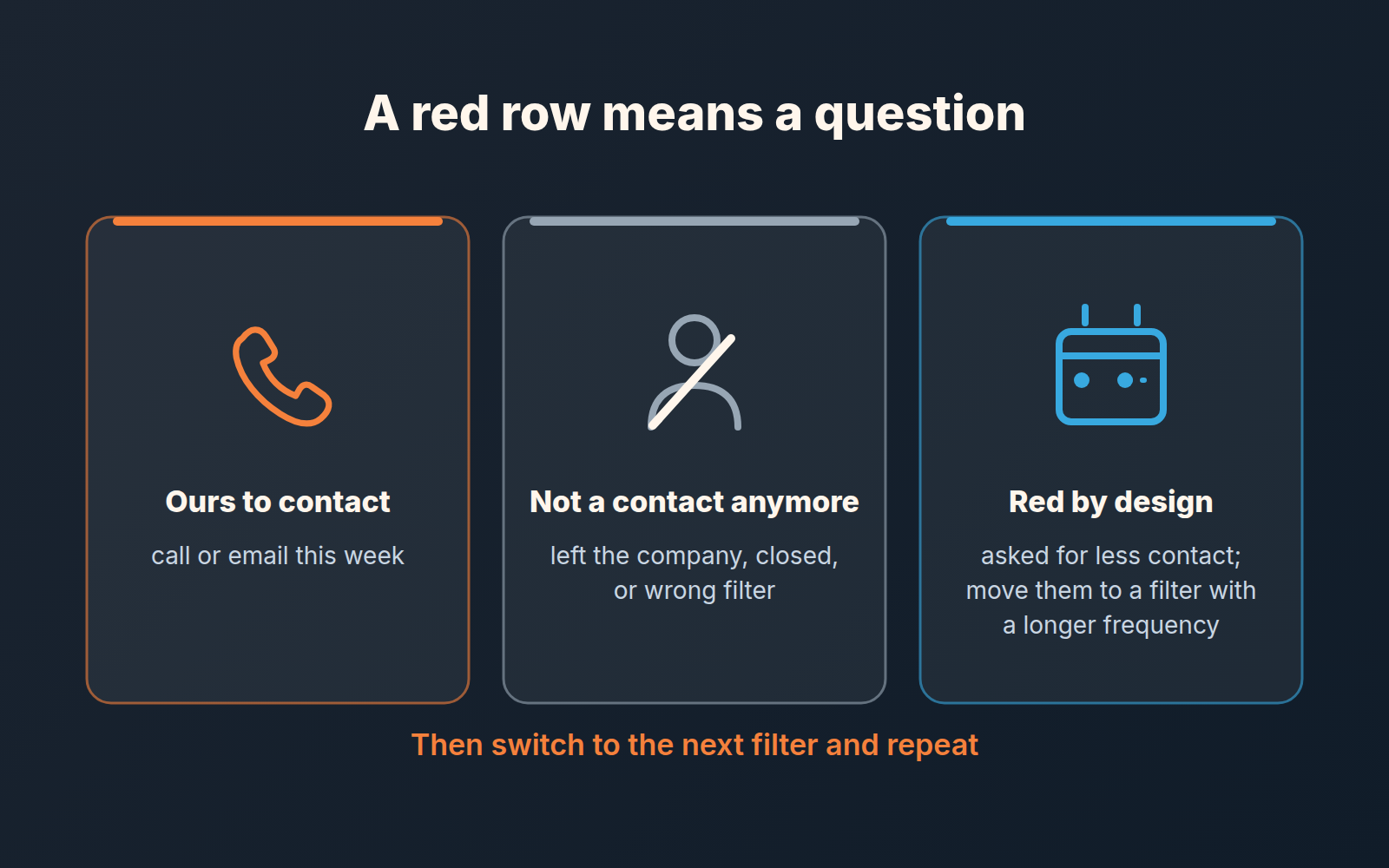
- Open the red rows one by one and look at the last item on each. Sort the person into one of three piles: ours to contact this week, not a contact anymore (left the company, business closed, wrong filter), or red by design (the customer asked for less contact, and the filter should say so).
- Switch to the next group’s filter and repeat.
The sorting in step five is the the actual work, and it is why the counter should not become a target. A red contact with an open deal is usually a deal problem and belongs in the stalled-versus-dead conversation, not in a mailing: stalled deals and dead deals need different treatment, and the timeline cannot tell them apart. A red contact with no open deal and no next step is the one this screen was built for. A red contact that turns out to be the receptionist of a customer whose owner you spoke to last week is a filter problem, and fixing the filter is a legitimate outcome of the pass.
Where do activity reminders fit? They cover the other half. A reminder fires for an activity someone scheduled; the timeline shows people for whom nobody scheduled anything. If the team’s reminders are tuned so that reps still read them, as described in the activity reminders setup, the weekly pass gets shorter because fewer contacts fall through to red in the first place.
Group email: the two checks before you send
The timeline lets you select contact people and click “Send group email”, provided email sync is set up first (Pipedrive: Contacts timeline). After a pass that leaves you with a pile of “ours to contact”, that button is tempting. Two checks first.
Check one is the one Pipedrive enforces for you, but late. If any selected person has no linked email, you get a warning and the message does not go out. Better to find those people before you select. In Hanne’s 23 there were four people with a phone number and no email; in a trade like hers that is normal, half the shop owners run their business from a mobile. Those four are calls, and they are the first calls, because a contact with no email is a contact who will never get an automated touch of any kind.
Check two is ours, not Pipedrive’s: everyone in the selection should be red for the same reason. A group email reads as a group email. Sending “we noticed it has been a while” to a hardware store whose inspection is due in November and to a customer who told Marco in July to stop calling is the fastest way to teach the team that the red counter produces embarrassment. The pile from step five already does this sorting. Only the “ours to contact” pile is a candidate for a group email, and within it, only the people whose last item on the row is the same kind of silence.
When both checks pass, a short group email from the timeline is a fine way to restart ten conversations in five minutes. When they do not, the screen still did it’s job: it told you who to call.
We build SalesBond, a sales management layer on top of the CRM a team already uses; we started with Pipedrive. Our Customer Health looks at the account side. It treats each won deal as a purchase, takes the median interval between a customer’s purchases as their buying cycle, and marks the customer on track, overdue or leaving depending on how far past that cycle they are. Its recommendations show up in Sales GPS as customer cards, and “Contact” creates a task in the CRM. If you want that account view next to your people view, check your CRM with SalesBond.
The counter will not be zero next Tuesday either. The question to bring to standup is whether the 23 became 15 because the team made calls, or because someone moved the filter to a longer step.