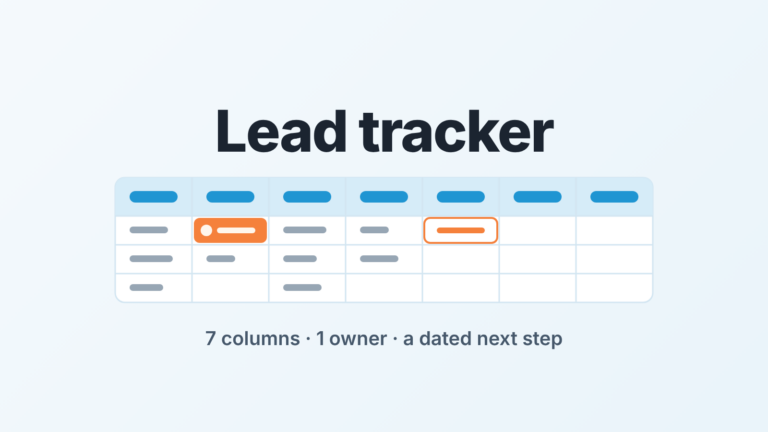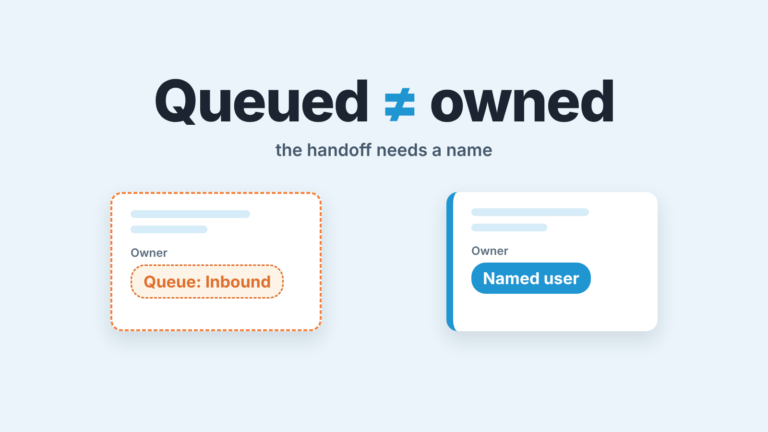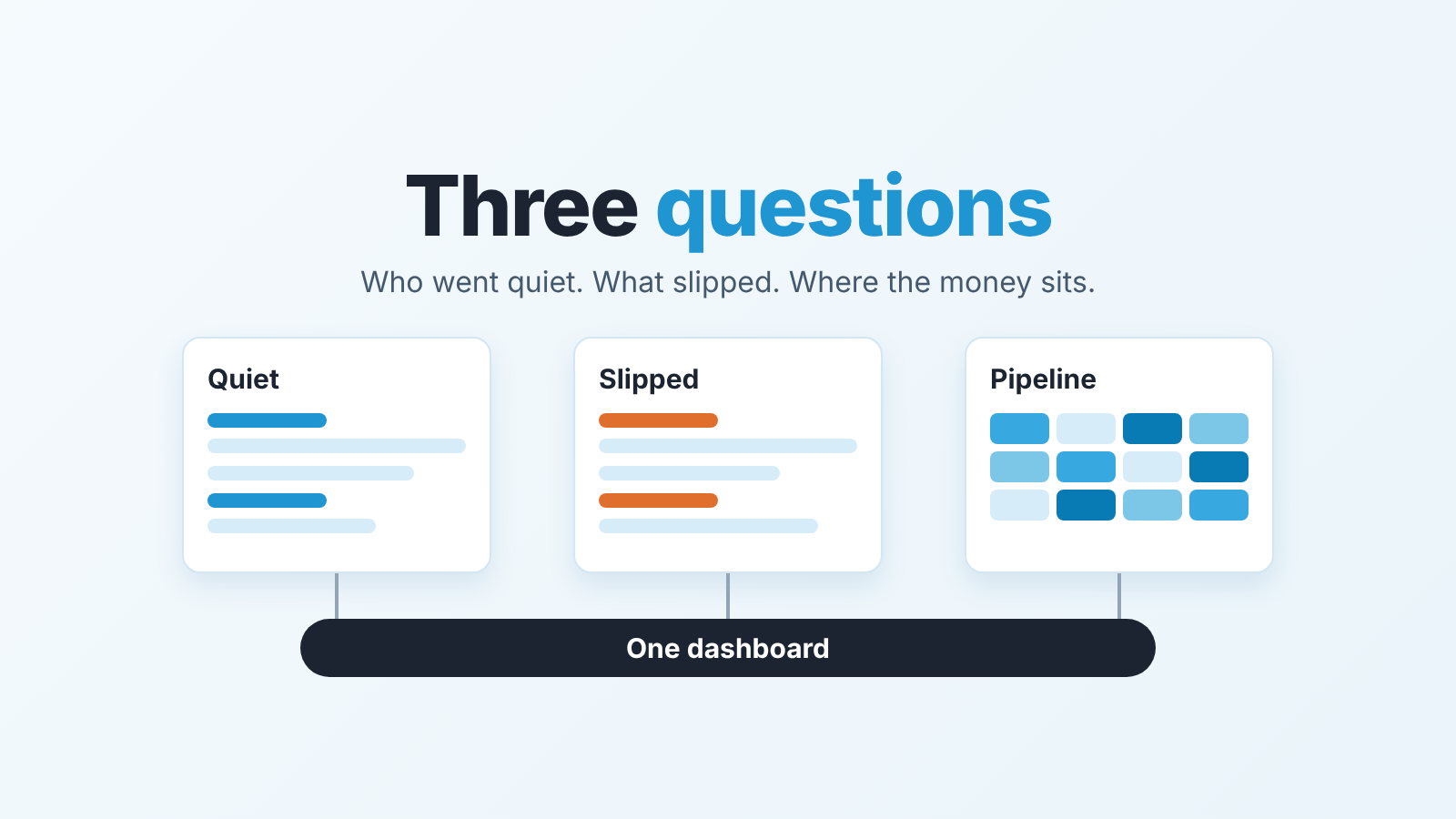
Open three Salesforce reports on Monday: opportunities with no recent activity, opportunities with a close date in the past, and open pipeline by stage and owner. Of the four types of reports in Salesforce, build the first two in summary format and the third as a matrix, then put all three on one dashboard. Salesforce lets you save as many reports as you like. A manager with thirty saved reports reads none of them.
Monday morning, one question per report
Ilse runs a team of nine reps and inherited a Reports folder with forty-one items in it. “Pipeline Q3 v2”, “Pipeline Q3 FINAL”, “Mark’s view”, “Board deck pull”. She opened four of them before her first Monday call, found that two disagreed about the quarter, and spent the call explaining the difference instead of talking about deals.
Her problem was not Salesforce. It was that none of the forty-one reports had been built to answer a question. They had been built to show data which is a different thing. Data is what you get when you drag Amount onto a report. An answer is what you get when you ask “who went quiet?” first and then build the narrowest report that settles it.
We hold a fairly firm position on this: a report without a question behind it is decoration. It takes a slot in the folder, it takes a glance on Monday, and it changes nothing a rep does on Tuesday.
So the order matters. Question first. Then the format that answers that question with the least reading. Then, and only then, the report. On Monday a sales manager has three questions worth the time: who has gone quiet, what has already slipped, and where the open money sits by stage and by person. Everything below is those three questions, in that order.
Types of Salesforce reports: which format answers which question
Salesforce has four report formats: tabular, summary, matrix and joined (Salesforce: report formats). Three of them are what a manager needs; the fourth is for a different job. Trailhead’s definitions of the first three are short, so we quote them and add the question each one is good at (Trailhead: Format Your Report).
| Format | What Salesforce says it is | The manager question it answers | Our Monday use |
|---|---|---|---|
| Tabular | “the simplest and fastest way to look at your data”: a flat list, the default | “Give me the list.” | A quick export, or a one-off check. Not a Monday report. |
| Summary | “similar to tabular reports, but also allow you to group rows of data” | “Who? Sorted by whom?” | Quiet deals grouped by owner; slipped deals grouped by owner. |
| Matrix | “allow you to group records both by row and by column” | “How much, where, and for whom, in one glance?” | Open pipeline: stages down, owners across, Amount summed. |
| Joined | Combines blocks from different report types in one view | “How do two unrelated things compare?” | Not for Monday. Trailhead’s dashboard unit says you can’t choose a joined report as a widget source (Trailhead: Lightning Dashboard Builder). |
Trailhead observes that most people’s reports end up in summary format, and that matrix is the most time-consuming to set up. We agree with both, and we still think the matrix is worth the twenty minutes, because it is the only one of the four that puts stage and owner in the same picture without scrolling.
One more thing the table hides. A format is not a report type: the report type (here, Opportunities) decides which records and fields you can use, and the format only decides how they are grouped on the page. In the Lightning report builder you start from the same Opportunities report type and the same filters, then add row groups under GROUP ROWS in the Outline panel (that makes it a summary) and a column group under GROUP COLUMNS (that makes it a matrix). Turning off Detail Rows hides the individual opportunities and leaves the subtotals. That is the whole difference.
Three reports worth saving
Every report here uses the Opportunities report type. Filters live on the Filters tab of the builder; Salesforce calls the two you always see, Show Me and the date range, standard filters, and everything you add on a field a field filter (Trailhead: Filter Your Report).
-
Quiet deals: opportunities with no recent activity. Summary format. Show Me set to the team’s opportunities, Close Date range wide enough to include everything open (we use All Time and filter on stage instead, so a deal with a wrong close date doesn’t vanish). Add a field filter on Last Activity with a cutoff two weeks back. Group rows by Opportunity Owner. Turn Detail Rows back on for this one: the point is the list of names, not a count. Trailhead describes a second way to ask the same question, a cross filter of Opportunities WITHOUT Activities in a period, and gives “no activity in the past 90 days” as the stale-deal example. Ninety days is a long time to find out someone stopped calling. Use fourteen.
-
Slipped deals: open opportunities with a close date in the past. Summary format. Field filter on Close Date, before today. Then keep only open stages. Our instinct was a Stage “not equal to” Closed Won and Closed Lost; Trailhead warns that “the not equals operator can cause your report to run slowly or time out”, so list your open stages with equals, one filter per stage, and join them with OR in the filter logic. Group rows by Opportunity Owner, then by Stage. Sum Amount. Every row in this report is a date someone chose and then didn’t update, which is a conversation, not a reprimand.
-
Open pipeline by stage and owner. Matrix format. Same open-stage filters. In the Outline panel, Stage under GROUP ROWS, Opportunity Owner under GROUP COLUMNS. On the Amount column, use the dropdown arrow, then Summarize, then Sum. Detail Rows off. Save it, then add a chart if you want one on the dashboard; a stacked bar by stage is the one Trailhead builds for stuck opportunities and it reads well on a phone.
Save all three in a private folder first, run them for a week, and only then move them to a shared one. That is also Trailhead’s order for the stuck-opportunities report: review the thresholds with sales management, then share (Trailhead: Identify Stuck Sales Deals). A report that is wrong in private costs an hour. A report that is wrong in the the shared folder costs a quarter of arguments.
Tick the Locked checkbox on the filters you don’t want reps changing on the run page. Lock the stage list and the date cutoff. Don’t lock Show Me, so a rep can switch to “my opportunities” and see their own slice before the meeting. Once the three are settled, a scheduled report subscription puts them in your inbox before the Monday call.
If you already run a 15-minute weekly pipeline review, these three reports are its agenda in Salesforce form: report 1 is the “who went quiet” pass, report 2 is the “what slipped” pass, report 3 is the context for both.
When Last Activity lies
Report 1 has a flaw, and it is not a Salesforce flaw. Last Activity is filled from activity that was actually logged on the record (our Salesforce opportunity audit covers exactly what counts toward it). Blank means no record. It does not mean no work.
We have watched this play out in the same way in every team. The rep who logs every call looks noisy on the report and gets left alone. The rep who runs deals from thier inbox and a notebook shows up as “quiet” on nine opportunities, two of which are at the proposal stage and closing fine. The manager who takes the report at face value spends Monday chasing the wrong person and the rep learns that the report is a tool for getting told off. Logging gets worse, not better.
So the no-activity report is only as good as the logging discipline behind it, and the first few weeks of running it are about the discipline, not the deals. When a rep says “that one’s not quiet, I spoke to them Thursday”, the right answer is “great, log it, and then it won’t be on the list”. After three Mondays the list is mostly true. Before that it is a logging audit wearing a pipeline report’s clothes, which is fine, as long as you know that’s what you are reading. Our note on CRM data quality metrics has the three fields we would check first.
There is a second lens that doesn’t depend on logging at all: how long the deal has sat in its stage. Trailhead’s stuck-deals unit builds its report on a Stage Duration field with a separate limit for each stage; the same opportunity audit walks through Trailhead’s example limits and how to set your own with the people who run the stages. Check that Stage Duration appears in your Opportunities report type before you build on it.
Use both. Last Activity catches the deal nobody touched. Stage Duration catches the deal everybody touched and nobody moved. Stage Duration has a longer view too: the Opportunity History report on how long deals sit in each stage.
One dashboard instead of thirty reports
Here is where the forty-one reports go to die. A Lightning dashboard shows “multiple reports side-by-side using dashboard widgets on a single dashboard page layout”, and each data widget pulls from one source report (Trailhead: Lightning Dashboard Builder). Three reports, three widgets, one page. Open it on Monday, and the three questions are answered in the order you read.
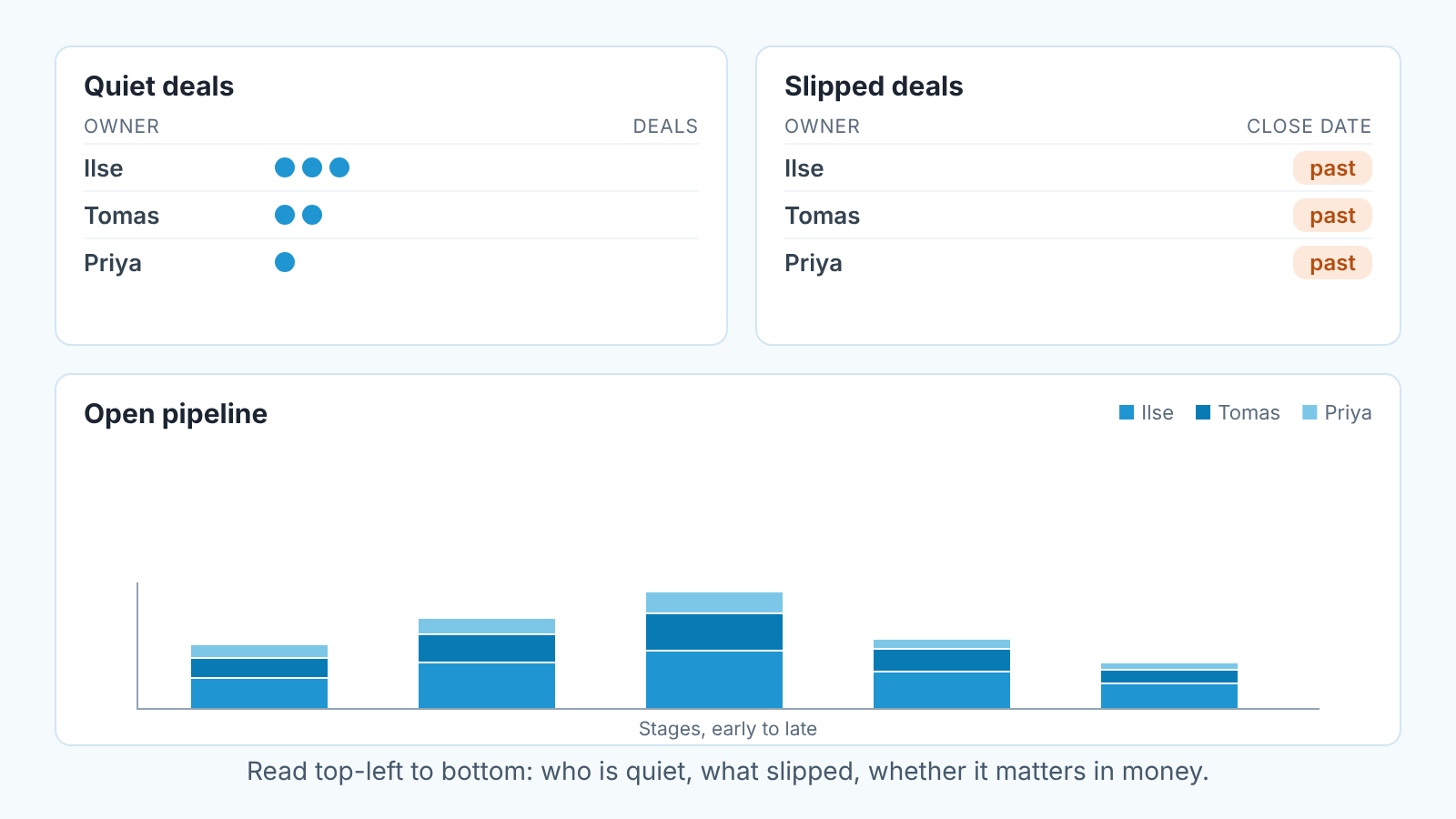
We put the quiet-deals table top-left, because it is the one with names and the one that produces calls. Slipped deals top-right. The pipeline matrix across the bottom as a stacked bar, because by the time your eye gets there you already know who is quiet and what moved, and the bar tells you whether it matters in money.
Add it with + Widget, pick the source report, and resize; the builder lets you change a widget’s source report later with the edit pencil, so the dashboard outlives any single report. Add one dashboard filter with + Filter on Opportunity Owner so you can narrow all three widgets to one rep during a one-to-one without rebuilding anything. Then open the dashboard properties and set View Dashboard As to The dashboard viewer. That makes it what Salesforce calls a dynamic dashboard: “each user sees the data they have access to without needing to create separate dashboards for each user”. One page for you and for every rep, and the rep sees their own quiet deals before you do, which is the point. Trailhead’s dashboard unit adds two limits: a dynamic dashboard can’t be saved in a private folder, and joined reports aren’t on the list of widget sources. When the three reports are saved, the next step is a dashboard with six components, one question each.
The six-number version of this page, with the numbers a manager should watch regardless of CRM, is in the sales manager dashboard: six numbers. Here we are deliberately narrower: three reports, Monday, done.
Where reports stop
The dashboard tells you who is quiet, what slipped and where the money sits. It cannot tell you why, and it cannot tell you what happens next. Opportunity reports also start only after a lead is converted, and the lead side is in our audit of Salesforce lead assignment rules.
Take report 2. It shows a close date in the past. It does not show that this is the third time that close date has moved, or that the rep moved it every Friday for a month. The old dates are there, though. Salesforce writes every Close Date change to Opportunity History on its own (it is what you see in the Stage History related list), with the previous date next to the new one, so you don’t need Field History Tracking for this (Salesforce Object Reference: OpportunityHistory). A report on Opportunity History can count the pushes per deal. Our Pipedrive article on pushed close dates walks through counting them there, and the logic transfers even if the clicks don’t. Readers still on Pipedrive will also find the Salesforce-free version of the three reports in Pipedrive reports for pipeline health.
Take report 1 again. “No activity” is binary. A logged call with the note “left voicemail” and a logged call that produced a signed order form both reset Last Activity. A filter on Next Step will find the opportunities where it is blank or says “follow up” and nothing else. Say eleven come back. The filter cannot tell you which of the eleven has a real step behind the vague words, so you still open those deals by hand, and on a Monday you will open five, not eleven.
That hand-reading is the part we built a product for. We build SalesBond, a sales management layer on top of the CRM a team already uses, Salesforce included. Deal Health checks every open opportunity against more than 20 rules, including no recent activity, no next step and a close date already behind, and shows the violations on one Sales Dashboard, so the Monday picture does not depend on three reports being rebuilt and read in the right order. Check your CRM with SalesBond if you want that picture without the folder of forty-one.
Either way keep the three reports. A manager who can rebuild them in a spare org from memory understands their pipeline. Ilse deleted thirty-eight of hers on a Friday afternoon. Nobody asked where they went.