The five Pipedrive reports worth building for pipeline health are deal age by stage, deals that have stopped moving, close dates that have already slipped, pipeline value per rep, and lost reasons. Put them on one dashboard, open it once on Monday morning, and ask one question per report. That is the whole system. Everything below is how to set each one up in Pipedrive Insights and what number on the screen means “act today”.
Once the dashboard exists, share the dashboard with viewers, not editors, so the layout stays the way you built it.
What Pipedrive Insights reports do and where they stop
Insights is Pipedrive’s built-in reporting. You create a report from Insights > “+ Create” > Report, and the deal reports on offer are Deal performance, Deal conversion, Deal duration, Deal progress and Deal products, next to Activities performance and the revenue forecasts (Pipedrive Help: report types). The same Help page notes that how many reports you can create depends on your plan’s usage limits, and which types you see depends on your plan and add-ons.
Every report has the same three knobs: view by (the X-axis), measure by (the Y-axis) and segment by (the colour split inside each bar), plus filters on deal fields. Once you know those knobs a new report takes a few minutes, not an afternoon. Reports only read what reps have recorded, which is the reading side of the CRM.
Where it stops: Insights tells you what happened to deals. It does not tell you why a rep let one sit, and it will not warn you that a number crossed a line you care about. You supply the line. That is what the thresholds in each report below are for.
There is one more limit. Insights shows each person only what their access allows, so your numbers and a rep’s can differ on the very same report.
Most pages ranking for “pipedrive reports” are a tour of what exists. Coupler.io’s dashboard page calls deal age and stage duration the most actionable tile (Coupler.io), and we agree. But a tile only earns that word if you know which filters to set and when to pick up the phone.
Report 1: how old deals are in each stage
This is the Deal duration report, and it is the one most teams skip because the default view answers a different question than the one a manager asks.
By default, Deal duration shows “the average time it takes a deal to make it through your pipeline”, measured in days, viewed by Stage entered, with three filters already set: Deal created > is > this year, Pipeline > is > your default pipeline, and Status > is any of > lost or won (Pipedrive Help: deal duration). That is a sales-cycle report about finished deals. Useful for forecasting. Useless for Monday.
Make two copies. Leave the first as is: it is your benchmark, the average days a won or lost deal spent in each stage. In the second, change the Status filter to include open deals (Help notes you “can also add open deals to your filters”). Now you have live deals against the historical average, stage by stage.
The threshold is already on the screen. Any open deal sitting in a stage longer than the won-deal average for that same stage is the one to ask about. Not the longest deal in the pipeline, which is often a legitimate enterprise cycle, but the deal that has outlived every deal that ever closed from that stage.
Two details from Help matter before you trust the numbers. If a deal was marked won before reaching the last stage, “all stages are considered” in the calculation, so a fast-tracked win does not shorten the later stages artificially. And deleted stages are not included, so a pipeline you reorganised last quarter will show a cleaner history than you remember.
If you have not reviewed your stages in a while, run the Pipedrive audit first; a duration report on a pipeline with eleven stages and two in use tells you nothing.
Report 2: deals nobody has touched
Rotting is Pipedrive’s flag for a deal that has gone quiet for longer than you allow in its stage, and it lives in the pipeline view, not in Insights.
You switch it on per stage from the pipeline view: click the pencil icon, enable the toggle, and set the number of inactive days after which a deal in that stage counts as rotten (Pipedrive Help: the rotting feature). Rotten deals turn red in the pipeline view.
The part people get wrong is what “inactive” means. Rotting counts from the deal’s last updated time, not from days in stage. Marking an activity done, adding a note or file, sending or receiving a linked email, editing a field: each of these resets the clock. And a scheduled activity does not protect the deal. Help is blunt about it: the feature “disregards the next activity date, so any deal with an activity scheduled far into the future can still go rotten.”
So a rep can park a call three weeks out and the deal still goes red. Good. A follow-up booked for the 24th is not work being done on a deal; it is a promise to do work later.
Set the rotting days per stage to roughly the won-deal average from Report 1, then ask on Monday: which tiles are red, and what is the rep’s plan for each one this week? The full setup and its blind spots are in rotting deals in Pipedrive, and the habit that keeps tiles from going red is in next activity on every deal.
Report 3: close dates that have already slipped
Insights does not keep a count of how many times a rep moved the expected close date. What it can show is the gap between the date the rep promised and today.
Build a Deal performance report, filter it to open deals, and narrow Expected close date to dates that are already behind you. Then set the chart to show deal value per rep. That column is the money each rep told you would be in by now and is not.
The threshold here is zero. A deal whose expected close date is in the past and is still open has already slipped; it does not need to slip twice to earn a conversation. When you review it, change the date to one the rep actually believes, or move the deal to lost. Leaving yesterday’s date on an open deal poisons the forecast for everyone.
For the longer pattern, the one where the same deal moves a month at a time for a quarter, see pushed close dates in Pipedrive.
Report 4: pipeline value per rep
This report answers one thing: how much open deal value each rep is carrying right now. Build it as a Deal performance report on open deals only, with the chart set to show deal value per rep.
Insights gives you the numerator. The denominator, each rep’s target for the period, lives in your plan, not in this report. If you want that target inside Pipedrive, set it up as a goal with monthly periods. Divide the two in your head or on the dashboard note and you have coverage per rep. The threshold is the coverage ratio you have agreed as a team; how to pick one, and why it depends on your win rate, is in pipeline coverage ratio.
Skip “who is lowest” on Monday. Ask “who dropped since last week?” A rep whose open value fell sharply either closed a lot or lost a lot, and both deserve a sentence in the meeting.
Report 5: why deals are lost
This one is documented step by step in Help, so follow it literally: Insights > “+” > Report > Deal > Performance, adjust or remove the predefined date filter, then add a filter for lost reasons (Pipedrive Help: lost reasons). Then set the chart to show deals by lost reason, split by stage.
Splitting by stage is the the part that turns a pie chart into a decision. “Price” as a lost reason in the first stage means you are qualifying badly. “Price” in the last stage means your proposal or your negotiation needs work. Same word, different fix.
The threshold: one reason standing clearly above the rest for the period. If nothing stands out, your lost reasons list is probably too long or too vague, and the fix is the list, not the sales process. We cover how to trim it in Pipedrive lost reasons that actually get used.
If you also want the conversion view, Deal conversion offers two types, Funnel conversion and Win/loss conversion (Pipedrive Help: deal conversion). Win/loss over time next to lost reasons tells you whether the fix you tried last month moved anything.
A Monday routine on one screen
Open any report and click Add to dashboard, and it lands on a dashboard with room for up to 25 reports (Pipedrive Help: Insights dashboards). Multiple dashboards need Premium or higher, but you only need one. Put the four Insights reports there, keep the pipeline view with its red tiles one click away, and open both before the team call. One question each, in this order:
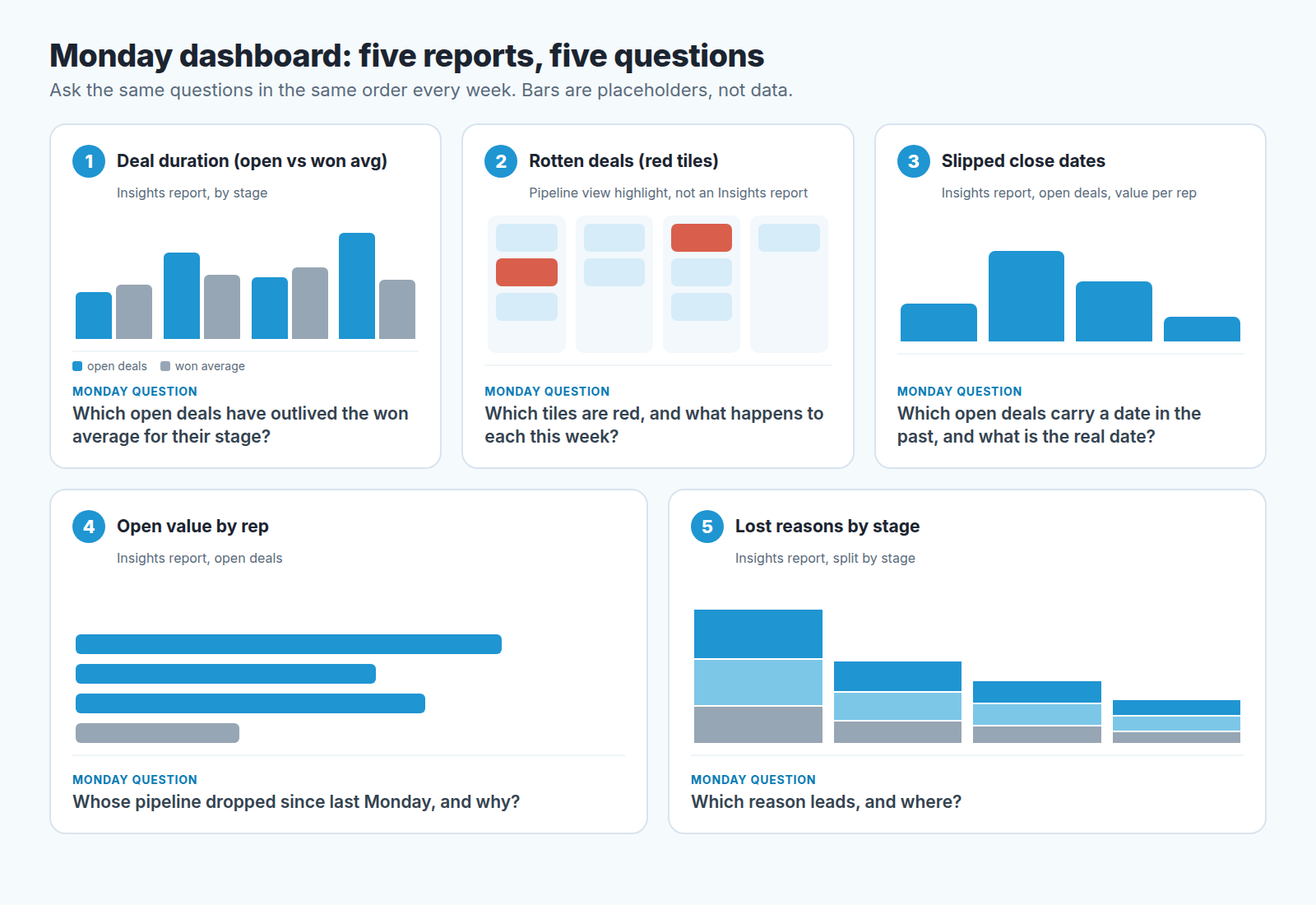
- Deal duration, open vs won: which open deals have outlived the won average for their stage?
- Rotting: which tiles are red, and what happens to each this week?
- Slipped close dates: which open deals carry a date in the past, and what is the real date?
- Open value per rep: whose pipeline dropped since last Monday, and why?
- Lost reasons by stage: which reason leads, and where?
Five questions, five minutes before the call. The point is that the same questions get asked every week, so reps start answering them before you ask. Give it a few Mondays and the red tiles start getting handled on Friday afternoon. On Salesforce, the same routine runs on three Salesforce reports for Monday.
If you want the shorter list of what to look at rather than how to build it, six numbers for a sales manager’s dashboard is the companion piece.
What reports cannot see
A report shows a deal that has not been updated in eighteen days. It cannot tell you that the rep had the champion’s reply in thier inbox since Tuesday and has not logged it. It shows “price” as the leading lost reason. It cannot tell you that three of those were really “we never reached the decision maker” and the rep picked the first option in the dropdown.
That is fine. The reports are not there to replace the conversation. They are there to make sure the conversation happens about the right deals, and that it happens this week rather than at quarter end when the forecast is already wrong. Build the five, agree the thresholds out loud with the team, and let the dashboard decide what Monday is about.