

Salesforce Field History Tracking records changes to fields you choose on an object, so a manager can see who changed a close date or an amount and when. Pick the opportunity fields that answer your weekly questions before you need the answer, because history only starts after you turn it on. Nothing is reconstructed backwards.
Why you will want the history after the quarter ends
The question arrives in the first week of the new quarter. “That deal was in commit at 120 in September. Now it’s 40 and closing in December. What happened?” The rep remembers a conversation. The manager remembers a different one. The opportunity record shows the current values and nothing else.
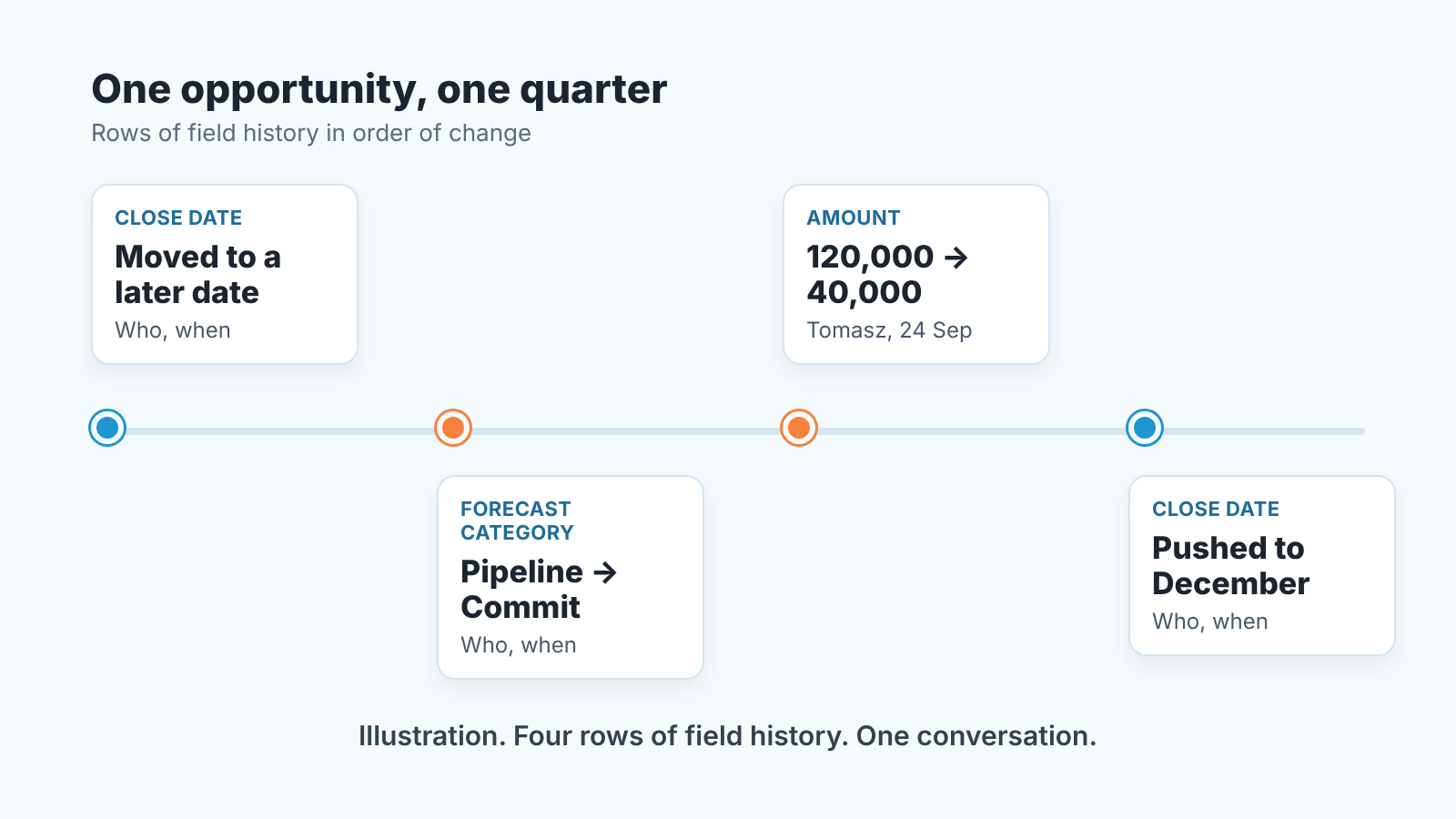
That is the whole case for tracking. Not compliance, not auditing reps. Take an illustrative example: a manager who can open an opportunity and read “Amount changed from 120,000 to 40,000 by Tomasz on 24 Sep” has a fact to start the conversation from. A manager who can’t has two memories and a pipeline report that quietly rewrote itself.
We think the mistake most teams make is turning tracking on when the first dispute happens. By then the quarter you wanted to see is gone, and the list of fields was picked in a hurry by whoever had Setup access. Choose the fields on a quiet Tuesday instead, with the questions you actually ask on Mondays in front of you.
Which opportunity fields deserve tracking (and which do not)
Standard Field History Tracking covers up to 20 fields per object (Trailhead: Field Audit Trail basics). There’s even an AppExchange listing that sells itself as “Remove Salesforce’s 20-Field Limit” (AppExchange listing), so enough admins hit the cap to make a product out of it. Twenty sounds like a lot until a few teams have each asked for “just one more”.
So choose by question, not by field. A field earns a slot if a manager will one day ask “who changed this, and when”. Our list for a sales team’s Opportunity object:
- Close Date. The field reps move most and admit to least.
- Amount. Both directions matter. A drop is a scope problem; a sudden jump before the forecast call is a different problem.
- Stage. Already in Stage History (more on that below), but tracking it here puts every change on one related list with the rest.
- Forecast Category, the field that moves a deal in and out of commit without touching the stage.
- Next Step. Not for the value, for the timestamp. A Next Step last changed six weeks ago is a deal nobody is working.
- Owner. Reassignments explain a surprising share of “why is this deal in my pipeline”.
- Probability, if your team edits it by hand rather than letting the stage set it.
- Your one or two custom fields that gate a stage. If “Decision maker identified” is required to leave Qualification, you want to know when it got ticked. We wrote about those gates in stage exit criteria for Salesforce.
What we leave out: Description and any long text field (you’ll get noise, not an answer), Lead Source (set once, rarely changes), Type, Campaign, anything a formula computes. Formula fields derive from other fields, so track the inputs. And resist the urge to fill every slot. A field you track “just in case” costs you a slot you’ll want later, and turning it off doesn’t give the history back.
Close Date, Amount, Stage, Forecast Category: the four questions
Four fields, four questions a manager actually asks. This is the table we’d tape to the wall.
| Field | The manager’s question | What the history shows |
|---|---|---|
| Close Date | Who pushed this, and how many times? | Each move as a row: old date, new date, who, when. Three pushes in a row is a pattern, not a slip. |
| Amount | Did this shrink after we committed it? | Old value, new value, date. Compare the date with the last forecast call. |
| Stage | Did it skip a stage, or go backwards? | Stage before and after. A jump from Qualification to Negotiation in one edit means the gates weren’t used. |
| Forecast Category | Who moved it into Commit, and when? | Category before and after, with the user. If it changed without a stage change, ask why. |
The Forecast Category row is the one teams forget. Reps learn fast that a manager watches the stage. Fewer learn that the forecast category is a separate field, and that moving a deal from Pipeline to Commit on Thursday night, before Friday’s call, gets its own row only if you track it. If you run Collaborative Forecasts with manager adjustments, this is the field that tells you whether the number you adjusted moved underneath you.
Close Date deserves one more word. Pipedrive teams read the same pattern in the deal’s change history, and we described what to do about it in pushed close dates: the point is not to catch the rep, it is to find the deal that was never going to close this quarter and stop forecasting it. Salesforce gives you the same rows once tracking is on. The reading is identical.
Building a weekly field history report
Turning tracking on is the short part. From Setup, open Object Manager, pick Opportunity, go to Fields & Relationships and click Set History Tracking, then tick the fields. That is the same path Trailhead walks through for Account (Trailhead: enable field history tracking). Add the field history related list to the Opportunity page layout so reps and managers see it on the record itself. That’s the per-deal view.
The per-week view is a report, and it is the one worth building first. Create a new report, pick the field history report type in the Opportunities category, and set it up like this:
- Filter on Edit Date equals Last 7 Days (or Last Week, depending on when you run it).
- Filter on Field equals Close Date, Amount, Stage, Forecast Category. Leave Next Step and Owner for a second report; they make this one noisy.
- Group by Opportunity Owner, then by Opportunity Name.
- Show the old value, the new value, who edited it and the edit date next to each field.
- Save it to the same folder as the three reports you already open on Monday, if you follow the weekly Salesforce reports for a manager.
Read it top to bottom before the pipeline review, not during. What you’re looking for is not volume. A rep with twenty rows is probably updating the CRM which is what you asked for. You’re looking for three shapes: a close date that moved twice in one week, an amount that dropped on a deal in Commit, and a forecast category that changed with no stage change next to it. Each of those is one question to ask in the review, with the row on screen.
One honest limit of the report: it tells you what changed, not why. The why is in the activity timeline and the notes, and if those are empty, the field history is all you have. That’s an argument for the Next Step rule, not against the history. For how long deals sit in each stage, the Salesforce Opportunity History report answers a different question.
Field history versus stage history versus activity
Three things in Salesforce look like “history” and answer different questions.
Opportunity History, the Stage History related list, exists without any setup. Salesforce writes a row every time Stage, Amount, Probability or Close Date changes, and saves the then-current values of those fields, forecast category included (Salesforce: OpportunityHistory object). That is why the opportunity audit for sales managers can read pushed close dates with no configuration at all. If those four fields are your only questions, you may not need Field History Tracking on them.
Here is the catch with forecast category. Stage History carries it along as a snapshot, but it only writes a row when one of the four fields changes. A rep who moves a deal from Pipeline to Commit and touches nothing else leaves no new row there. Field history is what catches that edit on its own, with old value, new value, user and time (Salesforce: OpportunityFieldHistory object). It also covers anything else you pick within the cap: Next Step, Owner, your custom gates.
Activity is the third. Tasks, events, logged calls and emails tell you what the rep did with the customer. Field history tells you what the rep did with the record. A deal with a fresh close date and no activity in three weeks is the combination to worry about, and you only see it by reading both.
Our rule: use Stage History for the four default fields if you’re short on on slots, spend the slots on Forecast Category, Next Step, Owner and your gates, and read activity next to either. Don’t track a field in two places just to be safe. Two sources of the same change invite arguments about which one is right. History is not a backup, though; for that, set up the Data Export Service.
Field History Tracking limits to plan around
Here are the numbers, from Salesforce’s own Trailhead module (Trailhead: Field Audit Trail basics):
- up to 20 tracked fields per object;
- history stays visible in the Salesforce UI for 18 months;
- it remains available through the API for up to 24 months.
Eighteen months is six quarters. A question about last year’s Q3 deal is fine; a question about the deal from two years ago is already gone from the record page.
Field Audit Trail is the step beyond that, and it’s a different tool, not a setting. The same module says it raises the cap to up to 200 fields per object and lets an admin set retention policies, in months or years, so field history can be kept indefinitely. Admins configure it from the Shield Home page (Trailhead: configure Field Audit Trail), so your org has to have it before anyone can switch it on. Regulated industries are the usual buyers. For a sales team that wants to settle “who moved this close date”, the standard 18 months is normally enough, provided tracking was on in time.
Three consequences for a sales team:
- Turn tracking on before the quarter you’ll want to examine, not after. There is no backfill.
- Export the quarter-end snapshot of the weekly report to a spreadsheet if your disputes tend to arrive late. A saved file is cheaper than an add-on.
- Treat the slot list as a decision with an owner. When someone asks to add a field, someone has to say which field comes out, and that someone should be the head of sales, not the admin.
Long text fields and formula fields are also, in our experience, where tracking requests go wrong. Either they can’t be tracked usefully, or they bury the four rows you care about under paragraphs of change.
A disclosure, since this is where a tool fits: we build SalesBond, a sales management layer on top of the CRM a team already uses; we started with Pipedrive, and it works with Pipedrive, HubSpot, Salesforce and Zoho CRM. Deal Health checks every deal against more than 20 rules, scores it and shows the specific violations with what to do about each. It doesn’t replace field history: the report above tells you who moved what, and Deal Health tells you which deals need a look. If you want those checks without building them yourself, check your CRM with SalesBond. If you’d rather build the report, everything above is enough.
Monday morning, report open
Start with the close dates that moved more than once in the week, because one of those deals usually ends the quarter as Closed Lost and it’s better to hear that now. Then the amounts that dropped on deals already in Commit or Best Case: ask what the customer took out and whether the forecast call knew. A forecast category that changed with no stage change gets one question, which gate was met. An owner change gets a quick check that the new owner knows and that the Next Step is theirs now. And if a gate field got ticked on the same day the stage moved, that’s a rep filling in the form to pass the gate, and it belongs in your audit rather then the forecast.
That’s fifteen minutes. Close the report and run the pipeline review on what you found. The history doesn’t manage the pipeline, it just makes it hard to pretend the pipeline managed itself.


