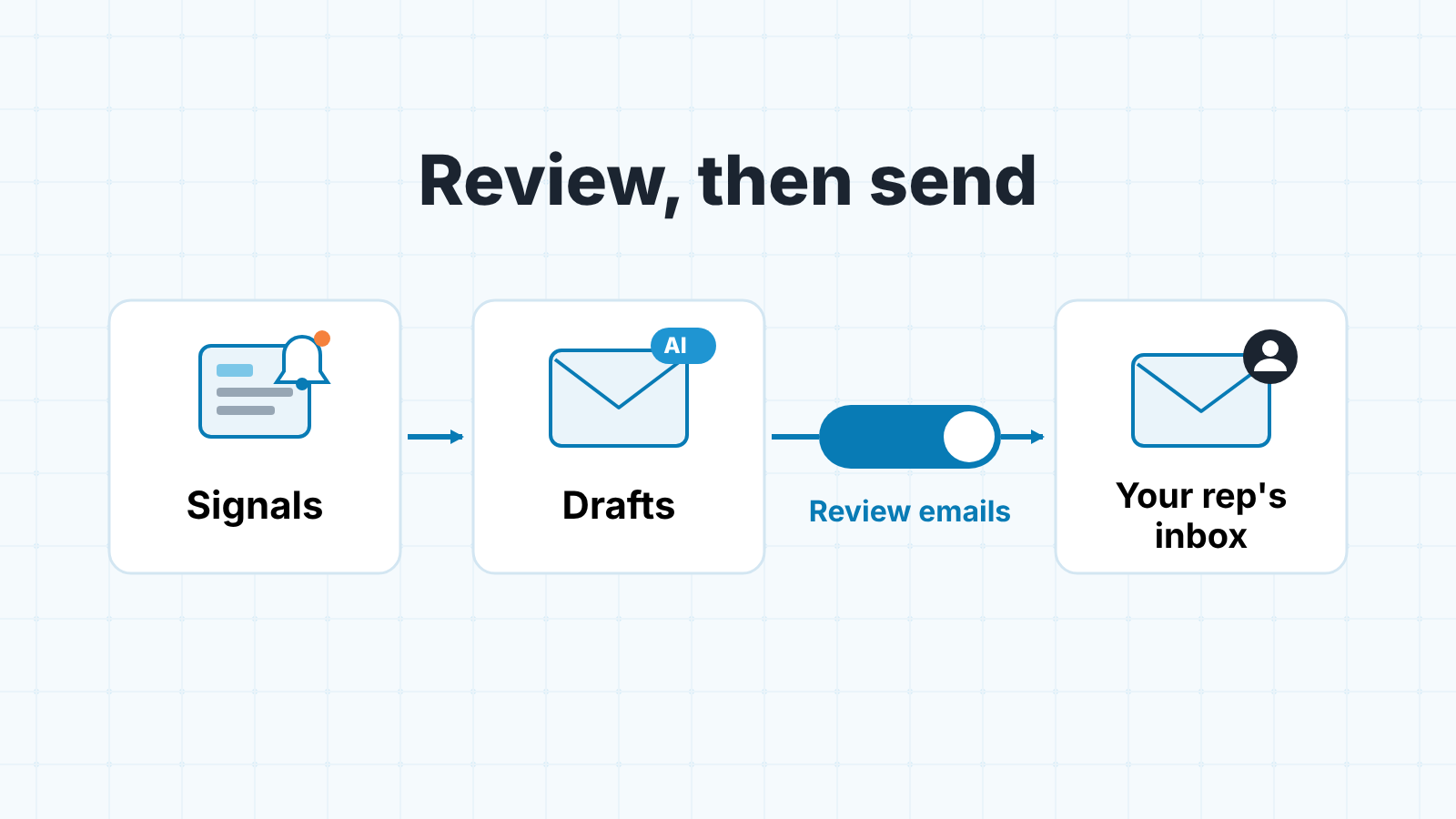
The HubSpot prospecting agent watches the companies in the segments you choose for buying signals, suggests contacts at those companies who match your personas, and drafts outreach emails that go out from your rep’s connected inbox. For a small team, keep each play on “Review emails”, set the daily new contact suggestions limit low, name a fallback sender who knows they are one, and open a few contact timelines before you read any activity report as a measure of your reps. Everything below comes from HubSpot’s own pages as we read them on 2026-10-19: the help article Set up and use the prospecting agent and the prospecting agent product page. Where those pages are silent, we say so rather than guess.
What the agent does, in one picture
The agent runs plays: it monitors companies, suggests people to write to, drafts the emails and, depending on one switch, waits for a human or sends them. Some reviews call it the Breeze prospecting agent; HubSpot’s own pages simply call it the prospecting agent. The product page says it is available on the Starter, Professional and Enterprise editions of HubSpot and runs on HubSpot Credits. Before the first play, an admin has to turn on the AI settings listed in the next section, and every person the agent will send as needs a connected inbox.
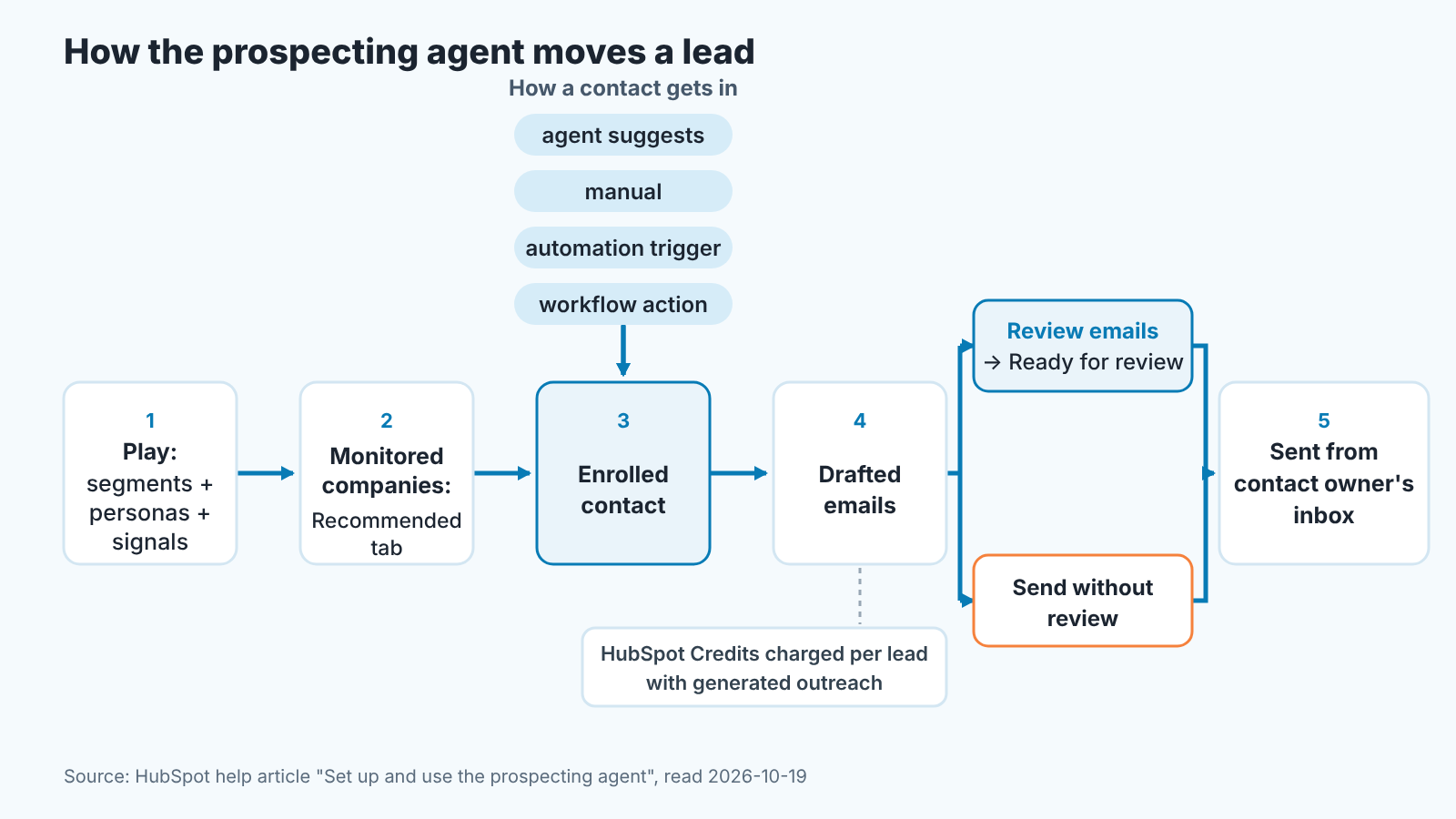
A play is the unit of everything. In HubSpot’s words, plays are “sets of instructions for how the agent conducts its research and its outreach”, and you can run several, one per market or offer. Inside a play you pick company segments to monitor, the personas it should look for, and the intent signals it should watch, such as “news related to companies (e.g., receiving funding, launching a new product) or evidence of companies researching topics that you care about”.
When a monitored company shows a signal it lands in Monitored companies, under the Recommended tab. For each company the table shows suggested contacts, the signals detected, reasons to reach out, when a contact there was last contacted, and which plays it belongs to. A contact gets into a play four ways: the agent suggests it (if “Source contacts for me” is on), someone enrolls it by hand, an automation trigger fires, or a workflow action enrolls it. Then the agent drafts emails and either waits for approval or sends.
That is the whole machine. The rest of this article is about the the switches on it.
What it reads from your CRM and what it writes back
Start with what it reads because that is what you are consenting to. The help article lists four switches in AI settings that must be on: “Give users access to generate AI tools and features”, CRM data, Customer conversation data and Files data. It also says the agent “considers recent engagements up to the past year that are associated to contact records”: form submissions, page views, calls, meetings, notes and email opens. On top of that it reads whatever you typed into the play’s Context tab (what you sell, your value proposition, the pain points you solve) and the products and services you pick for it. Click “Analyze website” and it drafts that context from your own site for you to edit.
Now what it creates. From the pages we read, you will see four kinds of things in HubSpot: recommended companies with suggested contacts, enrollments of contacts into plays, drafted emails waiting in the Outreach queue or the Ready for review tab, and sent emails. Those emails go out on behalf of a person (the contact owner, the company owner, or a single user you name) through that person’s connected inbox.
What the pages do not say is whether the agent writes any property on the contact or company record, or how a sent email is labelled on the timeline and in reports. We didn’t find it, so check both in your own portal. It’s cheap: enroll one contact, approve one email, then open that contact’s record and read the timeline entry and the property history. We did the same exercise for the deal-side AI in HubSpot Breeze AI on deal properties, and the source column turned out to be the only reliable filter.
Review emails or send without review
The Automation tab of a play has one setting that decides how much of this article matters to you. Under Email review HubSpot offers two options: “Review emails: you’ll review and approve each message before it goes out” and “Send without review: the agent sends emails without review, based on your outreach settings.” A paragraph further down the same help article calls the first option “Review before sending”, so if you’ve seen both names, they point to the same switch; in the portal look for “Review emails”. The product page calls the second option fully autonomous mode and suggests moving to it “once you’re comfortable with output quality”.
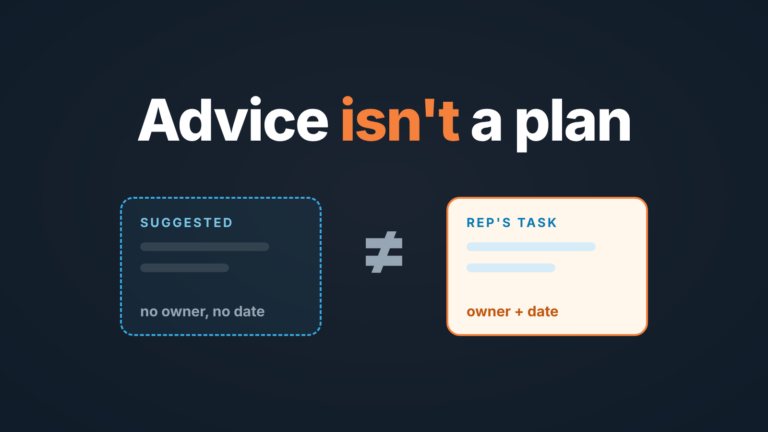
We think a team of under ten reps should stay on review for longer than feels necessary. The reason is one line in the help article about editing plays: “the changes you make will only apply to newly-enrolled contacts. Contacts who are already enrolled in the play will continue with the version that was published at the time of their original enrollment.”
Read that twice.
If you spot a bad instruction in week two and fix it, every contact enrolled in week one keeps getting week-one emails. On review you catch those drafts one by one. Without review they go out, and the only lever left is unenrolling contacts from the Outreach queue.
Review is also less work than it sounds. The assigned sender gets an in-app notification for each draft, and you can opt into a daily summary email at 9AM in your account time zone with links to the drafts; when three or more are waiting, a “Review all emails” button opens the Ready for review tab. A rep can edit an email, regenerate one, or click Regenerate all before Start outreach. That’s a morning routine, not a job.
One more fork sits upstream, in the Outreach tab. “Agent determines steps” lets the agent decide the emails within two limits you set: maximum emails and minimum days between them. “Configure sequence steps” means you build the steps yourself and let Breeze fill in smart subject lines or smart blocks. If your team already runs sequences well, thats the smaller change; see why small teams should keep sequences simple in HubSpot sequences for a small sales team.
Where its activity shows up, and where it doesn’t
Inside the Prospecting Agent area there are three places to look: Monitored companies (Recommended and All monitored companies), the Outreach queue with its Ready to launch and In progress tabs, and the Ready for review tab. The product page also promises sales leaders “a rep-level view of performance” without describing what that view contains, so we won’t either.
This is the part that matters for reports. Every agent email is sent through a human’s connected inbox. If you chose “Send from contact owner” and the owner is, say, Maria, the email leaves from Maria’s inbox and arrives as a message from Maria. Any count of emails sent per rep may therefore include emails Maria never wrote, and the HubSpot pages we read don’t say how such an email is marked in reports or on the timeline. Until you’ve checked, assume sent-email counts are mixed.
So before the first weekly review do this once: pick two contacts the agent emailed and two your reps emailed by hand on the same day, open all four timelines and compare the entries. If there is a visible difference, build your rep activity report on it. If there isn’t, stop using sent emails as a rep metric while the agent runs and count replies and meetings booked instead, which a human still has to earn. The same trap, in a different CRM, is in what an AI assistant wrote to your opportunities.
Daily caps and who owns the replies
The main cap lives in Audience: a field called “Daily new contact suggestions limit”, the maximum number of contacts the agent can suggest for that play per day. HubSpot adds that “suggestions are based on companies showing signals, so you may see fewer contact recommendations than the limit you set.” For adaptive plays, the Outreach tab caps emails per contact.
Our rule for a small team: a daily limit a rep can actually read and approve in one morning. It also bounds the bill. The product page prices the agent at “$1 for each lead prospecting agent recommends outreach for”, and the help article says credits are used for every lead the agent writes outreach for, whether it recommended the lead or someone enrolled it by hand. A user with the “Modify billing and change name on contract” permission can temporarily pause the agent’s use of credits, which is worth knowing before a long weekend. The manual alternative is prospecting without a dedicated SDR, done by the reps in one block a week.
Replies are where most teams forget to decide, and the sender rule decides who gets them. Contact owner means the rep who owns the record answers, which is usually right. Single user means one inbox collects every reply from every play: fine for a founder-led team, a mess for anyone else. With contact owner or company owner as sender there is also a fallback sender, “a user to be the sender in case the contact owner doesn’t have a connected inbox.” Name a real person there and tell them. Then make sure every rep who owns contacts in a monitored segment has a connected inbox, or the fallback person quietly becomes the sender for half the outreach.
Five checks before you switch it on
- Permissions. Prospecting agent admin permission lets someone configure the agent and create, edit or delete plays; prospecting agent assignment permission lets them enroll contacts and companies. Keep play editing with one or two people.
- The Automation tab. Email review on “Review emails”. Sender on “Send from contact owner” unless you have a reason not to. Fallback sender named and informed.
- The numbers. Daily new contact suggestions limit, maximum emails per contact, minimum days between emails, “Execute on business days” on, and a send window in the hours your prospects are awake.
- The Test button. In the play editor, pick a real contact, click Generate, then “View all steps” or “View full sequence” and read every email as if you were the prospect. Fix the Context and Advanced instructions before you publish, not after.
- Who gets in, and who must stay out. In Automations, four triggers can enroll contacts on their own: a page viewed, a form submitted, days since last engagement above a number, or a contact added to a list. Workflow actions can enroll too (workflows vs sequences for a sales manager), and a list trigger on a big list is how a cautious pilot becomes a mass send. Then exclusions: we did not find, in either HubSpot page, a setting that keeps current customers, contacts on open deals, unsubscribed contacts or people a rep just emailed out of a play. Check in your portal before you publish; until then, build segments and trigger lists with prospects only.
What to look at in the first two weeks
Read the 9AM digest with the team for the first few days, not alone. Besides drafts, it shows the companies recommended, the reason for each and the suggested contacts. Ask “would we have picked this company”, not “is this email good”. If reps keep rejecting the companies, the problem is in Audience and signals, not the writing.
Then keep a few tallies by hand: drafts approved as written, edited, or regenerated. A high edit rate in week one is normal. In week two it says the Context or Advanced instructions are wrong. Track credits used against leads recommended, so the bill has no surprises, and replies that turned into a meeting, by rep, because that’s the number the agent cannot inflate.
For the Salesforce version of that bill, see what Agentforce for Sales costs five reps.
When a rep-written sequence is still the better choice
The agent earns its credits on companies you don’t know yet, where a signal is the only reason to write today. It is a worse fit for teh people you already know. A re-engagement of last year’s lost deals, a renewal conversation, a follow-up after a trade show where the rep shook the hand: those messages carry context that lives in the rep’s head, not in the signals the agent reads, and a prospect who met Maria will notice an email that sounds almost like her.
It is also the wrong tool when the words have to be exact. Regulated claims, a pricing change, a message legal signed off: use a sequence with fixed text, or the agent’s “Configure sequence steps” mode with no smart blocks in the sensitive parts.
And it is premature when the CRM underneath isn’t ready. The agent reads contact owners, segments, personas and a year of engagements. If half your contacts have no owner, the fallback sender gets the outreach. If segments are stale, the agent monitors the wrong companies. Fix that first; no setting on the Automation tab can do it for you.
A disclosure, since this is where our part begins: we build SalesBond, a sales management layer on top of the CRM a team already uses; we started with Pipedrive. It doesn’t prospect. It comes in after: a reply becomes a deal only when a rep creates it with a stage, an amount and a next activity, and agent volume makes half-filled deals more likely. SalesBond checks deals and explains each flag, so a deal from agent outreach with no next step shows up as something to look at, not as healthy pipeline. Check your CRM with SalesBond if you want that list without building the filters.