
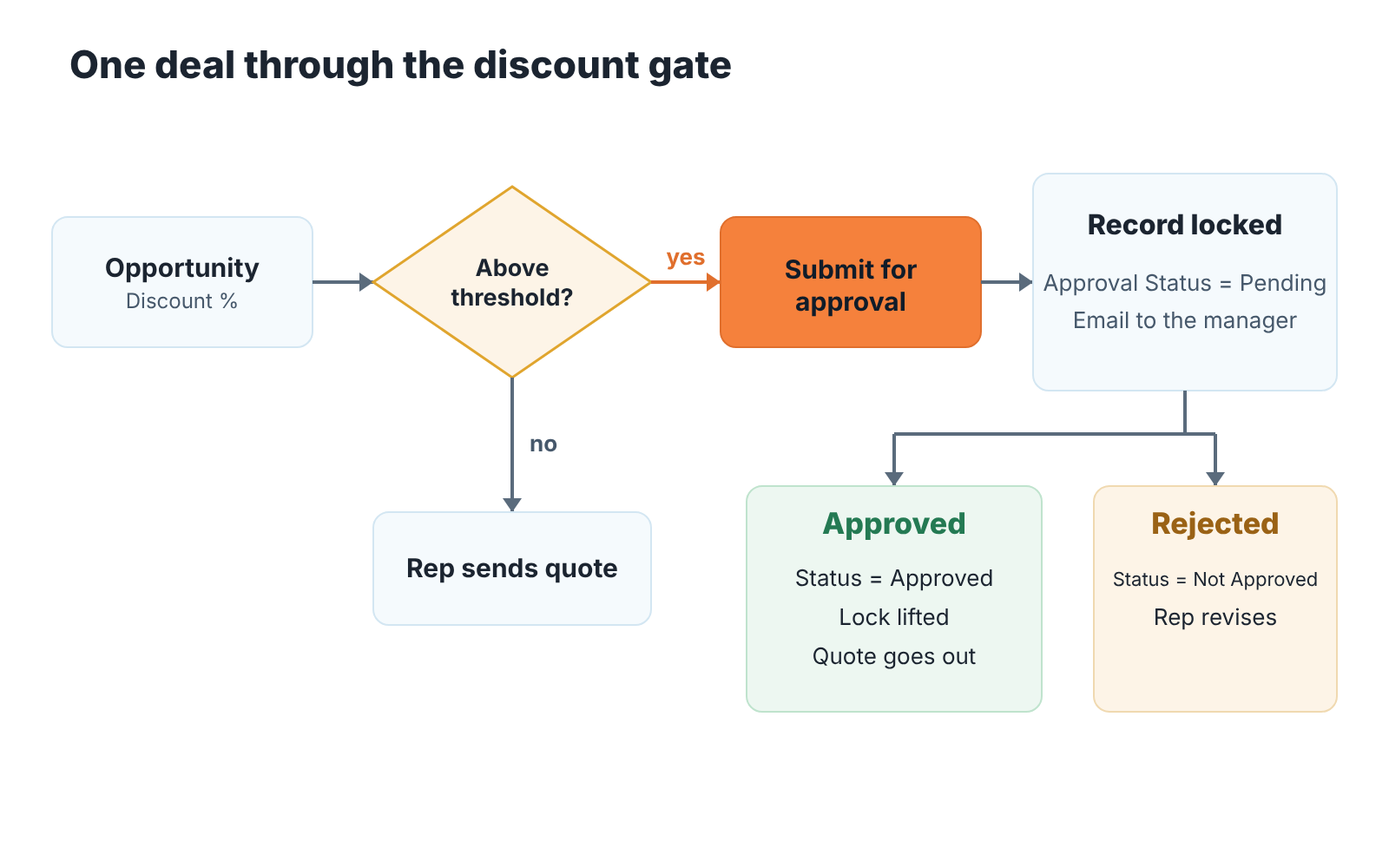
A Salesforce approval process lets a manager approve a deal before a discount goes out. You set the threshold as the process’s entry criteria, name the assigned approver, and the opportunity is locked and carries an approval status until the decision.
So decide three things before you touch Setup: the discount level that needs a signature, the one person who signs, and the longest a rep should wait. Then build it and read the list of pending approvals every Monday. The build is the easy part. The three decisions are what most teams skip, and they are why approval processes end up ignored. If the signature threshold is a margin floor rather than a discount percentage, read markup vs margin for sales managers first, because the two percentages are not the same number.
Why discounts need a gate, not a rule in a chat
Most small sales teams already have a discount rule. It lives in a Slack message from eight months ago: “anything over the usual, ask me first.” Everyone agreed. Then a rep is on a call, the buyer pushes, the manager is in another meeting, and the rep makes a judgment call. The quote goes out. Nobody is lying to anyone, the rule just had no place to live.
A rule in a chat fails in three ways. It is invisible at the moment of the decision, because the rep is looking at the opportunity, not at Slack. It leaves no trace, so a month later nobody can say which deals went past the line or who agreed to them. And it makes the manager the bottleneck without giving them a queue: requests arrive by DM, by phone, by someone leaning over the desk.
An approval process moves the rule onto the record. The opportunity itself knows it has crossed the line, asks for the signature, shows everyone that it is waiting and records the answer. We think that is the right place for it, because the record is the one thing both the rep and the manager look at anyway. If your team has already written stage exit criteria, this is the same idea applied to price instead of stage: a condition the deal must meet before it moves, written where the deal lives (stage exit criteria in Salesforce).
What to decide before you build it
Three decisions. We would write them on one page before opening Setup.
The threshold. In Salesforce terms this is the entry criteria: the condition a record must meet to enter the process. Trailhead’s worked example gates opportunities discounted by more than 40% (Trailhead: Customize How Records Get Approved). Yours is probably lower. The right number is the discount below which you are happy for a rep to decide alone, every time, without telling you. If you flinch at that sentence for a given number, the number is too high. Start with one threshold for the whole team; a grid by segment can come later if you find you need one.
The approver. One person, set as the assigned approver in a single approval step. Not “the manager or the founder”, not a group. A second approver doubles the wait and halves the sense of ownership. Salesforce lets you chain approval steps (the same Trailhead unit sends a new-position request to the submitter’s direct manager, then to the CEO), but a discount on an SMB deal does not need a chain. If the approver is away, the rule for cover goes on the same page as the threshold.
The maximum wait. How long may a rep sit on a locked opportunity before they are allowed to escalate? Nobody makes this decision, and it is the reason reps come to resent the process. Our proposal is one working day: a request submitted on Tuesday morning gets an answer by Wednesday morning, or the rep may call. Whatever you choose, the number is a promise from the manager to the team, not a constraint on the team.
That page is your deal desk policy, even if nobody on the team has the title (a deal desk for small sales teams covers who plays the role and in what order).
Building the Salesforce approval process for a discount
Trailhead plans this build in five pieces: a discount percent field and an approval status field on Opportunity, the approval process itself, an email template for the manager, and field updates for when the manager responds. Its hands-on project, Build a Discount Approval Process, walks through the clicks. The order looks like this:
- Create the two custom fields on Opportunity: a discount percentage and an Approval Status picklist with Pending, Approved and Not Approved (or Rejected, if you prefer the word).
- Write the email template the approver will get.
- In Setup, type Approval Processes in Quick Find, pick Opportunity under Manage Approval Process For, and choose Use Standard Setup Wizard.
- Set the entry criteria to your threshold, for example Discount Percentage greater than the number on your policy page.
- Set the approver: the project uses Manager as the Next Automated Approver, which is the Manager field on the opportunity owner’s user record.
- Add an initial submission action: a field update that sets Approval Status to Pending. The record lock is already there by default.
- Add one approval step, then the final approval actions (status Approved, unlock the record, email the rep) and the final rejection actions (status Not Approved, email the rep).
- Activate it, and submit one test opportunity as a rep before you announce anything.
A note on the discount field. Trailhead says plainly that its scenario is simplified, and that in a real org you can use the standard discount field on the opportunity product and add it to the opportunity with a roll-up summary field. We agree, with a caveat. If your team prices by line item, do the roll-up, because a typed-in percentage will drift from the actual quote within a month. If you sell one product and reps already type a discount by hand, the custom field is fine and easier to explain.
Don’t skip the Pending value. The Trailhead module’s challenge only asks for Approved or Not Approved; the hands-on project adds Pending as an initial submission action, and that is the version to copy. Pending is the value that makes the Monday report possible.
The email template should say three things and no more: which opportunity, how much discount, and the route to approve or reject. The manager is going to read it on a phone between meetings.
What happens to the record while it is waiting (locked)
When a rep submits the opportunity, the default initial submission action locks the record, so nobody except approvers and admins can change it while it is pending (Trailhead). That is the point of the gate. Its also the first thing a rep will complain about.
In practice the rep can’t update the Next Step, can’t move the stage, can’t fix a typo in the Amount. If the buyer calls with a question while the request is pending, the notes from that call end up somewhere other than the opportunity. That is exactly the kind of leak a manager spends the rest of the quarter trying to close (where deal context lives in Salesforce is about what breaks when the record stops being the source of truth).
So here is the rule for reps, said once at the planning meeting and again when the process goes live: a locked opportunity is not a stuck opportunity. Do not clone it. Do not create a second opportunity “just to track the conversation”. Log the call as an activity if your org allows it on a locked record, or hold the note and add it when the lock is lifted. And if the wait has passed the limit on your policy page, call the approver. The lock is doing its job; your job is to make sure it does it for hours, not days.
The final approval actions set the status to Approved and unlock the record. Rejection sets the status to Not Approved. Neither outcome asks the rep to do anything in Salesforce except read the email and get on with the deal.
How long can an approval take?
As long as the manager takes. Nothing in the setup above puts a deadline on the approver, so the deadline has to come from you.
This is where the maximum-wait decision earns its keep. A gate rarely fails becuase it was badly built. It fails because the approver treats the queue as optional. Give it a week of pending requests and reps start pricing just below the threshold on purpose. Now the gate shapes behaviour in the wrong direction: it caps discounts not at the number you chose but at the number that avoids the process.
Our position: the approver answers twice a day at fixed times, start and end of day, and anything older than one working day is the approver’s failure, not the rep’s. Write that in the policy. If the manager can’t commit to it, raise the threshold so fewer deals hit the gate. A gate that is rarely used but always answered beats one that catches everything and answers nothing.
Finding the approvals that got stuck
The Pending value is what turns this into a report instead of a hunt through inboxes. Build an Opportunities report filtered to Approval Status equals Pending, with Owner and the date of submission as columns, oldest first. For that date, add a date field and set it with a second field update in the initial submission actions. Last Modified Date is a weaker stand-in, because any edit by an approver or admin resets it. Then add the report to the manager’s Monday set, next to the pipeline views you already run (the weekly Salesforce reports a sales manager actually needs lists the rest).
Read it top down. Anything older than the maximum wait is a conversation with the approver, not with the rep. If the same rep keeps showing up with discounts just above the line, that is a pricing conversation. And if nobody shows up for a month? Either discounts have stopped or reps have found the the number that avoids the gate. Check which.
A disclosure, since we are at the “who watches the queue” question: we build SalesBond, a sales management layer on top of the CRM a team already uses; we started with Pipedrive. It doesn’t replace this report. Approvals are a Salesforce feature, and the report above is free and quick to build, so start there. What SalesBond adds is the rest of the Monday picture: Deal Health checks every deal in the connected CRM, Salesforce included, and shows which ones need you. Check your CRM with SalesBond when reading every deal stops fitting into one Monday.
Classic approval process or Flow approvals?
Everything above describes the classic approval process, the one Trailhead’s unit builds. Salesforce’s help pages now call it the “Classic Approval Process”. In Spring ’25 Salesforce added Flow Approval Processes, built as record-triggered or autolaunched approval orchestrations in Flow (Salesforce Admins blog, Spring ’25 Flow features).
Is the classic version being retired? As of October 2026 we found no announced retirement date. Salesforce has published an end-of-support date for Workflow Rules and Process Builder, but not for classic approval processes. The direction is still clear, though. The “Classic” label is new, and the approval features Salesforce has shipped since Spring ’25 have gone into Flow, not into the classic builder.
So here is our honest advice. If your org already has a classic discount approval that works, leave it alone and add the Pending status and the Monday report. If you are building from scratch and your admin is at home in Flow Builder (say, they already built a task on a stale opportunity), look at the Flow version first, since that is where new work is going. If nobody on the team has built flows, the classic wizard is still the quicker route to a single-threshold, single-approver gate, and its locking and status behaviour is well documented. Just expect to move it to Flow at some point. We won’t walk through the Flow version’s screens here. The tool may change. The policy page won’t.
What to check every Monday
Once it is live, this is the five-minute routine that keeps it honest:
- Open the Pending report. Anything older than the maximum wait: message the approver, not the rep.
- Count the week’s approvals and rejections. If every request was approved, the threshold is probably too low to be worth the lock.
- Look at discounts just under the threshold. A cluster there means reps have learned the number.
- Check that approved opportunities still carry the discount they were approved for, and that none was cloned while locked.
- Once a quarter reread the policy page with the team and change the number if the business has changed.


