

A Salesforce list view is a saved, filtered table of one object that you can share with the whole team, so six Opportunity views are enough for a weekly pipeline check: no next step, close date in the past, no amount, parked with the wrong owner, nothing touched in two weeks, and closing this month. Each view is a question with a yes-or-no answer per deal. When the question needs related records, subtotals or history, a list view is the wrong tool and a report is the right one.
Most guides stop at clicking New and adding a filter. They don’t say which views a manager should keep, or where the list stops being useful.
List view or report: which one for which question
A list view answers “which deals” and lets you fix them on the spot. A report answers “how many, how much, since when”. If you are opening the thing to act on individual rows, build a view. If you’re opening it to understand a number, build a report.
This isn’t a matter of taste. A list view shows records from one object only and cannot join related records as rows (Flosum on list view limits). You can see an opportunity’s Account Name as a column, but not its tasks underneath it. The moment the question is “which deals have had no call logged since the demo”, the answer lives in activity records, and that is a report. The three reports worth keeping are in the Salesforce reports a manager opens on Monday; this article is the other half of the Monday desk.
Setting up a shared list view for the team
Build each view once, as the manager, and share it. Private copies drift within a month, and then two people argue about whose list is right.
The setup, as the Trailhead unit on list views walks through it:
- In the Opportunities tab, open the list view controls and choose New.
- Name the view. We prefix ours with
MGRand a number so they sort together in the dropdown. - Select All users can see this list view and save.
- In the Filters panel that now appears, click Add Filter and add conditions one at a time.
- Save the filters. To change who sees the view later, use Sharing Settings in the same controls menu.
If the “all users” option isn’t there for you, that’s a permissions question for your admin, not a bug. Sharing a view with specific roles has its own catch: only users with the View Roles and Role Hierarchy permission can pick from the org’s list of roles (Trailhead).
Two more things before you start. If the Filters panel shows Locked Filters, the view isn’t yours to edit; clone it and filter the copy. And Recently Viewed has a predefined scope you can’t filter further, so don’t try to turn it into anything (Flosum). Filters combine with AND by default, and filter logic lets you write (1 AND 2) OR 3 when a view needs an “or”. Two of the six views below need it.
Six Opportunity list views a manager needs
Why these fields, and what a healthy value looks like, is covered in the Salesforce opportunity audit for sales managers. Here it’s only about the view: the filter, the sort and who acts on it.
Every view starts with the same first filter, Stage not equal to Closed Won, Closed Lost, so the list shows open pipeline only. Date conditions are written in plain words below. Set them relative to today rather than to a fixed day, or the view goes stale by next week.
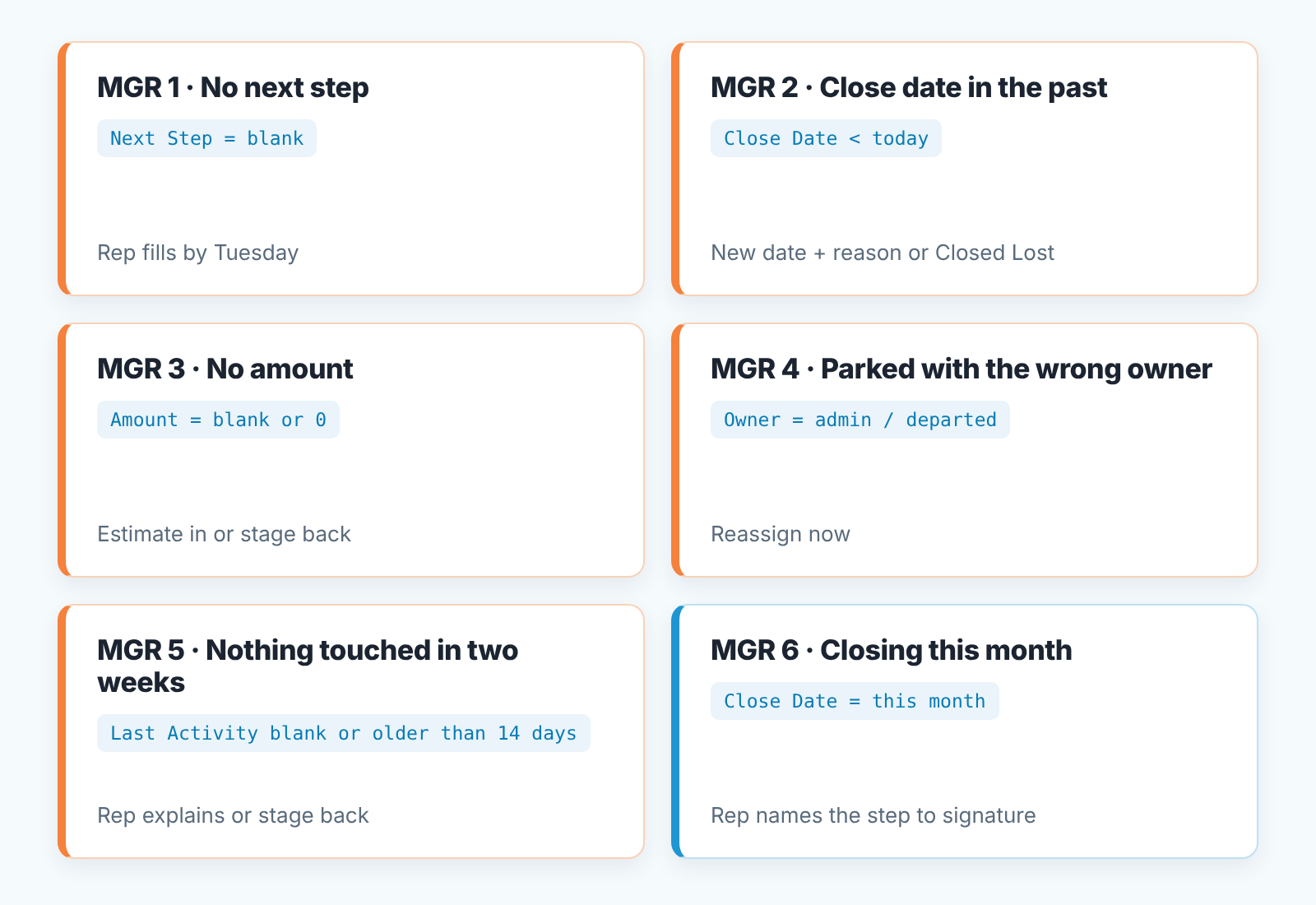
MGR 1 · No next step
Filter: Next Step equals blank.
The view we’d keep if we could only keep one. The fix is not for the manager to type something in. The rep fills it by Tuesday, or admits the deal is dead and closes it lost. What counts as a real next step is in the next step rule for Salesforce tasks.
MGR 2 · Close date in the past
Filter: Close Date before today.
Sort by Close Date ascending, so the most overdue deal opens at the top. This list is mostly deals the rep has stopped believing in and hasn’t said so. Action: a new date with a one-line reason in Next Step, or Closed Lost. A date pushed for the third time is the manager’s conversation.
MGR 3 · No amount
Filters: Amount equals blank, and Amount equals 0, joined as 1 AND (2 OR 3) where filter 1 is the open-stage condition.
Either the rep puts an estimate in, flagged as one in Next Step if that’s the team’s convention, or the deal goes back to the stage where an amount isn’t expected yet.
MGR 4 · Parked with the wrong owner
Filter: Opportunity Owner equals the admin or integration user, plus anyone who has left.
Salesforce has no “unowned” flag for opportunities. In this view, unowned means owned by someone who won’t work the deal: a departed rep, the admin user an import ran under, the manager’s own account used as a placeholder. Keep that owner list current. Action: reassign on the spot. The wider method is in the Salesforce queues and unowned records audit.
MGR 5 · Nothing touched in two weeks
Filters: Last Activity older than 14 days, or Last Activity equals blank, joined with an OR.
This is a proxy for “stuck in stage”, and only a proxy: activity and progress aren’t the same thing. Still, a blank or two-week-old Last Activity on an open deal is wrong whatever the the reason.
MGR 6 · Closing this month
Filter: Close Date in the current month.
The one view that isn’t a problem list. Its the commit. Sort by Amount descending so the deals that decide the month sit at the top. Action: for each of the top five, the rep says in one sentence what has to happen before the signature.
Columns that make the list worth opening
A view with twelve columns gets scrolled, not read. We keep seven on every manager view: Opportunity Name, Account Name, Opportunity Owner, Stage, Close Date, Amount, Next Step. Add Last Activity on MGR 5 and leave it off elsewhere. Columns are set per view through Select Fields to Display in the list view controls, and clicking a column header sorts by it (Trailhead).
Keep Next Step on every view, even the ones that don’t filter on it. On MGR 2, an overdue deal with a sensible next step is a date problem. An overdue deal with a blank one is a deal problem. You see which it is without clicking through.
Editing in the list and what blocks it
You can fix most of what these views find without leaving the list. Hover over a cell: a pencil icon means you can edit it inline, a lock icon means you can’t (Trailhead). Next Step, Close Date and Amount are ordinary stored fields, so unless your org locks them, a rep can clear MGR 1 and MGR 2 in a few minutes on Monday morning. Hover before the call and you’ll know.
When the lock does show up, the usual reasons are short. Formula and roll-up summary fields are read-only by nature. Beyond that, a field can be locked by field-level security, by a validation rule the change would break, or by an approval process on the record (Flosum). If a rep says “it won’t let me” check those before anyone files a ticket.
Who edits? The rep, not the manager. A next step the manager typed in is a next step nobody owns, and a list the manager “cleans” every Monday is the same length the next Monday.
Charts above the list
On two of the six views, a chart changes the conversation. Open the view, click the charts icon, then the gear and New Chart. Pick a chart type, an Aggregate Type (Sum, Count or Average), the Aggregate Field, and a Grouping Field that labels the segments (Trailhead).
On MGR 1, use Count grouped by Opportunity Owner. One glance tells you whether “no next step” is a team habit or one person’s. On MGR 6, use Sum of Amount grouped by Opportunity Owner: the month’s commit by rep, sitting above the deals that make it up. It doesn’t replace a forecast report.
Skip charts on the other four; a chart of “no amount” sums nothing. And if your team thinks in stages, the same view can be switched to a Kanban board through the Display as icon, grouped by stage by default (Trailhead).
The limits that make a report the better choice
List views show one object, search only the first 2,000 records, and slow down on some formula filters. None of these is a setting you can change.
Scope. One list view, one object, no related rows (Flosum). “Deals with no call logged in 14 days” sounds like MGR 5, but it needs activity records as rows, and that’s a report. True time in the current stage is the same story; we measure it in a report and let MGR 5 approximate it. The Last Activity caveats are in the reports article.
Search. The search box inside a list view reads only the first 2,000 records in that list, and it skips formula, lookup, number and currency fields, even though you can filter and sort on all of them (Flosum). If a manager’s view holds more than 2,000 open opportunities, it isn’t a view any more. Tighten the filters, split it by team, or accept that this is a report.
Formula fields in filters. Filtering on a formula works, but non-deterministic and cross-object formulas can’t use an index, so on a high-volume object the filter turns slow and in bad cases times out (Flosum). That’s why the six views above filter only on stored fields. Need a formula in a filter anyway? Flosum’s fix is to copy the result into a real, indexed field and filter on that.
Our rule of thumb: a list view is the Monday tool while it fits on two screens and every row is something a rep can fix before Tuesday. Past that, build the report.
Monday routine with the six views
About twenty minutes before the pipeline call, in this order:
- MGR 4 first. Reassign anything parked; nobody should discuss a deal with no owner to answer for it.
- MGR 1 with the Count-by-owner chart. Note whose segment is largest. Don’t edit anything.
- MGR 2. Mark the deals pushed more than once, those get asked about by name.
- MGR 3. A deal here that is past qualification is a stage question, not an amount question.
- MGR 5. A deal that is also on MGR 1 is the first one you ask about.
- MGR 6 with the Sum-by-owner chart. Pick the five deals that decide the month.
- On the call, reps edit their own rows while the view is on screen. The manager reads, asks and reassigns.
- Thursday, open MGR 1 and MGR 2 again. If they aren’t shorter than on Monday, the Tuesday deadline is the problem, not the views.
A disclosure, since managers usually ask here whether this has to be done by hand every week. We build SalesBond, a sales management layer on top of the CRM a team already uses; we started with Pipedrive. Deal Health runs checks like these six against every open deal and shows the manager which deals fail which rule and why, so the Monday list arrives built. It does not run the Monday call, and the reps still do their own editing. If you want to see what it finds in your pipeline, check your CRM with SalesBond. If you’d rather keep it manual, build MGR 1 today and add one view a week.


