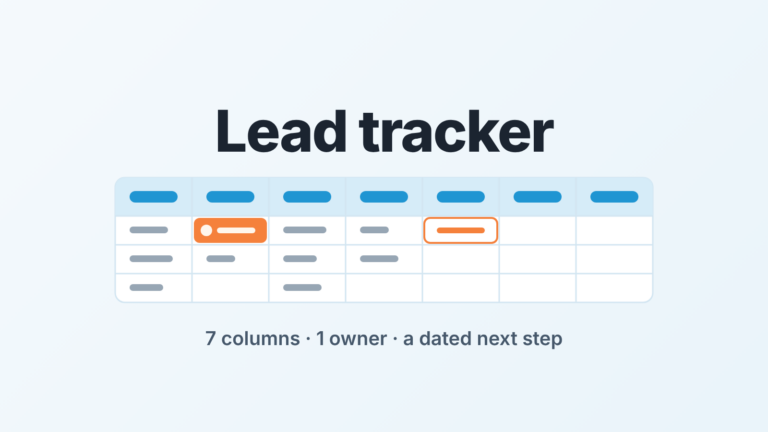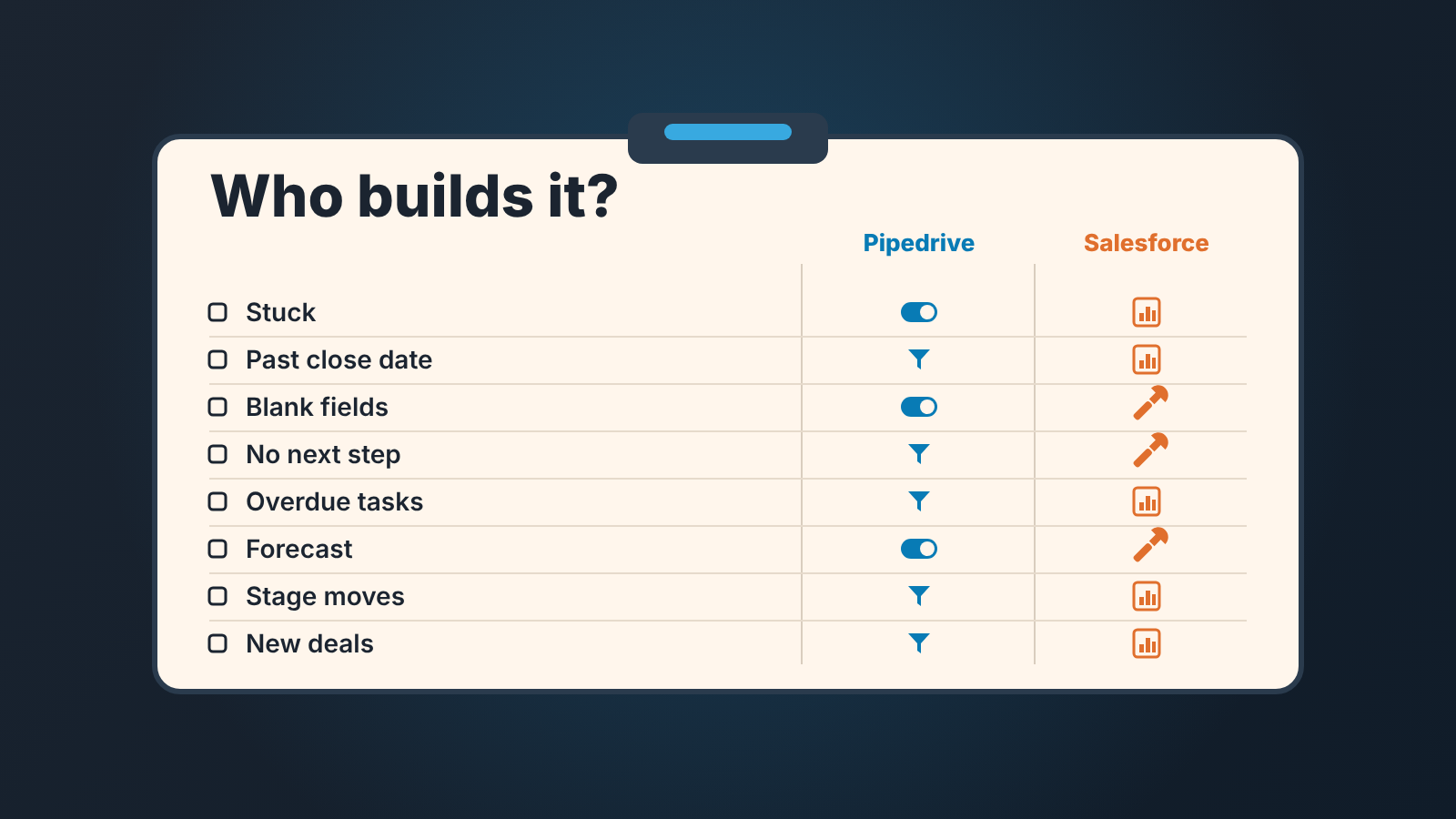
For a small sales team, Pipedrive gives a manager stuck-deal and next-step views with little setup, while Salesforce can do the same checks through reports, Flow and Path but expects someone to build and maintain them. So choose by who will own that setup, not by the feature list. Below are the eight checks we run on a Monday, what each one looks like in Pipedrive and in Salesforce, and how much admin work each CRM hands you to get there.
What this comparison is, and what it is not
It is not a price comparison. The most useful one we found is from Fluid CRM, which also sells its own CRM, so read it as an opinion: Salesforce’s billing terms differ by tier, and several Pipedrive add-ons are priced separately (Fluid CRM: Pipedrive vs Salesforce). Prices change, so no figures here. For a small team the bigger cost difference is usually admin hours, not the plan, and that is what we count. For the Pipedrive half of the money question, see our breakdown of Pipedrive plans for a five-person sales team.
It is not a feature count either. Pipedrive’s own Pipedrive vs Salesforce page is a vendor table, accurate as far as we checked. But a manager doesn’t run a feature table. A manager runs a Monday review.
If your pair is different, we have written the same exercise for Pipedrive against HubSpot, HubSpot against Salesforce and Zoho CRM against Pipedrive.
The eight Monday checks, side by side
These are the lists we want open before the the first call of the week. All eight are answerable in both CRMs. The difference is what you switch on in one and what somebody builds in the other.
| Check | Pipedrive: what you switch on | Salesforce: what someone builds | Who does it (Pipedrive / Salesforce) |
|---|---|---|---|
| Stuck deals | Rotting per stage | Opportunities report on Stage Duration | manager / admin |
| Past close date | Quick or saved filter | Report in a shared folder | manager / admin |
| Blank key fields in late stages | Required fields by stage | Path key fields plus a validation rule | global admin / admin |
| No next step | Activity icon on the deal tile | Next Step field, read in Pipeline Inspection | built in / admin enables |
| Overdue activities by rep | Activities list, filtered | Report on tasks | manager / admin |
| This month’s forecast | Forecast view | Pipeline Forecasts, categories mapped to stages | built in / admin |
| Stage moves last week | Insights deal progress report | Opportunities report by owner | manager / admin |
| New deals last week | Insights report | Opportunities report by owner | manager / admin |
The first five are deal hygiene. The last three are reporting, and that’s where the two products differ most on who does the work.
Stuck deals in Pipedrive and Salesforce
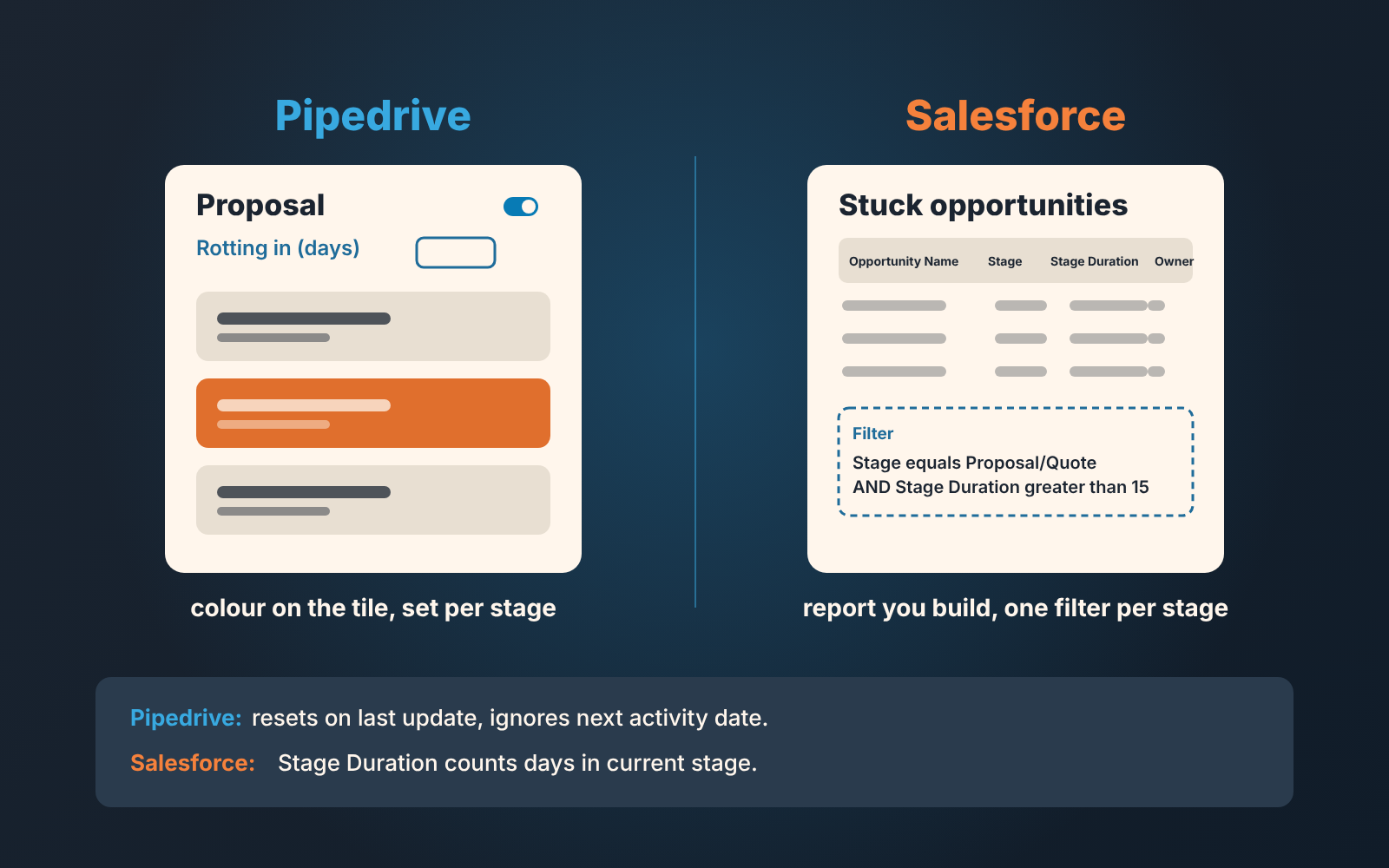
Pipedrive marks a stuck deal with a colour. On the stage header you switch on “Rotting in (days)”, type the number of idle days after which a deal in that stage counts as rotten, and the deal tile turns red in the pipeline view (Pipedrive: the rotting feature). A manager opens the pipeline and reads the red. No report, no admin ticket.
Two limits, both on the same page. The rotting clock runs on the deal’s last updated time, which things like marking an activity done or an email action can reset, sometimes while the deal still looks untouched. And rotting disregards the next activity date, so a deal with a call booked for next month can go red anyway. We think the second limit is a feature: a deal nobody has updated for weeks deserves a question, booked call or not.
Salesforce finds stuck deals with a report you build. Trailhead’s unit builds an Opportunities report around the Stage Duration field, then filters by stage and by a duration threshold for that stage (Trailhead: Identify Stuck Sales Deals). Its example thresholds are 30 days for Qualification, 45 for Discovery, 15 for Proposal/Quote and 30 for Negotiation, and it tells you to agree the real numbers with sales leadership. One filter set per stage. Fine, until someone renames a stage.
Past close dates are quick in both. In Pipedrive a quick filter sits right on the pipeline or list view, and an advanced filter combines ALL and ANY groups and can be saved (Pipedrive: filtering); here is how to make those shared filters and saved columns work for the whole team. In Salesforce the saved thing is a report in a folder, and whether reps see it is one more sharing decision for the admin.
Required fields and stage rules
Pipedrive makes a field required for chosen pipelines and stages. Salesforce shows the field with Path and refuses the save with a validation rule.
In Pipedrive required fields are a Professional-and-higher feature (that’s the plan name on the support page as we read it; plan names change, so check the pricing page), and only global admins with account settings permissions can set them. The admin opens Settings, then Data fields, marks a field required and picks the pipelines and stages where it applies. A rep who moves a deal into that stage with the field blank is prompted to fill it in; a rep creating an item with it blank sees an error (Pipedrive: required fields). Minutes of setup. The gap, on the same page: imports, bulk edits, the API, automations and third-party integrations aren’t stopped. If your deals arrive from a web form, the gate isn’t on that door.
Salesforce splits the job in two. Path, the stage bar on the opportunity, shows up to five key fields and up to 1,000 characters of guidance for each step (Trailhead: Visualize Success with Path and Kanban). That puts Amount, Close Date and Next Step in front of the rep at the right moment, which in our experience is most of the battle. It doesn’t refuse a save. A validation rule does: a formula that evaluates the record, and when it returns True the save is stopped and the rep sees your error message (Trailhead: Introduction to Validation Rules). Writing “Amount is blank and Stage is Proposal” as a formula isn’t hard. Writing it so it doesn’t fire on closed-lost deals, on imports and on the one rep who legitimately has no amount yet takes an afternoon and a sandbox.
Our position: Pipedrive’s gate is cheaper to install and easier to bypass; Salesforce’s is stricter and costs an admin’s afternoon per rule. With no admin, cheaper wins. With someone already in Setup every week, stricter wins, and write the rules before the reps arrive.
When you get to the money, our Salesforce editions and prices for five people show what each column costs for a year.
Next steps and overdue activities
In Pipedrive the next step lives on the deal tile. Each tile in the pipeline view carries an activity icon; click it to see upcoming activities, mark one done or schedule the next, without opening the deal (Pipedrive: pipeline view). For overdue activities, the activities list lets you mark items done in place, and the due date keeps the time the activity was originally scheduled for even if it was done later (Pipedrive: activities). Filter that list by rep and you have the Monday conversation.
Want the next activity created for reps instead of trusting thier memory? Pipedrive’s automations pair a trigger event with an action event, and the support page’s own example is scheduling an activity when a deal moves to a stage. They are on Growth and higher, and only global admins or users with the right permissions can build them (Pipedrive: automations). Our rule: automate creating the task, never completing it.
Salesforce has a standard Next Step text field on the opportunity (Salesforce Field Reference: Opportunity). The place to read it across deals is Pipeline Inspection, which Trailhead describes as a consolidated view of pipeline metrics, opportunities and changes in deals, where reps update stages and next steps with inline editing (Trailhead: Discover Pipeline Inspection). Check your edition before you count on it; we covered which editions list it in the HubSpot against Salesforce piece.
For overdue tasks by rep, we’d plan on one more shared report, built and shared the same way as the stuck-deals one. Just don’t judge a deal by the opportunity’s Last Activity date. Open tasks don’t move it, so a deal with a good call booked for Thursday can look stale until Thursday is done; the Salesforce opportunity audit explains the field and what to do about it.
Pipedrive puts the next step on the tile. Salesforce puts it in a field and gives you a workspace to read it. Both work. One needs the workspace switched on.
Reports, forecast and who builds them
Forecast, stage moves and new deals are reports in both products. If you are leaning Salesforce, read this section twice.
Pipedrive’s forecast view is Professional and higher. It projects revenue by each deal’s expected close date, shows the weighted value if you’ve set deal or stage probabilities, and can use a custom date field instead, such as a delivery date (Pipedrive: the forecast view). For a small team that is the forecast. Nobody adjusts a number on top of it: if the number is wrong, a deal’s amount or close date is wrong, and you fix the deal.
Salesforce forecasts by category. In Pipeline Forecasts each column is a forecast category (Pipeline, Best Case, Commit, Closed), the categories follow the opportunity stage, and an adjustment changes the rollup without touching the opportunities underneath (Trailhead: Review Your Collaborative Forecasts Setup). That’s a real strength once the manager knows things the fields don’t. On a small team its mostly a way for the number you report and the deals you have to drift apart. If you go this route, decide in week one who may adjust and who rereads the adjustments on Friday.
Stage moves and new deals by rep are the easy part. Pipedrive’s comparison page claims customizable reports on every plan, and Insights deal progress reports cover stage movements, though only within the current pipeline (Pipedrive: pipeline view). A manager builds both once. In Salesforce they are Opportunities reports grouped by owner, in a folder the admin shares; the fields behind them are in how a manager actually uses Sales Cloud each week.
Admin work you will own in each
Count the Setup items, not the features.
In Pipedrive, a manager with global admin rights can switch on everything above in an afternoon from the linked support pages. What you don’t get is a hard gate against imports and integrations, or a forecast with manager adjustments.
In Salesforce every row of the table is a Setup task: reports per stage, Path, a validation rule per gate, forecast categories, a shared folder. Even an automatic follow-up task on a stage change is a record-triggered flow in Flow Builder, which runs when a record is created, edited or deleted (Trailhead: Get Started with Flows). That Trailhead unit opens its use cases with “As an admin”, and that is the point.
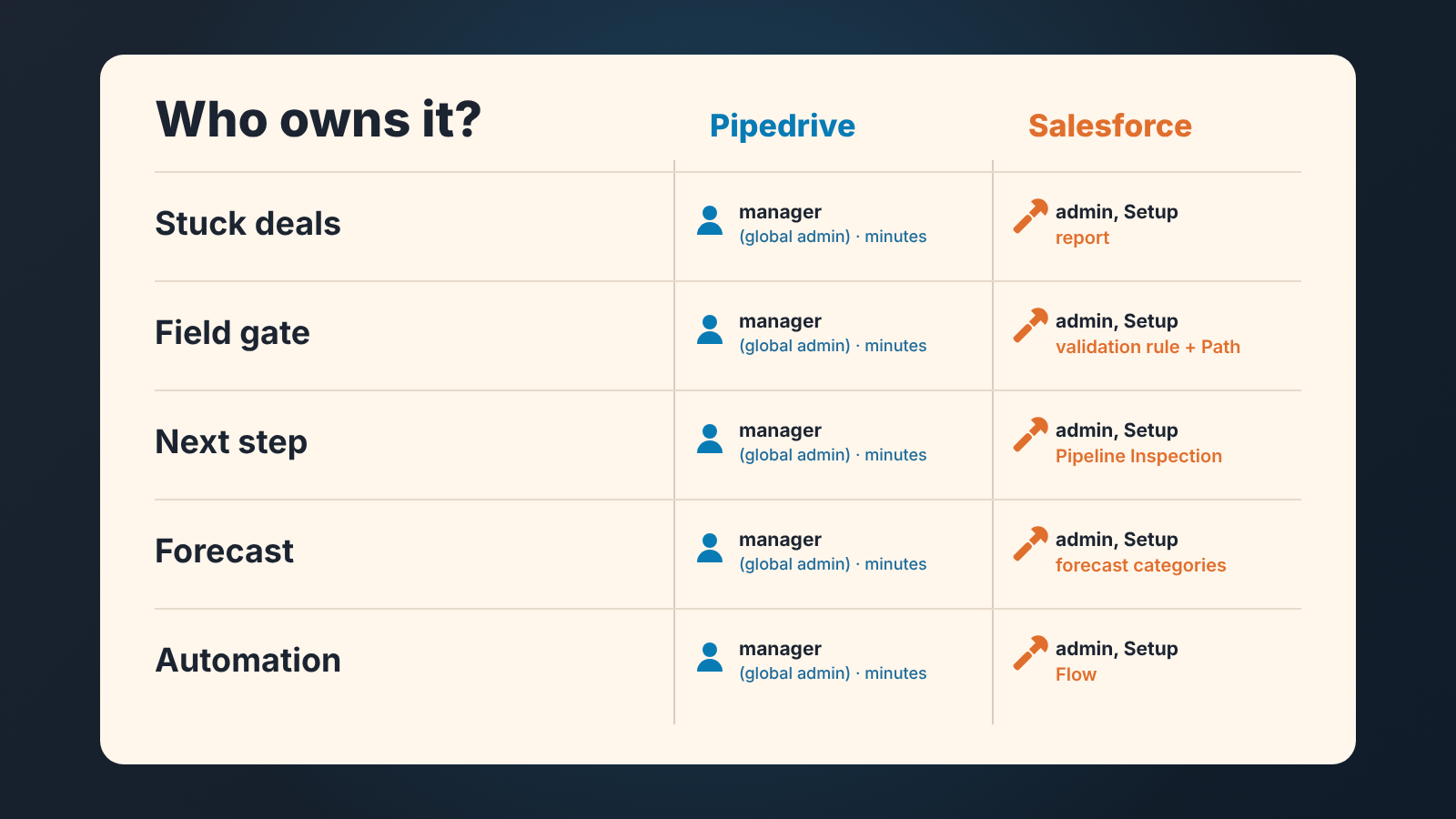
We are not saying Salesforce is too much for a small team. We are saying it is a team sport, and the second player is an admin. If that person exists, by name, with hours per week, Salesforce gives you stricter gates and a forecast a manager can shape. If that person is “the manager, on Fridays”, the checks will exist for a month, then quietly stop being maintained, and teh pipeline will look fine while being out of date.
A disclosure, since this is where the vendor question lands: we build SalesBond, a sales management layer on top of the CRM a team already uses; we started with Pipedrive, and it works with Pipedrive, HubSpot, Salesforce and Zoho CRM. It is one way to get these eight lists without building the filters and reports by hand, but which CRM you run, and who administers it, is still your call.
Salesforce or Pipedrive: which team fits which
Answer for your team as it is today, not as you plan it.
Salesforce fits if:
- someone has Setup rights and real hours each week to keep the rules current, and you can name them;
- deals arrive mostly from forms, imports or integrations, which Pipedrive’s required fields don’t stop;
- the manager wants to adjust the forecast without touching deals;
- you already run Salesforce for service or marketing, so the admin probably exists.
Pipedrive fits if:
- the manager is also the admin;
- the sales process will change this year, because every stage rename costs more where more reports and rules reference it.
Mostly the first list, and you have the team Salesforce is built for. Otherwise Pipedrive gets you the eight Monday checks this week, with the manager as the only admin. Either way, check your CRM with SalesBond once the trial has data in it, and see which of the eight lists already has names on it.