Salesforce Sales Cloud is Salesforce’s CRM application for sales teams: leads, accounts, opportunities, forecasts and reports. A manager of a small team does not need the whole feature list. A weekly routine touches five things (opportunity stages, next steps, the forecast, the activity timeline, one report), and each of them works only if one or two fields on the opportunity are filled in. This article is about those five things and the fields behind them. The rest of the product can wait.
What Salesforce Sales Cloud is, in two sentences
Sales Cloud is the Salesforce product for selling: Salesforce describes it through lead management, account and opportunity management, pipeline and forecast management, activity management, and reports and dashboards (Salesforce: Sales Cloud). Service Cloud is the product for what happens after the sale, and its core record is the case: “a customer’s question, feedback, or issue” that service reps use to track a resolution (Salesforce Help: What’s a Case?).
So the split is by record, not by department. Opportunities live in Sales Cloud, cases live in Service Cloud. A five-person team that sells and supports the same customers can run both on one org, but the weekly routine below is about opportunities only. For the accounts you cannot afford to lose, account plans in Salesforce are worth a manager check before reps start filling them in.
One naming note, because it confuses people who read the Salesforce site this month: Trailhead now presents Service Cloud under the name Agentforce Service (Trailhead: Get to Know the Service Cloud Platform). Same product line, new label.
The week of a sales manager, mapped to Sales Cloud
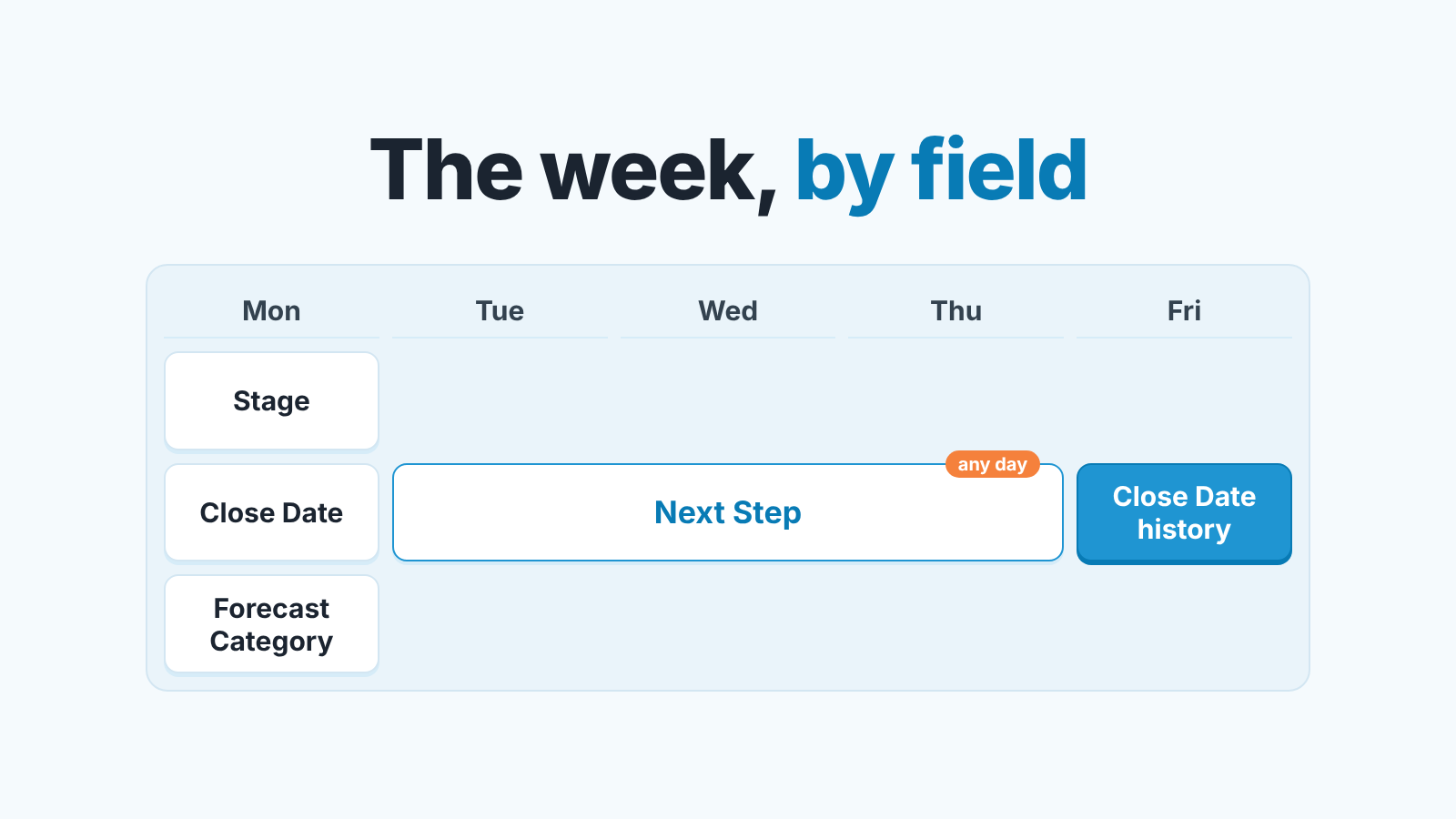
A four-beat week works for most small teams: look at the pipeline, read the forecast, check that each deal has a next action, then open one report to see whether the numbers moved. Sales Cloud has a screen for each beat. Each screen also has a field it quietly depends on, and that field is where most of the trouble starts.
| Monday to Friday | What you do | Where in Sales Cloud | The field it depends on |
|---|---|---|---|
| Monday | Walk the open pipeline, stage by stage | Opportunities list view or Kanban; Path on the record | Stage, Close Date |
| Monday | Read the number for the month or quarter | Forecasts tab | Forecast Category (set by Stage), Amount |
| Any day | Check that a deal is moving | Activity timeline on the opportunity | Next Step, an open task with a due date |
| Friday | See what changed this week | One opportunity report (which one), or Pipeline Inspection on editions that include it | Close Date history, Stage history |
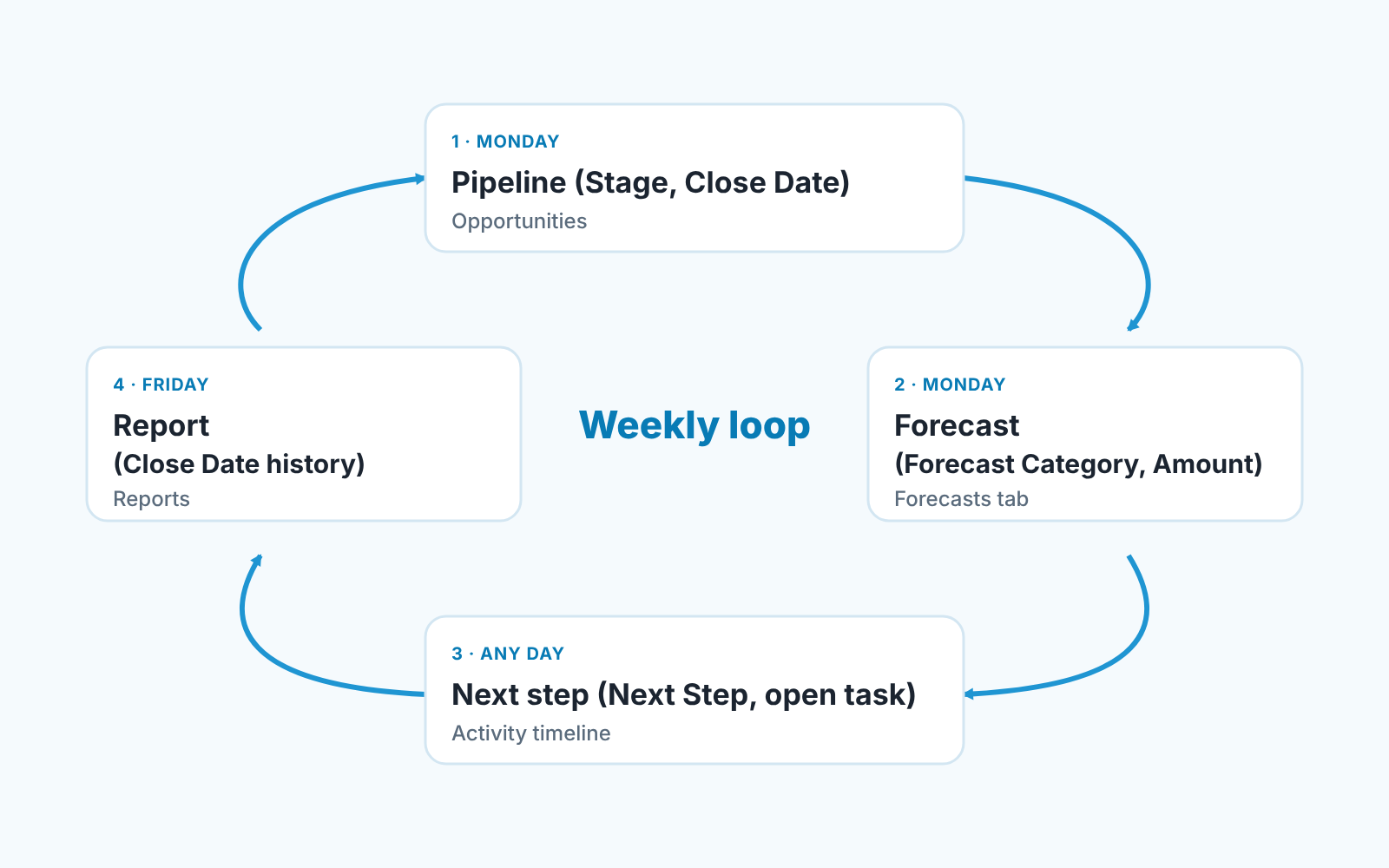
The column on the right is the whole point. A list view is only as true as the Stage values in it. The forecast is only as true as the close dates. The activity timeline only shows what was logged. If you fix nothing else this quarter, fix the fields in that column.
Pipeline and opportunity stages: what to check on Monday
Start with the stages, because every other screen reads from them. Path, the bar at the top of the opportunity record, can show up to five key fields and 1,000 characters of guidance for each stage (Salesforce Help: Guide Users with Path); what to write there is in Path guidance per stage.
The Monday question is not “how much is in the pipeline”. It is “which deals sit in a stage they have not earned”. Open the list view sorted by stage, and for every deal in Negotiation ask whether the thing that defines Negotiation has happened. If you have never written those definitions down do that first: exit criteria for each Salesforce opportunity stage is our take on it.
A deal that fails the check moves back a stage. Reps dislike it the first two weeks and then stop arguing, because the pipeline becomes something they can defend in front of you.
Close Date is the second field on this screen. A close date in the past on an open opportunity is a deal nobody has looked at. We treat it as an error, not as optimism.
Forecast: what is worth reading in a small team
The Forecasts tab sums opportunities by forecast category, and the category comes from the stage. Salesforce’s standard categories are Pipeline, Best Case, Commit, Omitted and Closed, each stage maps to one of them, and the opportunity owner can override the mapping on a single deal (Salesforce Help: Manage Opportunity Stage to Forecast Category Mappings; Customize Pipeline Forecast Categories).
For a team of five, we think one number is worth reading every week: Commit. Best Case is where hope lives and Pipeline is everything else; Commit is the list of deals a rep is willing to to be asked about by name. Read it as a list, not as a total, and ask about each deal that was in Commit last week and is not closed this week.
If you adjust the forecast, know that an adjustment stays where you left it while the deals under it move (Salesforce Help: Adjustments in Pipeline Forecasts); the rule we use is in manager adjustments in Collaborative Forecasts.
Activities and next steps: where deal context lives
Here is the field most small teams leave empty. Next Step is a standard text field on the opportunity (Salesforce Help: Opportunity Fields), and it is the one line a manager can read without opening the record. “Send revised quote by Thursday” tells you the deal is alive. Blank tells you nothing, which usually means teh same thing as dead.
Below the field sits the activity timeline, which shows the tasks, events, emails and calls on the record (Salesforce Help: Activities: Tasks, Events, and Calendars). Two details matter for a manager. The timeline shows a task’s subject and due date on its first row (Salesforce Help: Tailor the Activity Timeline), so an open task with a real due date is visible at a glance. And emails only land on the timeline when Enhanced Email is on; without it they are not saved as tasks and do not appear there (same source). If your reps say “I emailed them” and the timeline is empty, check that setting before you check the rep.
Our rule, explained in one open task per Salesforce opportunity, is simple: every open opportunity carries exactly one open task with a due date. A logged call is history. A task is a promise. The quick way to audit a single deal in under a minute is in the activity timeline deal check.
A disclosure, since this is the check we spend the most time on: we build SalesBond, a sales management layer on top of the CRM a team already uses, and the open-opportunity-without-a-next-step list is one of the things it produces each morning instead of a manager building the filter. The filter itself is five minutes in Salesforce; the discipline to read it every week is the hard part. Check your CRM with SalesBond if you want the list without the filter.
Reports and dashboards you can start with
One report. Not a dashboard with nine components, one report that answers “what changed since last Friday”. The Sales Cloud marketing page lists reports and dashboards as a standard capability (Salesforce: Sales Cloud), and the useful version for a weekly review is the historical one: Salesforce’s opportunity history reporting is built to track changes in the pipeline over time, which means close dates and stages that moved (Salesforce Help: Track Changes in Your Sales Pipeline). Which report, which columns and which filters, is in Salesforce reports for a sales manager’s week.
On Enterprise, Performance and Unlimited editions, Pipeline Inspection does the same job on one screen, and its Push Count field shows how many times the close date has moved from one calendar month to a later one (Salesforce release note on Pipeline Inspection in Enterprise Edition, via Trailblazer Community; See How Many Times Close Dates Are Pushed Out). On other editions, a standard report with opportunity field history does the job with a few more clicks. How we run the Monday review with either one is in the weekly pipeline review in Salesforce.
Three pushes is a pattern, not bad luck.
What to leave for later: editions, add-ons
The pricing page lists Starter Suite and Pro Suite for small teams, then Core, Advanced and Max editions of Sales Cloud, with prices shown per user per month (Salesforce: Sales Cloud Pricing, checked 2026-10-15). Everything in this article runs on the opportunity object, which Starter Suite already has: the page lists lead, account, contact and opportunity management in it. Forecasting and quoting appear from Pro Suite up, on the same page.
The add-ons on that page (Agentforce for Sales, Revenue Intelligence, Revenue Cloud, Sales Programs) are priced separately and solve problems a team of five does not usually have in its first year. We are not telling you not to buy them. We are saying that none of the fields in the table above gets filled in by an add-on. A rep fills them in, and a manager reads them. Whatever you leave for later, set up a weekly Salesforce backup before you need one.
What the Agentforce add-on adds to the bill is worked out in our Agentforce for Sales pricing for five reps.
Our wider view of what a small team needs from sales force automation, and what it can skip, is in sales force automation for a small team. When you want the quarterly version of these checks, start with the opportunity audit for a sales manager.
FAQ
Is Sales Cloud the same as Salesforce CRM?
Sales Cloud is the sales part of Salesforce’s CRM: leads, accounts, contacts, opportunities, forecasts, reports (Salesforce: Sales Cloud). When someone says “we use Salesforce” for selling, Sales Cloud is almost always what they mean. Salesforce sells other clouds on the same platform, so “Salesforce” is the company and the platform, and “Sales Cloud” is the product a sales team logs into.
Sales Cloud vs Service Cloud: which do I need?
By record. If your team works opportunities toward a close, Sales Cloud. If it works cases, meaning customer questions and issues tracked to resolution (Salesforce Help: What’s a Case?), Service Cloud. Many small companies start with Sales Cloud alone and add Service Cloud when support tickets stop fitting in a shared inbox.
Which fields should be mandatory for the weekly routine to work?
Stage, Close Date, Amount and Next Step, plus one open task per opportunity. Make Next Step required on the Path steps where it matters rather than globally; a required field on a brand-new lead becomes “TBD” within a week.
Do I need Pipeline Inspection?
No. It saves clicks, and it comes with Enterprise, Performance and Unlimited editions (Trailblazer Community). On other editions, a report on opportunity field history shows the same changes.