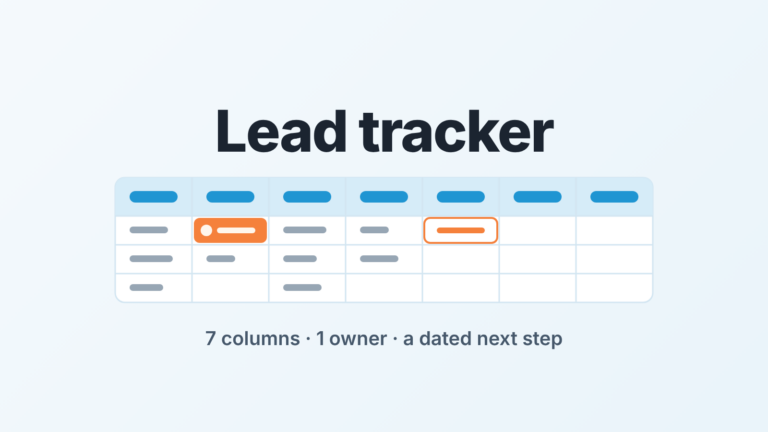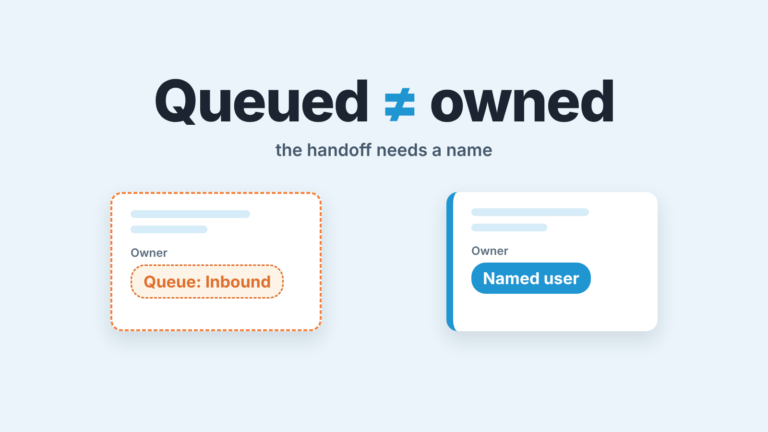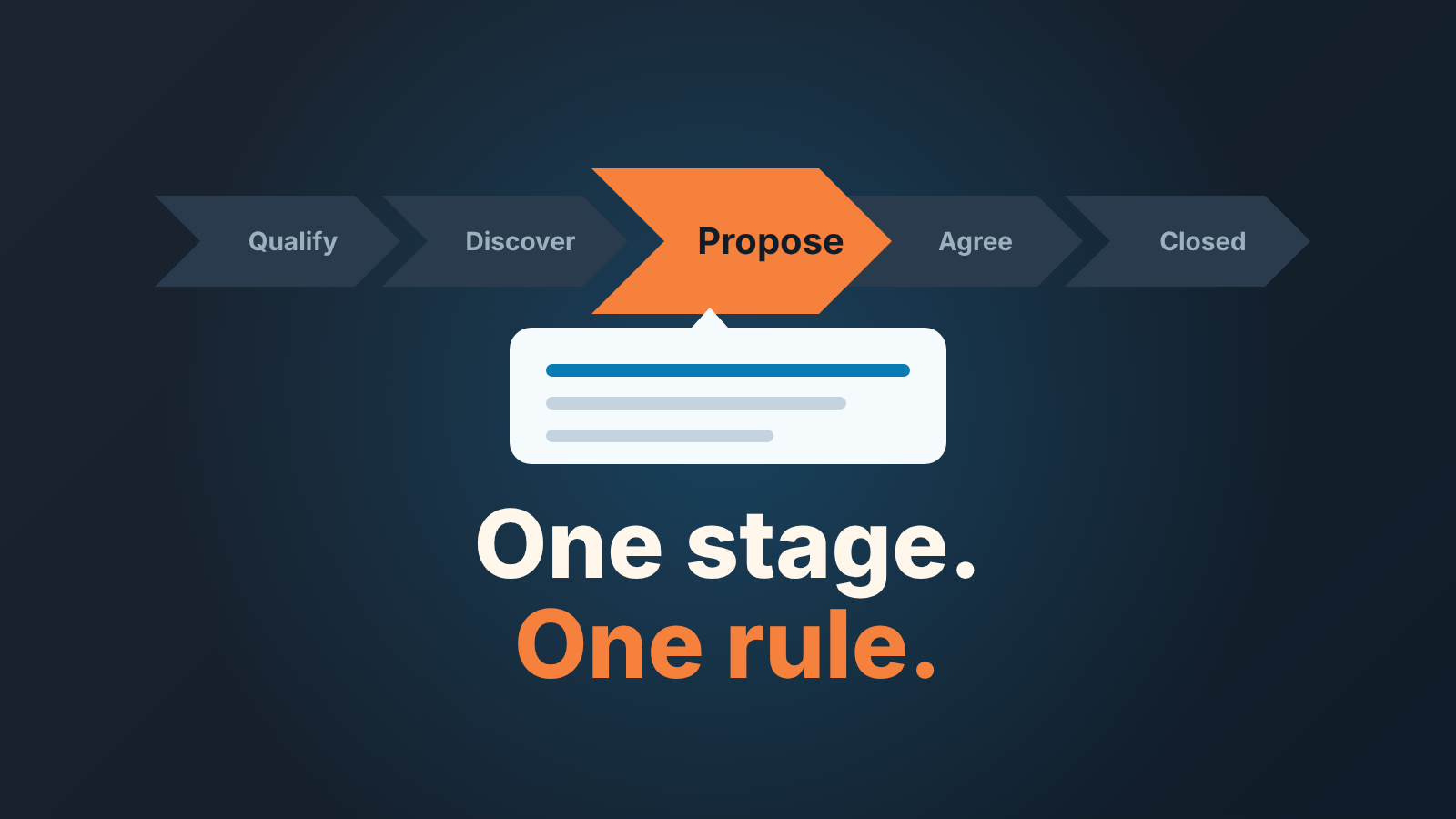
Use Sales Path to show each opportunity stage one verifiable condition in its Guidance for Success box and no more than five key fields, so reps see the rule while they work the deal and managers check the same fields later. Salesforce gives you up to 1,000 characters of guidance and up to five key fields per step (Salesforce Help: Create a Path). Most teams fill neither. The stage names sit in the chevrons, the box under them stays empty, and the one part of your Salesforce sales process the rep actually reads says nothing at all.
Names say nothing; the path can say more
Marek runs a seven-person team on Salesforce. He opens an opportunity sitting in Negotiation and asks the rep what makes it Negotiation. “We’re negotiating.” That is the whole answer, and in most orgs it is the only answer the stage name can give. A stage is a picklist value. It records the rep’s opinion, and nothing on the page says what the opinion should rest on.
Path is the one component on the record that changes with the stage. Salesforce describes it as a way to guide users through the steps of a business process, highlighting key fields and adding guidance for success at each step (Salesforce Help: Guide Users with Path). Read it as a manager: Path is the only place where you can talk to the rep at the exact moment they pick the stage. Your process deck lives in a shared drive. The Path lives under the rep’s cursor.
So we treat it as a rulebook, not a progress bar. Salesforce will even throw confetti when a rep reaches a step you choose (Create a Path). We’d rather the step under the confetti meant something first.
How to write the condition itself, and how many stages to keep, is a separate question; we covered it in exit criteria for Salesforce opportunity stages. This article is about the next step: where that condition is shown to the rep, and what exactly goes into the box.
What Sales Path does, and what it doesn’t
Per Salesforce’s own pages, a path shows one step per value of the picklist it is built on, in picklist order, ending with the closed stage (Closed Won or Closed Lost by default on opportunities). Each step gets up to five key fields and up to 1,000 characters of guidance, meant for tips, links and company policy (Create a Path). You get one path per record type, it runs in Lightning Experience and the mobile app, and the same fields and guidance appear in kanban views on that object (Considerations and Guidelines for Creating Paths).
What it doesn’t do is require anything. The Key Fields panel is a window onto the record, not a gate. You can’t use the page layout to require different fields at different steps; for that you set up validation rules based on a path step, and their messages appear at page level rather than next to the field. The record type and owner fields aren’t editable in the panel, and a user sees the path only with access to the record, the record type and every field in it (Considerations).
Our rule from this: guidance tells, validation enforces, and the order matters. Write the guidance first. Add a validation rule only for a field that is still empty after the guidance has been live for a month. A rule added on day one teaches reps to type a placeholder; a line of guidance teaches them what the field is for. More on that trade-off in what not to automate in a sales process.
One stage, one line of guidance, up to five fields
Here is a five-stage path on the Opportunity Stage field, standard record type, for a team selling on a monthly cycle. The stage names are ours; your picklist will differ. The middle column is the first sentence of the guidance box (the condition), the last is the key fields in the order they are shown.
| Stage | First line of Guidance for Success | Key fields |
|---|---|---|
| Qualify | Move this on when you can say, in the buyer’s words, what it costs them to do nothing. One sentence, in Description. | Amount, Close Date, Lead Source, Description, Next Step |
| Discover | Move this on when Next Step holds a date and the name of the person who owns the budget. “Will try to reach” is not a date. | Next Step, Close Date, Amount, Probability, Type |
| Propose | Move this on when the buyer has told you the date they’ll answer by. Next Step: that date and what they said. If Close Date moved, change it today. | Next Step, Close Date, Amount, Probability, Description |
| Agree | Move this on when something written has come back from their side: redlines, a PO number, a yes in an email. Say which in Next Step. | Next Step, Close Date, Amount, Probability, Description |
| Closed | Won: the signed order form is attached. Lost: pick the real reason from the list; Other is for when none fits, not for when you’re in a hurry. | Amount, Close Date, Loss Reason, Description, Next Step |
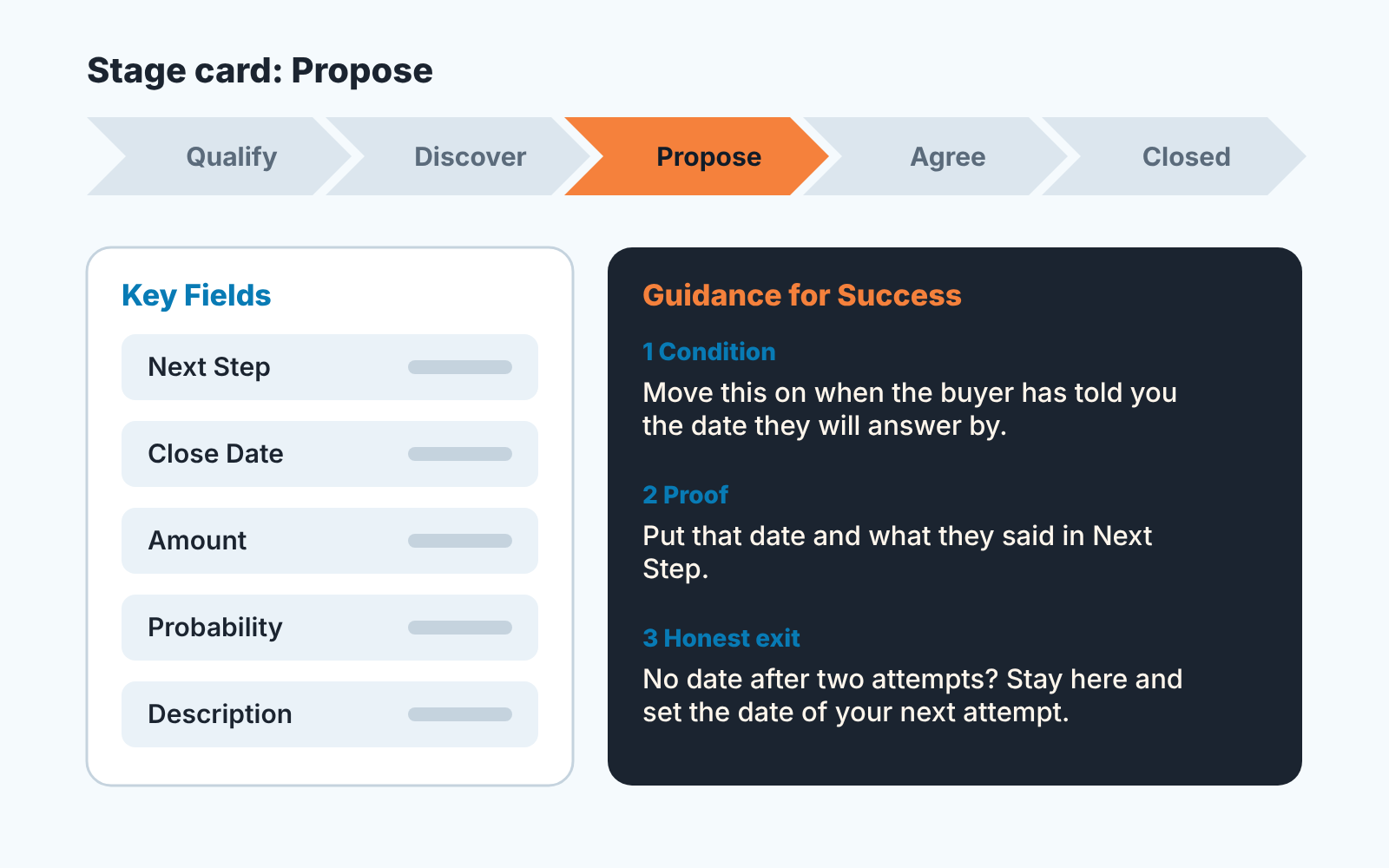
Two things about this table that aren’t obvious from reading it.
The fields repeat on purpose. Next Step, Close Date and Amount appear on almost every stage because they are the three fields a manager reads first in the Monday pipeline review. Pick the fields for the Path from the the columns of your review, not from the page layout. If the review looks at Next Step and the Path shows Lead Source, the rep is being asked to fill one thing and judged on another. Our weekly pipeline inspection in Salesforce lists what we read; the Path should show the same.
Next Step carries most of the weight. Four of five stages ask for a date and a name in it, which only works if the team already treats Next Step as a sentence with a date, not a to-do. If yours doesn’t, start with the Next Step rule for Salesforce tasks and come back to the Path afterwards. If a field matters at only one stage, use Dynamic Forms to show stage fields on the record page.
What to write in a thousand characters
A thousand characters is a long paragraph. It is not room for the sales methodology, and the moment the box reads like a policy document the rep stops reading it on the second day. We write every guidance box in three parts, in this order.
First, the condition, in the second person, one sentence. It starts with “Move this on when” so that every stage reads the same way and the rep’s eye lands on the verb.
Second, the proof: the field where the evidence goes. Name the field exactly as it appears on the page. “Put it in the notes” sends the rep to Chatter, to a Note, to the Description, to a Task comment, and the manager finds it in none of them.
Third, the honest exit. What to do when the buyer won’t give you the thing. This is the part everyone leaves out, and its the part that keeps the pipeline true. Without it a rep who can’t get a response date has two choices: move the deal forward anyway or leave it where it is forever. Give them the third one.
Here is the full box for Propose, well inside the 1,000:
Move this on when the buyer has told you the date they’ll answer by. Put that date and what they said in Next Step, e.g. “Answer by 14 Nov, Dana says legal needs two weeks.” If Close Date has moved, change it today, not when the manager asks. Can’t get a date after two attempts? Leave the deal here and set Next Step to the date of your next attempt. If three attempts pass with no date, move it back to Discover: we don’t have a buyer yet, we have a reader. Pricing exceptions: see the discount policy link in Chatter, don’t promise them in the proposal.
Notice what is missing: no “remember to update the opportunity”, no definition of a proposal. One link, to a policy, because Salesforce lists links and company policy as the intended use of the box (Create a Path), and one is as many as a rep follows.
Checking that the guidance is read
The Friday question is simple. Pick three opportunities that changed stage this week. Open each one. Does the record hold what the guidance for the stage it left asked for? Three records and you learn more than from any adoption report.
When it’s no, there are two causes, and they need different fixes.
The rep didn’t see it. Before blaming anyone, check permissions: Salesforce shows the path only when the user can view the record, the record type and all of the fields used in the path (Considerations). One key field hidden from a profile hides the whole path for that profile, and the rep will reasonably tell you there is no path.
Then check the record type. Salesforce has a support article on exactly this complaint, written for leads: Guidance for Success doesn’t appear when the path is assigned to the Master record type, and the fix is a path assigned to a specific record type (Salesforce Help: Guidance for Success in Sales Path Not Displaying). The same article notes that the guidance sits behind a drop-down, so a rep can look at the path every day and never open the box. On leads there is also no guidance for Converted, because that value isn’t treated as a picklist value. None of this replaces the simplest check: sit next to the rep and look at thier screen before you change a setting.
The rep saw it and moved the deal anyway. Then the guidance is wrong before the rep is. Either the condition is one the rep can’t meet in your market, in which case rewrite it, or the field matters enough to enforce, in which case add the validation rule based on the path step and accept that the message shows at page level (Considerations). Most of the time it is the first. A condition that fails for every rep is a condition about your buyers, not your reps.
A disclosure, since this is the point where checking three records by hand stops scaling. We build SalesBond, a sales management layer on top of the CRM a team already uses; it works with Salesforce alongside Pipedrive, HubSpot and Zoho CRM. Deal Health checks every opportunity against more than 20 built-in rules and shows which ones a record breaks, without waiting for Friday. It doesn’t read your guidance box, and its rules aren’t ones you write, so the box stays your job. Check your CRM with SalesBond. If you’d rather keep it manual, the opportunity audit for sales managers is the same kind of check done with a report.
Start with the stage everyone argues about
Don’t write all five boxes this weekend. Write one. Pick the stage where Monday’s review turns into a debate, usually Propose or whatever your team calls it, and give it one condition, one proof field and one honest exit. In a month, open the Friday three again. If the Propose records now carry a date in Next Step, write the next box. If they don’t, you learned something about your buyers, or about your condition, for the price of a paragraph. Either way when Marek asks what makes a deal Negotiation, the rep can point at the screen instead of at their memory. That is managing sales by process in the one place where the process is actually read.