Set a rep’s target in HubSpot Goals only after you have worked back from the quota to the number of deals the pipeline must receive, assign it to the right pipeline, and use the same period as your forecast, so the goal, the forecast and the pipeline all say the same thing. Everything else in the Goals tool, the templates, the notifications, the leaderboard, is decoration on top of those three decisions.
HubSpot’s own guide to creating sales goals covers every button, and we link to it where it matters. What it does not cover is which number to type. That is where most goals go wrong. If your team is on Pipedrive, the same problem has a different shape there: Pipedrive goals and monthly targets.
A target is a number plus a pipeline
Search for “hubspot goals” and, right under five help-center pages, sit two threads from people who could not make it work. One is an r/hubspot thread asking someone to explain the feature, because “I find it pretty confusing and their documentation isn’t quite helpful”. The other is a community post titled “Goals – can anybody get them to work reliably?”. In setups like the ones these threads describe, we usually find the same story: the manager typed a number from the annual plan into a template and left everything around it on the defaults.
What sits around the number matters as much as the number. A HubSpot goal carries a measure, a set of contributors, a duration and a pipeline, and changing any of the four changes what the same figure means. A $45,000 monthly revenue target on the new-business pipeline is a quota. The same target with no pipeline chosen, in an account where renewals run through a second pipeline, is a quota the rep can hit without opening a single new conversation. Nobody set it up that way on purpose. The pipeline question simply came last in the wizard, after the number, and the number felt like the important part.
Contributors hide a similar trap. HubSpot offers three ways to assign a goal: Individual users, Team goals only, and Teams with individual user targets. If a rep belongs to more than one team, a target can be applied to only one of them, and if they are a primary member of one of those teams, that is the team it goes to (HubSpot: create sales goals). A rep who sits in both “Sales” and “Partnerships” has one target, in the team HubSpot picks, and the other team’s leaderboard shows nothing for them. On a Monday morning that reads exactly like “goals don’t work reliably”.
So before the number: which pipeline, which period, which people. Write those three down. Then calculate. The HubSpot forecast tool shows goals only when their pipeline and dates match, so set them with that view in mind.
Work backward from the quota
We assume the quota itself is already chosen. If it is not, start with how to set sales quotas; this section takes the quota as given and turns it into goals HubSpot can actually track.
The numbers below are an example, not a benchmark. Replace every one of them with your own, taken from closed-won deals in the same pipeline over the last two or three quarters.
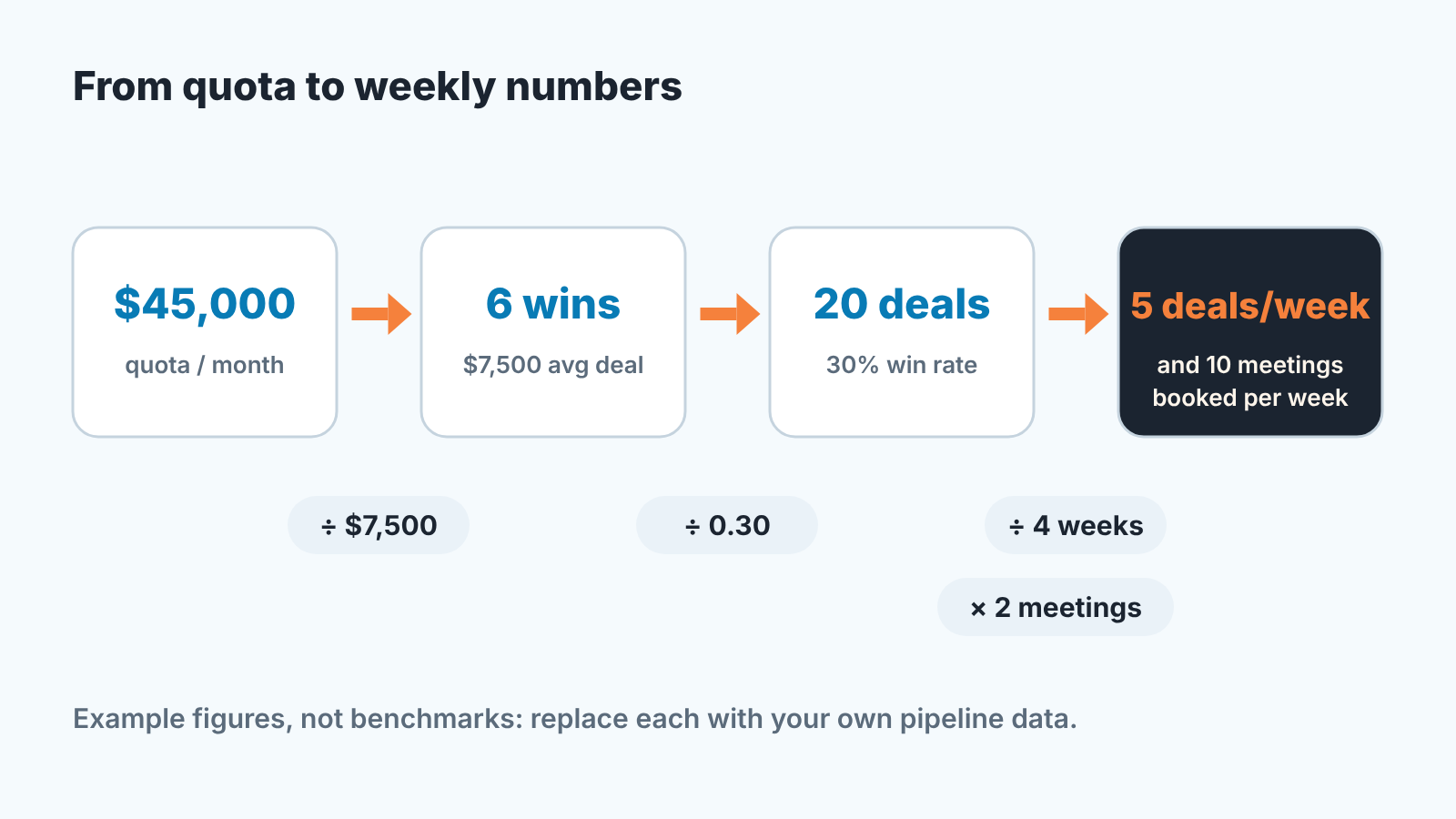
Say a rep carries $45,000 a month in new business. Your average closed-won deal in that pipeline is $7,500, so that is six wins a month. Of the deals this team creates, three in ten reach closed-won, a 30% win rate, so six wins need twenty deals created. A month has roughly four working weeks, which means five new deals a week. And if, in your HubSpot, about one booked meeting in two turns into a deal, five deals a week means ten meetings booked a week.
That chain is the whole method:
- Divide the quota by your average deal size to get the wins needed.
- Divide the wins by the win rate to get the deals that must be created.
- Divide deals created by the weeks in the period for the weekly number.
- Divide deals per week by your meeting-to-deal ratio to get meetings booked.
Three things to get right in the arithmetic.
Take the ratios from the same pipeline the the goal will sit on. New business and renewals close at different rates, and an account-wide win rate is an average of two things that should never be averaged.
Count deals, not dollars, for the activity goal. One oversized deal makes a thin week look full; a count can’t hide it. We covered the arithmetic and the sales-cycle correction in how many new deals a rep must add per week, and that correction matters here too: deals created in the last weeks of a quarter close in the next one, so the weekly number has to be hit early, not on average.
And be honest about the win rate. If reps move deals to closed-lost only when forced, the pipeline carries dead deals and the real win rate is lower than the report says. Required properties per stage fixes part of that at the source. Until the data is clean, round the win rate down.
Out of this you get two numbers per rep, maybe three: a revenue target, a deals-created target and, for reps whose job starts with the first meeting, a meetings-booked target. That is the list to take into Goals.
Which HubSpot sales goals to create, and which to skip
HubSpot ships four sales templates on Professional and Enterprise: Deals created, Calls made, Revenue and Meetings booked. HubSpot’s guide lists Revenue as the only goal measure in Sales Hub Starter accounts, with a seat condition we come back to below (HubSpot: create sales goals). Custom goals, built from properties on calls, companies, contacts, conversations, deals, meetings and tickets, exist too (HubSpot: understand goals); we leave them out of a first setup.
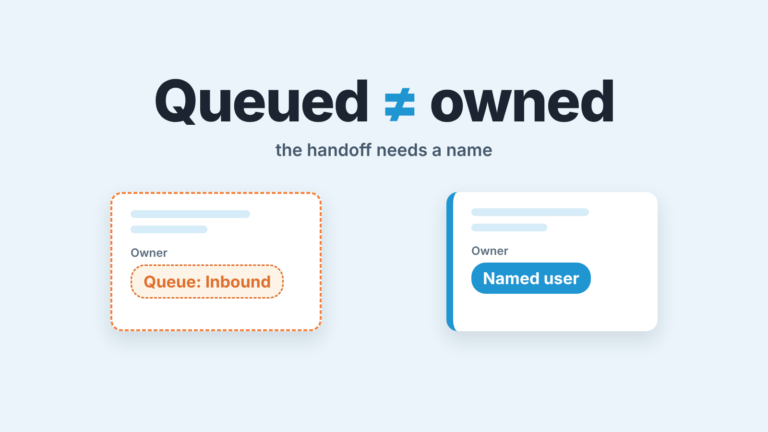
Our position is one revenue goal and one activity goal per rep. Not four. The revenue goal goes to every closing rep, set up as forecastable (more on that in the next section). The activity goal is Deals created for reps who source their own pipeline, or Meetings booked for reps and SDRs whose job ends at the first meeting, because a booked meeting is close enough to the first real step of a deal to be worth a target. Calls made is the one we skip: it measures effort rather than progress, and the count rewards short calls. If you create all four reps will watch the one they are winning and ignore the one that matters.
Two conditions come with the activity goals. A meeting counts toward a goal only if its Activity assigned to property has a value (HubSpot: create sales goals), so a meeting logged from a shared calendar without an owner is invisible to the target. Check that property on the first week’s meetings before anyone argues about attainment.
The other condition is seats. To create, edit or delete goals you need a Sales or Service Hub Professional or Enterprise seat, or Super Admin; to be assigned a goal, a user needs a Professional or Enterprise seat. The same guide lists Revenue as the only measure in Starter accounts, yet says a user needs a Professional or Enterprise seat to be assigned a goal. If your reps are on Starter seats, create one Revenue goal for one rep and check that it saves and tracks before you plan the setup around it.
You don’t have to type targets one by one, either: the Performance step applies one target or one pipeline to several contributors at once, and a CSV import earns it’s keep when targets differ by month and already live in a spreadsheet.
Make the goal show up in the forecast
Here is where a correctly calculated goal still disappears.
HubSpot has two kinds of revenue goal: a forecastable revenue goal, which appears in the Forecast dashboard, and a standard revenue goal, which appears only in reports and on the Goals overview tab. Which one you get depends on a single dropdown. Pick the Revenue template and answer Yes to “Do you need to use this goal in the forecasting tool?”, and the goal is forecastable; answer No, and it is standard (HubSpot: create sales goals, HubSpot: understand goals). A manager who answers No, because the question sounds optional, then opens Forecast, finds no target line and files that under “goals don’t work”.
The second way to lose it is the period. HubSpot’s own note is blunt: the goal duration must match the forecast period to display in the forecast. A quarterly goal shows in a quarterly forecast; a monthly goal against a quarterly forecast does not. Durations are Weekly, Monthly, Quarterly, Yearly or Custom, and a checkbox aligns the goal with your fiscal year settings. Pick the period you actually review the forecast on, use it for both, and tick the fiscal year box if your quarters do not start in January.
The third attachment is the pipeline. For a forecastable goal you choose the Year and the Pipeline the goal applies to, which means one pipeline per goal. If the goal is not used in the forecast, the pipeline is chosen per user or per team in the targets table. We prefer one pipeline per goal either way. A rep who works new business and renewals gets two revenue goals, one per pipeline, each with its own number from its own ratios, rather than one blended goal whose attainment nobody can explain.
Why bother lining all this up? Because the goal is the denominator for the quarter and the forecast is the numerator, and on different periods you do the conversion in your head every Monday. The forecast itself is only as honest as the stage probabilities behind it, and the weighted pipeline view is where the goal line becomes useful: pipeline weighted against target, on the same period.
Reading attainment without fooling yourself
Goal progress in HubSpot updates every eight to twelve minutes (HubSpot: create sales goals). A rep who closes a deal and refreshes the page will not see the bar move. Say so once, in the team channel, and you skip a round of “is Goals broken?” messages.
Three more mechanics from the same guide matter more than they look. First, changes to a deal after the goal is due do not update the goal, so a deal closed on the 2nd with its close date backdated to the 30th should not rescue last month’s attainment. We think that is the right behaviour: the number you review on the 1st is the number that stands. Second if a user is deactivated or deleted, their goal progress stops being calculated. When a rep leaves mid-quarter, reassign their deals and give the goal to whoever inherits the pipeline, or the team total quietly loses a contributor. Third, a goal created for a future period shows “No user goals found” while the report’s filter sits on the current month (HubSpot: understand goals). Change the date range before you assume the goal did not save.
For the review itself, the goal’s performance page shows Total progress, Actual versus user goals, a Leaderboard, and counts of user goals in progress, achieved and missed (HubSpot: report on goals). A goal can also be drawn as a reference line on a report, and that is the one place we put it on the manager’s dashboard: revenue by month with the target across it.
Then there’s Friday. Skip “how is it going” and ask: “You needed five new deals this week, the goal says three, which two are missing?” The rep either names two conversations that are a day from becoming deals, or they don’t. Either answer is useful, and the goal gave you the number to ask about. Revenue attainment is for the end of the period; the deals-created bar is for Friday.
One limit can break this whole method. The calculation in the second section assumes the deals in the pipeline are real: created when the conversation starts, moved when the stage changes, closed lost when they die. If reps keep dead deals open, the win rate you calculated is fiction, and so is the goal built on it. We build SalesBond, a sales management layer on top of the CRM a team already uses, and its Deal Health checks every deal against more than 20 rules, flagging deals with no next activity or a close date that has already passed and explaining what to do about each. That is the check that keeps the ratios behind a goal honest. If you want to see what it finds in your pipeline, check your CRM with SalesBond.
You will know the goals are set up right when three numbers agree without anyone reconciling them: the Goals overview, the Forecast dashboard and a plain deal report filtered to the same pipeline and period. The first week they disagree, don’t edit the goal. Find which attachment is wrong, usually the pipeline or the period, fix that, and let the next progress update do the rest.