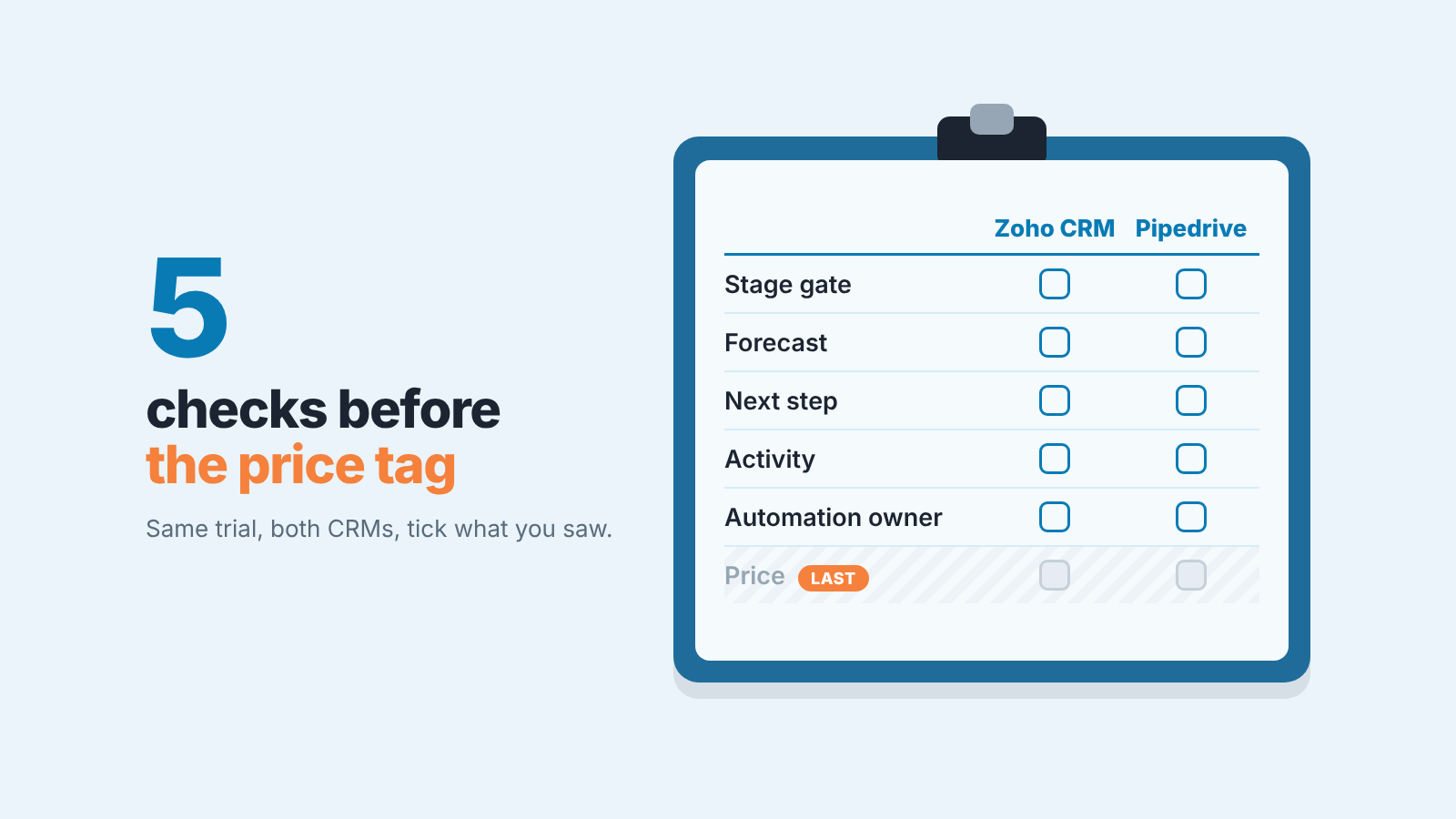
In Zoho CRM vs Pipedrive, price is the last question. First check how each one enforces a stage rule, where the forecast lives and on which plan, whether a deal shows its next step, and who owns the automations. The short version: Pipedrive suits a team whose day revolves around the deal and its next step, and Zoho CRM suits a team that wants strict stage changes and plans to use other Zoho apps alongside it. Those answers decide which tier of which product you are actually buying, and only then does the price per seat mean anything.
The comparison that starts with price
Most pages on the first page of Google frame this as a suite against a focused sales tool, and that framing is fair. Zoho CRM is one app inside a family of 60-plus that Zoho also sells as a bundle, Zoho One; Pipedrive is a pipeline with everything else bolted on around it. But a sales manager does not run a suite. A sales manager runs a Monday review, and none of those pages say what each CRM does when a rep drags a deal into Proposal with no amount on it.
Zapier’s take on the deal record is worth repeating, as an opinion. In its June 2026 comparison it calls Pipedrive’s deal view “a tool built for the daily work of a sales team” and lists, among Pipedrive’s rep-friendly touches, “an icon that shows at-a-glance deal health”. Zoho’s deal view, in the same piece, is “more of a database than a workspace” (Zapier: Pipedrive vs Zoho, opened 17 October 2026). We would not go that far, but we understand the reaction. A Zoho deal page shows you everything about the deal. A Pipedrive deal page shows you what to do with it. Which one your reps need is a question for your reps.
We write set-up guides for both of these CRMs and have no stake in which one you pick. We did the same exercise for Zoho CRM against HubSpot and the questions turned out to be the same; the answers are not.
Five questions to ask in a trial
Both vendors give you a trial, so use them in parallel. Load the same ten deals into each, with the same stage names, and give two reps a login. Then work through these in order, as a manager rather than as an admin.
The first question is whether the CRM will refuse a stage change. Both have custom fields, so that tells you nothing. What you want to know is whether a rep moving a deal into Proposal without a close date gets stopped, and what the stop looks like on their screen. The next section is about this one, because it is where the two products differ most.
The second is where the forecast number comes from. Open the forecast view, read the figure for this quarter, then find the deals that add up to it. If you cannot get from the number to the deals in a minute the number will not survive its first argument with a rep.
The third is whether a deal shows its next step without opening it. Pick a deal, remove whatever follow-up is scheduled on it, and look at it in the pipeline view next to its neighbours. Does it look the same as a deal with a call booked for tomorrow? Then your weekly review will be about the past.
The fourth is how long it takes to see what one rep did last week. Calls, emails, meetings, notes, by person and by day, without exporting anything. Time it from the home screen. In Zoho the starting point is a standard report, and we listed the six Zoho CRM reports a manager actually opens; build the same view in Pipedrive and compare the stopwatch.
The fifth is who owns the automations. Forget for a moment which plan has them. Ask which user each one belongs to and what happens when that user leaves. Most comparison pages skip this entirely, and we think it is the one that costs the most money a year later.
Price comes after all five. The first four answers each depend on a plan, and the plan they point to is rarely the one at the top of the pricing page. When you get to price, see what Pipedrive costs for a five-person team, plan by plan.
Stage gates: Blueprint versus required fields
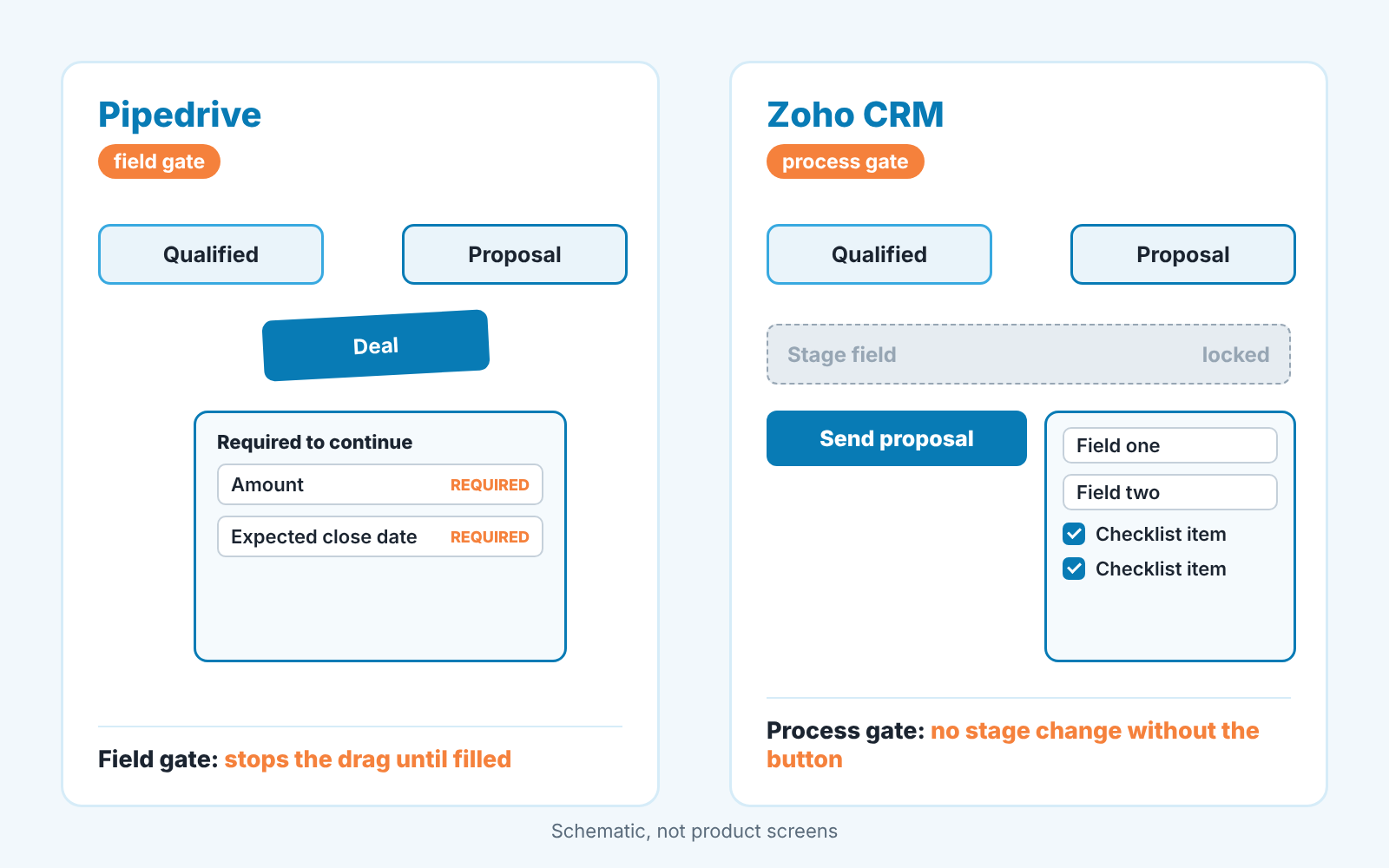
Here is the difference in one sentence. Pipedrive gates a stage with a field; Zoho CRM gates a stage with a process.
In Pipedrive an admin marks a field as required for chosen pipelines and stages, and a rep who moves a deal into that stage without it “will be prompted to add the required information” (Pipedrive: Required fields). The deal still moves by drag and drop; the gate is a form that pops up on the way. The setting takes a few minutes, and the cost is the placeholder answers that appear when you require a field nobody reads. We went through which Pipedrive fields earn the requirement and how to find the ones that have already gone bad.
In Zoho CRM the same job is done by a Blueprint, and a Blueprint changes how the Stage field behaves. Every stage becomes a state, every allowed move becomes a transition that appears as a button on the deal, and each button can carry a form with required fields and a checklist. While a deal sits inside a Blueprint the rep cannot type a new value into Stage at all; the buttons are the only way forward. That is stricter than Pipedrive’s gate. It is also heavier, and that is the honest downside of Zoho CRM here: every gate is a click and a form on every deal, every time. Our Zoho CRM Blueprint stage gates article argues for gating two or three transitions and leaving the rest open.
Then there is the plan, and it matters more on the Zoho side. Zapier puts Zoho’s workflows on Standard and its process automation on Professional (Zapier: Pipedrive vs Zoho). Zoho’s own feature list is more specific: Blueprint is not available on Free or Standard, and Professional is the first edition that has it (Zoho CRM: complete feature list, opened 17 October 2026). So if your Zoho trial is on Standard and you cannot find Blueprint, that is not you. Pipedrive’s required fields are not free either: Pipedrive’s help page says the feature is “only available on Professional and higher plans”, and it adds that required fields won’t stop a deal that moves through import, bulk editing, the API or an automation (Pipedrive: Required fields).
The test that settles it is not a feature list. Ask one of your trial reps to move a deal into Proposal without an amount in both systems, and watch over thier shoulder. In Pipedrive they will see a form. In Zoho they will see a button, then a form, then a checklist they cannot skip. One of those will get the field filled in. The other will make them stop moving deals on Friday afternoon. Which is which depends on your team.
Forecast and which plan has it
In Zoho CRM the forecast starts on the Standard plan, according to Zapier’s June 2026 comparison (Zapier: Pipedrive vs Zoho), and Zoho’s feature list shows Sales Forecasting from Standard up, not on Free (Zoho CRM: complete feature list). That is the good news. The question to ask in the trial is who types in the number the forecast is measured against. A forecast is a target and a pipeline side by side, and the target does not appear by itself; someone sets one per rep, and someone updates it next quarter. If that someone is you, decide now whether you will.
For Pipedrive, Zapier’s piece tells you which plans carry automations and lead routing but says nothing about which plan has the forecast view, so we won’t guess. Open the trial, find the forecast, and write the plan name in the table below. If it is not on the plan you were going to buy, that is exactly the kind of thing this exercise exists to catch.
In both trials, open the deals behind the figure and check the amount and the close date on each. A forecast is only as honest as those two fields.
Automation: who owns the rules
Every automation has an owner, and the owner is the part of the comparison nobody prices.
First the plan facts, from the same Zapier summary (Zapier: Pipedrive vs Zoho, opened 17 October 2026). In Zoho CRM, workflows and Cadences come with Standard and process automation with Professional. In Pipedrive, automations start on the Growth plan, with lead routing and scoring on Premium. Zoho also has a free plan for up to three users, per the same source. Plan names change and so do the features inside them, so treat this as a map of where to look in the trial, not the final word.
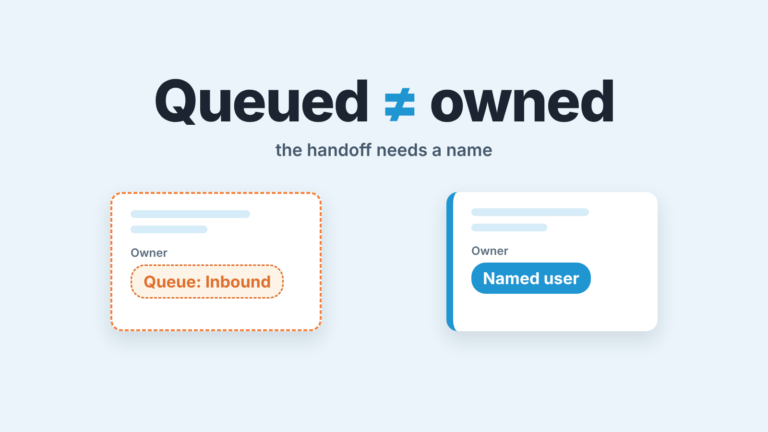
Now the ownership question, which is the one we actually care about, and the clearest downside on the Pipedrive side. In Pipedrive an automation belongs to one user. When that user is deactivated without handing it over, the automation is switched off: for the whole team if it was set to trigger for all users, or just for that person if it was set to trigger for selected users (Pipedrive: what happens with the data when a user is deactivated). Pipedrive does offer to transfer ownership from the deactivation screen. Skip that step, though, and nothing else will remind you. Our 20-minute audit of Pipedrive automations by owner opens with a team that went five weeks without calling its inbound leads this way (an invented example, but a familiar one), and the fix is a quarterly check plus a line on the offboarding list.
We have not run the same deactivation test in Zoho CRM, so we will not tell you what happens to a workflow rule or a Cadence when its creator’s account is closed. Run it yourself: have one trial rep build a workflow rule and a Cadence, deactivate that rep and see what still fires. What we can say about Cadences, from building them, is that a Cadence is a follow-up sequence for a record that stops when the buyer replies or an exit condition matches; our Zoho CRM Cadences for a sales manager piece is mostly about getting that exit right. A Cadence is not a next step on a deal, though, any more than a Pipedrive automation is. That is why the next-step question from the trial list stands on its own.
Zoho CRM vs Pipedrive: a table to fill in yourself
Copy this into a document before you open either trial. The middle columns are for what you saw on screen, not for what someone from the vendor told you. The last column is the plan the feature was actually on when you found it, which is the number that goes into the price conversation.
| What you tested | Zoho CRM: what you saw | Pipedrive: what you saw | Plan it needed |
|---|---|---|---|
| A rep moves a deal into Proposal with no amount. What stops them, and what do they see? | Zoho Blueprint: Professional (feature list); Pipedrive required fields: Professional (help page) | ||
| This quarter’s forecast figure, and the minutes it took to get from the figure to the deals behind it | Zoho: Standard; Pipedrive: find out | ||
| A deal with no follow-up scheduled, in the pipeline view. Does it look different? | |||
| One rep’s calls, emails and meetings for the last seven days, timed from the home screen | |||
| Who owns the automations, and what fired after you deactivated their account | Zoho: workflows on Standard; Pipedrive: Growth (Zapier) | ||
| Price for your team at that plan, from the vendor’s page on the day you decide | Zoho CRM pricing | Pipedrive pricing |
We left the price row without numbers on purpose. Both vendors change their pricing pages without notice, and any dollar amount we print here is a dollar amount a reader will catch us on next quarter. Multiply the plan from the last column by your own seat count, on your own billing term, from the vendor’s page, with the date written next to it.
What neither CRM does for you
Fill in the table and you will probably find that either product can be made to do the first five rows. A Blueprint and a required field both get the amount filled in. Both forecasts add up the pipeline. Both products can show you a rep’s week. What neither does is look at your ten deals on Monday and say which one to worry about. The Blueprint confirms the amount was entered; it does not notice that it was halved on Tuesday. The forecast sums the pipeline; it does not flag the deal whose close date has moved three times. The CRM records what the rep typed. It does not judge it.
That judgement is the manager’s job, and it is also why we build SalesBond, a sales management layer on top of the CRM a team already uses. It reads deals from Pipedrive, HubSpot, Salesforce or Zoho CRM and checks each one against the the rules a manager would apply by hand, so the Monday list of deals that need attention comes out the same way whichever column of the table you end up choosing. If you want to see that list on your own pipeline, check your CRM with SalesBond.
Pick the CRM whose stage gate your reps accepted without asking why. Then, and only then, open the pricing page.