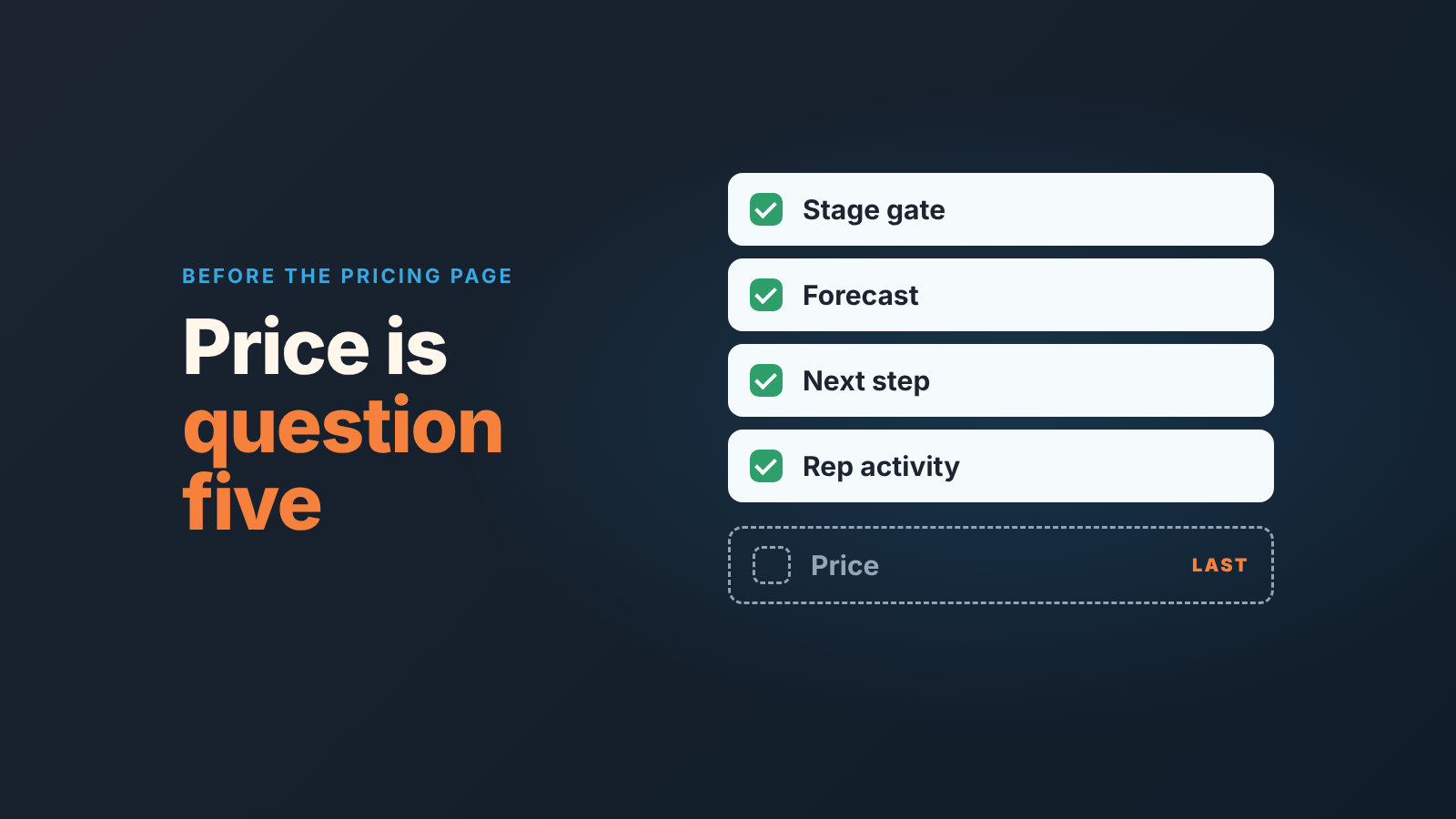
In a Pipedrive vs HubSpot decision, price is the last question. First check whether each lets you require fields before a stage change, where the forecast lives and on which plan, whether a deal shows its next step, and whether you can see what each rep did this week. All four can be answered in a trial account in under an hour, and the answers tell you which tier you are really shopping for before the pricing page tells you what it costs.
The comparison that starts with price
Open the first page of Google for this query and the pages agree on the shape of the argument: Pipedrive is the sales-first tool, HubSpot is the platform that also does marketing and service, and then a price table. Google’s own AI summary repeats the same framing. That’s a fair comparison for a founder buying the company’s first system. For a sales manager it misses the point, because “sales-first versus cross-department” says nothing about Tuesday, when a rep drags a deal into Proposal with no amount on it and no call booked.
We write set-up guides for both of these CRMs and we sell neither. So this is not a verdict. It’s the list of questions we’d want answered before anyone opens the budget conversation, with what the vendors’ own help pages say, and a table near the end for you to fill in from your own trials. If you are weighing a different pair, we ran the same questions for Zoho CRM against HubSpot and for Zoho CRM against Pipedrive.
A word on prices: we are not printing any. Two comparison pages from the same publisher quote different per-seat figures for the same Pipedrive plan, and that is exactly the kind of number that is wrong by the time you read it. Open both vendors’ pricing pages on the day you decide, write the figure and the date in the table, and treat anything older as a rumour. If you want the Pipedrive side in numbers anyway, we worked out what Pipedrive costs for a five-person sales team, plan by plan.
Pipedrive vs HubSpot: five questions to ask in a trial
Load the same six deals, the same four stages and the same two reps into both trials. Then answer these, in this order.
- Can I require a field before a deal changes stage, and what happens when a rep skips it? Not “does it have custom fields”. Whether the move is refused.
- Where does the forecast live, what does it add up, and which plan is it on?
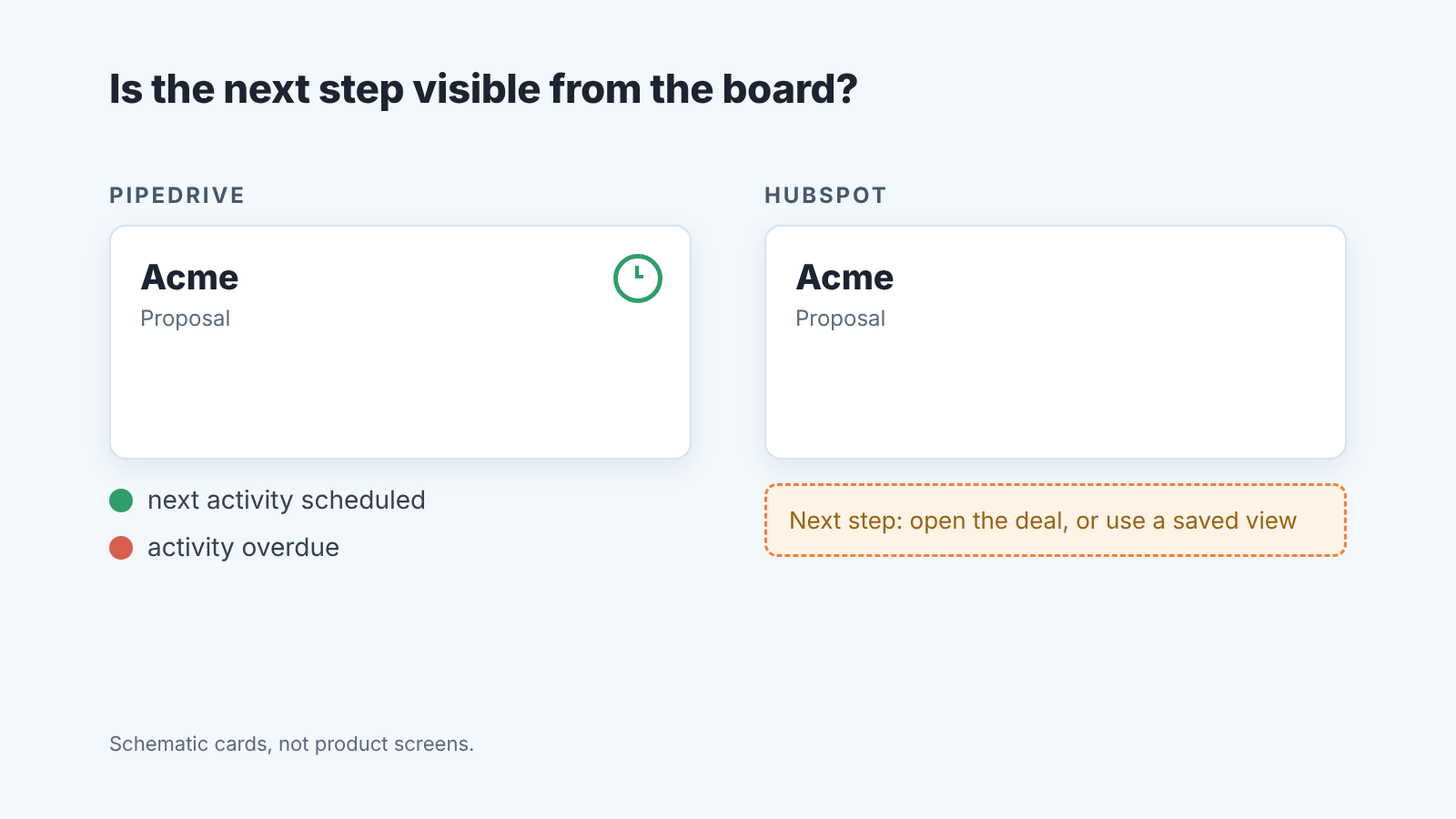
- Without opening a deal, can I tell from the board whether the next step has been scheduled?
- Can I see what one rep did last week in under a minute, by person and by day, without exporting?
- What does it cost for my seat count on the tier the first four answers need?
The order matters. Teams that start with question five choose a tier, then discover the forecast they wanted is one tier up, and the comparison starts over.
Required fields and stage changes
Both CRMs can stop a deal at a stage until a field is filled. The difference is in what the rep sees and what else can walk through the gate.
In HubSpot the feature is called conditional stage properties, and it lives in pipeline settings: you add a rule on the stage, pick the property, tick Required, and from then on users cannot create or update the record until they set a value. The help page is specific that these properties appear when someone manually creates a record in that stage or moves one into it (HubSpot: set up and manage object pipelines). Underline manually. The neighbouring feature, pipeline rules, can be bypassed by Super Admins, by users with Edit property settings permissions, by workflows and by API (HubSpot: set up rules for object pipelines). A team that moves deals by automation has to test the gate with the automation running, not only by hand. We went through which properties to require at each HubSpot stage, side doors included, in a separate article.
For Pipedrive we have written about where required fields help and where they hurt, and our position hasn’t changed: three or four fields at the stage before Proposal, nothing on the early stages. In the trial set the gate on the same stage in both CRMs, then do what a rep in a hurry does. Drag the card. Try to save with the field blank. Try it from the mobile app, and from a workflow if your team uses one. Write down what each CRM did, not what the settings page promised.
One check most comparison pages skip: move a deal backwards a stage and see whether the gate fires again. A gate that only checks forward moves is fine for new deals and useless for the deal that bounced back from Negotiation last month.
Forecast: where it lives and on which plan
Pipedrive’s forecast is a view you read deals in, while HubSpot’s is a separate tool built on stage probability, and the two sit on different plans. In Pipedrive, go to the Deals tab and open the forecast view: deals are laid out in date-based columns by expected close date, with the weighted value shown if you have set custom probability on deals or stages (Pipedrive: the forecast view). The trap is on the same page. Dragging a deal from one column to another changes its expected close date, so the screen you read the forecast on is also the screen that edits it. That’s why we tell managers to look, not drag, in the Pipedrive forecast view.
HubSpot works from the stage. The default deal pipeline ships with a probability on each stage, from 20% at Appointment scheduled to 100% at Closed won, and the weighted amount on the board is the amount multiplied by that probability (HubSpot: set up and manage object pipelines). The forecast tool uses deal stages by default and is available with Sales Hub Professional or Enterprise, for users with an assigned seat (HubSpot: use the forecast tool). A blank Amount and a pushed close date are the two ways that number lies, and we spent a whole article on HubSpot stage probability and the forecast.
On the Pipedrive side the plan is less tidy than we’d like. Pipedrive’s help page says the forecast view is “only available on our Professional and higher plans”; Zapier’s comparison lists forecasting under the Growth plan (Zapier: Pipedrive vs HubSpot). The two sources don’t use the same plan name, so check the pricing page on the day and write down which tier the forecast view is on. Either way, question two usually settles question five: in both products the forecast is what pulls a team off the entry tier.
Next steps and the weekly activity view
Pipedrive shows a deal’s next step on the board and HubSpot, by default, does not. Pipedrive’s help page says each deal card carries an activity icon you can click to see upcoming activities, and that the board is sorted by next activity by default (Pipedrive: pipeline view). Zapier describes that icon as telling you whether activities are scheduled or overdue, and lists it among the features HubSpot’s board is missing (Zapier: Pipedrive vs HubSpot). The HubSpot half is one reviewer’s observation, so check it in two minutes: create a deal with no activity, then look at the board.
Why does it matter more than it sounds? A deal with no next step is the earliest signal that it is drifting, earlier than a pushed date and much earlier than a lost reason. If the board shows it, the Monday review takes a glance. If it doesn’t, the manager builds a saved view of HubSpot deals without a next activity and has to remember to open it. We wrote up the Pipedrive next activity side too, including what to do with the deals that have none.
Question four, what a rep did last week, is a reporting question. Zapier’s view is that Pipedrive’s reports are easier to use and HubSpot’s go deeper, with the tradeoff that getting the most out of them takes more setup (Zapier: Pipedrive vs HubSpot). “More setup” is the phrase to test. In both trials, build the same view: one rep, last seven days, every logged call, email and meeting, grouped by day. Time how long it takes from the home screen. Then do it again a week later from memory. The second time is the number that goes in the table, because that’s the one your Monday morning depends on.
A table to fill in yourself
Copy this into a doc before the trials start. The first column is the question; the other two are for what you saw, not what the vendor’s sales rep told you. We filled in only what the sources above publish and left the rest blank on purpose.
| Question | Pipedrive | HubSpot (Sales Hub) |
|---|---|---|
| 1. Field required before a stage change, and what bypasses it (hand, mobile, workflow, API) | Required stage properties block manual creates and updates; pipeline rules can be bypassed by admins, workflows and API (HubSpot pipeline rules) | |
| 2. Where the forecast lives, what it sums, which plan | Forecast view by expected close date; weighted only with custom probabilities (Pipedrive forecast view); plan: confirm on pricing page | Forecast tool on deal stages; Sales Hub Professional or Enterprise (HubSpot forecast tool) |
| 3. Next step visible from the board without opening the deal | Activity icon on each card (Pipedrive pipeline view) | No board indicator per Zapier; verify in trial |
| 4. Minutes to one rep’s activity for the last 7 days, second attempt | ||
| 5. Price for your seats on the tier rows 1 to 4 need, with the date you checked |
Two things to notice once rows one to four are in. The tier that rows two and three push you to is rarely the cheapest column on either pricing page. And a row where both CRMs score the same is not a tie. It means that question won’t decide this purchase, so stop arguing about it in the meeting.
What neither CRM does for you
Fill in the table honestly and you’ll find that both CRMs can be made to record what you need: a required field, a forecast number, an activity log, a next step, in one form or another and at some tier. What neither of them does is tell you which of your six deals is the one to worry about today. A required Amount confirms the rep typed a number; it doesn’t notice the number was halved on Tuesday. A weighted forecast sums probabilities. It won’t flag the deal whose close date has moved three months running. An activity icon says a call is booked, not that the call has been rebooked four times. Both CRMs record. Neither judges.
That judgement is the manager’s job, and it is the the part that stops scaling once every rep carries a full pipeline. It’s also why we build SalesBond, a sales management layer on top of the CRM a team already uses. It reads deals from Pipedrive, HubSpot, Salesforce or Zoho CRM and checks each one against the rules a manager would apply by hand, so whichever side of this comparison you land on, the Monday list of deals that need attention comes out the same way. Check your CRM with SalesBond if you want to see that list on your own pipeline.
Then pick the CRM where, in the trial, your reps hit the gate and filled in the field without asking you why. The one your team will actually fill in beats the one with the longer feature page and the price row will still be there when you get to it.