When comparing HubSpot and Salesforce, size and price come last. First check how each CRM enforces stage rules, where the forecast lives and on which plan, whether a deal shows its next step without being opened, and who owns the automations once the trial ends. Then fill in the same five rows for both in a trial, and only then open the pricing pages.
The comparison that starts with company size
Google’s AI summary for this query sums up the first page in two phrases: pick by “company size, technical resources”, and HubSpot is the “all-in-one” while Salesforce is the “deeply customizable enterprise platform” (ResonateHQ: HubSpot vs Salesforce, as quoted in Google’s AI Overview on 2026-10-18). The vendors’ own comparison pages (HubSpot, Salesforce) argue the same shape from opposite ends.
None of that is wrong. It’s just not a sales manager’s question. Say a rep, on a Thursday, moves a deal to Negotiation with no amount, no next step and a close date that was already pushed twice. Company size doesn’t tell you what happens next. The CRM either refuses that move, shows it to you, or hides it. That is the comparison.
We write set-up guides for both of these CRMs and sell neither, so this isn’t a verdict. We ran the same five questions for Pipedrive against HubSpot and for Zoho CRM against HubSpot; this is the HubSpot and Salesforce round, with what each vendor’s documentation says and blanks for what only your trial can answer.
Prices are not printed here on purpose. The number that matters is the one for the tier your answers to rows one to five push you onto, and you won’t know that tier until the trial is over. Write the figure and the date in the table the day you decide.
If you want the HubSpot side of the numbers, our HubSpot pricing for five reps, seat by seat, has the figures with the date they were checked.
Five questions to ask in a trial
Load the same six deals, four stages and two reps into both trials, then answer these in order.
- Can I require a field before a deal changes stage, and what gets through when a rep, a workflow or an import skips it?
- Where does the forecast live, what does it add up, and which plan is it on?
- Can I see from a list, without opening the deal, whether a next step exists and when it is due?
- How long does it take to see one rep’s calls, emails and tasks for last week, the second time I try?
- Who will own the automations in month three: a manager, an admin, or a consultant?
The fifth question is the one that separates this pair from the other comparisons we’ve run. With Pipedrive or Zoho CRM the admin bill is rarely the deciding factor. With Salesforce it often is, and with HubSpot it depends on which tier you land on.
Stage rules: how each CRM enforces them
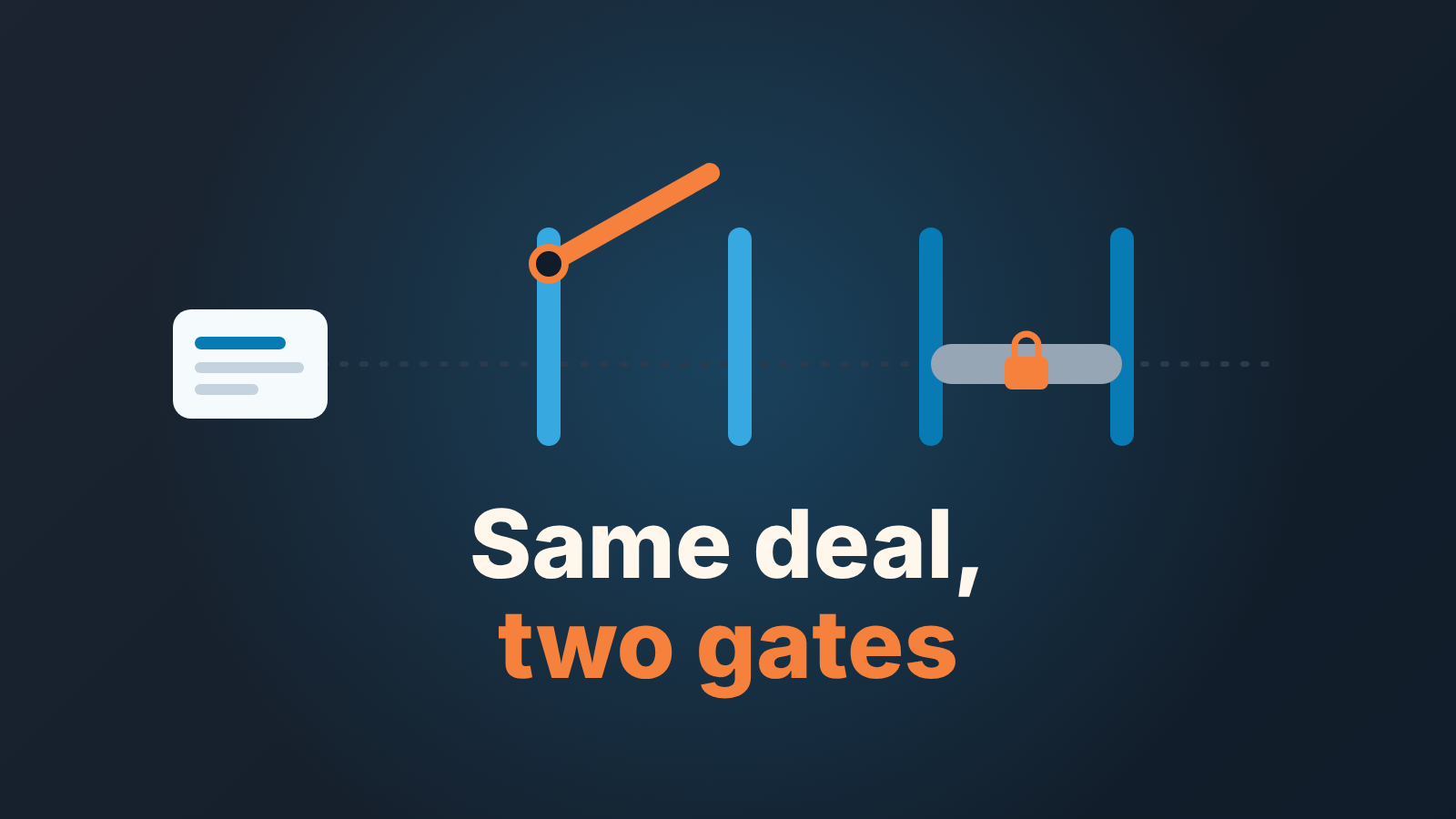
Both CRMs can put a stage gate on a deal, meaning a rule that stops it from entering a stage until required fields are filled. They do it from different places and with different holes.
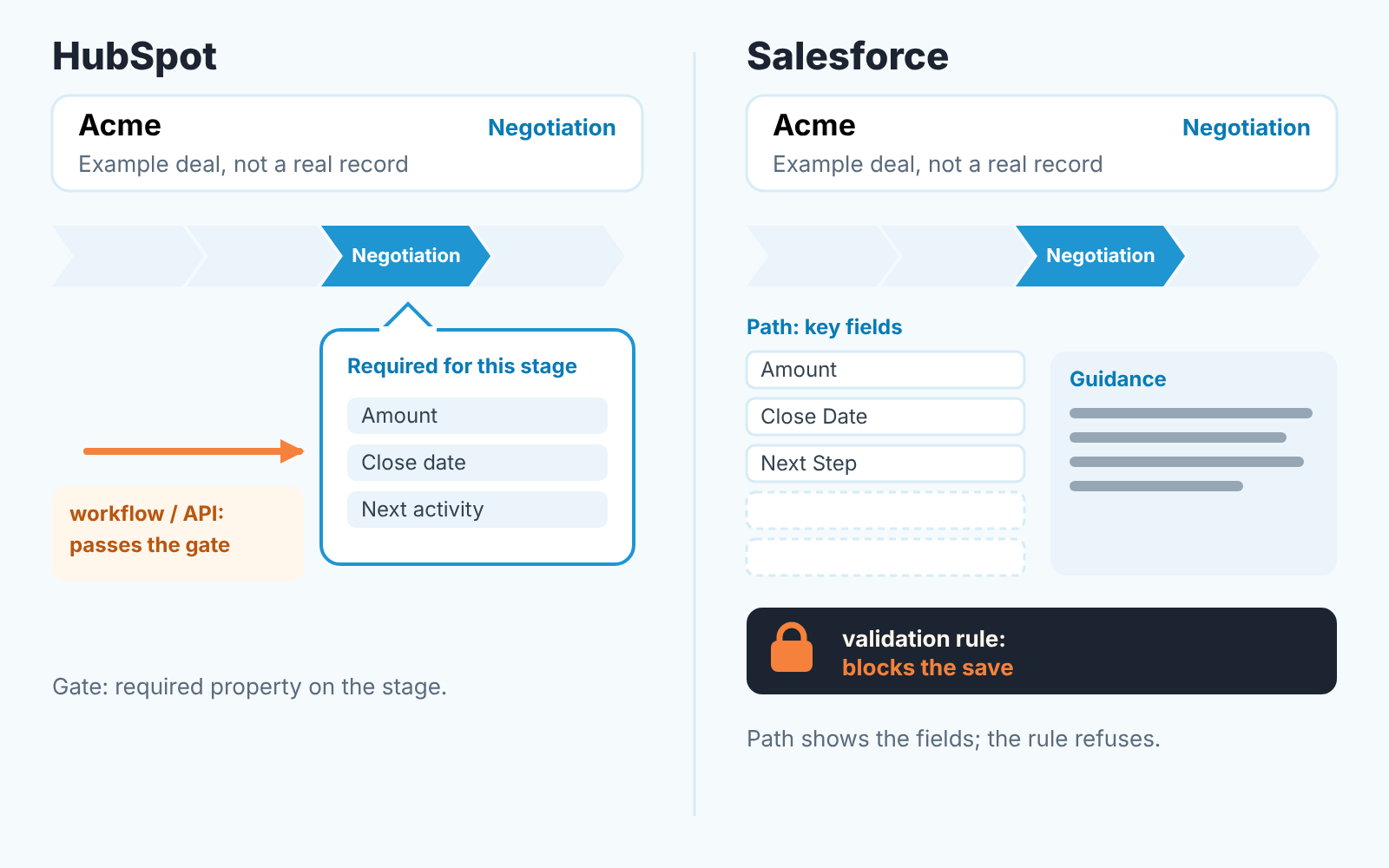
In HubSpot the mechanism is a required stage property in pipeline settings. The help page is direct: “If a property is required, users cannot create or update the record until they set a value for it”, and the page frames the feature around users who manually create a record in a stage or move one into it (HubSpot: set up and manage object pipelines). The feature is listed under all products and plans. The stricter rules, such as restricting stage skipping and restricting backward moves, are pipeline rules, and those need a Professional or Enterprise subscription. The same page says that deal approval cannot be bypassed but all other pipeline rules can be, by Super Admins or users with Edit property settings permissions, by records created or edited by workflows, and by records created or edited by API (HubSpot: set up rules for object pipelines). If your reps move deals through a workflow, test the gate with the workflow switched on.
Salesforce splits the job in two. Path, the stage bar at the top of the opportunity, lets an admin pick up to five key fields and write up to 1,000 characters of guidance for each step (Trailhead: Visualize Success with Path and Kanban). That puts the fields in front of the rep, which is most of the battle. Refusing the save is a different tool: a validation rule, a formula that blocks the save when it evaluates to true and shows the rep an error message (Trailhead: Introduction to Validation Rules). Whoever holds admin rights in your org writes it, from Setup. That is the honest trade. HubSpot’s gate is a checkbox a manager can set in ten minutes and a workflow can walk around. Salesforce’s gate is a formula someone with admin rights has to write and maintain.
In the trial, set the gate on the stage before Proposal in both, then do what a hurried rep does: drag the card, save with the field blank, try it from the mobile app and from an import. Then move a deal backwards and see whether the the gate fires again. Write down what happened, not what the settings page promised.
Forecast: where it lives and on which plan
HubSpot forecasts from the stage. The default pipeline carries a probability per stage, from Appointment scheduled at 20% to Closed won at 100%, and the weighted amount on the board is the amount in each stage times that probability (HubSpot: set up and manage object pipelines). The forecast tool uses deal stages by default and lets you add forecast categories if you want them. A rep or manager can “submit a custom forecast for the month or quarter”. The tool is available with Sales Hub Professional or Enterprise, and “an assigned Sales or Service seat is required to use the forecasts tool” (HubSpot: use the forecast tool). On the pricing page, forecasting across team hierarchies is listed as its own line, separate from basic forecasting and reporting (HubSpot: Sales Hub pricing, checked 2026-10-18).
Salesforce forecasts from the category. In Pipeline Forecasts each column of the grid is a forecast category, Pipeline, Best Case, Commit and Closed, and those categories are based on the stage an opportunity is in. A manager can make an adjustment, which changes the rollup number without modifying the underlying opportunities (Trailhead: Review Your Collaborative Forecasts Setup). That is either a feature or a trap depending on whether anyone re-reads adjustments on Friday. On the pricing page the Pro Suite card adds “Sales Quoting and Forecasting”; the page lists Free Suite, Starter Suite, Pro Suite, Core, Advanced and Max (Salesforce: Sales Cloud pricing, checked 2026-10-18). Our weekly reading of that screen is in how a manager uses Sales Cloud each week.
The practical difference: in HubSpot the default forecast follows the stage probability. In Salesforce the number a manager reports can drift away from the deals underneath, on purpose, through adjustments. Decide which behaviour you want before the trial, because each one lies in a different way.
Next step and activity: what the manager sees
On next step and activity, HubSpot and Salesforce are closer than their reputations suggest, and both leave the hard part to you.
Salesforce puts next steps in Pipeline Inspection. Trailhead describes it as a consolidated view of pipeline metrics, opportunities and changes in deals, where reps can update deal stages, next steps and other sales activities with inline editing (Trailhead: Discover Pipeline Inspection). That is the list view question three asks for. Check the edition, though. On the pricing page Pipeline Inspection is ticked for Core, Advanced and Max, and not for Free Suite, Starter Suite or Pro Suite (Salesforce: Sales Cloud pricing, checked 2026-10-18). A team that picks Pro Suite for its forecasting gets the forecast without this screen.
HubSpot has no standard Next Step field. The nearest equivalent is the next activity date, and the question is whether you can see it on the board or need a saved view. The second half of question three is where HubSpot has moved in the past year. HubSpot can use a call or meeting transcript to recommend CRM updates to the related deal, and suggested property updates are reviewed per property: an Automated checkbox applies them without review, it is selected by default only for Call outcome and Meeting outcome, and everything else waits for the rep to approve (HubSpot: review recommended next steps for deals). The pricing page lists this as Deal Progression, marked beta (HubSpot: Sales Hub pricing, checked 2026-10-18). So the old line that HubSpot never writes deal fields itself is out of date. It can, for the properties you tick. Whether you want it to is a separate question, we’d start with the two defaults and nothing else for a month.
Question four is a reporting question in both products, and there’s no shortcut to answering it. Build the same thing in each: one rep, last seven days, every call, email and task, grouped by day. Time it from the home screen, then time it again a week later from memory. The second number is the one that goes in the table, because it’s the one you will live with every Monday. The HubSpot side for a small team is in HubSpot’s sales workspace for a small team.
Who owns the automations (and the admin bill)
In HubSpot a manager with workflow permissions can own the automations on Professional or Enterprise; in Salesforce the flows, validation rules and Path settings live in Setup, with an admin. The size-and-price pages answer this question by accident. “Technical resources” is a polite way of saying someone has to build and maintain the automations, and the two products put that person in different jobs.
In HubSpot, workflows need a Professional or Enterprise subscription (HubSpot: create workflows). The pricing page caps Starter at “up to 50 workflows with restricted triggers and actions”, Professional at up to 300 and Enterprise at up to 1,000 (HubSpot: Sales Hub pricing, checked 2026-10-18). In practice a sales manager with the right permission builds the first dozen alone. The catch is the one from the stage-rules section: those same workflows walk past pipeline rules, so the manager who builds them is also the one who can unknowingly break the gate.
In Salesforce the equivalent is Flow Builder. The pricing page marks it “5 flows per org” on Pro Suite, includes it on Core, Advanced and Max without that note, and doesn’t tick it for Free Suite or Starter Suite (Salesforce: Sales Cloud pricing, checked 2026-10-18). The validation rule that makes the stage gate real, the Path configuration, the forecast setup and the flows all live in Setup, which means they live with an admin. For a team that already has one that’s a strength: one person owns the rules. For a team of six with no admin, it is a quote from a consultant, and it belongs in row five of the table as a number, next to the seat price.
Our position: don’t buy Salesforce for a sales team without naming the admin first, by name, with hours per week. And don’t buy HubSpot Professional assuming the manager will build the workflows, without first checking that the manager wants that job.
HubSpot vs Salesforce: a table to fill in yourself
Copy this into a doc before teh trials start. We filled in only what the sources above publish and left the rest blank.
| Question | HubSpot (Sales Hub) | Salesforce (Sales Cloud) |
|---|---|---|
| 1. Field required before a stage change, and what bypasses it | Required stage properties block manual creates and updates; pipeline rules on Professional or Enterprise can be bypassed by admins, workflows and API (HubSpot pipeline rules) | Path shows up to five key fields per step (Path); a validation rule blocks the save (validation rules): test it from the mobile app and an import |
| 2. Where the forecast lives, what it sums, which plan | Forecast tool on deal stages, optional categories; Sales Hub Professional or Enterprise, assigned seat (HubSpot forecast tool) | Forecast categories based on stage, adjustments change the rollup without touching deals (forecasts setup); forecasting listed on Pro Suite (pricing, 2026-10-18) |
| 3. Next step visible from a list without opening the deal | No standard Next Step field; next activity date, verify on the board in the trial | Next steps editable inline in Pipeline Inspection (Pipeline Inspection); Core, Advanced and Max on the pricing page, 2026-10-18 |
| 4. Minutes to one rep’s activity for the last 7 days, second attempt | ||
| 5. Who owns automations, and the monthly admin cost | Workflows: Professional or Enterprise (create workflows) | Flows, validation rules and Path live in Setup; admin or consultant, write the hours |
| 6. Price for your seats on the tier rows 1 to 5 need, with the date |
A row where both score the same is not a tie. It means that question won’t decide the purchase, so take it off the meeting agenda.
What neither CRM does for you
Fill in the table honestly and the two columns start to look alike in one respect: both products can be made to record a required field, a forecast, a next step and an activity log, at some tier and with some person’s time. If you want the background on why recording and analysing are different jobs, operational CRM vs analytical CRM covers it.
What neither of them does is read the six deals and tell you which one to call this morning. A required Amount confirms the rep typed a number. A forecast category confirms the rep picked a word. A close date that moved three times sits in a list until someone sorts by it. HubSpot’s transcript suggestions get closer, and they still stop at the record: a suggested close date is a suggestion, not a judgement that this deal has slipped for the third time.
That judgement is the manager’s, and it stops scaling somewhere around the second full pipeline. It’s why we build SalesBond, a sales management layer on top of the CRM a team already uses. It reads deals from HubSpot, Salesforce, Pipedrive or Zoho CRM and checks each one against the rules a manager would apply by hand, so whichever column wins your table, the Monday list of deals that need attention comes out the same way. Check your CRM with SalesBond if you want to see that list on your own pipeline.
Then choose the CRM where, in the trial, your reps hit the gate and filled in the field without asking why, and where the person who will own the rules already works for you.