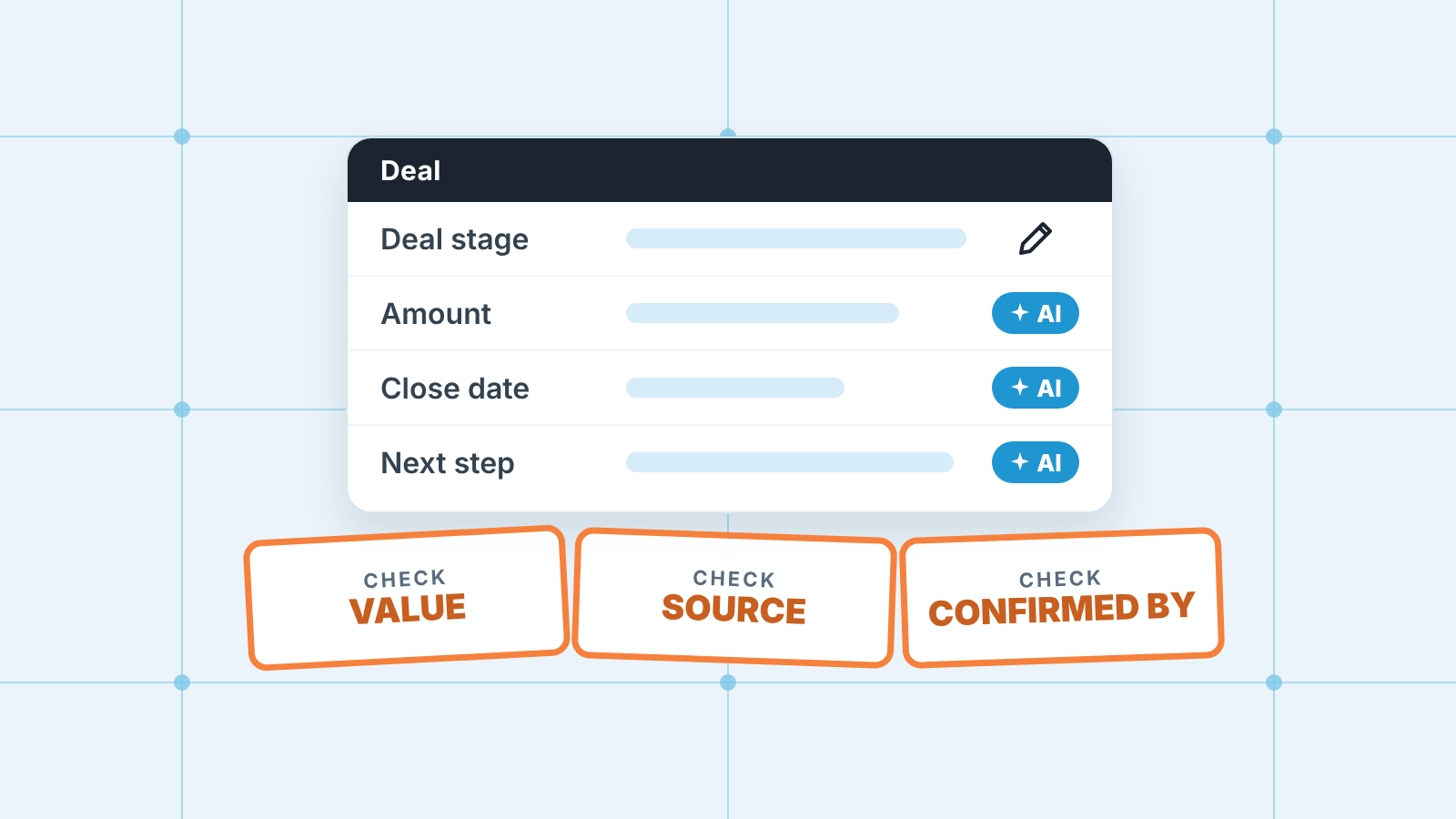
HubSpot Breeze is the name HubSpot uses for the AI inside its CRM: the Breeze Assistant chat, the agents in Agent Hub, and AI features such as smart properties and data enrichment. Breeze can draft, summarise and suggest values on CRM records, but a manager should treat every AI-filled deal property as unconfirmed until a person has checked the value, its source and the date. That goes double for stage, amount and close date. Each of those parts writes in a different place, under a different label, and on a different plan. This article maps those places (as of our read of the HubSpot help pages on 2026-10-18) and gives you a review you can run on ten deals in half an hour.
We don’t cover prices: most of this depends on Professional or Enterprise tiers, seats and HubSpot Credits, and the only honest number is on your own billing page.
If you do want the seat side worked out, here is what Sales Hub seats cost for five people.
What Breeze touches in a deal record
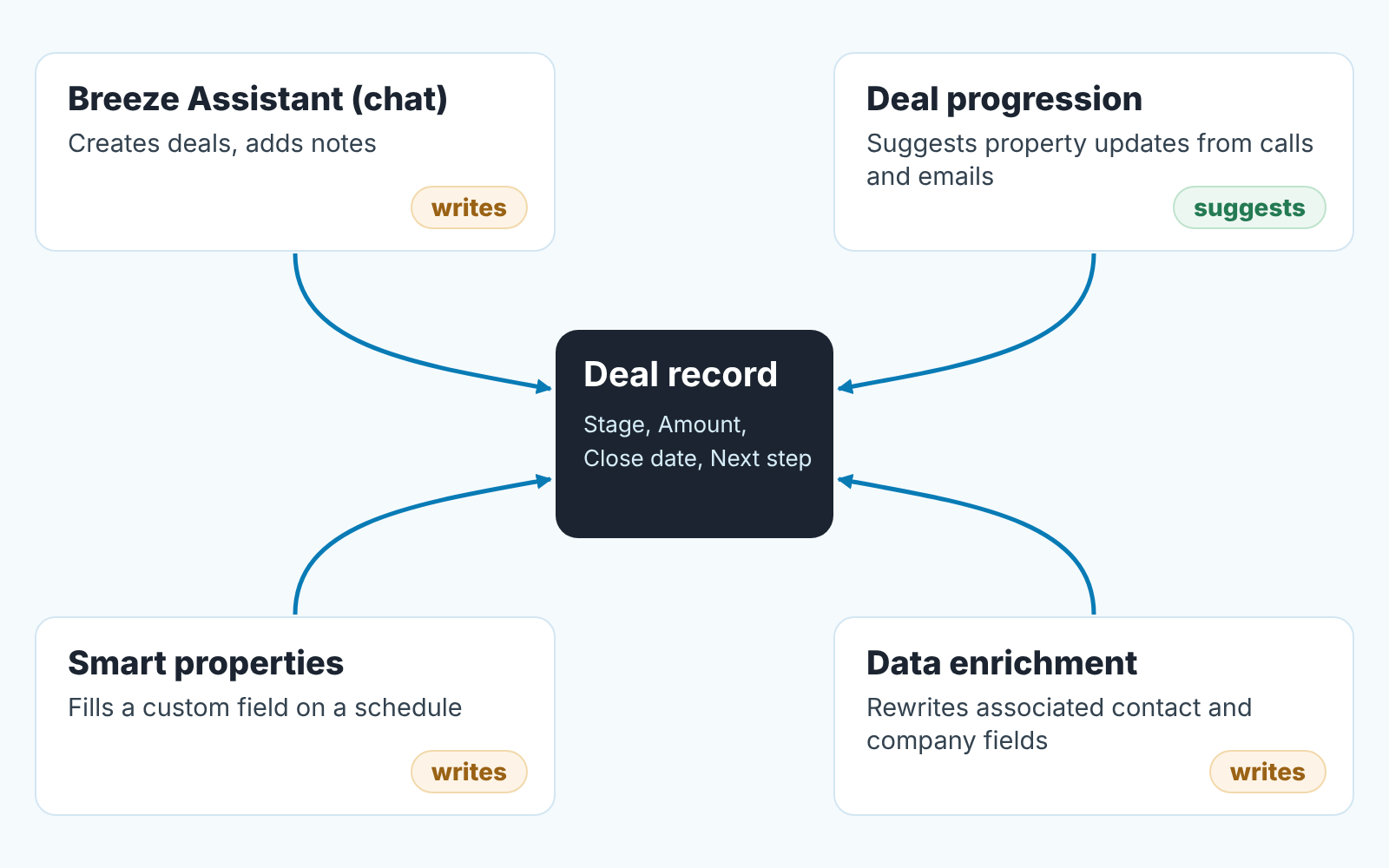
Breeze Assistant is the chat panel, which HubSpot calls its “conversational AI assistant”. The help page’s examples include “Create a new deal and assign it to me”, adding a note to a contact, creating or editing products, creating quotes (Revenue Hub Professional or Enterprise), summarising a company’s logged notes, drafting sales emails and researching company news (HubSpot: Use Breeze Assistant). It’s available on all products and plans, and “User permissions determine which actions can be performed with Breeze Assistant.” A rep who can edit deals can have the assistant create one, with whatever the rep typed into the prompt. The page doesn’t document changing stage, amount or close date through chat, so if you hear “Breeze changed it”, ask to see the prompt.
Agent Hub is where the named agents live: a data agent that can “enrich and maintain your CRM data to improve data quality”, a prospecting agent, a customer agent, and deal progression (HubSpot: Understand Agent Hub). Some HubSpot-built agents need a Professional or Enterprise subscription, and Agent Hub needs HubSpot Credits.
Deal progression writes closest to the forecast. In HubSpot’s words, “HubSpot’s AI uses call and meeting transcripts to identify and suggest updates to CRM properties”, and “methodology properties update based on buyer conversations” (HubSpot: Move deals forward with deal progression, labelled Beta). Methodology properties are the fields of the qualification framework you set up as your sales methodology. The feature needs Sales Hub or Service Hub Professional or Enterprise, an assigned seat, and a Super Admin enrolled in the public beta. Updates to default properties don’t consume credits; updating custom and methodology properties does, because the data agent does that work.
Smart properties are custom properties that Breeze fills from a source you choose: web research, the company website, another property on the same record, or logged calls, emails, meeting transcripts and notes. You can create them for “contact, company, deal, ticket or custom objects” and “set up automatic smart property fill based on a schedule or record creation” (HubSpot: Automatically populate records using smart properties). Running one “consumes HubSpot Credits, even when a value isn’t filled for the property.”
Data enrichment (reviews and AI answers often call it Breeze Intelligence; the help page says “data enrichment”) fills contact and company properties from a work email or a company domain. Deals aren’t mentioned. It’s turned off by default, continuous enrichment “can update supported properties”, and turning it off “doesn’t remove information” already written (HubSpot: How data enrichment works). But it rewrites the company size and industry your deal reports segment on. Before adding yet another property, or an object of its own, decide whether the data belongs in HubSpot custom objects or deal properties.
If your reps work mostly from the HubSpot workspace rather than the record, our walkthrough of the HubSpot sales workspace for a small team covers the rest of that setup.
Suggested versus written: know which one you have
The same feature can behave two ways depending on a setting, and that difference is the whole audit.
Deal progression suggests by default. A rep opens the deal progression card or the Catch-up tab, sees “Review [x] suggestions”, and accepts or dismisses each one. There’s also an “Approve all” button. And one line in the help page deserves more attention than it gets: “Add more properties relevant to your sales process to get more suggested updates or turn on auto-updates.” The page doesn’t say which properties auto-updates can change, or whether the change skips review. So before anything else find out whether auto-updates are on in your account. If nobody knows, assume yes until a Super Admin says otherwise.
Smart properties don’t suggest at all. On a schedule or at record creation, they fill. To see where a value came from you hover the column, click the AI button, open View all details and then the Sources tab. Nobody does that for forty deals.
Breeze Assistant sits in between. A human asked for the action, but that human may not have read what came back. “Approve all” has the same shape: one click, many writes.
Our position: a suggestion a rep accepted one by one is data. A value that appeared on a schedule, or arrived through “Approve all”, is a draft until somebody looks at it.
Three checks on every Breeze-filled property
Open the deal, hover the property, click the property history icon. The panel shows Changed to, Date and Source (HubSpot: View a record’s property history, all products and plans). For the whole record, use Actions > View property history and filter by property, source or date. Then ask three questions of each AI-filled value.
Does the value match the evidence? For a property filled from a transcript, the evidence is the call. For a smart property, its whatever the Sources tab lists. If that source says something else, the field is wrong no matter how tidy it looks.
What does the source line say? Property history shows a source for every change, and when a custom agent made it, “the agent’s name will appear as a link in the source”. You can also search by change source, and HubSpot’s own example is “HubSpot AI”. The full list of labels is on HubSpot’s change sources. Learn what AI writes look like there in your account; it’s the only cheap filter you have. (We followed the same trail for Salesforce in what an AI assistant wrote to your opportunities.)
Who confirmed it, and when? Property history tells you when the value landed. It doesn’t tell you that a person agreed with it. When a rep accepted a suggestion, the acceptance is the confirmation. A scheduled fill has none, so you need the rep to say “yes, that’s right” in a note or in the review.
One warning from the same help page: Restore “only appears when the source is a CRM UI edit, import, or workflow”. An agent write may not have a restore button, and fixing it means typing the old value back by hand. Another reason to catch it in the first week.
Fields AI should never fill unattended: stage, amount, close date
These three fields are the forecast. Everything else on the deal is context.
Deal stage is a commitment the rep makes to you: “I believe this deal is here.” A transcript can show that the buyer said “send me the proposal”. It can’t know your exit criteria for the Proposal stage, which may require a named decision maker and a confirmed budget. If deal progression suggests a stage move, use it to start a conversation with the rep and let the rep make the change.
Amount is worse, because a transcript hears numbers. “Around fifty thousand” in a discovery call is the buyer’s first guess before procurement, discounts and scope. Let the AI put that number in a note or a custom “Budget mentioned” property if you like, and let the rep set Amount after a priced proposal.
Close date moves most and hurts most. A date that slips on its own, with no note, keeps the pipeline looking fresh while the quarter drains out of it, and nobody has the awkward conversation a manual change forces.
So: no smart properties for these three, no deal progression mapped to them, and if auto-updates are on, get the Super Admin to confirm these fields are excluded. If they can’t be excluded, auto-updates stay off. AI earns its place in fields that describe the deal instead of committing it, like next step, objection raised, competitor named or decision maker. We reviewed those, filled from calls, in HubSpot conversation intelligence: from call summaries to deal fields.
What AI-filled fields do to your reports and forecast
A report doesn’t know who typed the value. That’s the quiet part.
Say twelve deals get a close date from a transcript where the buyer said “we’d like to be live by December”. Your Q4 forecast just grew by twelve deals nobody committed to. The weighted pipeline grew too, because the stage probability multiplied a guess. Any score built on those fields inherits the guess. We looked at what feeds HubSpot’s in HubSpot deal score and likelihood to close, and at why a small team’s own rules are often a better starting point in AI deal scoring for small teams.
Enrichment hits a different report. Say enrichment changes size and industry on fifty companies overnight: your “deals by segment” chart changes with them. The deals didn’t move, the categories did. Before you show it to an owner, say when enrichment went on.
The habit that covers both: before any forecast review, filter property history on the forecast fields by source, and look at every source that isn’t a person or an import. Empty list? Good, say so. If it isn’t empty, that list is the agenda.
We build SalesBond, a sales management layer on top of the CRM a team already uses; we started with Pipedrive. Its Deal Health checks every deal against more than 20 rules and explains each flag, so a deal whose data nobody has looked after shows up as one to review instead of a healthy row: Check your CRM with SalesBond.
A ten-deal audit
Half an hour once, then ten minutes a week. Pick ten open deals: the five largest and five that changed in the last seven days.
- Ask the Super Admin three questions in writing: is deal progression on, are auto-updates on, and which smart properties exist on deals. Keep the answer, you’ll compare against it next month.
- On each deal, open Actions > View property history and filter to Deal stage, Amount and Close date. Note every row where the source isn’t a user, an import or a workflow.
- For each of those rows, open the evidence: the call, the email thread, or the smart property’s Sources tab. Mark it correct, wrong or can’t tell.
- Ask the deal owner about every “wrong” and “can’t tell” the same day. You want to know whether the rep read the suggestion or clicked Approve all.
- Fix wrong values by hand (an agent write may not offer Restore).
- Count: ten deals, N AI rows, M wrong. If M is zero, run this monthly. If M is more than one, run it weekly, and auto-updates go off until it’s zero two weeks in a row.
- Check contacts and companies on the same ten deals for enrichment changes to size, industry and job title, since those drive your segment reports.
For the wider version that covers workflows and sequences, not only AI, see a sales manager’s audit of CRM automation. The HubSpot split between workflows and sequences explains which automations write to records at all.
Rules to agree with the team
Write these down where the pipeline review lives. Three is enough.
AI suggests, a person confirms. Anything from the assistant, deal progression, a smart property or enrichment is a draft until the deal owner has read it, and Approve all isn’t reading.
Stage, Amount and Close date stay human, as above. If one of them changed and the source isn’t a person, the rep reverts it and writes the real value in a note.
Auto-updates get switched on in writing, by the Super Admin, after a month of clean weekly audits and with the list of properties they cover.
HubSpot will change these features again; deal progression is still labelled Beta. Re-read teh help pages each quarter and date your notes. The rules above will hold whatever HubSpot ships next.