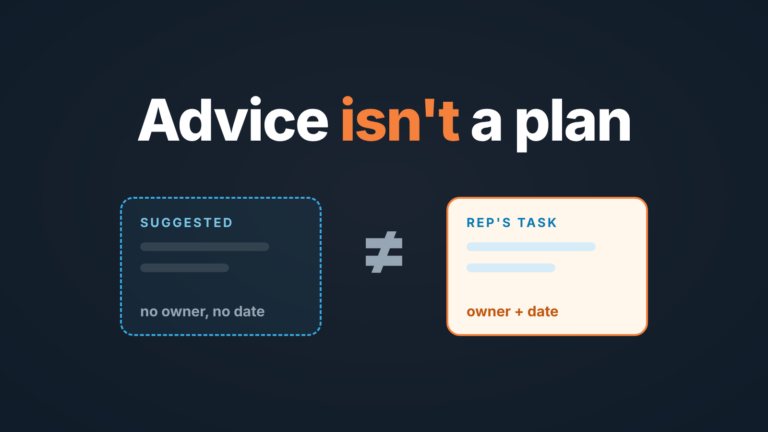
HubSpot conversation intelligence records and transcribes calls and summarizes them with next steps. On Professional and Enterprise, Deal progression, a public beta, can also suggest deal property updates from those transcripts. None of it is data a manager can trust until someone checks it: settle three deal fields after every recorded call, and review those.
That position got stricter while we were writing. HubSpot now proposes field values from calls and, if you switch on its auto-updates option, can change them itself. An AI suggestion is still not data until a person has looked at it. The transcript is evidence; the reviewed deal property is the record. Whether a small team should pay for call recording at all is a separate question, answered in does a small sales team need conversation intelligence, so we skip the definitions here.
What HubSpot records, and how to turn call recording on
Turning it on is the short part. HubSpot call recordings are on by default, and so is transcription and analysis. If someone switched the latter off, a Super Admin can switch it back in settings under Calling > Call Setup, on the Call Configurations tab. HubSpot call transcription only covers recordings made by users with a Sales Hub or Service Hub Professional or Enterprise seat; recordings from other seats stay recordings (HubSpot: review call recordings and transcripts). So the answer to “how do I record calls on HubSpot” is mostly: check the seat.
What you get after a call is more than most teams look at. The review screen has three tabs on the right, Insights, Stats and Transcript, and the transcript is searchable. Stats shows talk time, talk speed, longest monologue, interactivity and patience once you link the participants to contact records (same source).
The part managers want is the call summary at the bottom. Breeze writes it, so it needs Breeze Assistant and call recording turned on. It is split into purpose of the call, key discussion points, decisions made, sentiment and next steps. You can’t edit it; the Notes box is for whatever it missed (same source).
Purpose, decisions, next steps: raw material for a deal update. Sentiment and talk speed: coaching material. Teams mix the two up constantly, and that’s why HubSpot call recording so often ends up as a library nobody opens.
Where the call lives: Calls index, timelines, the deal, and now the Catch-up tab
A recorded call shows up in three places, and a suggested field value in a fourth.
The first is CRM > Calls, the call index, filterable by user, team, call outcome and duration (HubSpot: review call recordings and transcripts). The second is the timeline of each record the call is associated with. By default HubSpot associates the recording with the participants’ primary company, and you can add the contact, deal, ticket or meeting yourself (same source). The third is the deal, as long as the call is associated with it: the call sits on the deal timeline with its summary a click away. The outcome, task and association side of that is in what a manager should see after every logged call in HubSpot.
The fourth place is new, and it changes the job. Deal progression, a public beta for Sales Hub and Service Hub Professional and Enterprise, puts a deal progression card on the Catch-up tab of the deal record. It uses logged emails, notes and conversation transcripts to suggest CRM property updates. The help page’s own example is a discovery call after which it recommends new values for deal stage, close date and one custom property. Suggestions are listed under CRM update suggestions, where you accept or dismiss them one at a time or click Approve all. In setup, smart data capture lets you add more properties and turn on auto-updates, and a sales methodology (BANT, MEDDIC or your own) gives the AI extra context (HubSpot: move deals forward with deal progression).
So HubSpot does write to deal fields now, if you let it. We think that makes the manager’s review more necessary, not less. A rep who typed a wrong next step knew they were guessing. An accepted suggestion looks like a fact.
Three deal properties worth filling from a call
Here’s the habit we ask reps to keep after any recorded call that reached a buyer, whatever the plan. Open the summary, open the deal, settle three properties. With Deal progression you are mostly accepting or correcting; without it you type. Same three fields either way.
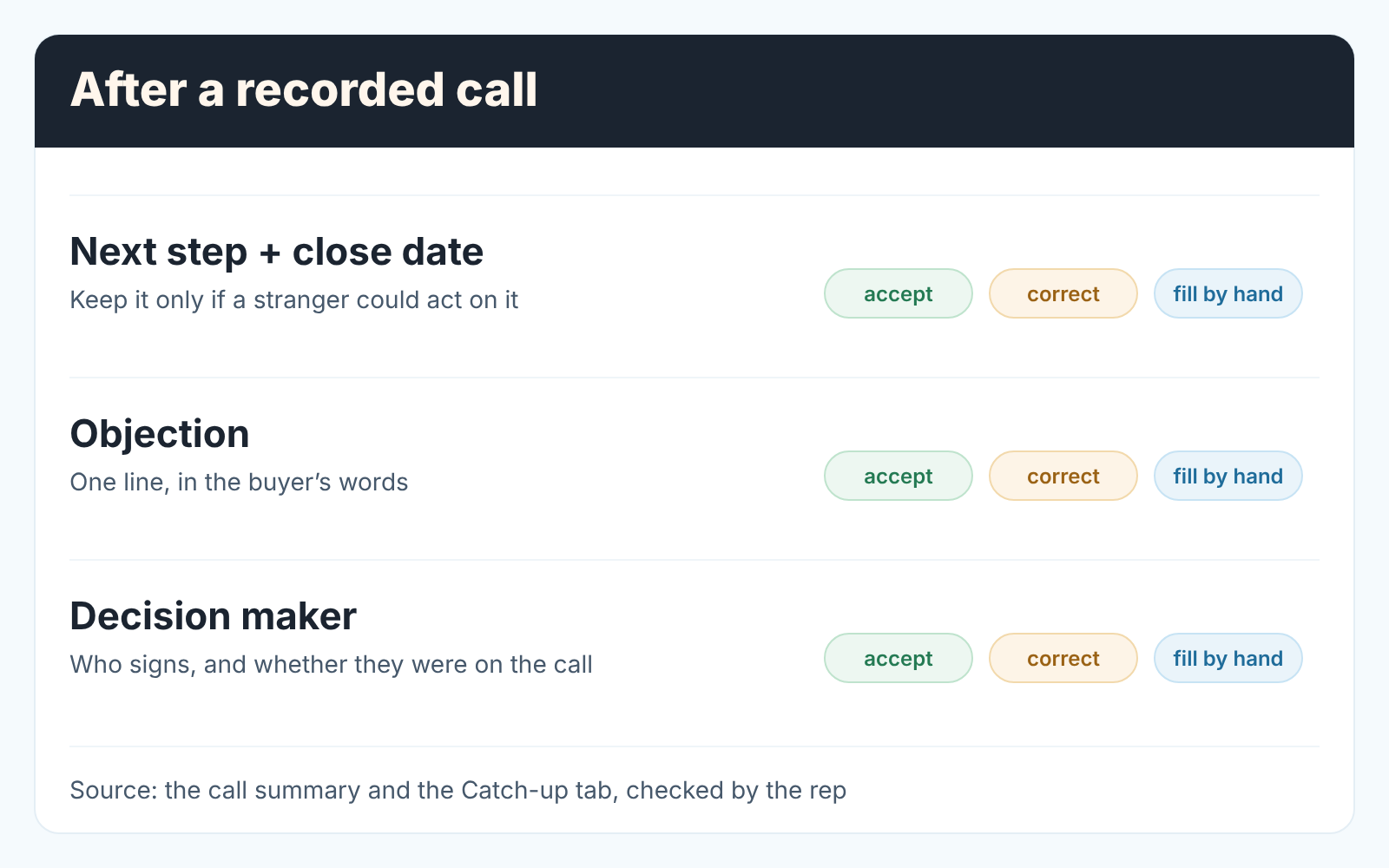
- Next step, with a date. Next step is a default deal property, “the next steps that you or another user will take to improve the deal’s likelihood to close” (HubSpot: default deal properties). Start from the summary’s next-steps section. Whoever filled the field, keep it only if a stranger could act on it: “send proposal” fails, “proposal to Dana by Thursday, review call booked for the 24th” passes. Close date is “the day the deal is expected to close, or was closed” (same page). Move it only if the buyer gave you a reason, and treat a suggested close date the same way.
- Objection. One line, in the buyer’s words, in a custom single-line text property. We prefer text to a dropdown: a dropdown turns “they already have a tool and the renewal is in March” into “Competitor”, and March is the part that matters. Transcript search finds the moment; the rep copies the sentence.
- Decision maker. Who signs, and whether they were on the call. A custom text property with name and role is enough for a small team. If the summary’s decisions section says “will check with the CFO”, the decision maker is the CFO, not the person you spoke to.
Why three and not the whole summary? A manager reads three blanks faster than a paragraph, and a blank is an honest signal. A missing objection after a thirty-minute discovery call means either a very easy deal or a rep who didn’t ask. We left budget out on purpose: on most calls nobody says the number, and a field that is usually empty trains everyone to ignore it.
There is a cost reason to keep the list short, too. If you add the two custom fields to Deal progression, updates to them use HubSpot Credits; updates to default properties such as Next step don’t (same help page). The short list also argues for deal properties instead of a custom object, since forecasts and reports read the deal.
Tracked terms flag words, not decisions
On Enterprise tracked terms are worth ten minutes. A Super Admin adds them on the Call Configurations tab under Edit tracked terms, grouped into categories. The Insights tab then shows where each term comes up in a transcript, and you can build reports on them across calls (HubSpot: review call recordings and transcripts).
What they’re good for is narrow and useful. A Pricing category with “too expensive”, “budget” and “discount” shows which reps hear the price objection and which never do, without anyone listening. That’s a fair coaching signal, because it’s the buyer’s words.
What tracked terms can’t do is tell you what was decided. “Budget” in a transcript doesn’t mean there is one, and a mention of the CFO doesn’t mean the CFO is involved. The term gets you to the right minute; a person who heard that minute still settles the field. We treat tracked terms as a search index for the review, not as data.
Professional accounts don’t get tracked terms (same source). The transcript search bar does the same job one call at a time: fine for a handful of calls a week, slow for fifty.
The weekly review of recorded calls: one question
Open the deals that had a recorded call this week and ask one thing: do the three properties match what the call summary says?
That’s the whole review, and the question is the same whether the rep typed the values, accepted them on the Catch-up tab or let auto-updates write them. Not “did the rep talk too much”; that belongs in a one-to-one. Just: the summary says the buyer will check with the CFO, and Decision maker still names the champion. The summary has a step on the 24th, and Close date still says the 15th. The accepted next step says “follow up”, and the summary says what the follow-up is. Each gap is a two-minute conversation with one rep about one deal, with the the evidence a click away for both of you.
If auto-updates are on, add one check: know which properties are allowed to update themselves, and look at those first. Approve all is a fine button for a rep who has read the list. It is a bad default for a team that hasn’t.
We review properties instead of recordings because of time. Checking three fields against a summary scales, listening to twenty calls a week doesn’t. When a mismatch is interesting, search the transcript, open the recording at that minute and listen. Our call review scorecard is built for that deeper listen, and the broader habit is in sales coaching.
A disclosure, since this is where tooling comes in: we build SalesBond, a sales management layer on top of the CRM a team already uses; we started with Pipedrive. Its Deal Health checks every deal against more than 20 rules, including whether a next activity is scheduled and whether the close date has passed, and explains each flag. It doesn’t read transcripts. It reads the fields a transcript should have changed. Check your CRM with SalesBond if you’d rather get the list of deals with no next step than build the view by hand.
What the AI won’t hear
A transcript holds what was said, and Deal progression can only suggest from what was said. The things that usually decide a deal are the ones nobody says out loud.
Who decides. A transcript records who was on the call. The person who signs often wasn’t, and buyers rarely say so. You find out by asking, and the answer goes in the field.
When. Summaries carry the next step the rep and buyer agreed. They often miss the buyer’s internal date: the renewal, the budget cycle, the board meeting. Those surface as half-sentences that a summary can squeeze into “discussed timeline”. A close date suggested from a half-sentence is a guess; one set from a question the rep asked is a forecast.
How much. Unless someone said a number, there is no number, and neither the sentiment section nor a suggested value can stand in for it. A warm call with no budget discussed is just a warm call.
And a quieter fourth: what didn’t happen. A call where the rep never asked about competition transcribes as a clean call and leaves nothing to suggest. Only a reviewer who knows what should have been asked will notice its missing. We wrote about where AI coaching from CRM data stops in AI sales coaching for small teams; the same limit holds for transcripts.
Plans, beta and credits: what to confirm before you switch it on
HubSpot changes seats, betas and settings often, so check both help pages against your own account first. As of our read on 2026-10-17: reviewing recordings is available on all plans; call stats and call summaries need Sales Hub or Service Hub Professional or Enterprise, transcription needs an assigned seat on one of those, summaries also need Breeze Assistant, and tracked terms need Enterprise (HubSpot: review call recordings and transcripts). Deal progression needs Sales Hub or Service Hub Professional or Enterprise and an assigned Sales or Service Seat. A Super Admin has to enroll in the public beta, set up HubSpot Notetaker or connect Zoom, Microsoft Teams or Google Meet, and have recording and transcription on; reps need a connected email inbox to review and apply suggestions. Setup is under Agents > Agent Hub, on the Overview tab, Win Deals > Deal progression (HubSpot: move deals forward with deal progression).
Two decisions are yours, not HubSpot’s. Decide, in writing, whether auto-updates are on; for a team that hasn’t run the weekly review for a month, our answer is no. Then agree on the review itself: which day, who opens the deals with calls from that week, and what happens when a field disagrees with the summary. If you already keep a view of deals with no next activity in HubSpot, start with the recorded-call deals that show up there.