If your admin connected a Salesforce MCP server so reps can use Claude or ChatGPT on live deals, audit it the way you would audit a new rep: check who is listed as Last Modified By on the deals that changed, read the field history for Stage, Close Date, Amount and Next Step, and run one weekly report on opportunities whose Close Date moved. Keep the assistant read-only until those three checks are routine.
Monday morning, and the Close Dates moved overnight
The pipeline view looks fine at first. Then you sort by Close Date and ten opportunities that were due this month now sit in next month, with the same new date on every one of them. Nobody on the team remembers touching them. The rep who owns six of those deals says she asked the assistant in the team chat to “clean up my overdue deals” on Friday afternoon and did not look at what it did.
That is the whole problem in one scene. Nothing is broken. Salesforce did exactly what it was asked, the assistant did exactly what it was asked, and the forecast you sent upstairs last week is now wrong by ten deals.
Most of what is written about the Salesforce MCP server is for the person who sets it up. That is fair, it is a setup-heavy feature. But the setup takes an admin an afternoon, and the consequences land on the manager who owns the number for the rest of the quarter. This article is for the second person. We will not cover installation or the Claude connector; the Salesforce developer guide does that. We will cover how to see, a month after it went live, what the assistant has been writing into your opportunities.
What the server can touch
The Salesforce MCP server is Salesforce’s hosted connector that lets AI clients such as Claude and ChatGPT read and change org data through natural-language requests, generally available since April 2026 for Enterprise Edition and above. On a lower edition, this is not your problem yet.
It is really several servers, and the names tell you most of what you need. As of October 2026 the servers reference lists SObject Reads, SObject Mutations, SObject Deletes and SObject All. Reads can query and search. Mutations can create and update records but, in Salesforce’s own words, “not delete them” (SObject Mutations). Deletes and All do what their names say. Ask your admin which of these is enabled. If the answer is “All”, most of this article applies twice.
For the audit, one detail matters more than the rest. The changes the server makes are limited by the field-level security and object permissions of the user who connected it, and sharing rules apply too. So the assistant can only change what that person can change. It also writes under that person’s name, which is where the audit starts.
If you are weighing the Salesforce agent instead, here is what Agentforce for Sales costs for a five-person team.
One thing to not confuse it with: the open-source DX MCP Server is a developer tool for working with orgs from an IDE. If your reps are using Claude or ChatGPT in a chat window, that is the hosted server, not this one.
Three places the assistant leaves tracks
-
Last Modified By on the opportunity. Because the server acts as the connected user, an edit made by the assistant shows the rep’s name, not “AI” or “integration”. So the field alone will not tell you an assistant was involved. What it will tell you is which users’ deals are changing, and a rep whose Last Modified Date suddenly covers twenty records in one evening is worth a question. Add Last Modified By and Last Modified Date as columns to the pipeline list view you already look at. It costs nothing, and you will notice the pattern within a week.
-
Field history on the fields that move the forecast. This is the real evidence. Turn on Field History Tracking for Opportunity (Salesforce Help: Field History Tracking) and pick Stage, Close Date, Amount and Next Step. If your admin already tracks other fields, keep them; these four are the ones a forecast depends on. Budget for the limits: standard tracking covers up to 20 fields per object, and history stays visible in Salesforce for 18 months, up to 24 months through the API (Trailhead: Field Audit Trail basics). Once tracking is on every change is stored as an OpportunityFieldHistory record with the field name, the old value, the new value, the date and the user who made the change (object reference). On the record itself it shows up in the field history related list. Open one of the ten deals from the Monday scene and read that list top to bottom. You are looking for a cluster: several fields, same user, same minute. A human changes Close Date, then types a note, then maybe fixes the Amount two days later. An assistant does all of it in one pass.
History only starts collecting from the day you switch tracking on. Changes from before that day are gone. If MCP went live before tracking did, the first month is a blind spot, and the honest thing to do is say so in the forecast review rather than pretend you checked.
-
One weekly report on opportunities whose Close Date moved. Build it once as a report on opportunity field history (pick the report type with Field History in its name under Opportunities), filter to Close Date changes in the last 7 days, and group by the user who made the change. Show the old and new value next to each row. Schedule it to land in your inbox Monday morning before the the pipeline meeting. If you already run a weekly pack for the team, this is one more tab in it (the Salesforce reports a sales manager actually needs each week). The list view tells you who touched a deal. This report tells you who moved the date, from what, to what.
Batch edits look different from human edits
Salesforce’s own documentation gives the example prompt “Update the Stage on each open opportunity where Close Date is past due to ‘Needs Review’” (SObject Mutations). Read that again from the manager’s chair. One sentence from a rep, and every overdue deal in their book changes stage at once. That is a useful thing to be able to do. It is also exactly the kind of change that makes a pipeline report lie if nobody knows it happened.
The user name won’t give the assistant away. The shape of the change will. In the field history report, look for rows that share a timestamp down to the minute and share a new value. Look for edits at hours when that rep is not normally in the CRM. Look for a round trip: Close Date pushed on Friday, pushed again the following Friday, same number of days each time. A rep who pushes a date usually has a reason and a different date for each deal. An assistant told to “move overdue deals out” picks one date and applies it. We wrote about what a pushed date usually means on the human side in pushed Close Dates; the assistant version is the same symptom without the story behind it.
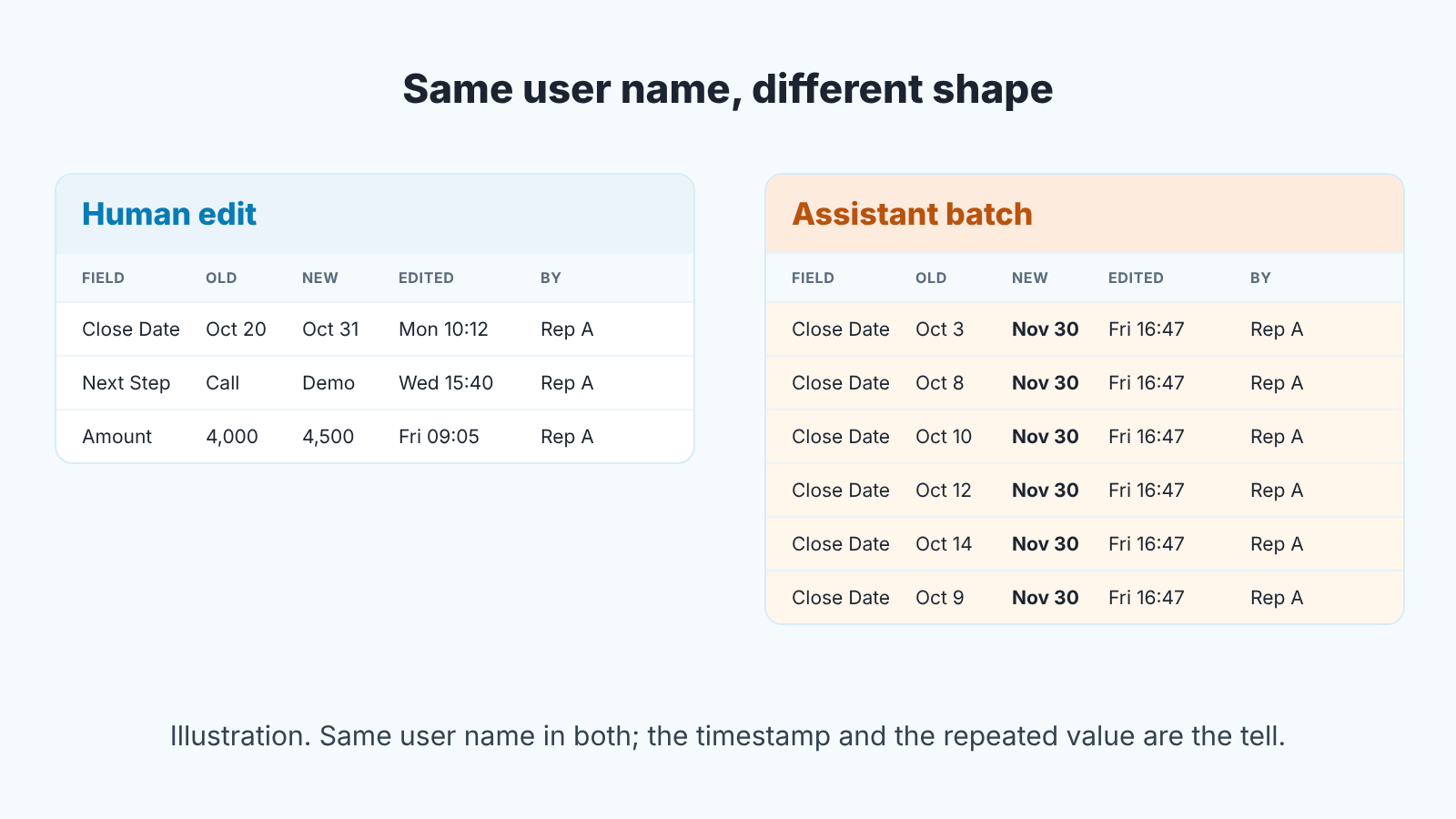
None of this means the edit was wrong. Maybe those ten deals really were dead and teh rep was right to move them. What matters is that you now know a batch happened, and you can ask one question in the pipeline meeting instead of discovering it when the quarter closes. If you are in the habit of reviewing deals field by field, the opportunity audit covers the quality side; this article is only about the assistant’s footprints.
Start read-only
Our position: for a team of three to ten reps, enable SObject Reads first and leave Mutations off until the three checks above are something you actually do every week, not something you intend to do. We say this because an assistant does not get tired. A rep who has to click through twenty records to push twenty dates will stop at the ones that need it. An assistant will do all twenty in the time it takes to read the prompt, and it will do it again tomorrow if asked. Speed without visibility is where the forecast quietly drifts.
Reads alone already carry most of the value for a small team. “Which of my deals have no next step”, “summarise this account before my call”, “what changed in my pipeline this week”: all of that is reading. Nobody loses a thing by starting there.
When you do switch Mutations on, do it narrowly. Keep Deletes off; Salesforce positions Mutations as the middle ground for teams that want agents to log notes, create tasks and update stages without permanent deletion (SObject Mutations). Consider letting the assistant create tasks and notes before it touches Stage, Close Date or Amount, since a wrong task is annoying and a wrong Close Date is a wrong forecast. And ask the admin to turn on Field History Tracking the same day Mutations go live, not a month later. We went through the equivalent decision for Pipedrive in what to let Claude and ChatGPT write to your CRM; Salesforce gives you better audit tools, which is one more reason to use them.
Here is what I would say on the next planning call, word for word: “The assistant is on. From now on, if you let it change a stage or a date, tell me in the deal note. I am going to read the field history every Monday, and I would rather hear it from you first.” It is the same thing you would say to a new hire with CRM access, and the reps will take it that way.
A month in, you will know more than any setup guide can tell you: how often the assistant writes, which rep leans on it, and whether the batches it makes are the kind you would have approved. If the field history reads clean, loosen the leash. If it does not, you found out in a report instead of in the forecast review.
A disclosure, since this is the part where tooling comes up: we build SalesBond, a sales management layer on top of the CRM a team already uses; we started with Pipedrive. Deal Health checks every deal in the monitored scope against more than 20 rules, scores it and shows the specific violations with what to do about each. It does not spot batch edits and does not read your chat with the assistant; the field history does the first part, and the conversation with your rep does the second. Check your CRM with SalesBond if you want the rule checks without building them yourself.