
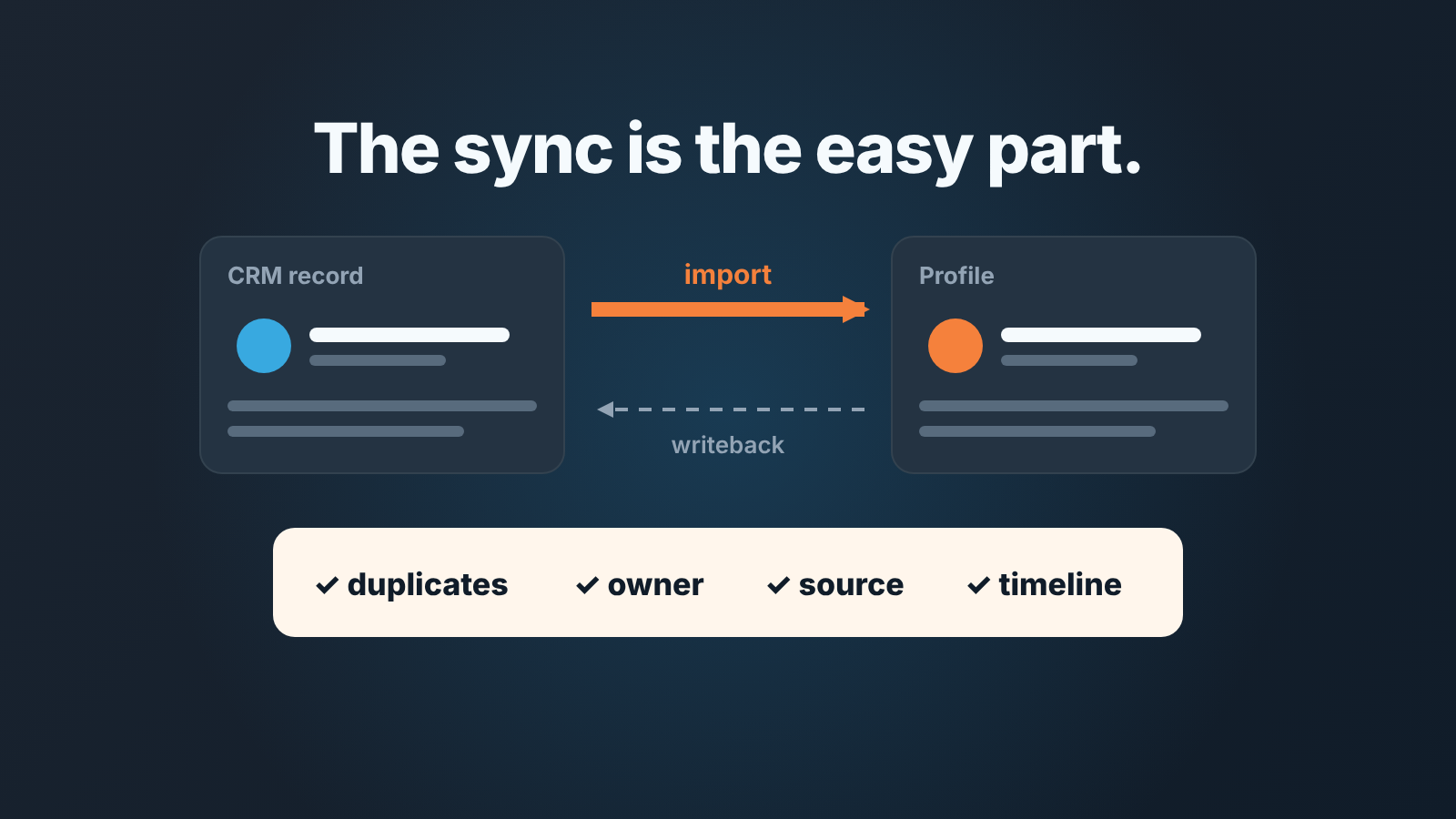
The LinkedIn Sales Navigator HubSpot integration comes in two pieces: an Embedded Profile, which shows LinkedIn data inside a HubSpot record, and CRM Sync, which moves contacts, companies and deals from HubSpot into Sales Navigator and writes Sales Navigator activity back to HubSpot. Both need the Sales Navigator Advanced Plus plan, and CRM Sync is offered for HubSpot, Microsoft Dynamics 365, Oracle Sales and Salesforce (LinkedIn: Integration between Sales Navigator and your CRM). Connecting it is a short admin job. The part nobody writes about is the week after, when records and activities start arriving in HubSpot from a second system, with an owner, a source and a timeline that you did not set by hand. This article is about that week.
Three things called “the integration”
The integration is three separate things that get talked about as one. An Embedded Profile is a view: a panel inside the HubSpot contact or company record that shows LinkedIn information and Sales Navigator insights without leaving the CRM. LinkedIn offers it for HubSpot, Microsoft Dynamics 365, Oracle Sales and Salesforce, and for some non-CRM partners such as Gong. CRM Sync is a data flow from HubSpot into Sales Navigator: it imports the accounts and contacts affiliated to each person in the CRM. Activity writeback is the flow in the other direction, from Sales Navigator into HubSpot, and LinkedIn lets you keep it off while the import stays on (LinkedIn help, “CRM Sync”). LinkedIn’s own setup order is: install the Sales Navigator app package for your CRM, add Embedded Profiles and Embedded Experiences, then enable CRM Sync and writeback.
Keep the distinction in your head when a rep says “we’re integrated”. A team with Embedded Profiles only has changed nothing in its HubSpot data. A team with CRM Sync and writeback on has a second system writing into the CRM, and that is the setup the rest of this article is about.
Who actually gets CRM Sync: Advanced Plus only
Advanced Plus users, and nobody else. LinkedIn’s help page says it under “Who can use this feature”: integration between Sales Navigator and your CRM is only available for Sales Navigator Advanced Plus users, and Embedded Profiles and Embedded Experiences carry the same limit (LinkedIn help). If your reps are on Core or Advanced, the CRM question is already answered: Sales Navigator lives in one browser tab, HubSpot in another, and whatever lands in the CRM is typed by a person or pulled in by a third-party extension. We covered the extension route for Salesforce in which Chrome extensions can edit your deals, and the same questions apply to any browser add-on that writes to HubSpot.
The HubSpot side has its own entry ticket, and it is easy to miss when you budget for the LinkedIn upgrade. HubSpot’s help article for the LinkedIn CRM Sync app requires an assigned Sales Hub Professional or Enterprise seat, and installing the app takes a Super Admin or a user with App Marketplace access (HubSpot: Connect HubSpot and LinkedIn Sales Navigator via CRM Sync). One HubSpot account connects to one Sales Navigator environment at a time.
Then there is the per-user step. The admin install starts the data sync, but writeback only works for reps who have each connected their own Sales Navigator account to HubSpot from the CRM settings in Sales Navigator (same HubSpot article). So plan for an admin afternoon followed by a round of “please click Connect to CRM” messages to the whole team, not one switch.
The LinkedIn page lists the CRMs with full support (CRM Sync, Embedded Profiles, Embedded Experiences) as HubSpot, Microsoft Dynamics, Oracle Sales and Salesforce, and a second group with embedded features only: Pega, SAP and SugarCRM for Embedded Profiles, Freshworks for Embedded Experiences. Pipedrive and Zoho CRM are not in either table. For a Pipedrive team the practical route is the one in the LinkedIn conversation your Pipedrive deal knows nothing about: a logged activity, not a sync.
What lands in HubSpot and what stays in LinkedIn
LinkedIn’s general help page stops at “select data”. The detail is in two other places: HubSpot’s help article for the app, and LinkedIn’s CRM Sync for HubSpot enablement guide, linked from Get started with Sales Navigator and your CRM. Between them, the picture is this.
| Direction | What moves | What it means for HubSpot data |
|---|---|---|
| HubSpot to Sales Navigator | Contacts (as leads), companies (as accounts), deals (as opportunities), owners | Nothing changes in HubSpot; reps see their book inside LinkedIn |
| Sales Navigator to HubSpot, activity writeback | InMails and messages sent and received, notes on a lead or contact, call logging, connection requests sent, Smart Link views | New activities on the contact timeline |
| Sales Navigator to HubSpot, contact creation | New contacts created from Sales Navigator, updates to existing ones | New records, with an email address and an account attached if that setting is on |
Two details from HubSpot’s article change how you read the first week. Only new and updated records sync after the sync is switched on, so an old contact nobody has touched may not show up in Sales Navigator at all until someone edits it. And the field mapping is all or nothing: you cannot turn off individual mappings, and the only way to stop the data sync is to uninstall the app.
The import does not need writeback. LinkedIn states that CRM Sync can bring accounts, contacts and leads into Sales Navigator with activity writeback off, and for a team that wants its book inside LinkedIn but not a second writer in HubSpot, that is the setting to start with.
One more thing. LinkedIn’s guide notes that writeback activity appears in the HubSpot timeline only when the LinkedIn option is selected in the timeline’s activity filter. A rep who says “the sync isn’t logging anything” may just be looking at a filtered timeline.
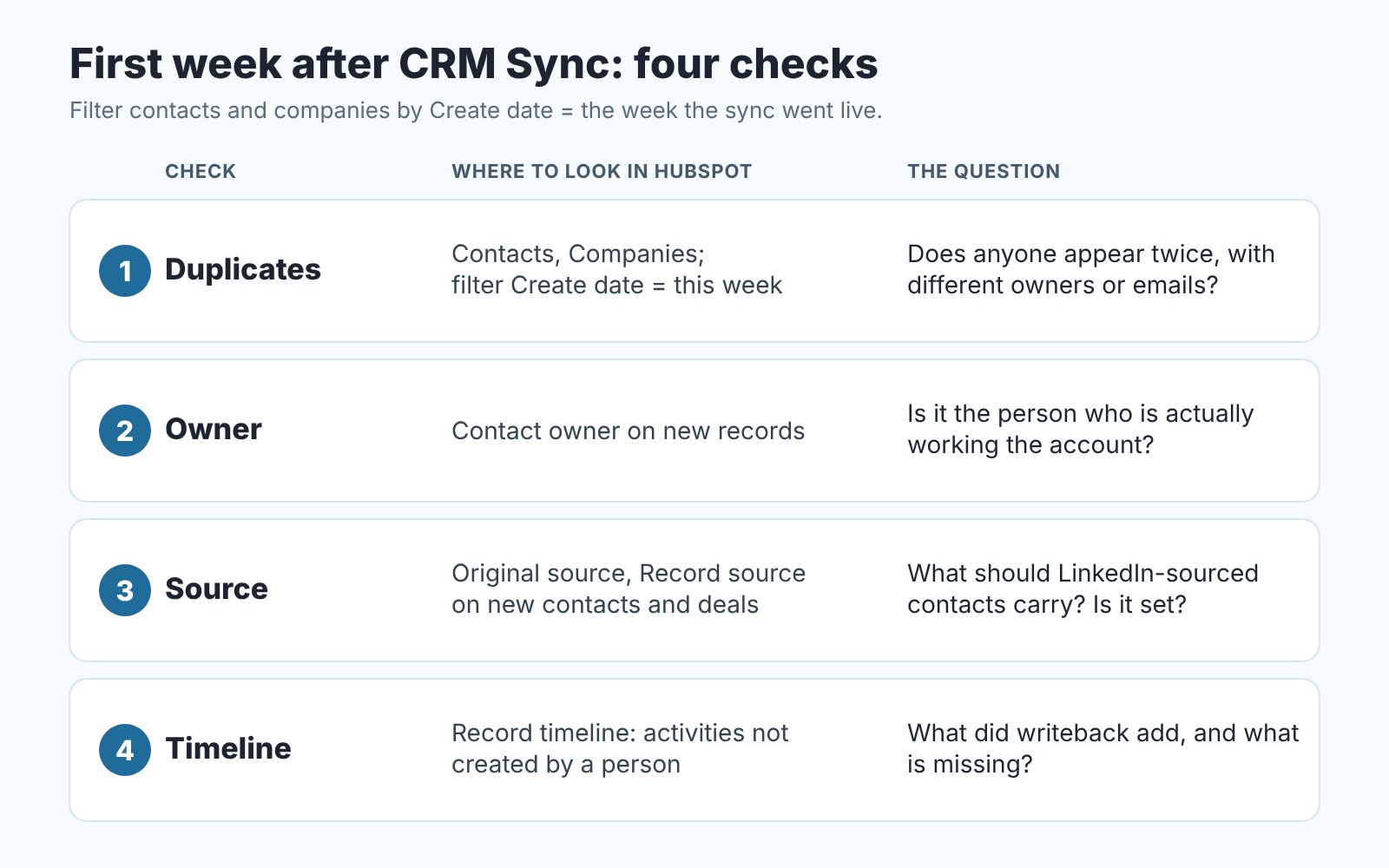
Four checks after the first week: duplicates, owner, source, timeline
Pick a Friday, open HubSpot, and filter contacts and companies by Create date for the week the sync went live. Then run four checks, in this order, because each one changes what the next one means.
1. Duplicates
The first thing a new writer into a CRM produces is pairs. When a rep logs a message from Sales Navigator, LinkedIn asks whether to find the existing CRM record or create a new one, and a rep in a hurry who misses the match creates a second contact. Companies have their own version of the problem: LinkedIn’s guide lets reps edit an account match because a lead can be matched to the wrong HubSpot company. In the filtered view sort by last name and read the list once. Anything that appears twice with different owners or different emails is a merge decision for the rep who owns the deal, this week, before a sequence or a report picks the wrong copy. HubSpot’s own duplicate tools are covered in how we clean duplicates in HubSpot’s data quality command center, and the weekly routine there works for sync-created pairs as well.
2. Owner
Every new record has a Contact owner, and the question is whether its the person who is actually working the account. If new records are unowned, or all owned by one person, your Monday owner views are wrong from day one and nobody notices until a deal goes to the wrong rep. Write down the rule you want (the rep who created the record in Sales Navigator owns it, or the existing company owner inherits new contacts) and hold the week-one records against it. Fix the exceptions by hand and note how many there were.
3. Source
Open Original source and, where you use it, Record source on the new contacts and on any deal created this week. Source is the field your conversion reporting rests on, and a contact created by an integration did not come through a form or a campaign, so decide now what LinkedIn-sourced contacts should carry. Set that rule before there are two hundred of them. This is also where lead status and lifecycle stage matter: a contact that arrives with no lead status is not a lead yet, whatever the integration calls it.
A disclosure, since this is the check we care most about: we build SalesBond, a sales management layer on top of the CRM a team already uses. Deal Health checks every deal against more than 20 rules, data and ownership rules among them, so a week of sync-created deals with gaps shows up as a list instead of a surprise in teh quarterly report. The fix is still a HubSpot property, set by a person. If you want that list without building the filter, check your CRM with SalesBond.
4. Timeline
Open five of the new contacts and read the timeline with the LinkedIn activity filter on. You are looking for two things. First, what writeback added: InMails, messages, notes and connection requests show up as activities, and the question is whether they help or bury the real call notes. Second, the gaps. A rep who says “I messaged her on LinkedIn on Tuesday” with nothing on Tuesday in the record has either not connected their own account to HubSpot, or sent the message outside Sales Navigator, where writeback never sees it.
Write the four answers down in one note. That note is your actual integration documentation and it is more useful than the setup guide, because it describes your data.
When a lighter setup is enough
We would not push a five-person team onto Advanced Plus for the sync alone. The pieces that change rep behaviour, the embedded profile in the record and the book of business inside Sales Navigator, are convenience. The piece that changes your data is writeback, and it’s the one that creates the four checks above.
The lighter version is the one we already use with Pipedrive teams, and it transfers to HubSpot without changes: log three LinkedIn moments as an activity on the contact, with one line of text. They replied. You agreed a next step. They went quiet. That is the routine in the LinkedIn outreach log, and in HubSpot it is a logged activity with the next step in the note and a task for the follow-up. It costs a rep one line of typing per conversation, it keeps the owner and source fields in the hands of the person who talked to the buyer, and it creates no duplicates because nothing is created automatically.
Where does the full sync earn its place? A team already paying for Advanced Plus and Sales Hub Professional, a HubSpot admin who will own the app, and a manager who will run the four checks for the first month. Without the third one, you have bought a second system that writes into your CRM and nobody reads what it wrote. If you run HubSpot sequences on contacts the sync creates, add enrolment to the week-one check too: a contact with the wrong owner and no source is exactly the one a workflow enrols and the wrong rep emails.


